

A client's billing details and charges
Each seller’s invoices are made out from their billing details, and every new invoice starts with their standard charges. You fill these in once per client. Staff can also change them from a draft invoice with Edit billing details.
Before you start
Section titled “Before you start”- The client exists (see Add and edit clients).
- Your own payment details are filled in on Settings: Billing.
-
Open Admin → Clients and click Billing on the client’s row (on a phone: Billing details). The window “Billing details · Kōrin Skincare” opens (with the client’s name).
-
Fill in the bill-to details: at least Company name and Address line 1. An invoice can’t be sent without them.
-
Type the billing Email. Invoices and receipts are emailed there.
-
In CC emails, add up to 5 more addresses that also get the emails, separated by commas.
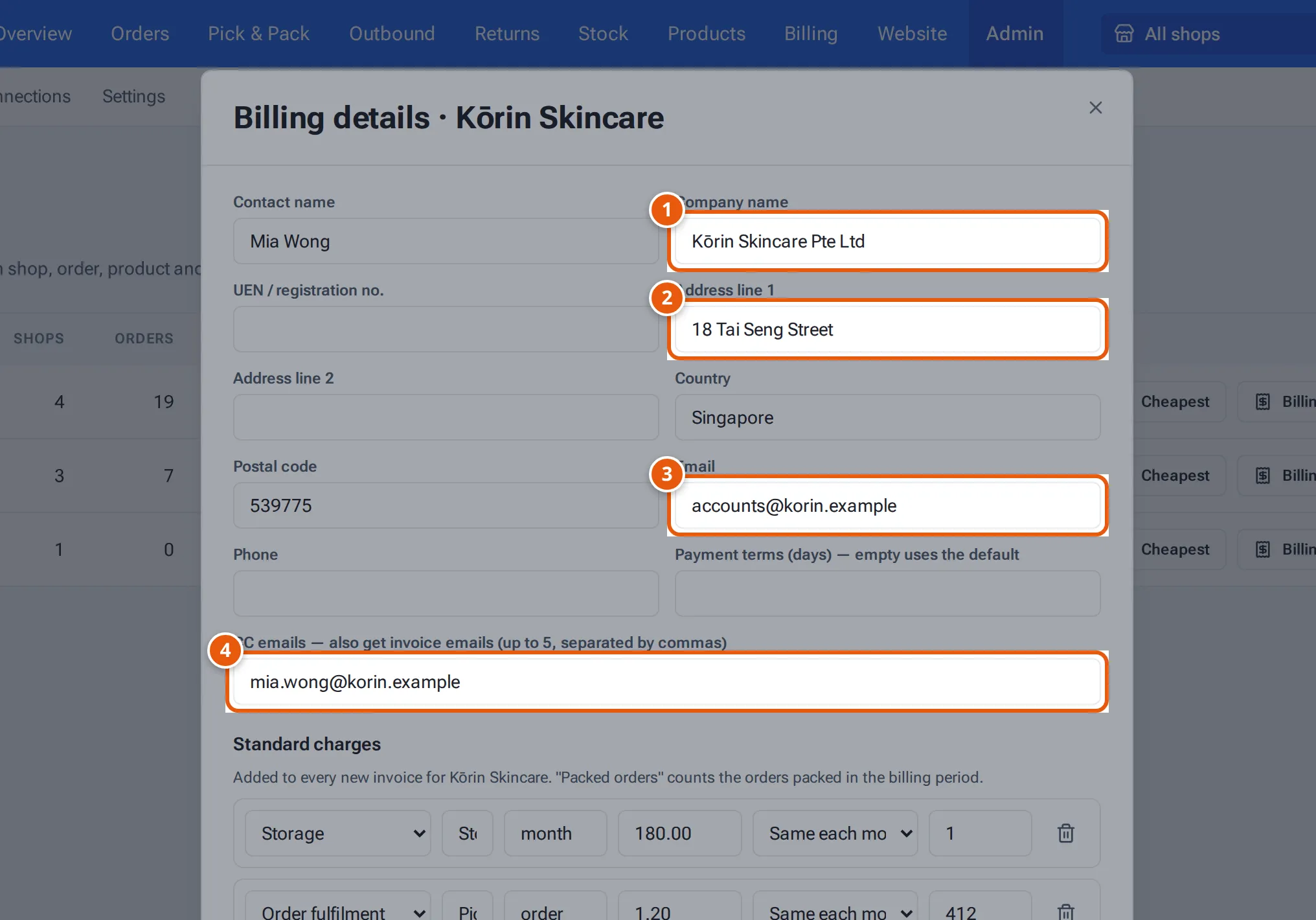
- 1. Who the invoices are made out to.
- 2. The company name and address must be filled in before an invoice can be sent.
- 3. The billing email: invoices and receipts are emailed here.
- 4. Up to 5 more addresses that get a copy.
Tap or click the picture to open it full size. -
Under Standard charges, set up the charges. For a new client with no charges you can click Start from the invoice template to add your usual nine lines (pallet storage, rack storage, order processing and so on), then change the rates.
-
Click Add charge for each extra charge, and the bin to remove one.
-
Click Save billing details. You see “Billing details saved.”
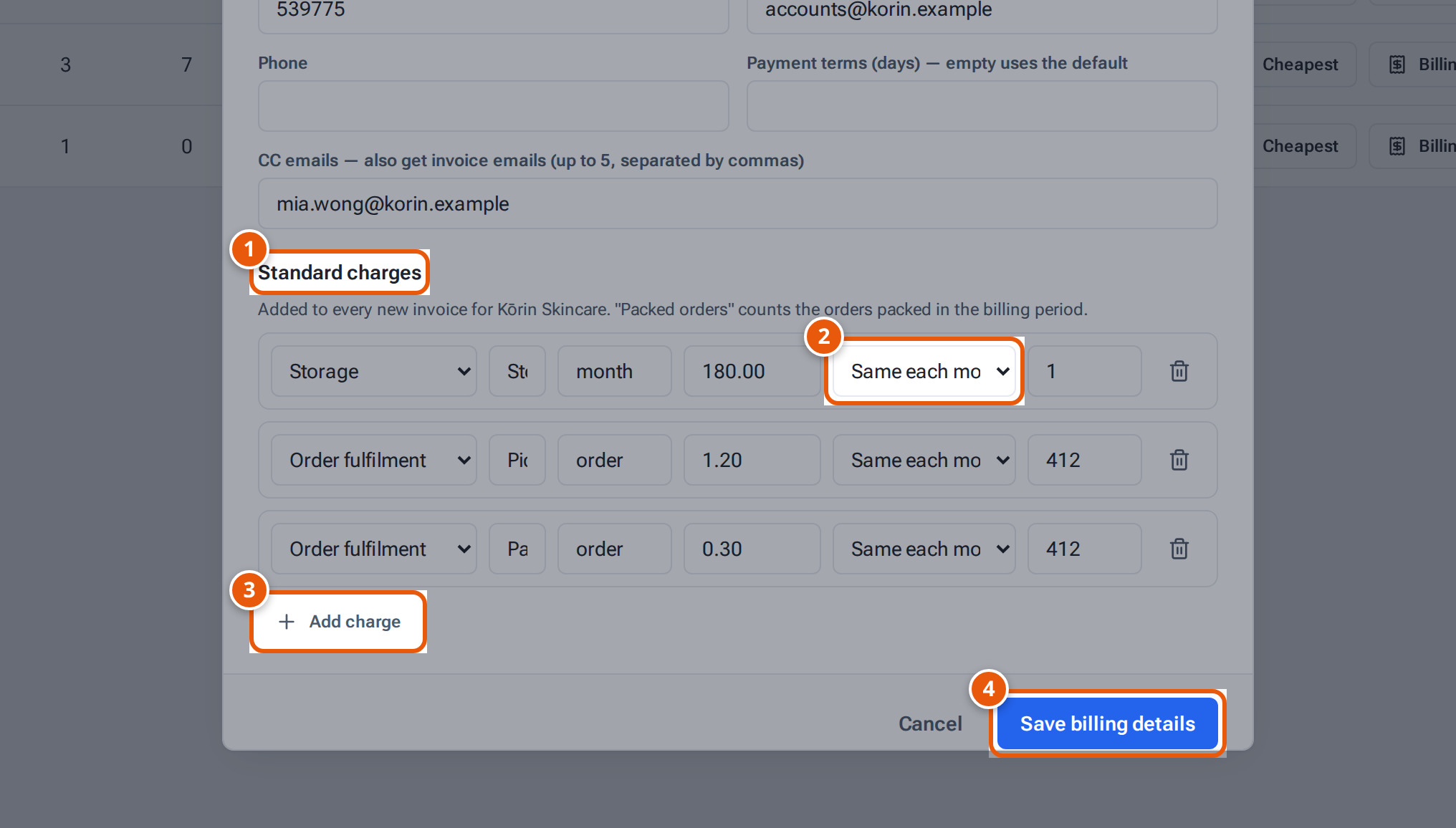
- 1. Charges added to every new invoice for this seller.
- 2. How the quantity is set: the same each month, the packed orders, or entered each time.
- 3. Add another charge.
- 4. Save the details and charges.
What each button and field means
Section titled “What each button and field means”| Item | What it means |
|---|---|
| Contact name, Company name, UEN / registration no., address, Country, Postal code, Phone | Printed in the BILL TO box on each invoice. |
| The billing email. Invoices and receipts go here. With no email, nothing is emailed. | |
| Payment terms (days) — empty uses the default | Days to pay for this seller. Leave it empty to use the days set in Settings → Billing. |
| CC emails | Up to 5 addresses that get a copy of every invoice and receipt email. Commas, semicolons or spaces separate them. |
| Section | Where the charge goes on the invoice: Storage, Order fulfilment, Inbound, B2B manual handling, or Miscellaneous & value-added services. |
| Description, unit, rate | What the line says, its unit (e.g. order, month) and its price in SGD. |
| Same each month | The same quantity every month (type it in the box next to it). |
| Packed orders | The number of the seller’s orders packed in the billing month. |
| Enter each time | Starts at 0; staff type the quantity on each invoice. |
Changes apply to invoices made after you save. Invoices already made keep their lines.
If something goes wrong
Section titled “If something goes wrong”| Message | Why | What to do |
|---|---|---|
| “Check the rate on line 2 (e.g. 20.00)” | A rate isn’t a money amount. | Type a number like 20.00. |
| “Check the quantity on line 2” | A fixed quantity isn’t a number. | Type a number. |
| “Add up to 5 CC emails” | More than 5 CC addresses. | Remove some. |
| ““…” isn’t a valid email address” | One CC address has a typo. | Fix that address. |
| “Payment terms must be 1 to 365 days” | The days are out of range. | Enter 1 to 365, or leave it empty. |
| “Charges must be a list of up to 50” | Too many charges. | Keep 50 or fewer. |