

Platform: Templates
Platform → Templates (the page title is Website templates) lists the themes operators can choose from. An operator’s own private design is not listed here. Hidden templates stay on sites that already use them but no longer appear in the picker.
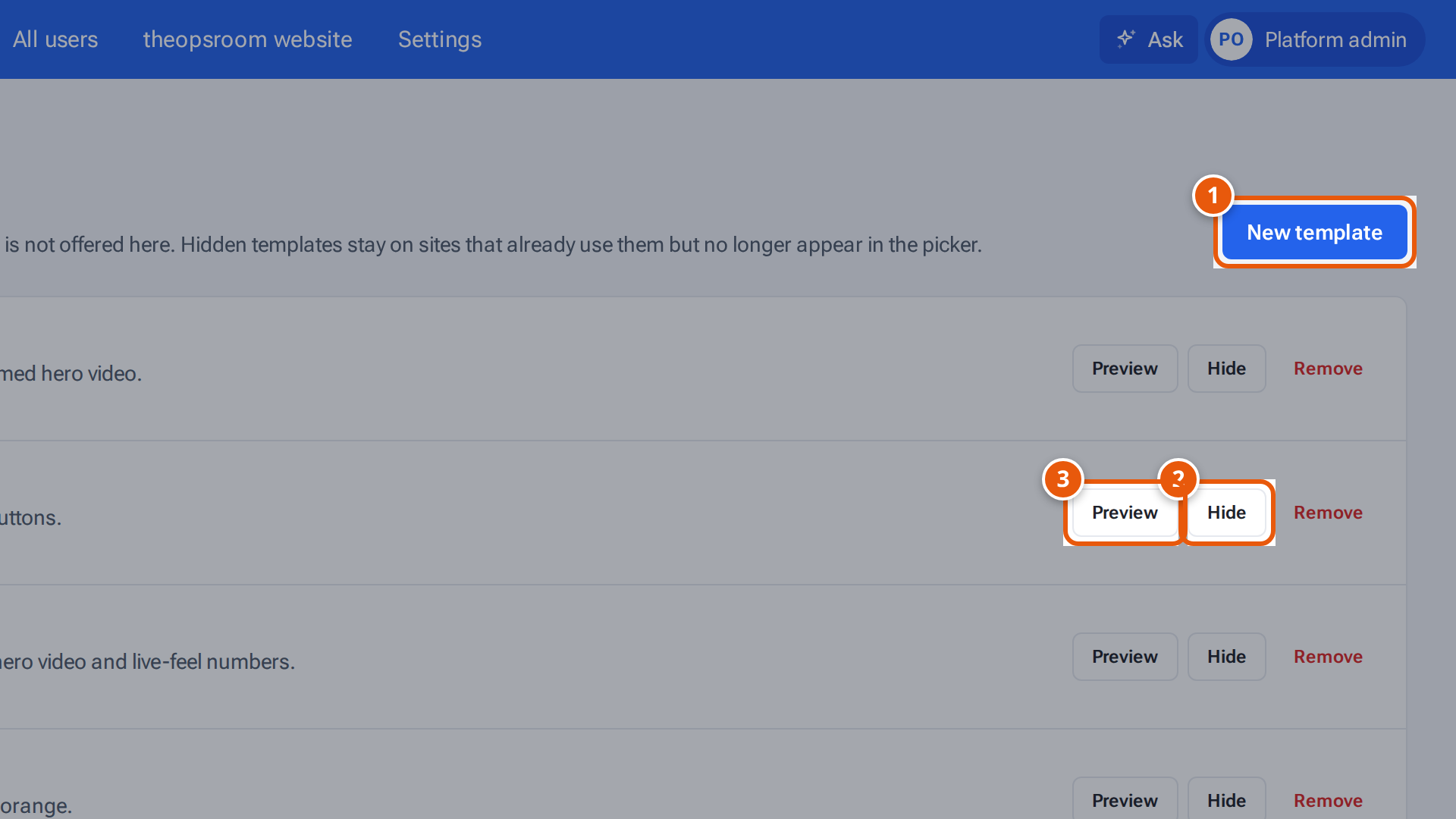
- 1. Design a new template.
- 2. Hide a template from new choices; sites already using it keep it.
- 3. Preview a template.
The list
Section titled “The list”Each row has a small picture, the template’s name, a badge, a short description and how many websites use it (“Used by 1 website”, “Used by 3 websites” or “Used by no websites”).
| Badge | What it means |
|---|---|
| Draft | Still being checked. Only platform admins see it. |
| Available | Operators can choose it. |
| Hidden from picker | Operators can’t choose it, but sites already using it keep it. |
What you can do
Section titled “What you can do”| Button | What it does |
|---|---|
| Preview | Shows the sample site in that template’s own colours, fonts and pictures. Built-in templates have this. |
| Edit | Opens the designer for a template the platform designed. |
| Make available / Hide | Switch between Available and Hidden from picker. |
| Remove | Deletes the template for good. Type its name to confirm. A template that any website uses can’t be removed: hide it instead. |
Design a new template
Section titled “Design a new template”Press New template. It works like an operator designing their own, with the same designer: see Design your own template. A template you design starts as Draft. When it is ready, press Make available.