

Gift lists (freebie files) and untracked gifts
A gift list is your own spreadsheet of which orders get which gift, for example a live stream’s winners. theopsroom reads it, shows you what it will add to which orders, and adds the gifts once you confirm. An untracked gift is a loose item with no SKU and no stock count, such as a printed card. Packers just add it.
Steps: upload a gift list
Section titled “Steps: upload a gift list”- Open Products → Gift lists and click Upload a file.
- Choose the file (.xlsx or .csv, up to 5 MB). Any layout works: theopsroom works out the columns.
- Under Which list is it? pick A new list named … (type a name), or a new version of an existing list (theopsroom suggests one when the order IDs overlap).
- Click Read the file. “Nothing changes on any order yet.” The check page opens.
- Under How theopsroom read the file, check the order column and gift columns. If they’re wrong, change them and click Read it this way.
- Under Gift names, confirm what each gift name in the file gives: Use this (accept the suggestion), Pick a product, Untracked gift…, or Ignore. theopsroom remembers your choices for the next file.
- Look at the order tabs (Changes, Waiting, Packed, Problems …) and pick the order for any row that needs it.
- Click Apply version …. The gifts are added to the orders.
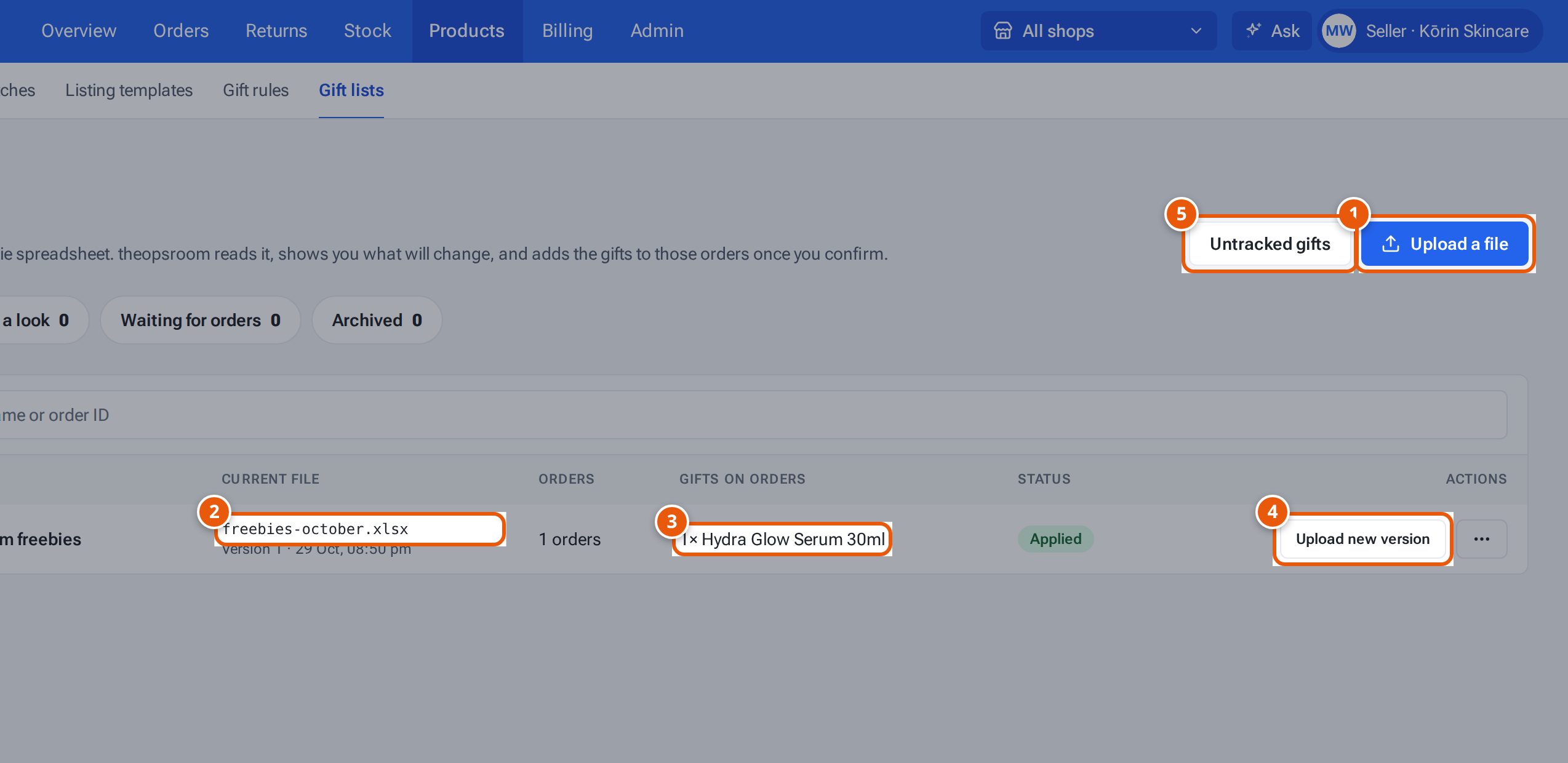
- 1. Upload your freebie spreadsheet (for example a live-stream’s winners).
- 2. The file in use, and its version.
- 3. The gifts it added to orders.
- 4. Upload the changed file. You see what changes before it’s applied.
- 5. Loose gifts with no SKU, such as cards.
Changing a list
Section titled “Changing a list”Click Upload new version on its row and upload the changed file. The check page shows what’s added, changed or removed. Applying it replaces the earlier version’s gifts. Orders already packed aren’t changed, and gifts someone changed by hand are left alone.
The ⋯ menu has Versions and orders, What the current file says, Rename, Archive (its gifts come off orders not packed yet) and Delete (only for lists never applied).
Steps: add an untracked gift
Section titled “Steps: add an untracked gift”- On Products → Gift lists, click Untracked gifts.
- Type its Name and Where to find it / note for packers (for example “Shelf B2, white box”).
- Click Add gift.
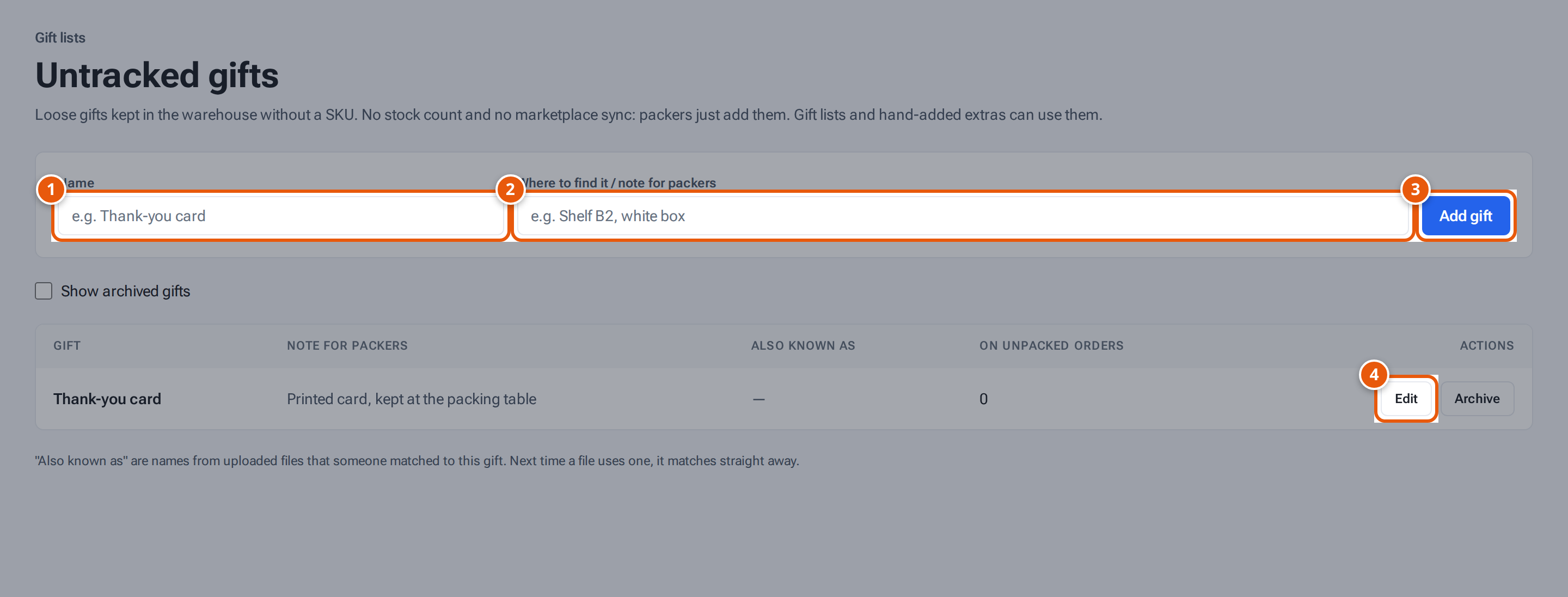
- 1. The gift’s name.
- 2. Where the packers find it.
- 3. Add it.
- 4. Change the name or note; Archive stops gift lists giving it.
You can then give it from a gift list or add it to an order as an extra.
What the statuses mean
Section titled “What the statuses mean”| Status | What it means |
|---|---|
| Applied | The current file’s gifts are on the orders. |
| Needs a look | An upload waits for you to check and apply it (Review and apply). |
| Waiting for orders | Some order IDs haven’t arrived in theopsroom yet; they get their gifts when they do. “… never arrived” means check the ID. |
| All packed | Every order is packed. |
If something goes wrong
Section titled “If something goes wrong”| Message | Why | What to do |
|---|---|---|
| “Confirm … gift name(s)” | Some names don’t say what they give. | Choose for each under Gift names. |
| “Pick the order for … row(s)” | A row matches more than one order. | Pick the order in the row’s list, or Leave this row out. |
| “AI reading isn’t set up — pick the columns” / “Today’s AI reads are used up — pick the columns” | theopsroom can’t read the layout by itself. | Choose the Order column and gift columns, then Read it this way. |
| “Over the extras limit” | An order would have more than 20 extras. | Remove some by hand. |
| “This list changed since you opened the preview — check it again” | — | Reload and check again. |
| “There’s already an untracked gift with that name” | — | Use the existing one. |