

Make and send an invoice
Billing holds every seller’s invoices. You make a draft for a month, check each line, preview the PDF and send it. Sending gives the invoice its number and emails it to the seller.
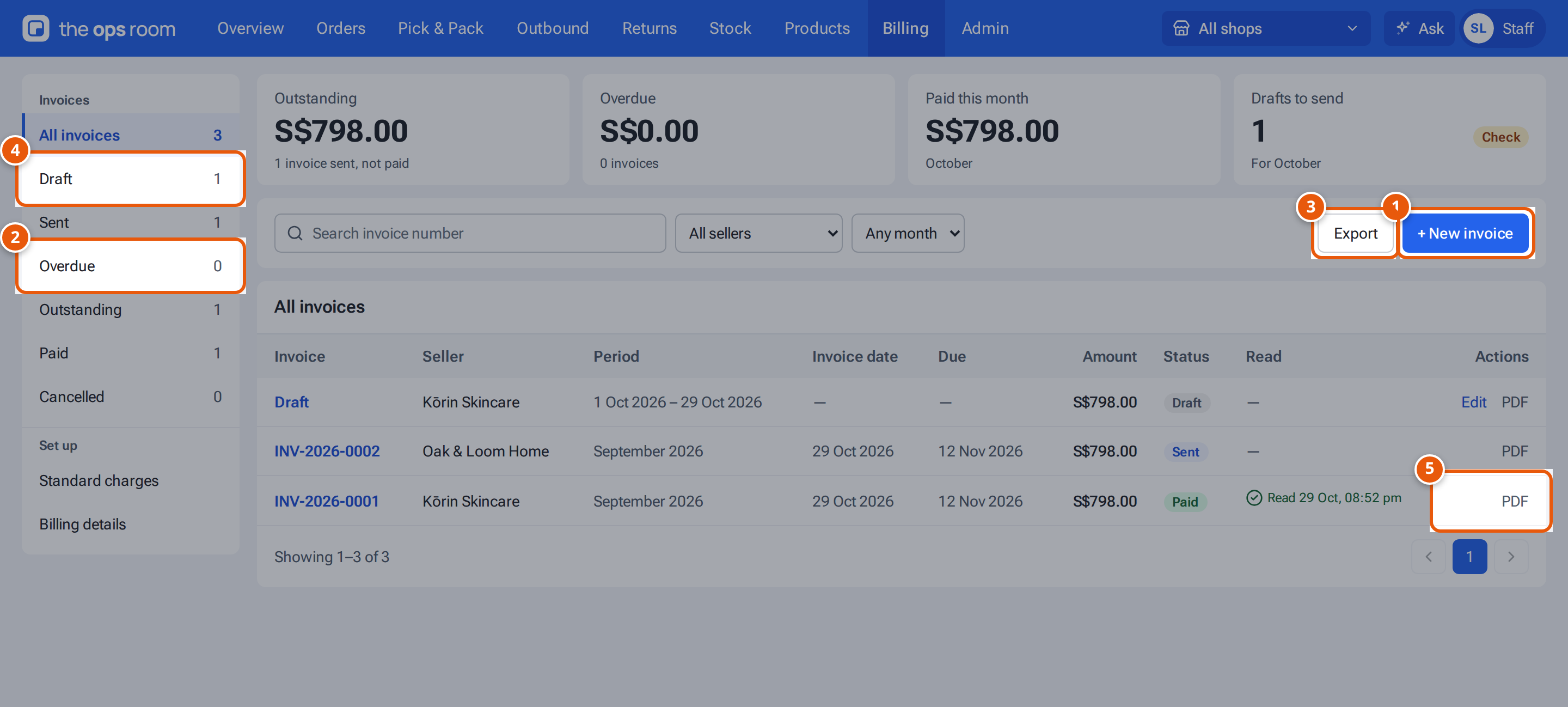
- 1. Start a seller’s invoice for a month.
- 2. The status menu, with counts. The four cards above (Outstanding, Overdue, Paid this month, Drafts to send) open the same lists.
- 3. Download the invoices you are looking at as a CSV.
- 4. A draft, not yet sent. Click to open it.
- 5. When the seller first opened the invoice.
Before you start
Section titled “Before you start”- An admin has filled in the bank details in Settings: Billing.
- The seller has billing details (company name and address, and an email for the invoice to go to) and standard charges. See A client’s billing details and charges. From a draft you can also press Edit billing details.
Create the draft
Section titled “Create the draft”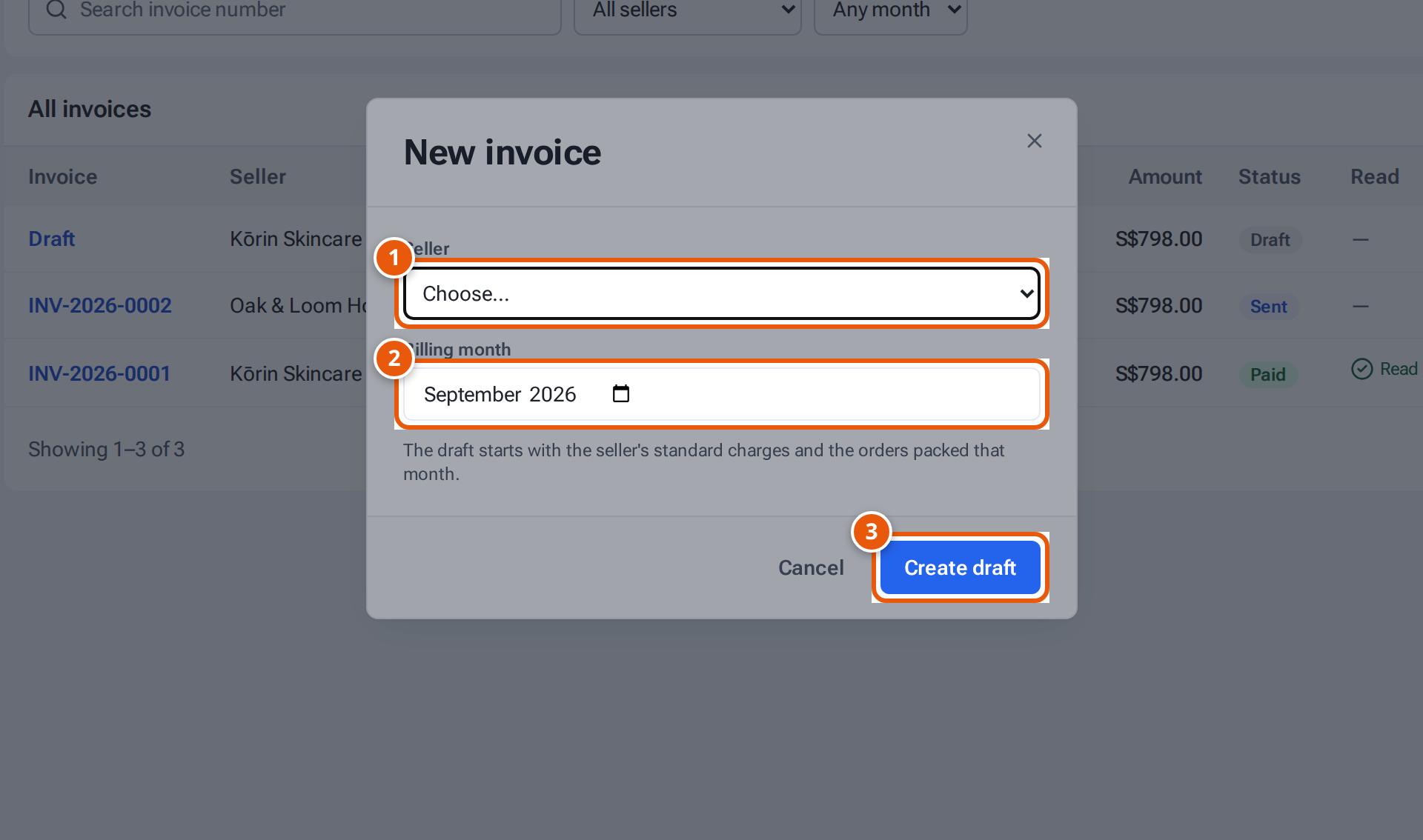
- 1. The seller to invoice.
- 2. The month (last month at first).
- 3. Make a draft with the seller’s standard charges and the orders packed that month.
- Open Billing and press New invoice.
- Choose the Seller and the Billing month (last month at first).
- Press Create draft. The draft opens. It starts with the seller’s standard charges and the orders packed that month. Parcels booked with EasyParcel, and bookings on the seller’s own courier account, get their own lines.
Check and send it
Section titled “Check and send it”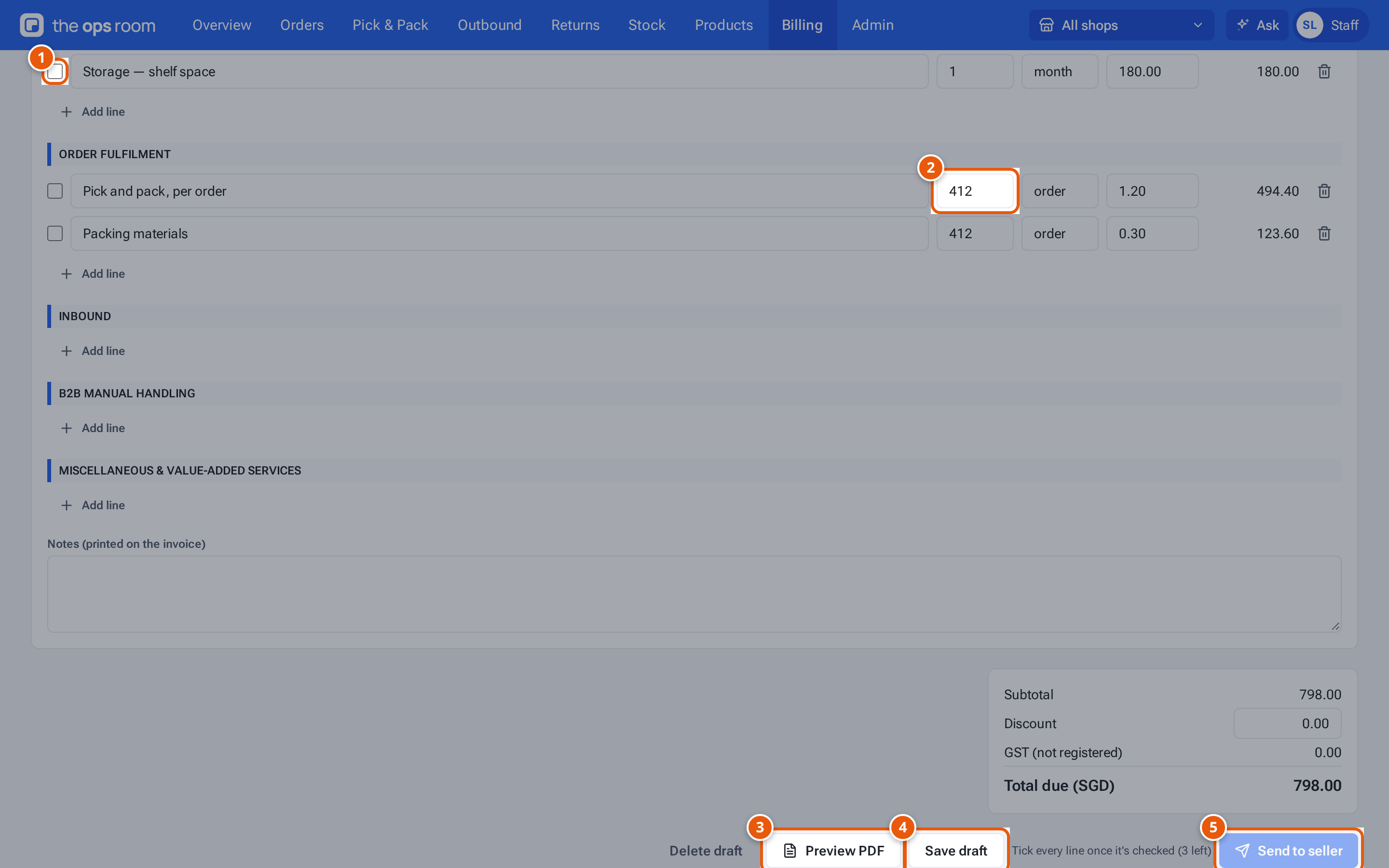
- 1. Tick each line once you have checked it.
- 2. Change a quantity, rate or description if it’s wrong.
- 3. See the invoice as the seller will.
- 4. Save and come back later.
- 5. Send it: it gets its number and is emailed to the seller.
- Check each line. Change the Description, Qty, Unit or Rate if needed (changing a line un-ticks it). Press Add line under a section to add a charge; the bin removes a line.
- Tick Tallied on each line once you’ve checked it. The hint says how many are left: “Tick every line once it’s checked (3 left)”.
- Add a Discount or Notes (printed on the invoice) if needed.
- Press Save draft to keep your work (“Draft saved.”), or Preview PDF to see the invoice as the seller will.
- Press Send to seller. It works once every line is tallied and the bill-to is complete. The invoice gets its number (such as INV-2026-0003), today’s date and its due date, and is emailed to the seller’s billing email and CC emails with the PDF attached. You see “Sent to the seller.”
To throw a draft away, press Delete draft (“Delete this draft invoice?”). Sellers never see drafts.
The Billing list
Section titled “The Billing list”On a computer, the menu on the left lists the statuses with their counts: All invoices, Draft, Sent, Overdue (red while any), Paid and Cancelled. Under Set up it links to Standard charges and Billing details. Four cards sit across the top. Click one to see those invoices.
| Name | What it means |
|---|---|
| Outstanding | Sent invoices not paid yet, with how many. |
| Overdue | Sent and past the due date, with how many. |
| Paid this month | Payments received this month. |
| Drafts to send | Drafts waiting for you, and the month they are for. |
| Search invoice number, Seller, Billing month | Filters. They apply to the list and to Export. |
| Export | Download the invoices you are looking at as a CSV, across every page. |
| Read | When the seller first opened the invoice, or “—” if not yet. |
| Edit, Mark paid, PDF | A row’s actions. Edit is for drafts. Mark paid is for admins. |
Admins: Mark paid on a sent or overdue row records the payment in one click (“INV-2026-0003 marked paid”). The notice has Undo if you pressed it by mistake. More in Mark an invoice paid, and delete invoices.
If something goes wrong
Section titled “If something goes wrong”| Message | Why | What to do |
|---|---|---|
| “Kōrin Skincare already has an invoice for September 2026” | That month is already invoiced. | Open the existing invoice. |
| “Tick every line once it’s checked (2 left)” | Some lines aren’t tallied. | Check and tick them. |
| “Add Kōrin Skincare’s company name and address before sending.” | The bill-to is incomplete. | Press Edit billing details. |
| A message asks you to add the bank name and account number in Settings → Invoicing first | The bank details are missing. | Ask an admin. |
| “Check the rate on line 2 (e.g. 20.00)” | A rate isn’t a valid amount. | Fix it. |
| “Check the quantity on line 2 (up to 2 decimals)” | A quantity isn’t valid. | Fix it. |
| “Add a description on line 2” | A line has no description. | Add one. |
| “The discount can’t be more than the subtotal” | The discount is too big. | Lower it. |
| “Not emailed: add a billing email to this client” | The seller has no billing email. | Add it in the billing details, then Resend email. |
| “Email isn’t set up” | The email service isn’t set up. | Tell an admin. Send the PDF yourself meanwhile. |