

Hand parcels to the courier
Outbound & Shipping shows the packed parcels waiting for their courier. When a driver arrives, you start that courier’s handover, scan each parcel they take, and print a handover sheet for the driver to sign.
On a computer, the menu on the left has Parcels (Waiting for a courier, Handed over today, Past handovers) and Waiting, by courier, each with a count. Four cards sit across the top: Waiting for a courier, Not ready yet, Handed over today and Packed before today. Click one to see just those parcels.
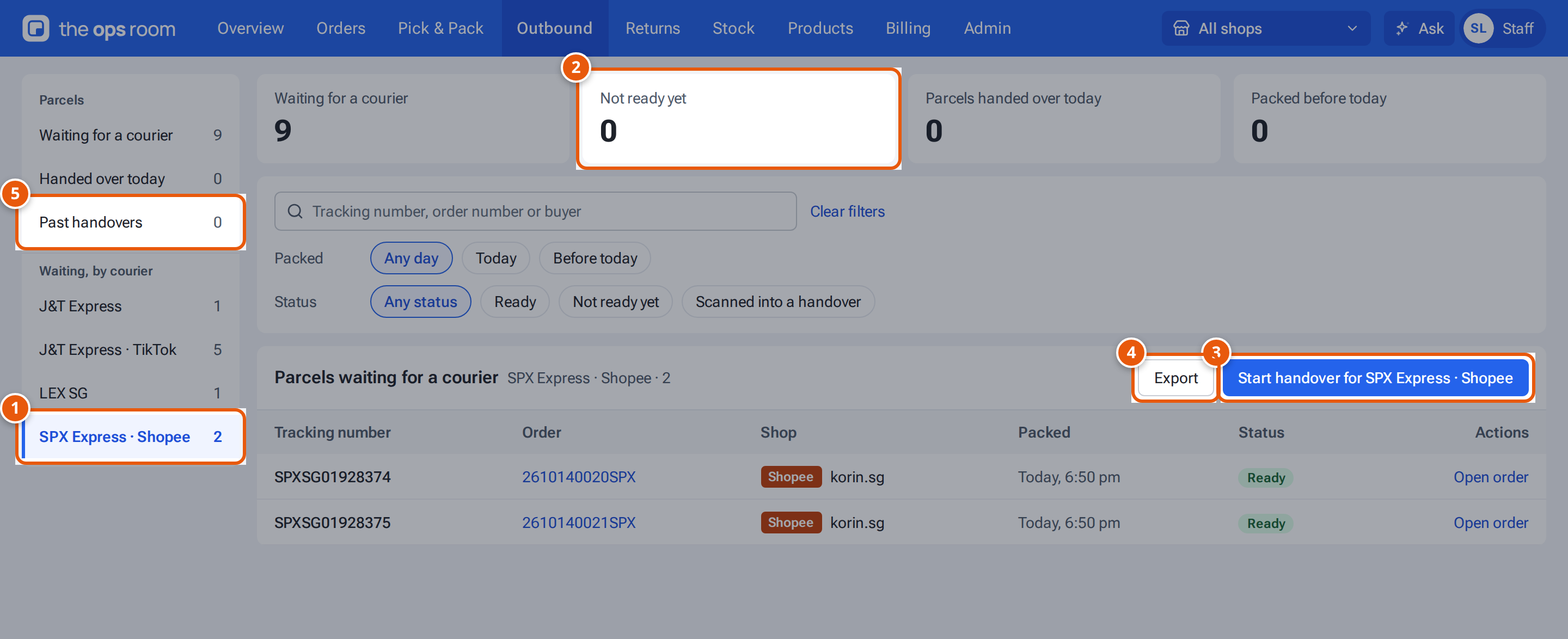
- 1. One entry per courier, with the parcels waiting for it.
- 2. The cards: click one to see just those parcels.
- 3. When the driver arrives: start the handover and scan each parcel they take.
- 4. Download the parcels you are looking at as a CSV.
- 5. Past handovers, to find a parcel or print a sheet again.
Before you start
Section titled “Before you start”Parcels must be packed and ready to ship: marked Ready to ship in Orders, or packed with Mark ready to ship after packing at Pick & Pack. Shopify parcels are ready as soon as they’re packed.
- Open Outbound & Shipping. Under Waiting, by courier in the menu, each courier shows how many parcels wait. TikTok and Shopee parcels have their own entries (such as “J&T Express · TikTok”), and EasyParcel drop-off parcels too (such as “Ninja Van · drop-off”).
- Click the driver’s courier in the menu. Above the table, press Start handover for that courier (it says Continue handover for if one is already open). The handover opens in a panel beside the table: “Handover · SPX Express · Shopee” with how many are handed over and how many are still to go. On a phone, each courier has its own card with Start handover.
- Scan each parcel’s tracking number into Scan a parcel’s tracking number as the driver takes it. It moves from Still to go to Handed over. To take a parcel out again, press the X next to it.
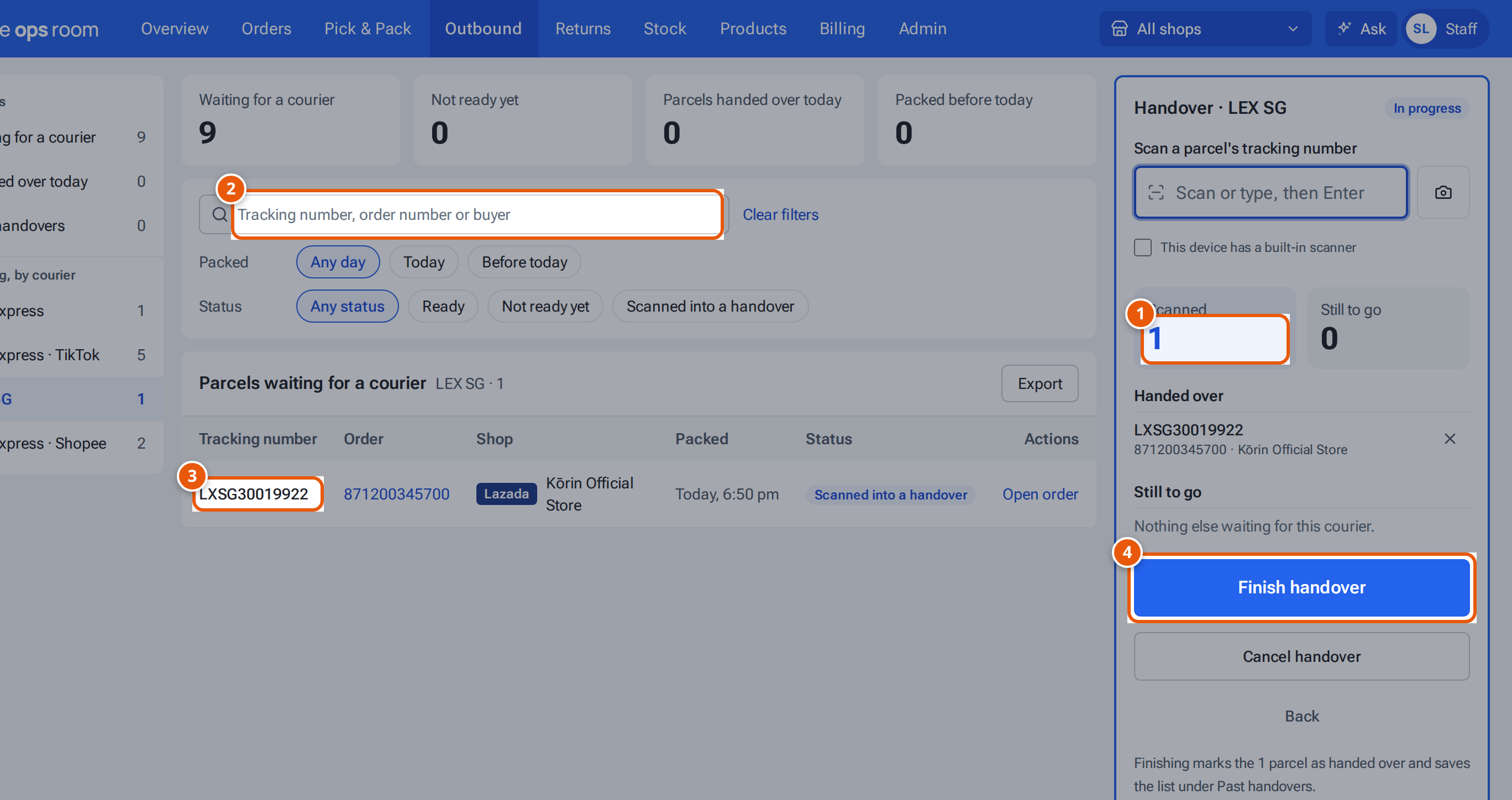
- 1. How many parcels the driver has taken. Still to go is beside it.
- 2. Scan each parcel’s tracking number as the driver takes it.
- 3. A parcel already scanned (press its X to take it out again).
- 4. When the driver has everything: finish, and the handover sheet opens to print.
On a phone the handover is a screen of its own. Its header shows Back, “Handover in progress”, the courier and the time it started. Two big numbers sit under it: Scanned and Still to go. When parcels aren’t ready, Still to go adds a line such as “2 not ready yet”. Scan into Scan a parcel’s tracking number (the camera button sits in the box). Below are the Still to go list and the Scanned list, newest first, with See all when there are more than five. Tap the × next to a scanned parcel to take it out. The two buttons at the bottom replace the tabs: Finish handover · N parcels and Cancel handover. Back leaves the handover open.
- Press Finish handover in the panel (on a phone, the button at the bottom). The scanned parcels are marked handed over, and the handover sheet opens as a PDF. A notice says, for example, “Handed over 2 parcel(s) to SPX Express · Shopee.”
- Print the sheet. The driver and you write your names and sign it.
Back leaves the handover open to carry on later (the card then says Continue handover). Cancel handover ends it without marking anything handed over. Finishing saves the list under Past handovers.
Sellers see their parcels as “With courier” once every parcel of the order is handed over.
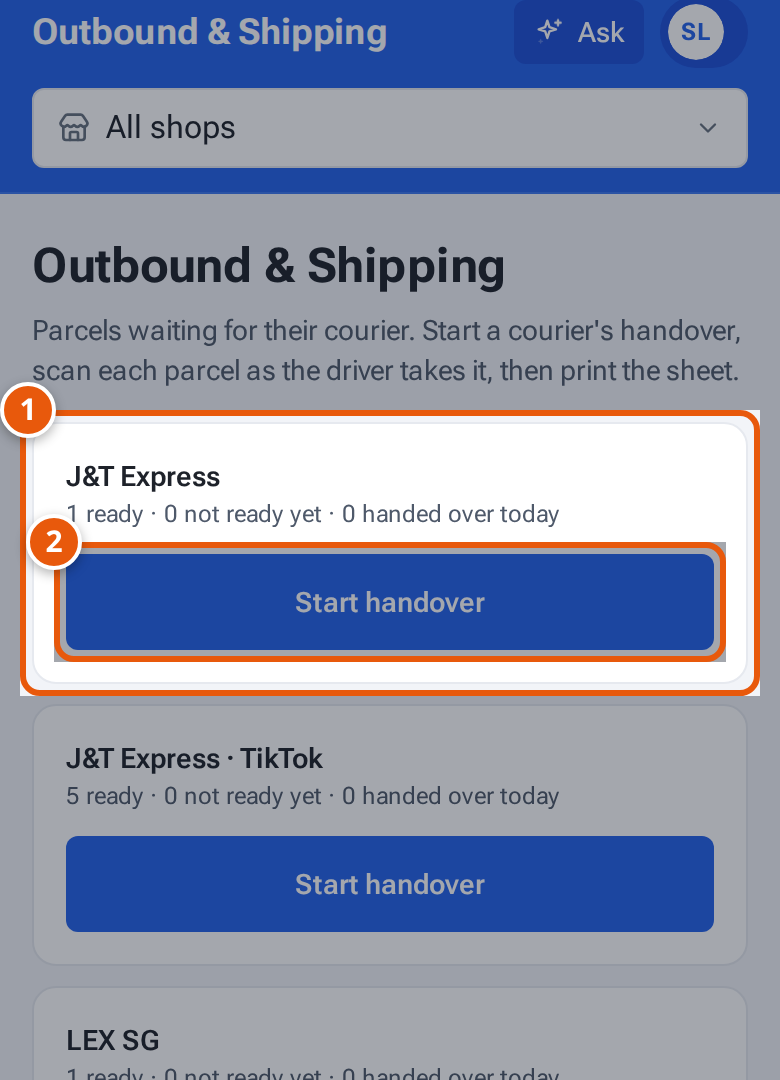
- 1. One card per courier, with how many parcels are ready.
- 2. Start handover when the driver arrives.
Find a parcel
Section titled “Find a parcel”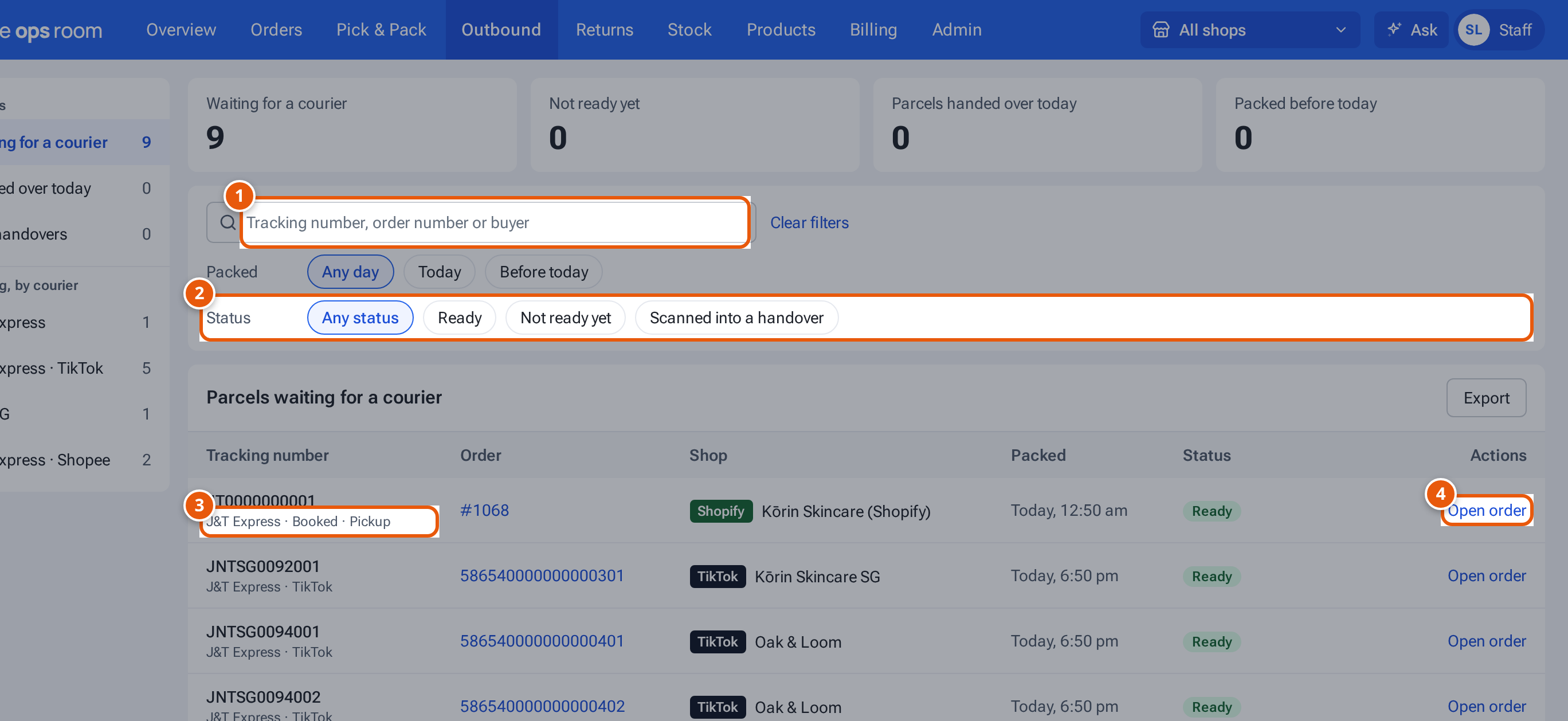
- 1. Find a parcel by order number, tracking number or buyer.
- 2. Show only ready parcels, not ready ones, or ones scanned into a handover.
- 3. An EasyParcel booking: pickup or drop-off.
- 4. Open the order in Orders.
- Waiting for a courier lists every parcel still here. Search by tracking number, order number or buyer, or filter by Packed (“Today”, “Before today”) and Status (“Ready”, “Not ready yet”, “Scanned into a handover”). Open order opens the order in Orders.
- Export above the table downloads the parcels you are looking at as a CSV, with your filters applied.
- Handed over today and Past handovers list handovers. Search a tracking or order number to find the handover the parcel went out in, then press Print sheet to print it again.
What the handover sheet shows
Section titled “What the handover sheet shows”A heading with “Courier handover”, the courier, the date and who handed over, the number of parcels, a table of tracking numbers, orders and shops, and signature boxes for the driver and warehouse staff.
If something goes wrong
Section titled “If something goes wrong”| Message | Why | What to do |
|---|---|---|
| “No parcel matches SPXSG01928374” | The code isn’t a parcel in theopsroom. | Check you scanned the tracking barcode, not another one. |
| “Already scanned” | It’s already in this handover. | Carry on. |
| “Already handed over” | It went out in an earlier handover. | Give it back to the driver only if it really belongs to them. |
| “This is a J&T Express parcel” | It belongs to another courier. | Put it aside for that courier. |
| “Not ready to ship yet — mark it ready first” | It isn’t marked ready to ship. | Mark it Ready to ship in Orders, then scan it again. |
| “586540000000000402 is cleared but not packed yet” | A bulk packing order whose parcel isn’t packed yet. | Pack it by AWB first, then scan it again. |
| “This order isn’t waiting for a courier” | The order was cancelled or already shipped. | Keep the parcel and check the order. |
| “Scan at least one parcel first” | You pressed Finish with nothing scanned. | Scan the parcels, or press Cancel handover. |
| “This handover is finished” | Someone already finished it. | Start a new handover. |
Parcels whose order was cancelled during the handover are left out when you finish.