

Labels to print later
Under the order on Pick & Pack, Labels to print lists packed parcels, still in the warehouse, whose label nobody has opened yet. That happens when you choose Print later at Pick & Pack (on a phone or a computer), or pack from Orders without printing. Print them together when you get to the printer.
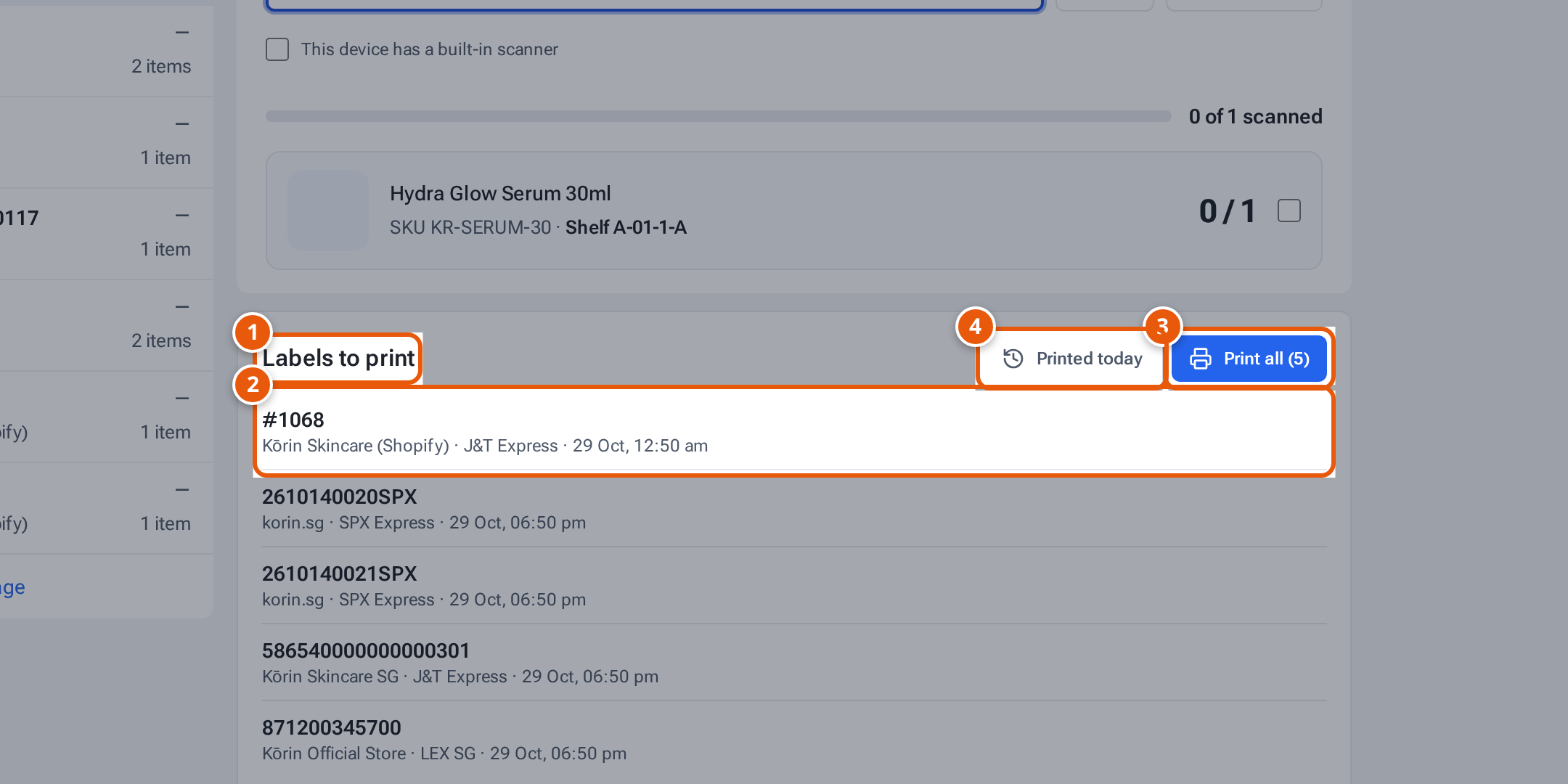
- 1. Packed parcels whose label hasn’t been opened yet, oldest first.
- 2. Each parcel: the order, then the shop, courier and when it was packed.
- 3. Print them all as one PDF.
- 4. Labels already printed today, to print one again.
- Open Pick & Pack and scroll to Labels to print. Each row shows the order, then the shop, courier and when it was packed, oldest first.
- Press Print all (5). All the labels open as one PDF. Print it.
- The labels you opened leave the list.
Print a label again
Section titled “Print a label again”- Press Printed today. You see the labels opened today, newest first.
- Press Print again next to the one you need.
- Press Labels to print to go back.
When nothing is waiting, only the Printed today button shows.
A label also counts as printed when it’s opened anywhere else, for example with Print label in Orders.
Shopify parcels are listed only when theopsroom booked the courier, or the seller’s own label was used. Labels made on a courier’s site aren’t in theopsroom.
If something goes wrong
Section titled “If something goes wrong”| What you see | Why | What to do |
|---|---|---|
| A reason in orange on a row | That label isn’t ready yet (the marketplace hasn’t made it). | Try again later. |
| “Nothing printed today.” | No label was opened today. | Nothing to do. |
| A label is missing from the PDF | The marketplace didn’t give it. | Use Print label on the order in Orders, or wait and try again. |