

Find and sync orders
Orders lists every order from Lazada, TikTok, Shopee and Shopify, grouped by where it is in its journey. Use it to find an order, see what still needs packing, and bring in the latest orders from the shops.
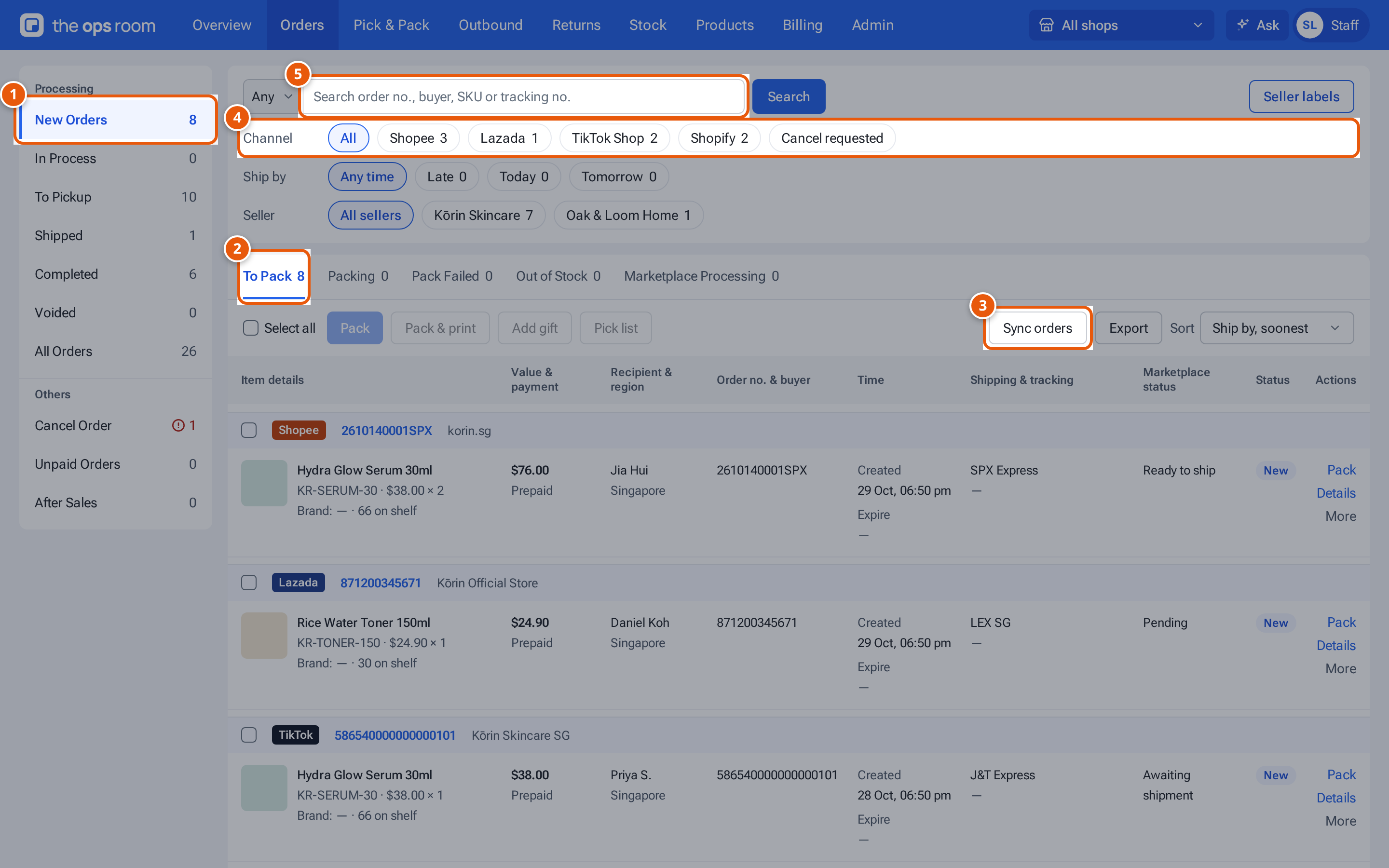
- 1. The order groups, each with its count. New Orders are the ones waiting to be packed.
- 2. The stages inside New Orders. To Pack is where most of the work is.
- 3. Sync orders brings in new and changed orders from every connected shop now.
- 4. Show one marketplace only.
- 5. Find an order by its number or the buyer’s name, then press Enter.
- Open Orders. You see New Orders: the orders waiting to be packed.
- To look at another stage, click a group on the left, for example To Pickup for parcels waiting for the courier. On a phone, choose the group from the dropdown at the top.
- To find one order, type in the search box at the top of the Filters card and press Search (or Enter). Search by next to it says what to look in: Any (order no., buyer, SKU or tracking no.), Order no., Buyer, SKU (the seller SKU or the item’s name) or Tracking no.
- To narrow the list, use the filter buttons under the search box (see below). Tap a button again to clear it.
- To bring in new orders now, press Sync orders in the bar above the orders (on a phone, Sync Order at the top). A green notice says how many shops were synced and how many orders were updated. theopsroom also syncs the shops by itself through the day.
- To see everything about an order, click Details on its row, or its order number. See An order’s details.
- To save the list as a spreadsheet, press Export (see below).
The page numbers sit at the bottom of the list: “Showing 1–50 of 73”, the pages, and how many orders show on a page.
The view is kept in the page address, so a link you copy opens the same group, tab and search.
Filter the list
Section titled “Filter the list”Three rows of buttons sit under the search box, in the Filters card. Each button shows how many orders it would give you, and they work together with the group, tab and search.
| Row | Buttons | Notes |
|---|---|---|
| Channel | Shopee, Lazada, TikTok Shop, Shopify | Replaces the old marketplace dropdown. |
| Ship by | Late, Today, Tomorrow | Only on New Orders, In Process and To Pickup. Orders with no ship-by time match none of them. |
| Seller | The eight sellers with the most orders, then More… for the rest | Staff only. It hides when you have chosen one shop at the top. |
Tap a button to filter, and tap it again to clear it. The group and tab counts follow Ship by, Seller and the search.
Stock on each line
Section titled “Stock on each line”Each open order line shows how many units are on the shelf, for example “14 on shelf”. If this order can’t be fully picked it shows red, for example “Only 1 on shelf”. Stock goes to the oldest orders first, one seller at a time, and gifts count too. On a phone, the card of such an order has a red Short label.
New orders that can’t be fully picked are listed under New Orders, Out of Stock. The Short of stock card on the Overview counts the same orders.
Export orders
Section titled “Export orders”Press Export in the bar above the orders to download a CSV of every order that matches your filters, on all pages, with one row per item. It holds at most 10,000 orders; if more match, narrow the filters first. Open it in Excel or Sheets. In the Android app, Export opens the share sheet instead.
What each button and field means
Section titled “What each button and field means”| Name | What it does |
|---|---|
| New Orders, In Process, To Pickup, Shipped, Completed, Voided, All Orders | The order groups, each with its count. In Process orders are packed. To Pickup orders are ready and wait for the courier. |
| Cancel Order, Unpaid Orders, After Sales | Cancelled orders, unpaid ones, and after-sales cases. |
| To pack, Packed today, Ready for pickup | On a phone, the three cards above New Orders: orders to pack, parcels packed today, parcels waiting for the courier. |
| To Pack, Packing, Pack Failed, Out of Stock, Marketplace Processing | The stages inside New Orders. Out of Stock lists orders that can’t be fully picked from the stock on the shelf. |
| Select all, then Pack, Pack & print, Pick list | In the bar above New Orders: tick orders, then pack them or make a pick list. See Pack from the Orders list. |
| Print labels, Ready to ship | In the bar on In Process (both) and To Pickup (Print labels). |
| Add gift | Adds the same gift to every ticked order. See Add extras or gifts to orders. |
| Sync orders | Syncs every connected shop now. |
| Pack, Details, More (on one order) | Pack packs that order (New Orders). Details opens it. More holds Print label and Ready to ship once it’s packed, Sync order (reads that one order again from its marketplace) and Cancel courier booking. |
| Cancel requested | Shows only orders whose buyer asked to cancel (TikTok and Shopee). |
| Sort | Ship by, soonest, Newest first or Oldest first. |
| 50 / page, 100 / page, 200 / page | At the bottom: how many orders show on one page. |
| Seller labels | Labels sellers uploaded for their own courier bookings. See Upload your own shipping labels. |
What the order rows show
Section titled “What the order rows show”- Time: when the order was created, and Expire with a countdown such as “in 5 h”. It turns amber within 24 hours of the ship-by time and red (“Overdue”) after it.
- Shipping & Tracking: the courier and each parcel’s tracking number (click it to copy). A Shopify order with the seller’s own label shows a chip such as “Seller’s label · J&T Express”.
- Status: The order’s status: New, Acknowledged, Picking, Packed, Dispatched, Delivered, Returned or Cancelled. If a bundle is short you see, for example, “Short: needs 3 Hydra Glow Serum 30ml, 1 free”.
- Badges on the order’s top strip, such as Exception, No seller SKU, On hold on TikTok, Buyer asked to cancel on Shopee or Shop disconnected.
If something goes wrong
Section titled “If something goes wrong”| Message | Why | What to do |
|---|---|---|
| “No connected shops to sync.” | No shop is connected. | Ask an admin to connect the shops. |
| “Sync failed for korin.sg: …” | That shop’s marketplace refused or didn’t answer. | Try again later. If it keeps failing, tell an admin: the shop may need reconnecting. |
| “Sync already running for this shop — try again in a moment.” | A sync for that shop is already going. | Wait a minute and try again. |
| “Shop disconnected — reconnect it on Shop Connections.” | The shop’s connection was ended. | Ask an admin to reconnect the shop. |
| Sync icon greyed out: “Shop needs reconnect” | The shop’s login has run out. | Ask an admin to reconnect the shop. |
| “Courier missed pickup on Shopee” badge | Shopee’s courier didn’t collect the parcel. | Press Book new pickup next to the badge to ask Shopee for a new pickup. |