

Settings: Shipping (sender, EasyParcel, Shippit, couriers)
Admin → Settings → Shipping holds what staff need to ship Shopify orders. Its cards run in this order: Couriers (the other couriers they can choose), EasyParcel (with the warehouse’s Sender details inside it) and Shippit. Settings has four groups on the left (on a phone, at the top): Shipping, Billing, Products & orders and Appearance. Only admins can change settings.
Couriers
Section titled “Couriers”For Shopify orders, staff can also choose one of these couriers at Pick & Pack and scan its tracking number.
- Type the couriers in Couriers, one per line (up to 20).
- For each courier, a Tracking link for … field appears. Type the courier’s tracking page address with
{number}where the tracking number goes, e.g.https://courier.example/track/{number}. Shopify’s email to the buyer then links to it. - Click Save at the top of the Couriers card. You see “Couriers saved.”
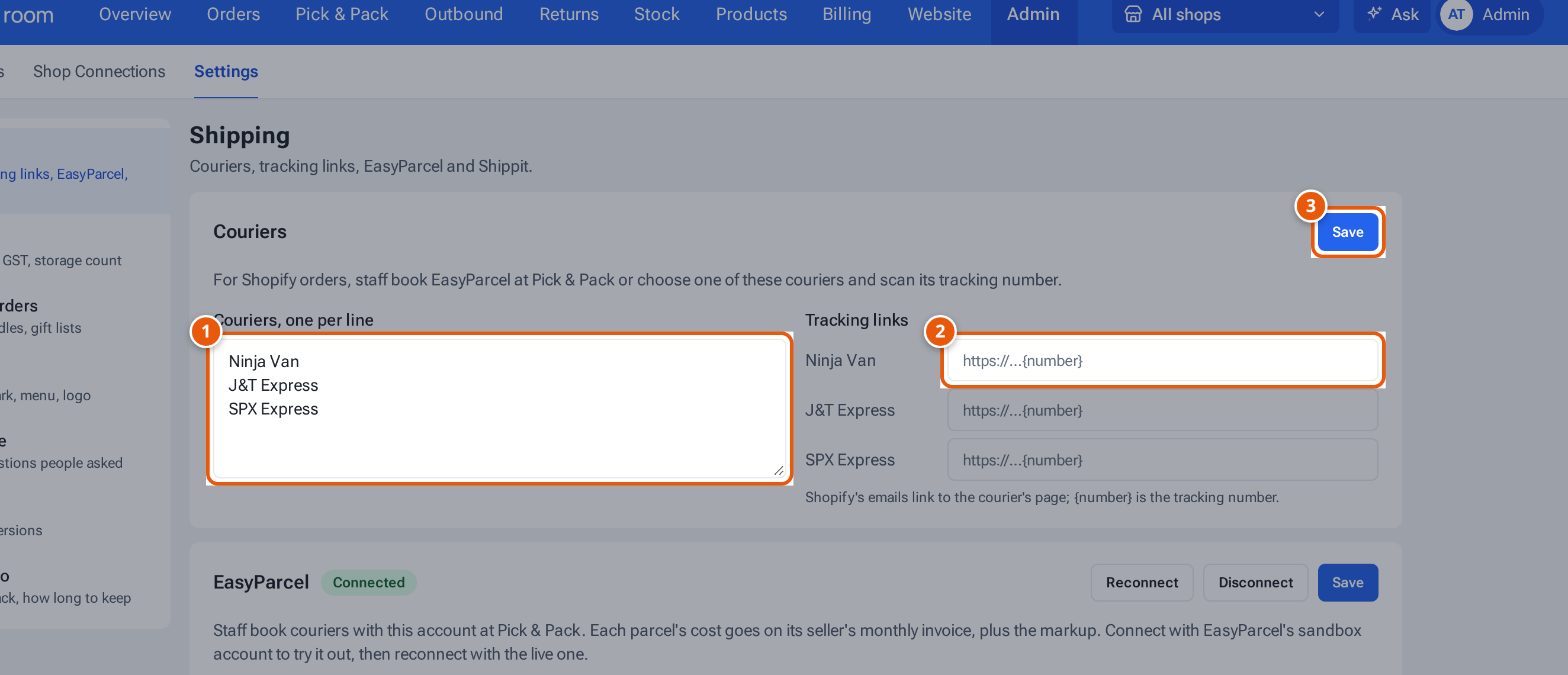
- 1. Other couriers staff can choose for Shopify orders.
- 2. The courier’s tracking page, with {number} where the tracking number goes.
- 3. Save the couriers and links.
Each seller’s preferred courier, delivery notifications and own courier logins are in their Courier window on Add and edit clients. Sellers can set theirs on their own Shipping page.
EasyParcel
Section titled “EasyParcel”Staff book couriers with the warehouse’s EasyParcel account at Pick & Pack. Each parcel’s cost goes on its seller’s monthly invoice, plus your markup. The Sender (the warehouse as sender on every courier booking, including sellers’ own J&T accounts) is inside this card.
Sender
Section titled “Sender”- In the EasyParcel card, fill in Sender name, Company, Phone, Postcode, Address line 1 and Address line 2. The city is always Singapore.
- Click Save at the top of the card. If you changed the sender, it is saved first (“Sender saved, but the EasyParcel settings didn’t save: …” if the rest fails). You see “EasyParcel saved.”
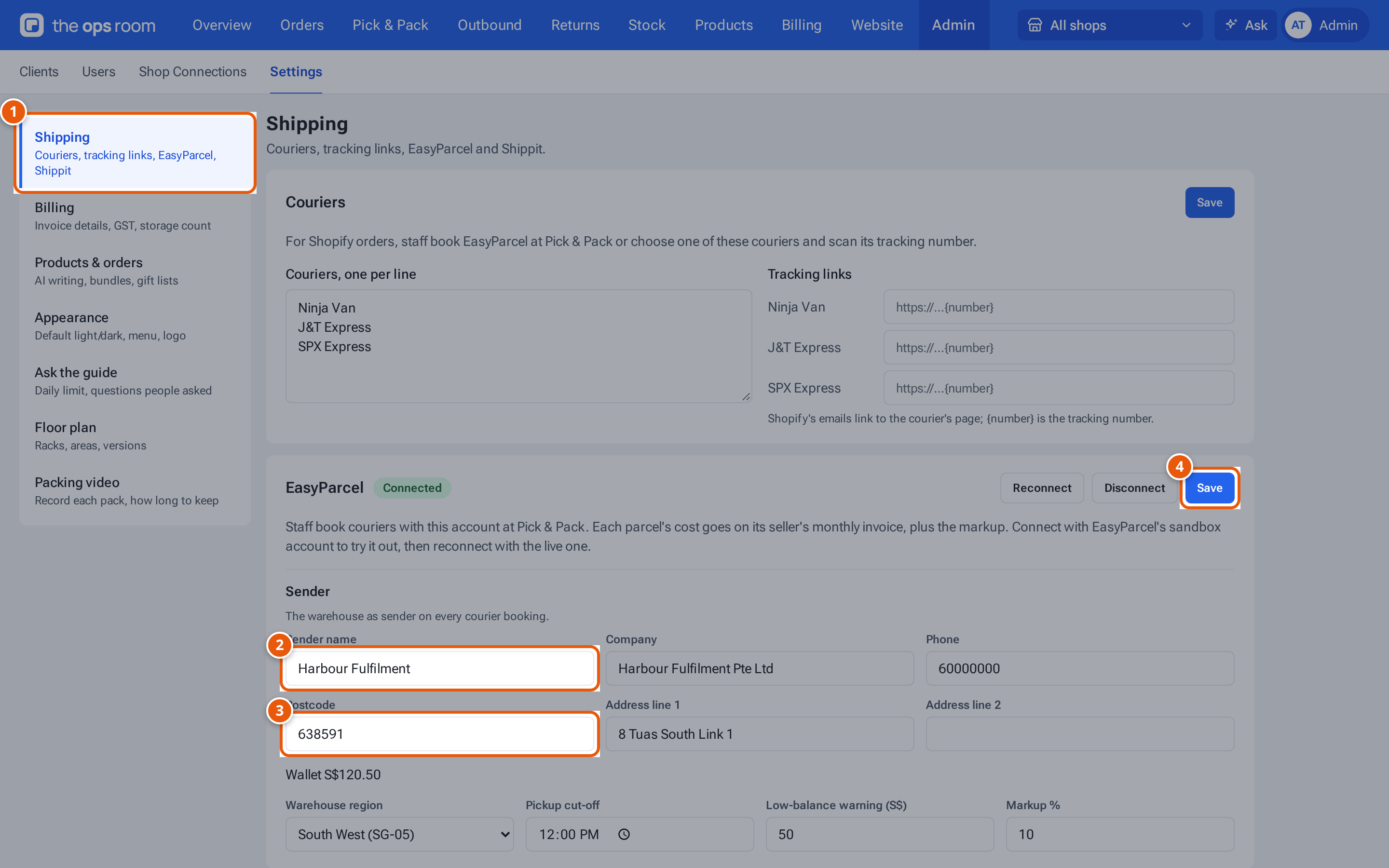
- 1. The settings groups.
- 2. The warehouse as sender on every courier booking.
- 3. A 6-digit postcode.
- 4. Save saves the sender together with the EasyParcel settings.
Connect EasyParcel
Section titled “Connect EasyParcel”- Click Connect EasyParcel. You go to EasyParcel’s own sign-in page.
- Sign in with the account staff should book with, and approve theopsroom. Do it within 15 minutes.
- You come back to Settings and see “EasyParcel connected.” The card shows Connected and the Wallet balance.
Try it with EasyParcel’s sandbox account first, then click Reconnect and sign in with the live account. Disconnect forgets the account: staff can’t book EasyParcel until it’s connected again.
EasyParcel settings
Section titled “EasyParcel settings”- Choose the Warehouse region.
- Set the Pickup cut-off, the Low-balance warning (S$) and the Markup %.
- Click Save at the top of the card. You see “EasyParcel saved.”
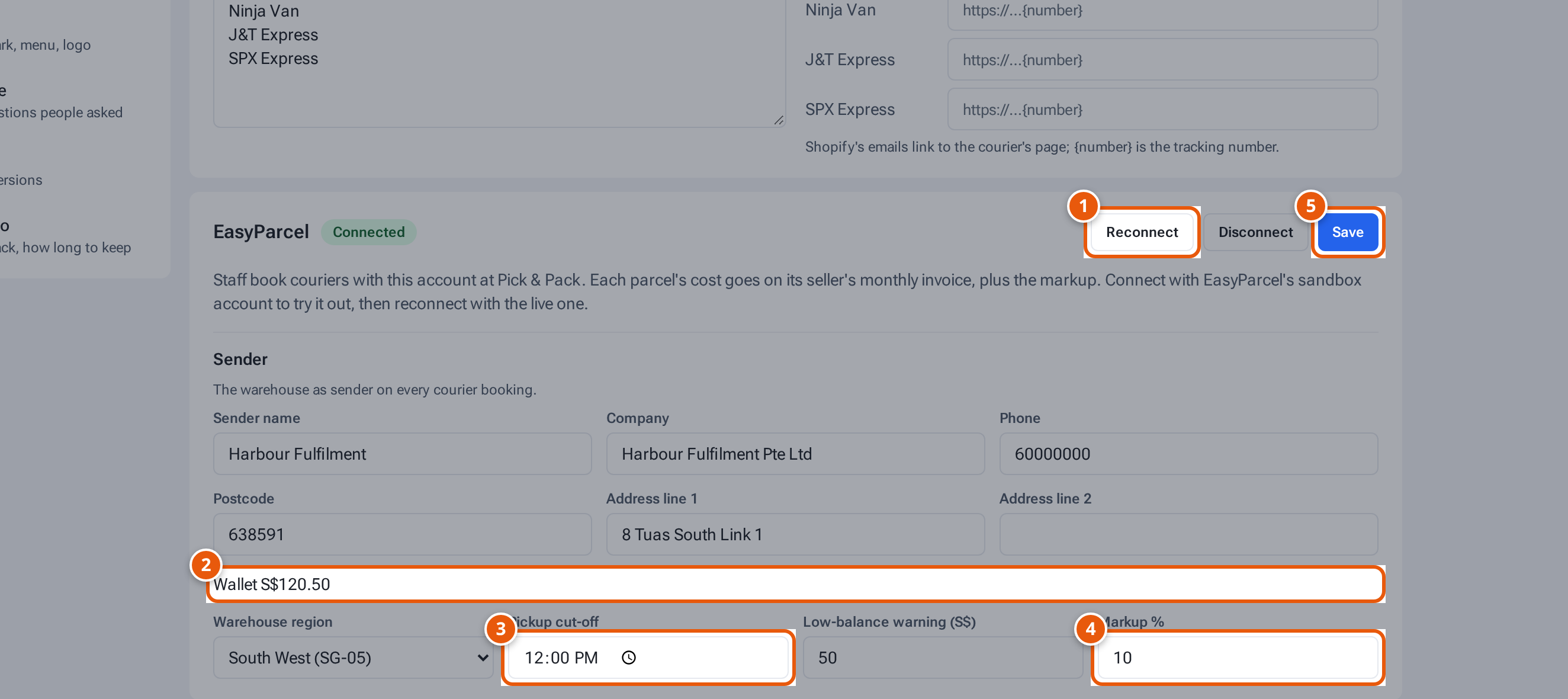
- 1. Sign in to EasyParcel again, e.g. to switch from the sandbox to the live account.
- 2. The EasyParcel wallet’s balance.
- 3. Bookings after this time are collected the next working day.
- 4. Added to each parcel’s cost on the seller’s invoice.
- 5. Save the EasyParcel settings.
| Field | What it means |
|---|---|
| Wallet | The account’s balance. Below the warning level it turns red: “… — below S$…, top up soon”. Top up on EasyParcel’s site. |
| Warehouse region | Central (SG-01), North East (SG-02), North West (SG-03), South East (SG-04) or South West (SG-05). |
| Pickup cut-off | Bookings after this time are collected the next working day (never Saturday or Sunday). Default 12:00. |
| Low-balance warning (S$) | Below this the wallet shows the top-up warning. Default 50. |
| Markup % | 0 to 100, added to each parcel’s cost on the seller’s invoice. |
Shippit
Section titled “Shippit”Staff book the couriers on the warehouse’s Shippit account at Pick & Pack. Each parcel’s cost goes on its seller’s monthly invoice as “Shipping (Shippit)”, plus the Shippit markup. Until a key is saved, Pick & Pack doesn’t offer it.
- Fill in the Sender fields in the EasyParcel card and save them first: they become the Shippit account’s pickup address.
- In Shippit, open Settings → Integrations and create an API key. Tick at least Retrieve Quote, Create an Order, Cancel an Order, Get Label Information for an Order, Download Label, Book Order and Update Merchant Settings (so theopsroom can set the pickup address).
- In theopsroom, paste the key in API key. Choose Account: Live, or Test (Shippit staging) for a Shippit staging key.
- Set the Markup % (0 to 100) and click Save at the top of the Shippit card. theopsroom checks the key with Shippit first (a price check: nothing is booked). You see “Shippit saved.” and Connected. theopsroom then sets the sender as the account’s pickup address and contact in Shippit, and the card says “Pickup address (the sender) sent to Shippit” with the time.
Saving the sender (with Save on the EasyParcel card) sends it to Shippit again. Send pickup address sends it now, for example after you ticked Update Merchant Settings on the key.
The key is never shown again. To change it, paste a new one and save; leave the box empty to keep the saved key. Remove key stops Pick & Pack booking the warehouse’s Shippit.
Sellers with their own Shippit account add their key on their Shipping page (or you add it in their Courier window on Add and edit clients); then Shippit bills the seller.
If something goes wrong
Section titled “If something goes wrong”| Message | Why | What to do |
|---|---|---|
| “Fill in the sender’s name, phone and address” | A required sender field is empty. | Fill in name, phone and address line 1. |
| “The sender’s postcode should be 6 digits” | The postcode isn’t 6 digits. | Fix it. |
| A message says EasyParcel isn’t set up on this server yet because its app credentials are missing | EasyParcel isn’t set up on the server. | Ask whoever runs your hosting. |
| “That EasyParcel sign-in has expired — press Connect EasyParcel again” | Over 15 minutes passed. | Connect again. |
| “EasyParcel sign-in was cancelled” | The sign-in was cancelled. | Connect again. |
| “Wallet unavailable: …” | theopsroom couldn’t read the wallet. | Wait a minute; if it says EasyParcel needs reconnecting, click Connect EasyParcel. |
| “The markup should be 0–100%” | Out of range. | Enter 0 to 100. |
| “Shippit didn’t accept the API key — check it and that it can Retrieve Quote” | The key is wrong, removed in Shippit, or lacks Retrieve Quote. | Copy the key again from Shippit, check its permissions, and save. |
| “Enter Shippit’s API key” | No key saved yet. | Paste the key. |
| “Choose Live or Test” | No account chosen. | Choose Live or Test. |
| “Pickup address not sent: …” followed by a message that Shippit didn’t let the app set the pickup address | The key lacks Update Merchant Settings. | Tick it on the key in Shippit and click Send pickup address, or set the address in Shippit yourself. |
| “Pickup address not sent: Fill in the Sender card first” | No sender saved. | Fill in the sender fields in the EasyParcel card and save. |
| “Pickup address not sent: Shippit: …” | Shippit refused the address. | Check the sender fields, save again, or set the address in Shippit. |
| “The pickup cut-off should be a time like 12:00” | Not a time. | Enter a time. |
“A tracking link must start with https:// and contain {number}” |
The link is wrong. | Start with https:// and put {number} where the number goes. |
| “Keep at least one courier” / “At most 20 couriers” | Too few or too many. | Keep 1 to 20. |
| “Courier names are at most 40 characters” | A name is too long. | Shorten it. |
| At Pick & Pack: “The warehouse’s sender details aren’t set — ask an admin (Settings → Shipping → Sender)” | No sender saved. | Fill in the sender in the EasyParcel card. |