

Bulk packing
On a big day (for example 100 orders from a TikTok live), packing one order at a time is too slow. Bulk packing works the other way round:
- Pick everything from one list.
- Clear every order with the marketplace.
- Print all the AWBs.
- Pack each parcel by scanning its AWB.
Only sellers an admin has switched on for bulk packing can be packed this way (see Clients). No packing video is recorded in bulk packing.
Before you start
Section titled “Before you start”- An admin has turned on Bulk packing for the seller in Clients.
- The orders are waiting to be packed, the same orders Pick & Pack would open.
- For Shopify orders, theopsroom books each courier itself: the seller’s preferred courier, otherwise the cheapest, with the weight and size saved on the products.
Make a batch
Section titled “Make a batch”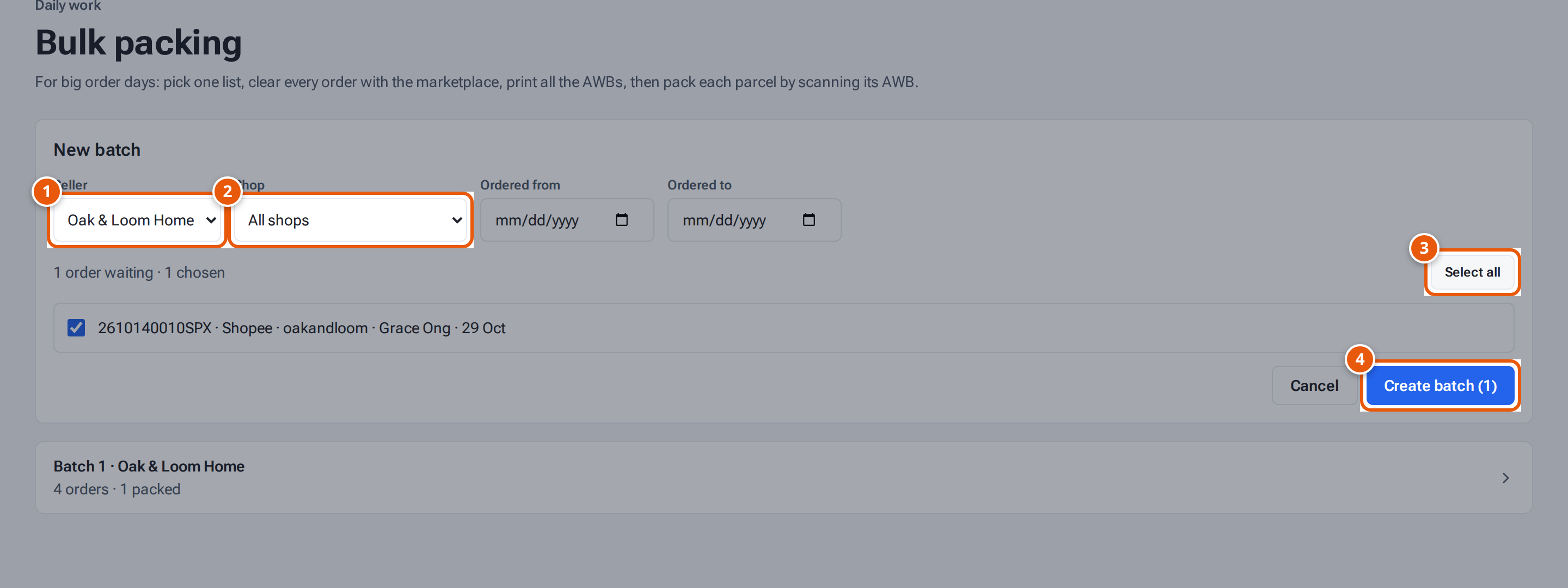
- 1. The seller (only sellers switched on for bulk packing).
- 2. Only one shop’s orders, or all the seller’s shops.
- 3. Tick every order listed (up to 200).
- 4. Make the batch and open it.
- Open Pick & Pack and choose the Bulk packing tab.
- Click New batch and choose the Seller. Their waiting orders are listed, the earliest ship-by first.
- To narrow the list, choose a Shop or the order dates (Ordered from, Ordered to).
- Tick the orders, or click Select all. A batch holds up to 200 orders.
- Click Create batch. The batch opens.
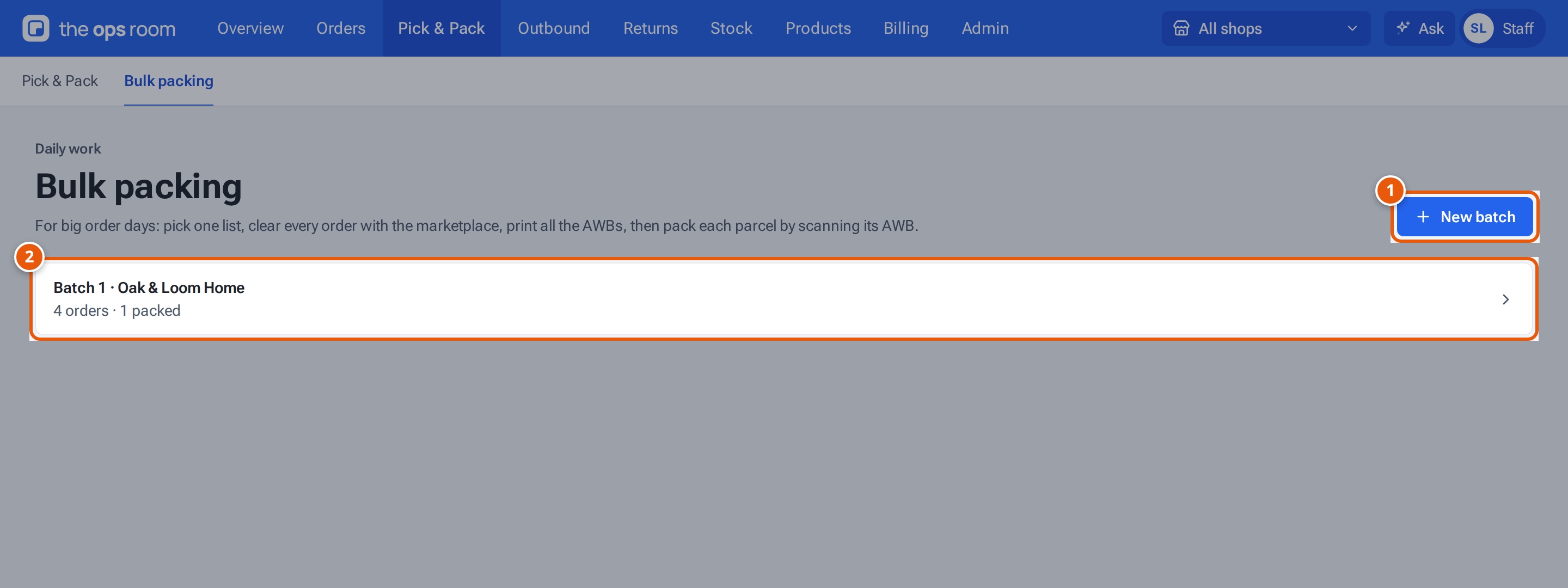
- 1. Start a batch of one seller’s waiting orders.
- 2. An open batch and how many of its orders are packed. Click it to open it.
The open batches stay listed on the Bulk packing tab, for example “Batch 1 · Oak & Loom Home” with “4 orders · 1 packed”.
Pick, clear and print
Section titled “Pick, clear and print”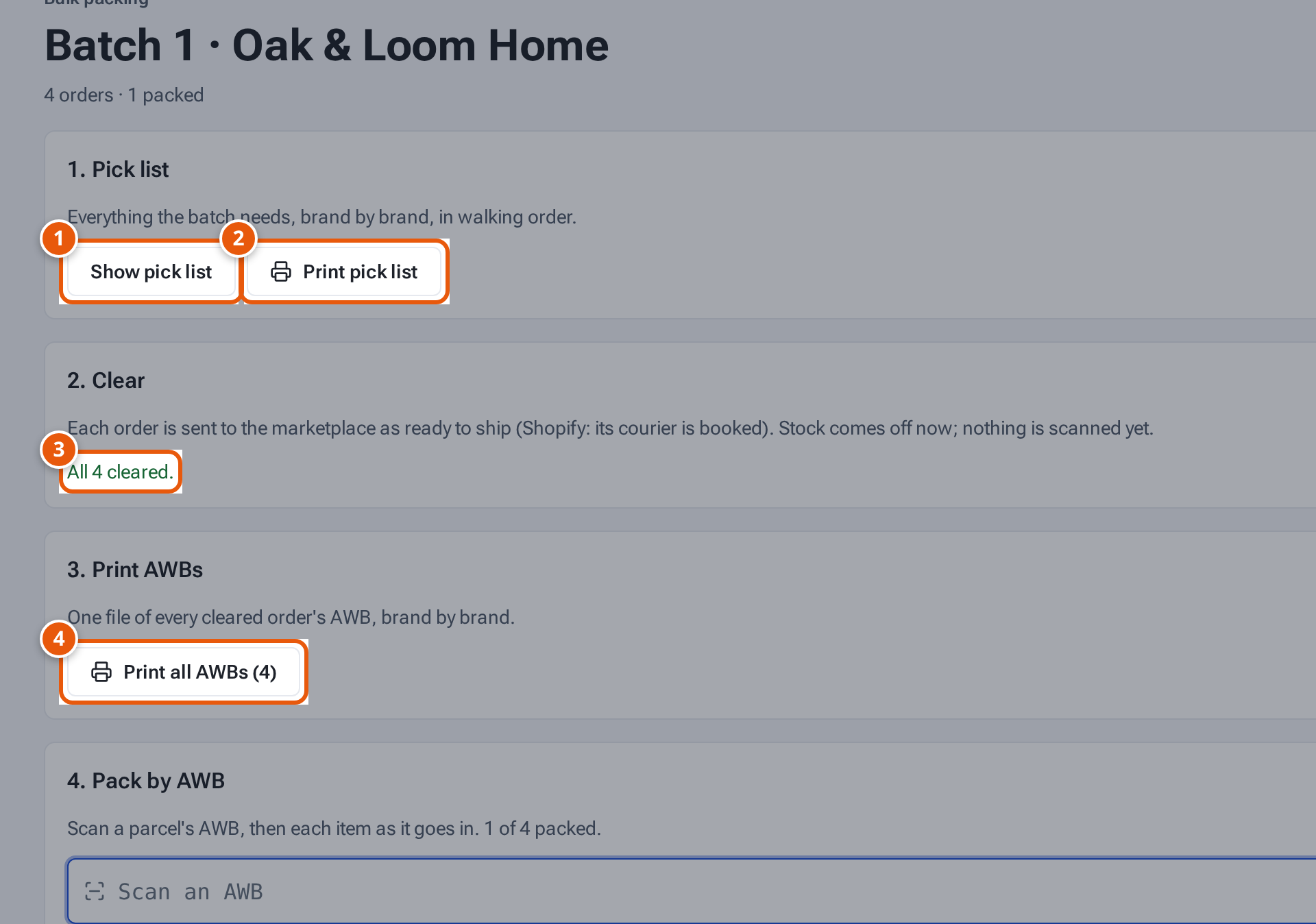
- 1. Everything the batch needs, brand by brand, with the shelves.
- 2. The same list to print.
- 3. Every order is ready to ship with the marketplace (or its courier is booked).
- 4. One file of every cleared order’s AWB.
- Pick list: click Show pick list or Print pick list. It lists everything the batch needs, brand by brand, with the shelf and how many to take, for example “A-01-1-A · KR-SERUM-30 × 20”. Pick it all to your bench.
- Clear: click Clear 100 orders. theopsroom works through the orders one by one (“Clearing 40 of 100”). You
can leave the page; it carries on.
- Lazada, TikTok and Shopee orders are packed and sent to the marketplace as ready to ship.
- Shopify orders get their courier booked, and the tracking number goes to Shopify.
- The stock comes off the shelves now. Nothing is scanned yet.
- Orders that couldn’t be cleared are listed in red with the reason. Fix it and click Try again, or click Remove and pack that order the normal way at Pick & Pack.
- Print AWBs: click Print all AWBs. One file opens with every cleared order’s AWB, brand by brand.
Pack by AWB
Section titled “Pack by AWB”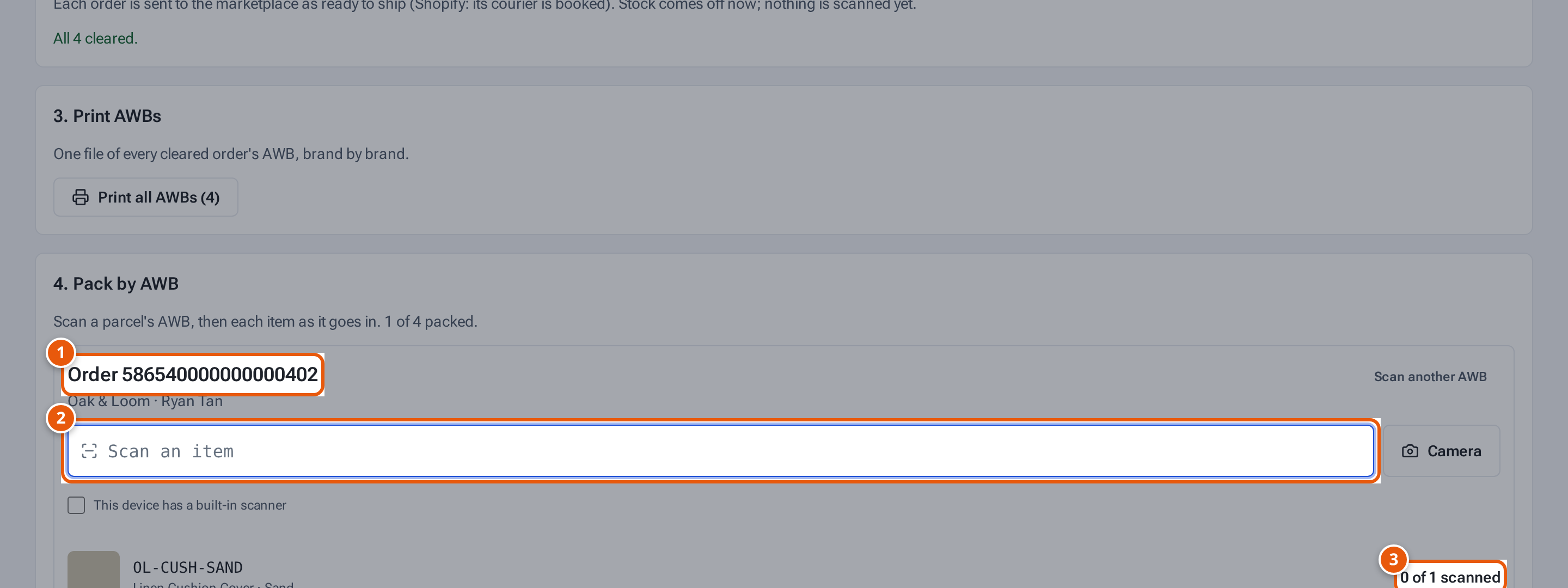
- 1. The order of the AWB you scanned.
- 2. Scan each item as it goes in.
- 3. How many of each item are in. When all are, the order is packed.
- Scan a parcel’s AWB into Scan an AWB. Its order opens with the items to put in, even for Lazada, whose AWBs don’t list them.
- Read any “Note for packers” and put in anything under “Put in by hand”.
- Scan each item as it goes in. A wrong item shows “… isn’t in this order — don’t pack it.”
- When the last item is scanned, the order is packed (“Packed #…”) and the box waits for the next AWB.
When every order is packed, the batch closes by itself.
If something goes wrong
Section titled “If something goes wrong”| Message | Why | What to do |
|---|---|---|
| “Bulk packing is off for this seller” | The seller isn’t switched on. | Ask an admin to turn on Bulk packing in Clients. |
| “… is already in batch 12” | The order is in another open batch. | Leave it out, or finish batch 12 first. |
| “Choose at most 200 orders” | Too many orders in one batch. | Make two batches. |
| “Missing product size: Hydra Glow Serum” | A Shopify order’s product has no real weight and size. | Set the size in Products, then Try again, or pack it at Pick & Pack. |
| “No courier has prices for this parcel” | No courier quoted a Shopify order. | Pack it at Pick & Pack. |
| “The buyer asked to cancel — pack it at Pick & Pack” | The buyer asked to cancel. | Check the order and pack it at Pick & Pack. |
| “Only 3 … free for this order’s 4 — pack it at Pick & Pack” | A bundle is short. | Pack it at Pick & Pack after a stock check. |
| The marketplace’s message, for example “System error, please try again later” | The marketplace refused. | Try again later. |
| “This AWB isn’t in an open batch” | The AWB isn’t one of a batch’s orders. | Check the label, or pack it at Pick & Pack. |
| “Cancelled — don’t pack” | The order was cancelled after it was cleared. | Put its items back on the shelf. |
| “… isn’t in this order — don’t pack it.” | You scanned the wrong item. | Take it out and scan the right one. |
| “… is cleared but not packed yet” | At handover, the parcel hasn’t been packed. | Pack it by AWB first. |
| “1 order is cleared but not packed yet” | You pressed Close batch with parcels still to pack. | Pack them, or an admin clicks Close anyway. |