

Blog posts
The Blog tab holds your posts. Each post has its own address on your site and shows on your Blog page once it is switched on and published. This page is for website editors (admins with Website editor switched on).
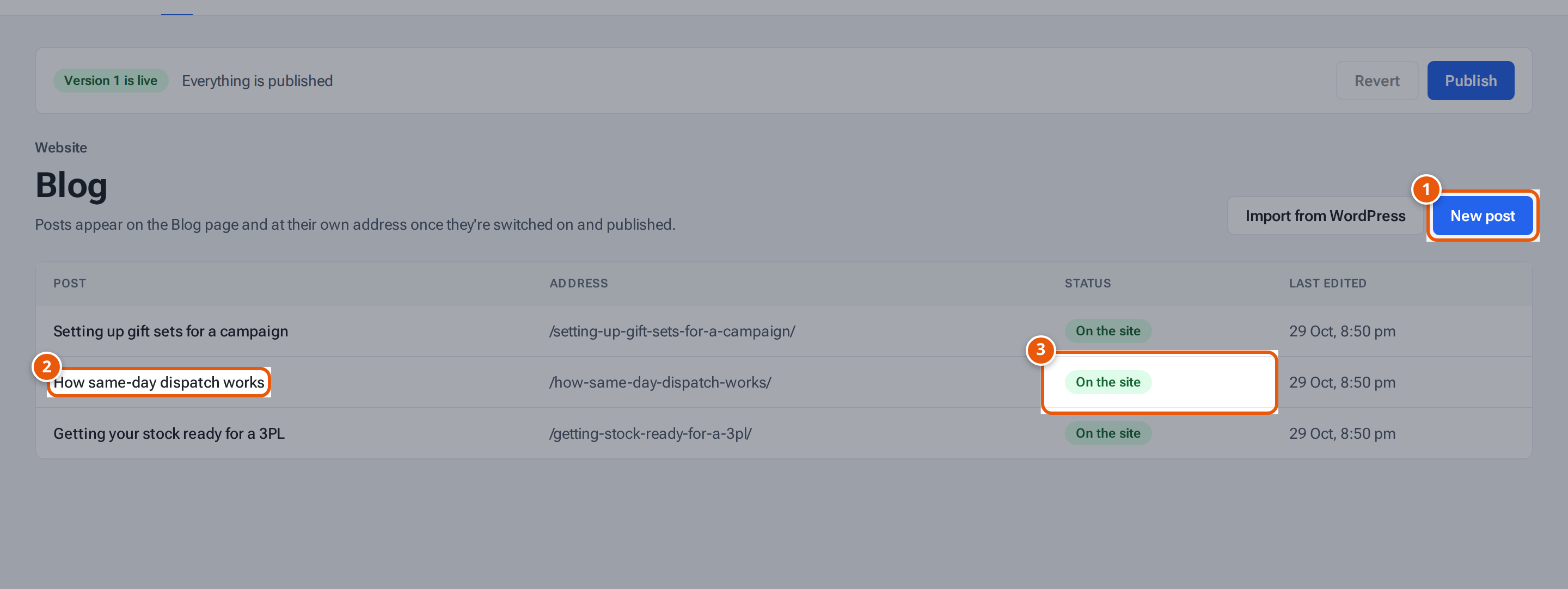
- 1. Write a new post.
- 2. Open a post to edit it.
- 3. On the site, or off.
Write a post
Section titled “Write a post”- Open Website and choose the Blog tab. The list shows each post’s Post, Address, Status and Last edited.
- Press New post.
- Type a Title. The Address fills in from it, in lowercase with hyphens. You can change it. Addresses use lowercase letters, numbers and single hyphens.
- Press Create post. The editor opens.
- Fill in the fields, then watch the Preview (on a phone, choose Edit or Preview at the top):
| Field | What it is |
|---|---|
| Title | The post’s heading. |
| Address | Where the post lives on your site. |
| Date | The date shown on the post. |
| Cover picture and Summary | The picture and the short text shown on the Blog page. |
| Post text | The body, with headings, lists, links and pictures. |
| Search and sharing | The words Google shows and the picture used when the post is shared. |
The post saves itself a few seconds after you stop typing, like a page.
Show it on the site
Section titled “Show it on the site”Switch on Show on the website at the bottom of the post. It says Takes effect when you Publish. Then publish. A post that is switched off stays a draft.
On the list, the Status says where each post stands:
| Status | What it means |
|---|---|
| Draft | Not on the site and never was. |
| Goes live at the next publish | Switched on, not published yet. |
| On the site | Live, and your draft is the same. |
| Unpublished changes | Live, but your draft is different. |
| Leaves the site at the next publish | It was live and you switched it off. |
Change a post’s address
Section titled “Change a post’s address”You can change the address of a post that is already live. The editor warns: “The site still uses /old-address/. Publishing moves this post, and links to /old-address/ will stop working.” The list shows “Moves to /new-address/ at the next publish”. If another post already has that address, the save is refused.
Delete a post
Section titled “Delete a post”A post that has never been published has Delete post. A post that is on the site can’t be deleted straight away: switch Show on the website off, Publish, and then delete it.
If something goes wrong
Section titled “If something goes wrong”| What you see | What to do |
|---|---|
| “Give the post a title.” | Type a title. |
| “Addresses use lowercase letters, numbers and single hyphens.” | Fix the address: no capitals, spaces or symbols. |
| “Choose a date” | Pick a Date. |
| The address is refused as already used | Another post has it. Choose a different address. |