

Change how theopsroom looks
Everyone can choose how theopsroom looks for them. Your choice is saved to your account, so it follows you to any phone or computer. Until you choose, you see the company default that an admin sets. If nobody has set one, you get the Top bar menu and the light or dark mode your device uses.
The pictures in this guide show the company default look, with the Top bar menu. Your screen can look different because each person can choose their own Light or dark and, on a computer, their own Menu. The buttons, their names and what they do are the same in every look; only the colours and where the menu sits change.
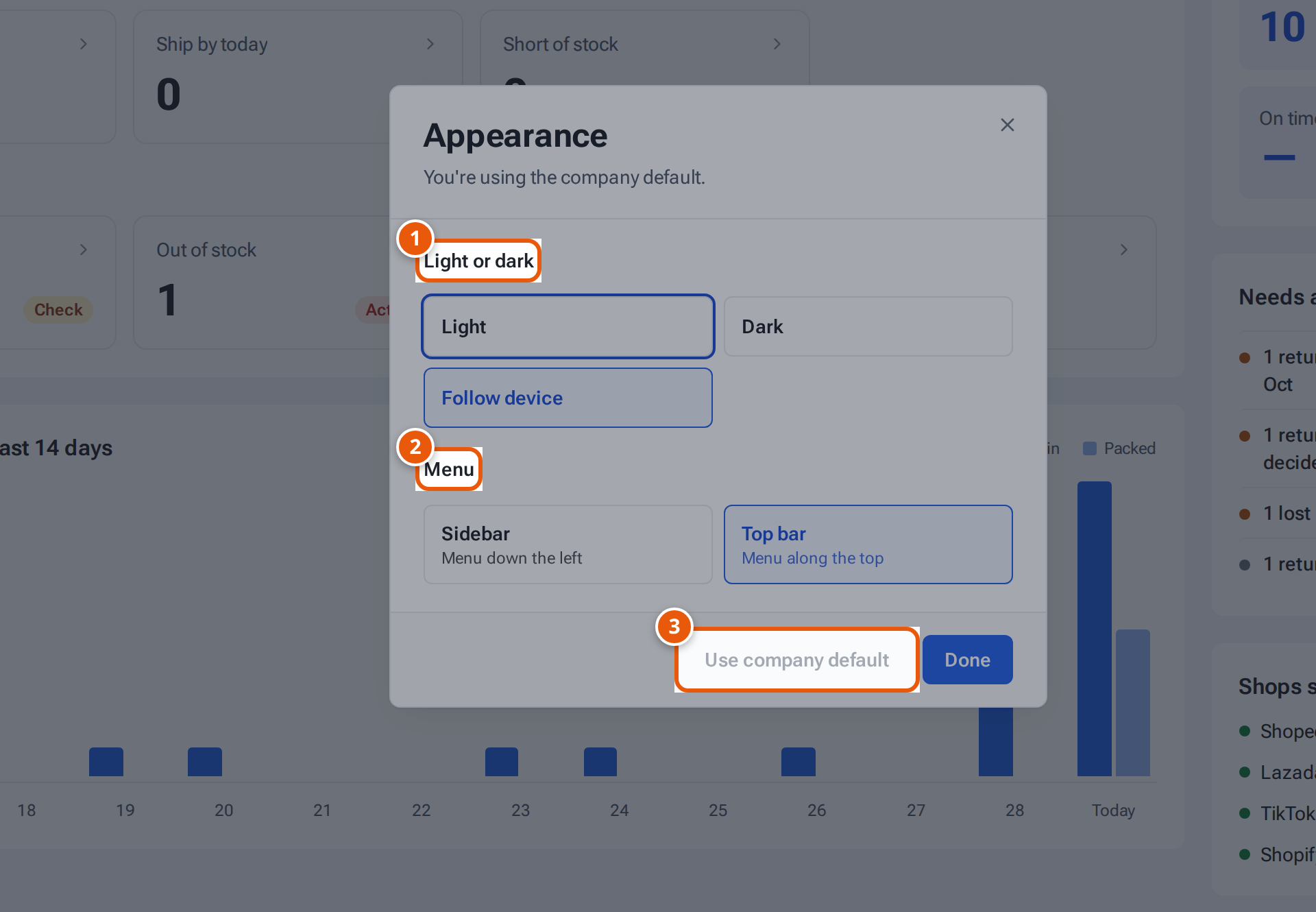
- 1. Light, Dark, or Follow device.
- 2. Menu down the left (Sidebar) or along the top (Top bar).
- 3. Go back to the company’s default look.
- On a computer, click your name at the top right and choose Appearance…. On a phone, tap More, then Look.
- Pick what you want. Each change shows at once; there’s no Save.
- Press Done.
What each choice means
Section titled “What each choice means”| Choice | Options |
|---|---|
| Light or dark | Light, Dark, or Follow device (follows your device’s dark-mode setting). |
| Menu (computers only) | Top bar: the sections run along the top, with drop-down panels. Sidebar: the menu runs down the left. A phone never shows this choice: phones always get the tabs along the bottom (see Use theopsroom on a phone). |
| Use company default | Clears your choices, so you follow the company default again. |
Each group is separate: if you choose only Light or dark, Menu keeps following the company default.
Menu along the top
Section titled “Menu along the top”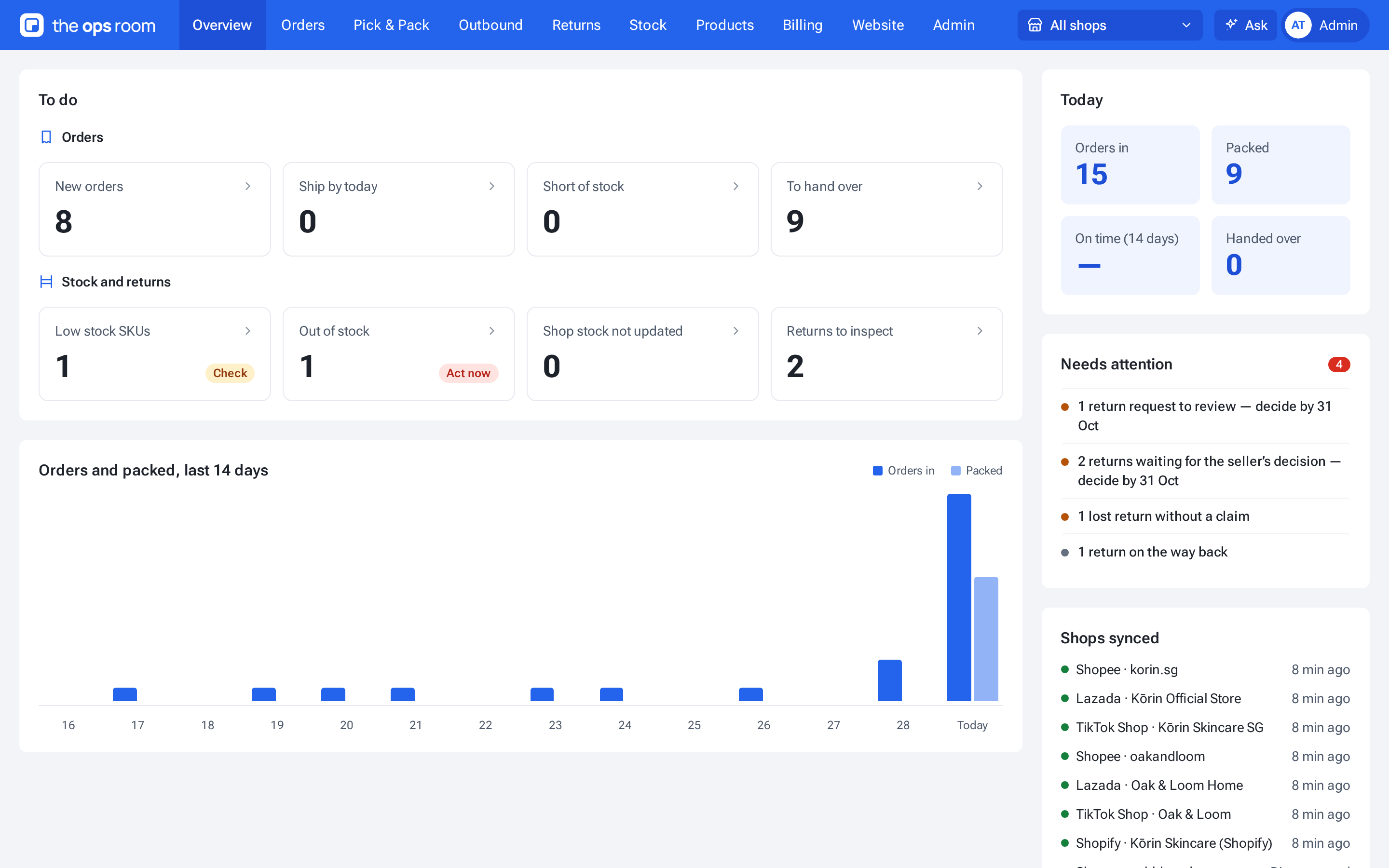
Section names run along the top bar. Point at a section, or tap it, to open its panel of pages. Under the bar, a strip of tabs shows the pages of the section you are in. See Getting around theopsroom.
Menu down the left
Section titled “Menu down the left”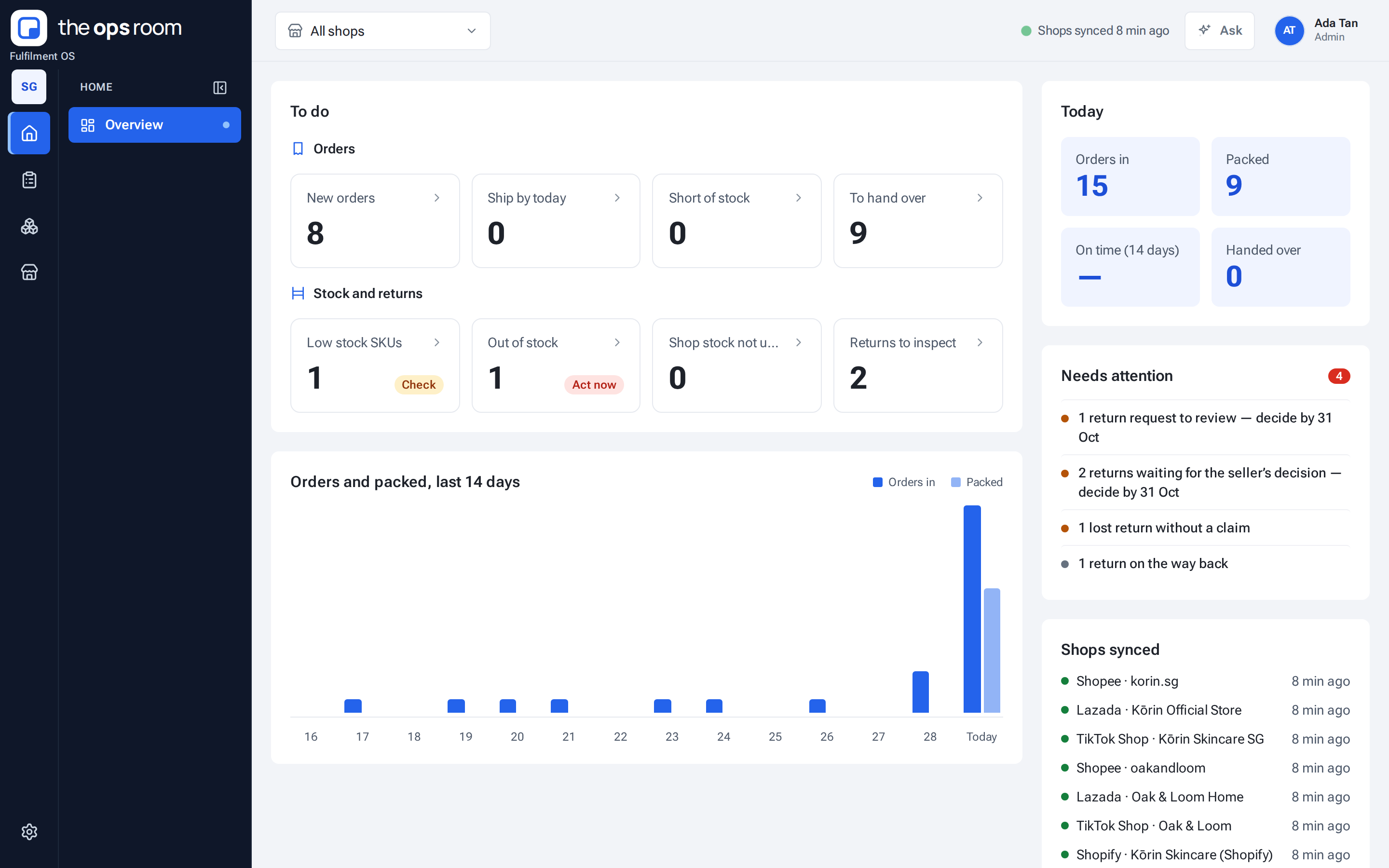
A narrow strip of icons, one for each area, with the open area’s pages beside it. See Getting around theopsroom.
If something goes wrong
Section titled “If something goes wrong”“Couldn’t save to your account — it’ll apply on this device only.” means theopsroom couldn’t save (for example, you’re offline). Your choice still applies on this device, and theopsroom saves it next time you sign in.