

The Overview
The Overview is the first page you see after signing in. It shows what needs doing, today’s numbers, what needs attention and how each shop’s sync stands. Sellers see only their own shops; staff and admins see every shop. It follows the Shop list at the top: choose one shop to see only its figures.
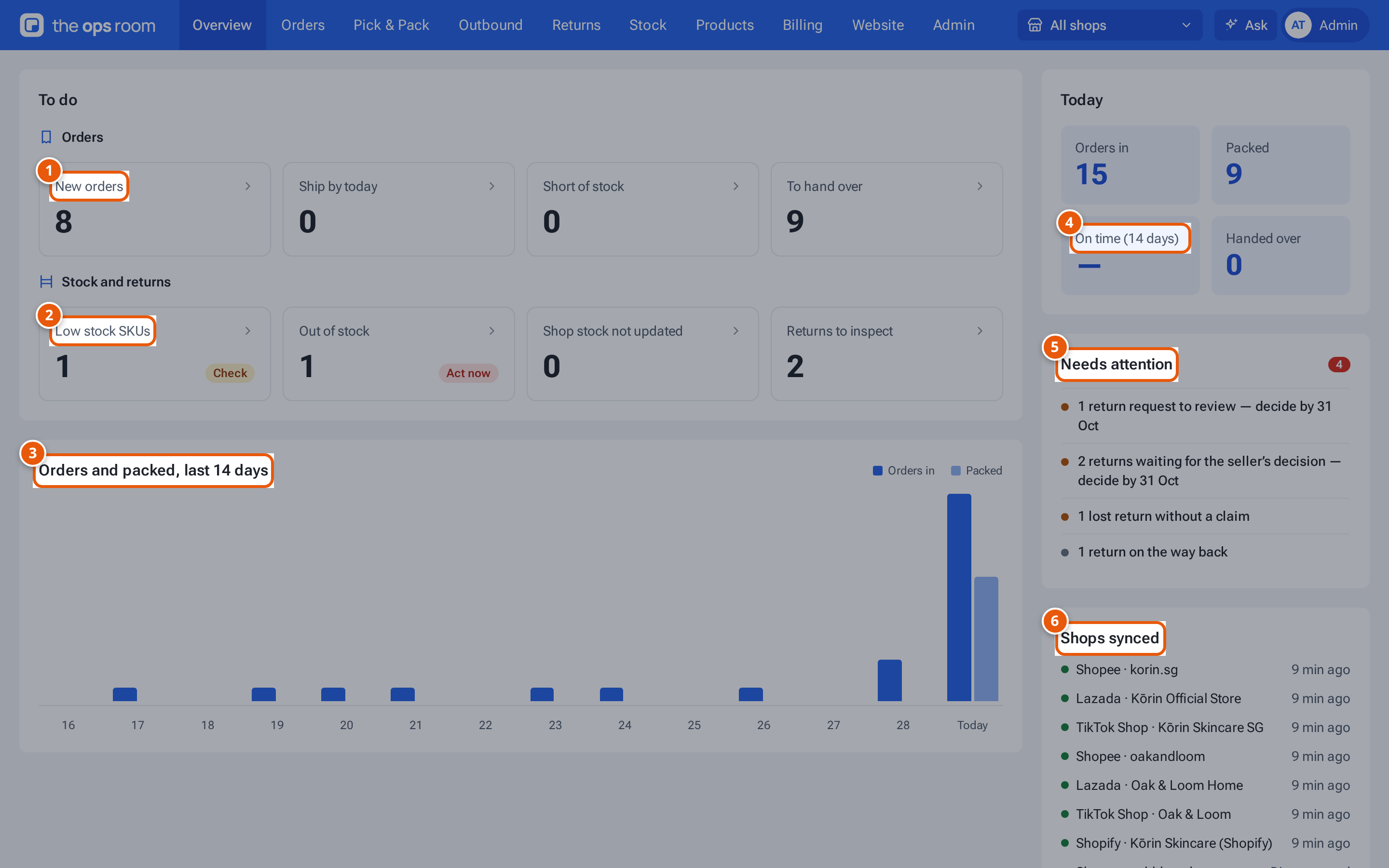
- 1. Orders waiting to be packed. Click a tile to open the list behind it.
- 2. SKUs out of stock or running low. Click to open Inventory.
- 3. Orders that came in and parcels packed on each of the last 14 days.
- 4. How many orders were packed before their ship-by time over the last 14 days.
- 5. What to do next, most urgent first. Each line opens the page where you act.
- 6. When each shop’s orders were last brought in.
The tiles on the left are the work waiting now. Click a tile to open the list behind it. Act now (red) or Check (amber) on a tile means it needs a look.
| Tile | What it counts | Opens |
|---|---|---|
| New orders | Orders in New Orders, waiting to be packed. | Orders, New Orders |
| Ship by today | New orders whose ship-by time is today. | Orders, New Orders, Ship by Today |
| Short of stock | New orders that can’t be fully picked from the stock on the shelf. | Staff: Orders, Out of Stock. Sellers: their new orders. |
| To hand over | Parcels ready for the courier. Staff and admins only. | Shipping |
| Low stock SKUs | SKUs at or below the seller’s low-stock level. | Inventory, Running low |
| Out of stock | SKUs with nothing left to sell. | Inventory, Out of stock |
| Shop stock not updated | Products whose stock didn’t reach a shop the last time theopsroom sent it. | Inventory, Stock not updated |
| Returns to inspect | Returns that arrived and wait to be checked. | Returns, To check |
Orders and packed, last 14 days
Section titled “Orders and packed, last 14 days”A bar chart of the orders that came in and the parcels packed on each of the last 14 days. The last bar is today. Point at a day to see its numbers.
| Figure | What it counts |
|---|---|
| Orders in | Orders that came in today (Singapore time). |
| Packed | Parcels packed today. |
| On time (14 days) | Of the orders packed in the last 14 days, how many were packed before their ship-by time. “—” means none had a ship-by time. |
| Handed over | Parcels handed to the courier today. Staff and admins only. |
Needs attention
Section titled “Needs attention”A list of what to do next, most urgent first (red, then amber, then grey). Each line opens the page where you act.
| Line | Where it takes you |
|---|---|
| … past its ship-by time — pack now | Orders, New |
| … sync failed for … | Shop Connections |
| … overdue — not arrived yet | Returns, Overdue |
| … due to ship within 4 hours | Orders, New |
| … return request(s) to review — decide by … | Returns, Return requests |
| … waiting for the seller’s decision — decide by … | Returns, Waiting for seller |
| … marked as an exception | Orders, New |
| … lost return(s) without a claim | Returns, Lost & claims |
| … on the way back | Returns, On the way |
The red number next to Needs attention is how many lines there are. “Nothing needs attention right now.” means there’s nothing to do.
Shops synced
Section titled “Shops synced”Each shop with how its order sync stands: “12 min ago” (green) for the last good sync, Syncing…, Sync failed or Sign in again (red), Not synced yet or Disconnected (grey). For a red line, ask an admin to check the shop on Shop Connections.
On a phone
Section titled “On a phone”Home is the Overview laid out for a phone, as white panels you scroll down:
- Today: In, Packed, Handed and On time (14 days) in four boxes across.
- To do (staff and admins): the same tiles as above, two across, under Orders and Stock and returns. The shop list sits at the top of this panel. Tap a tile to open the list behind it.
- Needs attention, Shops synced and the 14-day chart, as above. A red bar at the top says when a shop’s orders aren’t syncing.
A seller’s Home has Today (Orders, Packed, Shipped, On time), For you (tiles such as Waiting to pack, Low stock, Returns for you and Invoice due), Needs your answer, Your shops today, Shops synced and the chart.
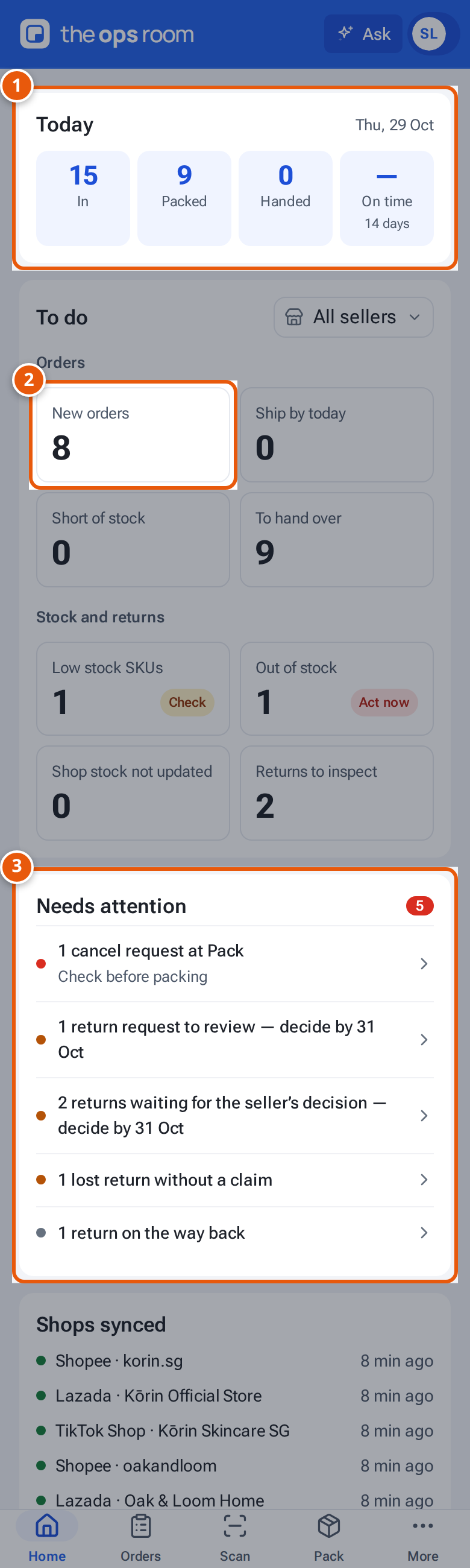
- 1. Today: orders in, packed, handed over and how many were on time.
- 2. To do: tap a tile to open the list behind it.
- 3. Needs attention: what to do next, most urgent first.
Reports
Section titled “Reports”A Reports page is coming. Until then, use the Overview for live figures.
If something goes wrong
Section titled “If something goes wrong”A red line at the top with a message means the figures couldn’t load. A tile showing “–” couldn’t load its number. Reload the page; if it keeps happening, tell an admin.