

Import products from a shop
If your products are already on a marketplace, Import products brings them into theopsroom instead of you making them again. theopsroom matches them by seller SKU:
- A product whose seller SKUs match a theopsroom product exactly is linked to it.
- Otherwise a new theopsroom product is imported, with the marketplace’s stock for its new SKUs.
- Listings theopsroom already has are counted as “already in theopsroom”. Running it again skips them.
Before you start
Section titled “Before you start”The shop must be connected. Make sure each product has a seller SKU in Seller Center, and that the same item uses the same seller SKU in every shop.
- Open Admin → Shop Connections.
- Click the ⋯ button on the shop’s row, then Import products. (Or click the shop’s name and use Import products in its details.)
- You see “Import started — products appear under Products as they’re imported”. The Last import column shows “Importing… … so far”.
- When it’s done, Last import shows what happened, such as “3 imported · 2 linked · 1 already in theopsroom”.
- If some need attention, open the shop and click Show … problem(s) to see each one.
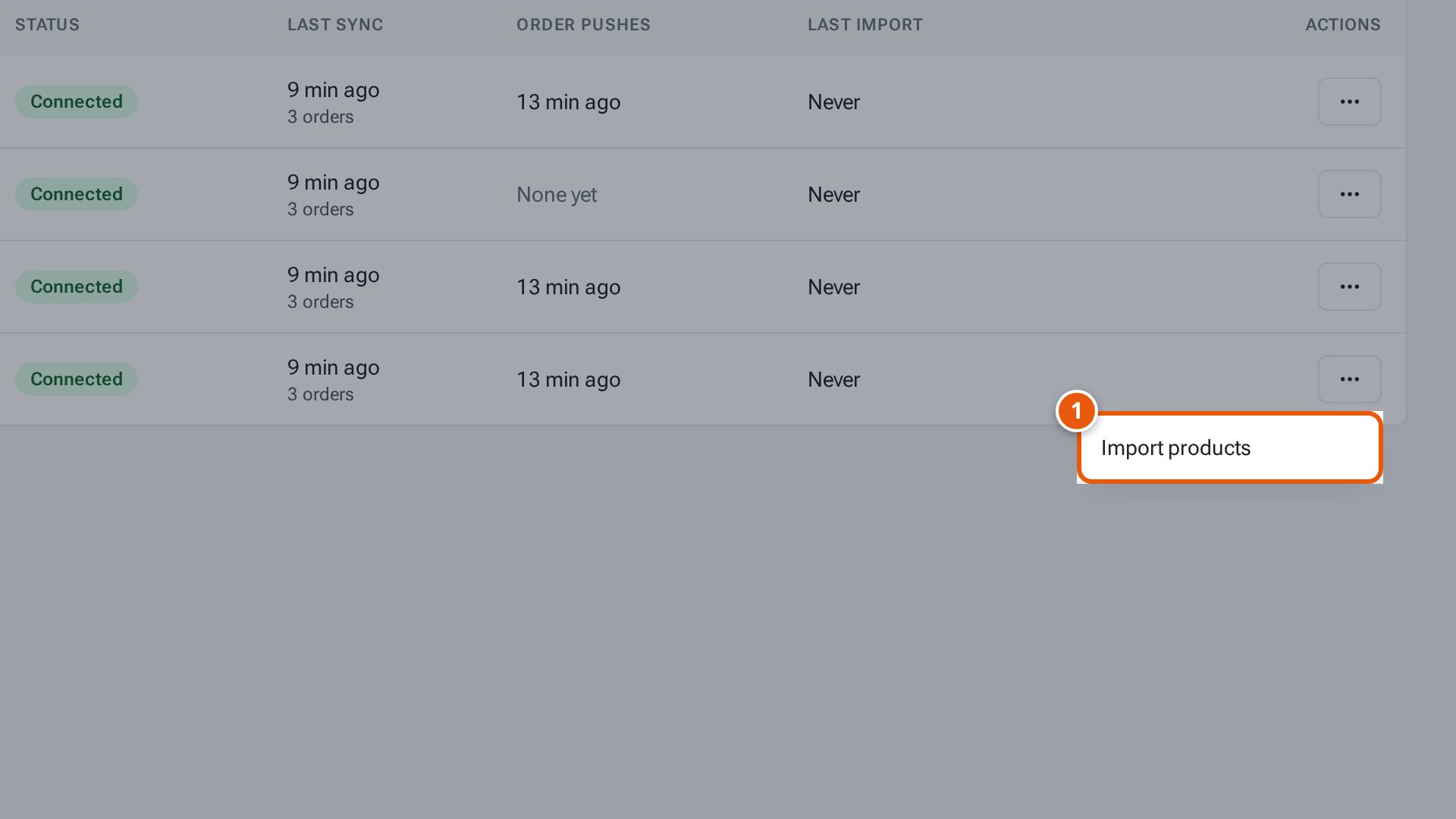
- 1. Bring the shop’s products into theopsroom.
Fixing import problems
Section titled “Fixing import problems”The Import problems window lists the products that weren’t imported, with the reason. Fix the seller SKU in theopsroom or Seller Center (for Shopify, in your Shopify admin), then run Import products again.
| Problem | What to do |
|---|---|
| A message says the seller SKUs match different products | The marketplace product’s SKUs belong to more than one product in the app. Fix the seller SKUs so they match one. |
| A message lists seller SKUs that match a product in the app and others that don’t | Make all its seller SKUs match that product, or none. |
| “… is already listed on this shop” | The theopsroom product already has a listing in this shop. |
| “… has SKUs that aren’t on …” | Add the missing SKUs on the marketplace, or remove them in theopsroom. |
| “…’s variations (…) don’t match …’s (…)” | Use the same variation names in both. |
| A message says a seller SKU has characters that aren’t allowed | Change it in Seller Center to letters, digits, spaces, “-”, “_” or “.”. |
After importing
Section titled “After importing”- Imported products may have notes on their listing, such as one saying the shop’s images for this product couldn’t be downloaded and that you should add images in the app.
- Shopify doesn’t keep a package size: the listing’s note tells you to set each product’s length, width and height (and check its weight) in the app.
If something goes wrong
Section titled “If something goes wrong”| Message | Why | What to do |
|---|---|---|
| “Failed: …” under Last import | The import stopped. | Try again later; if it keeps failing, ask your warehouse. |
| “Import products isn’t available for … shops” | — | Ask your warehouse. |
| “Only the first 10,000 products were read” (Lazada) | The shop is very large. | Ask your warehouse. |
| “Shopee couldn’t send this product’s details (…). Import again later.” | Shopee didn’t answer for that product. | Run the import again later. |