

Check your stock
Inventory shows every SKU you have, how many units are in the warehouse, what your marketplace listings show, how fast each sells, and any listing problems.
How your shops’ stock is set
Section titled “How your shops’ stock is set”When your warehouse has switched on marketplace stock follows the warehouse for you, Inventory says “Your marketplace stock follows the warehouse”. Every listing on every marketplace then shows what’s free to sell: the units in the warehouse, less those already in unpacked orders and any units held back for you (Inventory says how many). Damaged units never count. theopsroom updates your shops within about a minute whenever that changes, so they don’t sell stock that isn’t there.
To send more stock, tell your warehouse what’s coming. They count it in and put it on the shelves.
- Open Stock → Inventory (on a phone, the Stock tab). On a computer, the menu on the left lists the views with their counts, and four cards sit across the top: Units on hand (all the units in the warehouse), Running low, Out of stock and Shop stock not updated.
- Click a card or a menu item to see only those SKUs, for example Running low or Listing problems. Click All SKUs to see everything. The list always matches the number.
- Search by product name or seller SKU, then press Enter.
- To see where a SKU is, click its pin button (Where is it?). The window shows its places, what your shops show, and its history.
- To change when a SKU counts as running low, type a number in Running low at or below and click Save level.
- To open your stock in Excel, press Export. The file holds the SKUs in the view you chose, with your search applied, across every page, and only your own.
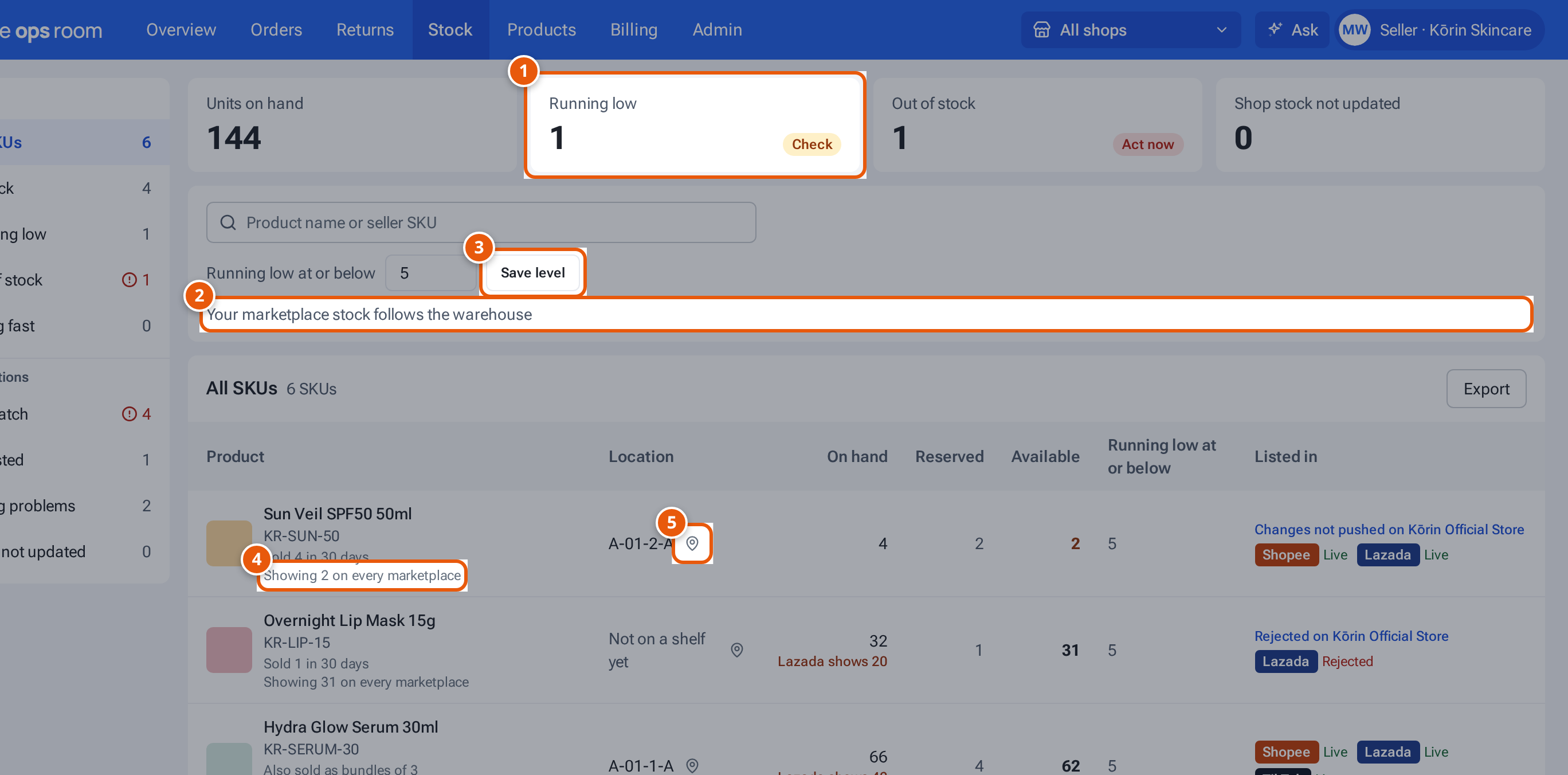
- 1. Cards: click one to see only those SKUs.
- 2. Your shops show what the warehouse has free to sell.
- 3. Set the level that counts as running low.
- 4. Above it: units on the warehouse’s shelves. This line: what every marketplace shows.
- 5. See where a SKU is and its history.
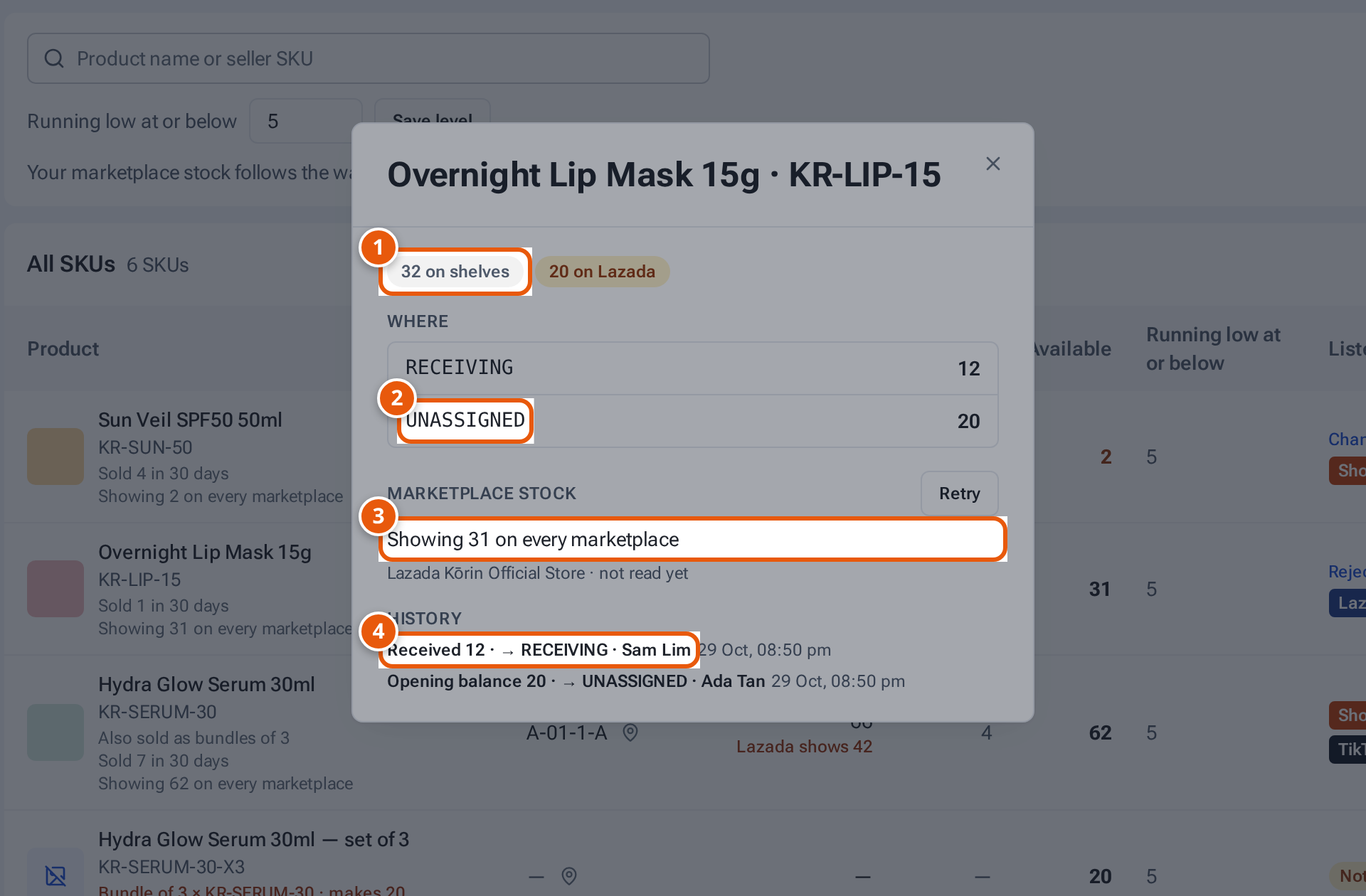
- 1. Units in the warehouse.
- 2. Where they are. Receiving: just arrived, not on a shelf yet.
- 3. What your shops show.
- 4. History: every move, newest first.
On a phone
Section titled “On a phone”Stock is one of your five bottom tabs. At the top is a search box (“Product, SKU or shelf”) with a camera button that scans a barcode, and a Filters button. Under it, chips show Running low, Out of stock, All SKUs and Shop stock not updated, each with its count. Tap one to see only those SKUs, then Export to download that view.
Each SKU is a card with its name, units on hand and what’s available, and where the stock is. Filters adds the In stock, Selling fast and Listing problems views and the Running low at or below level. Tap Done when you’ve set it. Your Home tiles Low stock, Out of stock and Shop stock not updated open the matching chip.
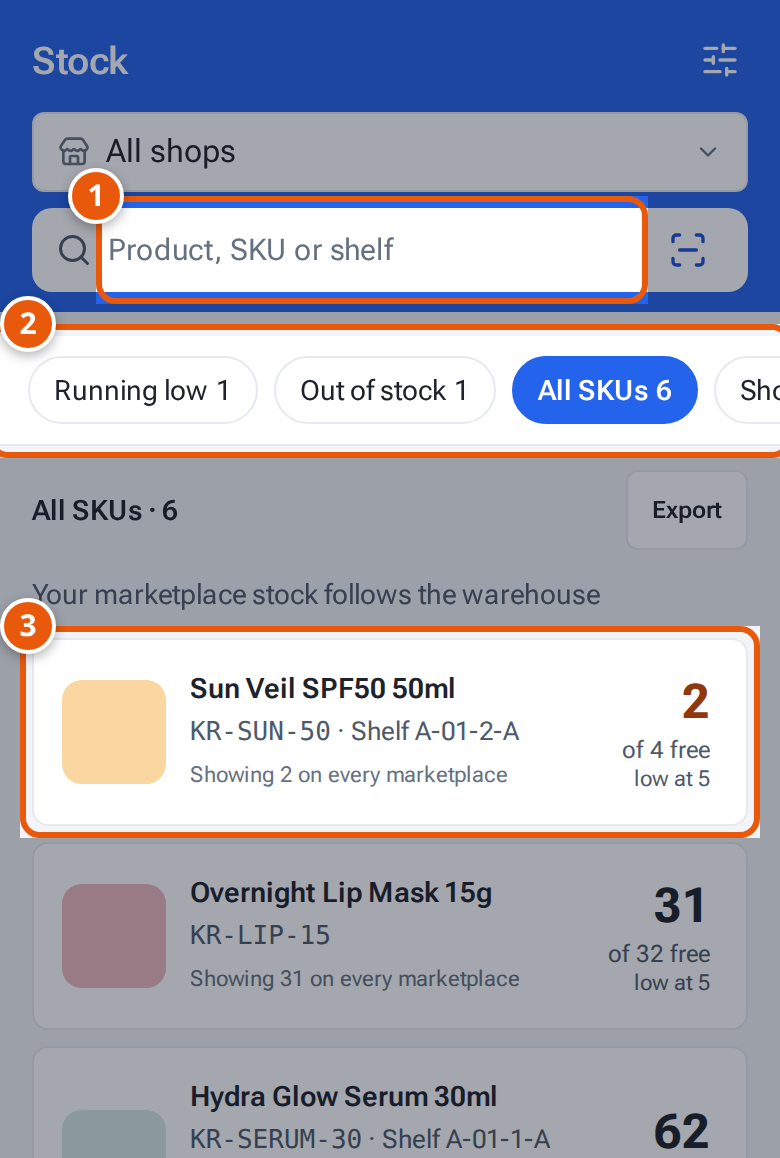
- 1. Search your stock by product or SKU.
- 2. Swipe the chips: Running low, Out of stock, All SKUs and Shop stock not updated.
- 3. One card per SKU: how many are free, and when it counts as low.
What each card, view and column means
Section titled “What each card, view and column means”| Item | What it means |
|---|---|
| Units on hand | All the units of your products in the warehouse. |
| In stock | More than your running-low level. |
| Out of stock | None left. “… still live” counts those still listed. |
| Running low | At or below your level (5 unless you change it). |
| Selling fast | Less than 7 days left at the current speed (shown under the product: sold in 30 days, “~… days left”). |
| Listing problems | A listing is Rejected, in Error, its push failed, or changes aren’t pushed. |
| Mismatch | A listing isn’t showing its number, or its update failed. |
| Stock not updated (card: Shop stock not updated) | Your stock didn’t reach a shop the last time theopsroom sent it. |
| Location | The shelf the units are on. A pin button (Where is it?) opens all the places and the history. |
| On hand | Units in the warehouse. Under it, “… damaged” if any, and “Lazada shows …” when a shop’s number differs. |
| Reserved | Units already in unpacked orders. |
| Available | What’s free to sell: on hand less reserved. Orange when running low, red when none. |
| Running low at or below | The level for that SKU (yours, 5 unless you change it). |
| Listed in | Each shop and its listing status, or the problem to fix. |
| Not listed | The SKU isn’t in any of your shops yet. |
| Where (in the window) | Each place and its units. RECEIVING: just arrived. UNASSIGNED: in the warehouse, not on a named shelf yet. |
| History (in the window) | Every move: Received, Put away, Moved, Picked, Damaged, Lost, Found, Recount. |
Only the warehouse can adjust or move stock. If a number looks wrong, ask them to recount it.
If something goes wrong
Section titled “If something goes wrong”| What you see | Why | What to do |
|---|---|---|
| “Low stock level must be a whole number from 0 to 9999” | The level isn’t a whole number. | Type a whole number. |
| A marketplace stock line says “failed” in the window | theopsroom couldn’t update that shop. | Click Retry: “Marketplace stock will be updated in a minute.” If it keeps failing, ask your warehouse. |
| “… · Count needed” in red | The warehouse’s count went below zero. | Ask your warehouse to recount it. |
| “No SKUs match this search.” | — | Check the spelling, or clear the search. |