

Move a seller to another client
A seller login belongs to one client and sees only that client’s orders, stock and invoices. If someone was invited to the wrong client, or now works for another seller, move their login. They keep their email and password.
- Open Admin → Users.
- On the seller’s row, click Change client (next to “Seller · …”).
- The window “Move … to another client?” explains what changes. Choose the New client.
- Click Move seller. You see “Mia Wong now belongs to Oak & Loom Home.” (with their name and the new client).
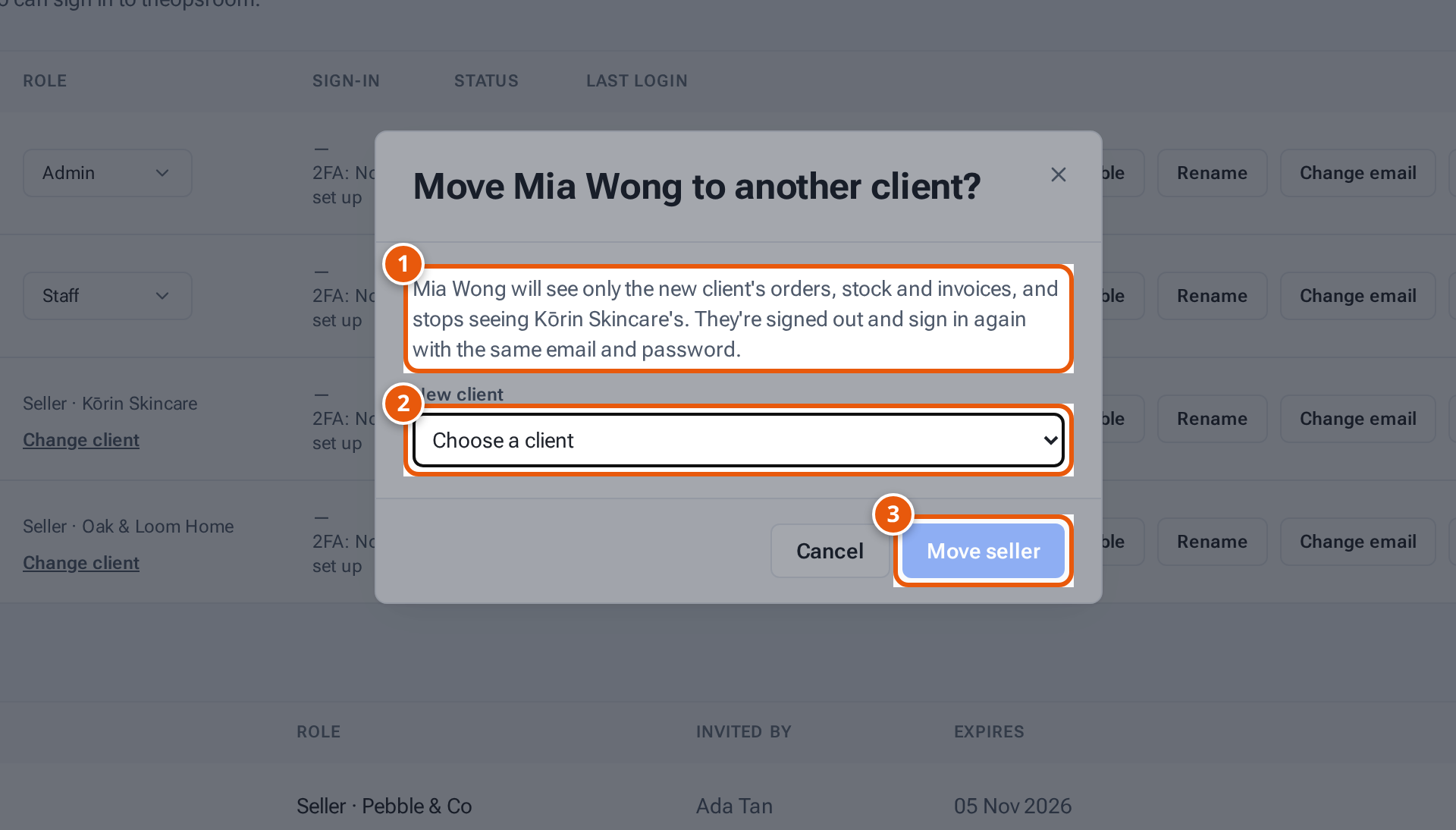
- 1. What changes for the seller.
- 2. The client to move them to.
- 3. Move them. They’re signed out and sign in again.
The seller is signed out. When they sign in again with the same email and password, they see only the new client’s data, and no longer the old client’s.
What each button and field means
Section titled “What each button and field means”| Item | What it means |
|---|---|
| New client | The client to move them to. Only other clients are listed. |
| Move seller | Move them and sign them out. Greyed out until you choose a client. |
| Cancel | Close without changing anything. |
Moving a login doesn’t move any shops, products or orders. To move a shop, see Move shops to another client.
If something goes wrong
Section titled “If something goes wrong”| Message | Why | What to do |
|---|---|---|
| “This seller already belongs to that client” | You chose their current client. | Choose another client. |
| “Only seller accounts belong to a client” | Staff and admins see every client. | Nothing to do. |
| “Choose the client this seller belongs to” | No client was chosen. | Choose the New client. |