

Pick & Pack
Pick & Pack is the packing station. The next order opens by itself: scan its items, pack it, the label prints, and the following order opens. It does the same packing as the Orders list, one order at a time. Shopify orders can only be packed here.
For a seller’s big day (for example a TikTok live), the Bulk packing tab clears a whole batch first and packs each parcel by its AWB later: see Bulk packing.
Before you start
Section titled “Before you start”- The order is synced and its shop is connected.
- Orders open in this order: the earliest ship-by time first, then the oldest. Orders on hold (TikTok), with a cancellation request (Shopee), or not yet accepted from Shopify don’t open.
- Choose a shop at the top of the screen to pack only that shop’s orders.
Steps on a computer
Section titled “Steps on a computer”On a computer the page has three columns. On the left, Orders waiting (with Find an order above it) lists the queue, earliest ship-by first, with the open order highlighted. In the middle is the open order and its items. On the right are Mark ready to ship after packing, Pack & print, Print later and Skip this order. Shopify orders also show a Courier card there, with how the parcel will ship.
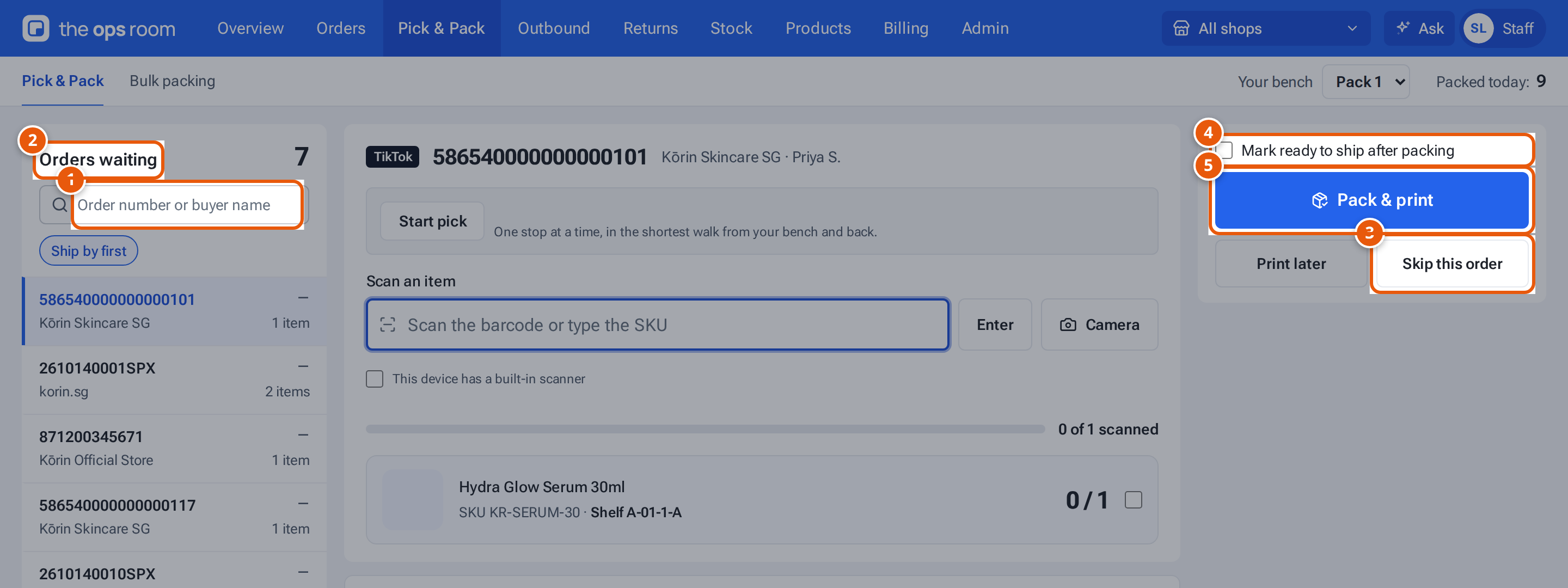
- 1. Find an order: type its number or the buyer’s name to pack it next.
- 2. The queue: orders waiting to be packed, earliest ship-by first. Click one to open it.
- 3. Leave this order for later.
- 4. Also tell the marketplace the parcel is ready, straight after packing.
- 5. Pack the order and open its label. The next order opens by itself.
- Open Pick & Pack. The next order opens: “Order 586540000000000101”, the buyer, the shop and how long is left to ship it (“ship within 5h”).
- Read any notes on the order: “Note for packers: …”, “Replacement for #…”, or a red “Buyer asked to cancel — check before packing”.
- Scan each item into Scan an item. The box flashes green when the item counts and red when it doesn’t. Each line shows how many are scanned, for example “1 / 2”, and the shelf to take it from, for example “Shelf A-03-2-B” (the shelf theopsroom takes the stock off when you pack). An item on several shelves lists how many from each; one not put away yet says “Not on a shelf yet”.
- Put in anything listed under “Also put in — no barcode” (gifts without a barcode). Tick each one as a reminder.
- To tell the marketplace the parcel is ready as soon as it’s packed, tick Mark ready to ship after packing (not for Shopify orders). theopsroom remembers this on the device.
- Press Pack & print. The order is packed, its label opens in a new tab, and the next order opens. The “packed this session” count goes up. Next to the section menu, Packed today: N counts every parcel packed today, including earlier visits.
With a floor plan, press Start pick to be guided shelf by shelf in the shortest walk from your bench: see Guided picking.
To pack a particular order next, click it in Orders waiting. Or type its number or the buyer’s name in Find an order and press Enter, or click it in the results. To leave an order for later, press Skip this order: it’s passed over until you leave the page.
Packing video
Section titled “Packing video”If an admin has switched on packing video, a small camera picture shows “Recording” with a running time while an order is open. It records by itself until you press Pack; you don’t need to do anything. If it says “Not recording: …”, you can still pack: tell an admin.
Steps on a phone
Section titled “Steps on a phone”On a phone the bottom tabs do the finding for you. Pack lists the orders waiting; Scan opens the camera. The Pick & Pack section tab opens the same list as Pack. Opening Pick & Pack never opens an order by itself: you choose one.
The Pack tab: pick from a list
Section titled “The Pack tab: pick from a list”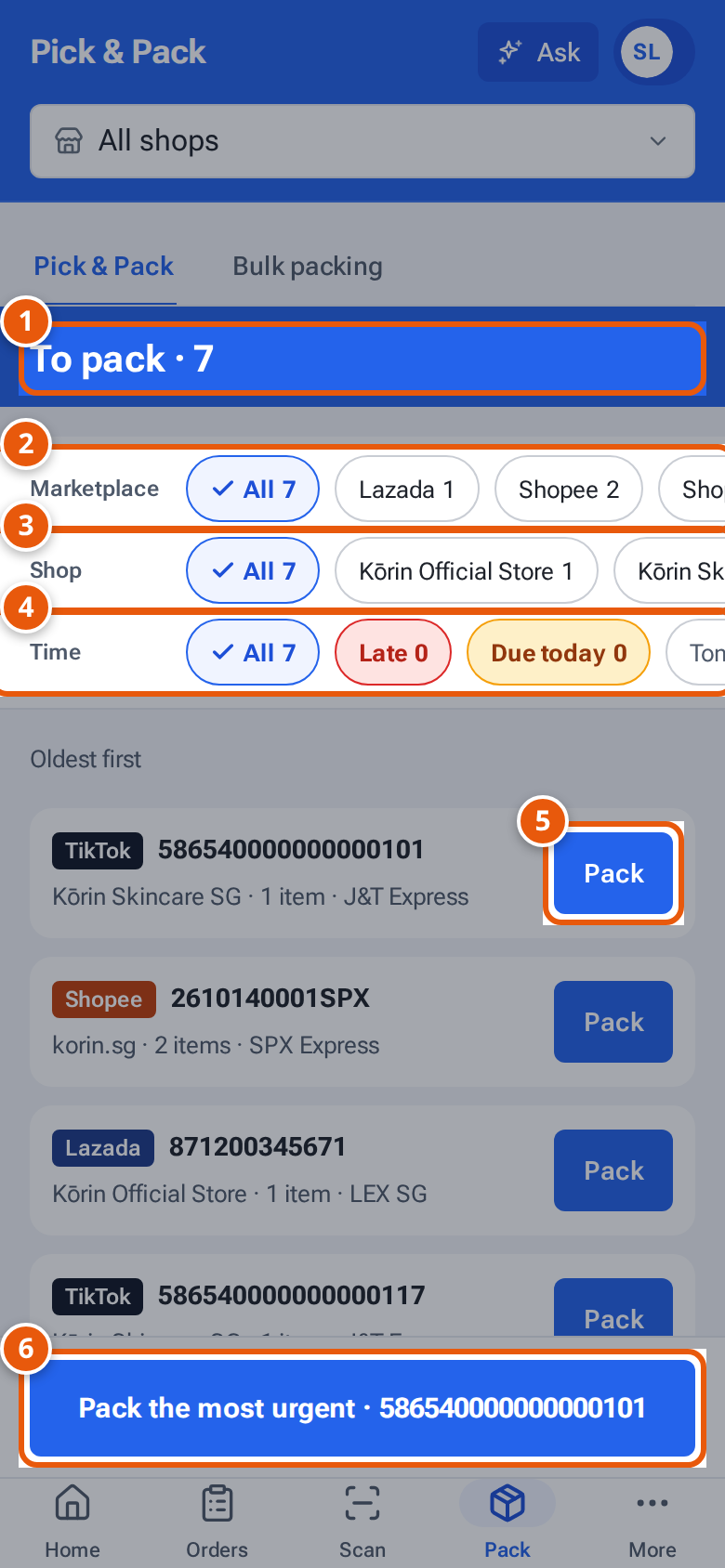
- 1. How many orders are waiting to be packed.
- 2. Filter by marketplace. Each choice shows how many orders it holds.
- 3. Filter by shop.
- 4. Filter by how soon the order must ship: late, today and so on.
- 5. Pack this order.
- 6. Pack the most urgent order. With a filter chosen it packs all the shown orders one after another.
- Tap Pack. The header says To pack and how many orders are waiting. Orders are listed oldest first, each with its marketplace, number, how long is left, the shop, the items and the courier. “Short” in red means the stock is not enough.
- Narrow the list with the three filter rows, Marketplace, Shop and Time. Swipe a row sideways to see all its choices. Each choice shows its count, a tick marks the ones you picked, and the counts follow your other choices. The Time row has Late, Due today, Tomorrow and Later. Tap a picked choice again to clear it, or tap Clear. The line under the filters says what you picked, for example “Lazada · Late · oldest first”.
- Tap Pack on an order to open it, or use the button at the bottom:
- With no filter, Pack the most urgent opens the first order only.
- With a filter picked, Pack these N in order takes the orders you see one after another: when one is packed (or skipped) the next opens, until the run is done.
If the list is long it shows the most urgent orders and says “Showing the most urgent …”.
The Scan tab: find by scanning
Section titled “The Scan tab: find by scanning”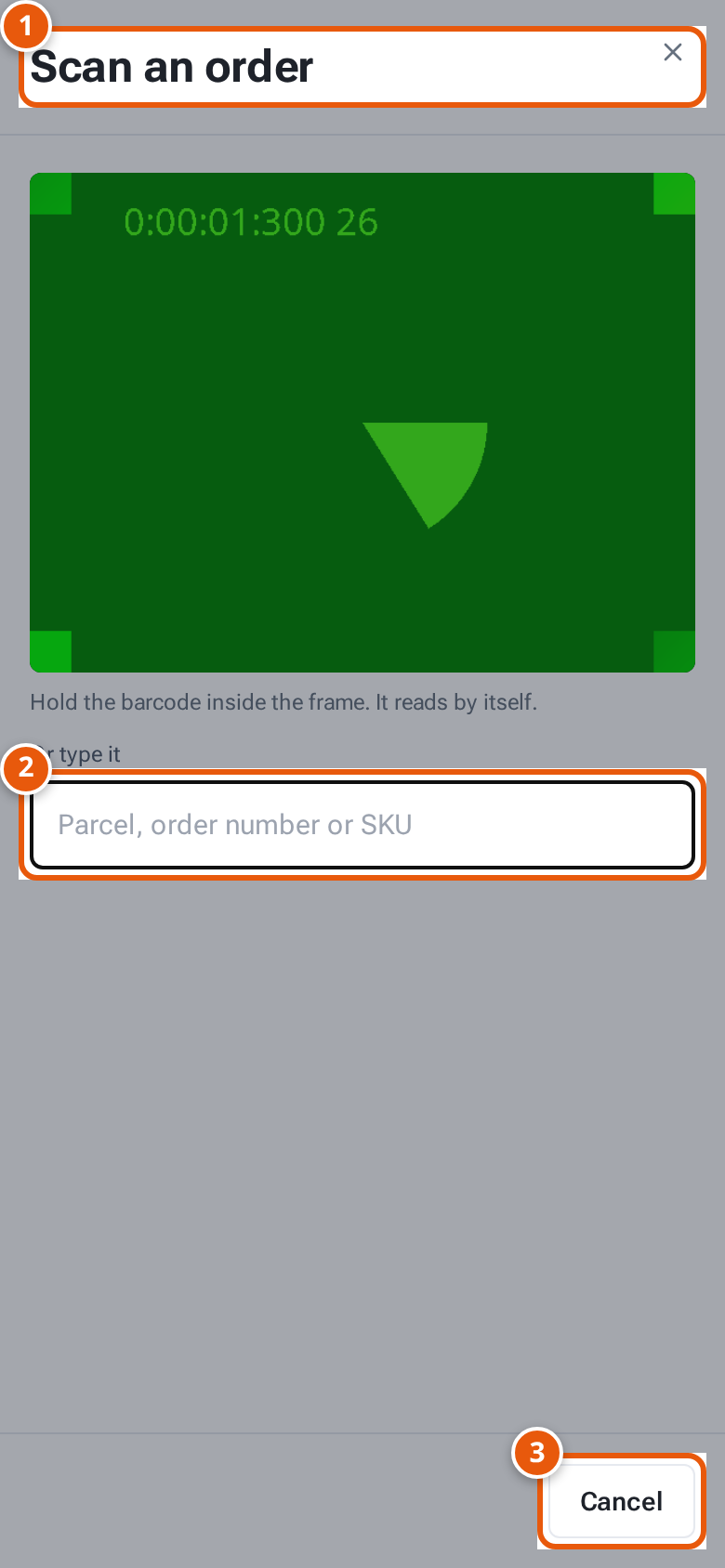
- 1. The camera opens at once. Hold a parcel label, an order barcode or an item barcode in the frame.
- 2. No camera? Type the parcel number, order number or SKU and press Enter.
- 3. Close the camera without scanning.
- Tap Scan. The camera opens at once (in the Android app, the phone’s own scanner opens instead). Hold a parcel label, an order barcode or an item barcode in the frame, or type the code in Or type it and press Enter. The on-screen keyboard stays down until you tap a box yourself.
- A parcel or order code opens that order for packing. A green line says “Found from parcel … — scan the items” (or “Found from order …”). If the code matches several orders you see “… matches 2 orders — pick one”.
- An item (SKU) code works like this:
- If one order is waiting for it, that order opens.
- If several orders are waiting, you see Orders with this SKU, with how many are waiting, most urgent first. Tap Pack on one. Scan again reopens the camera.
- If several sellers use the same code, you first see “… belongs to 2 sellers — pick one” and a button for each seller. Choose the right one.
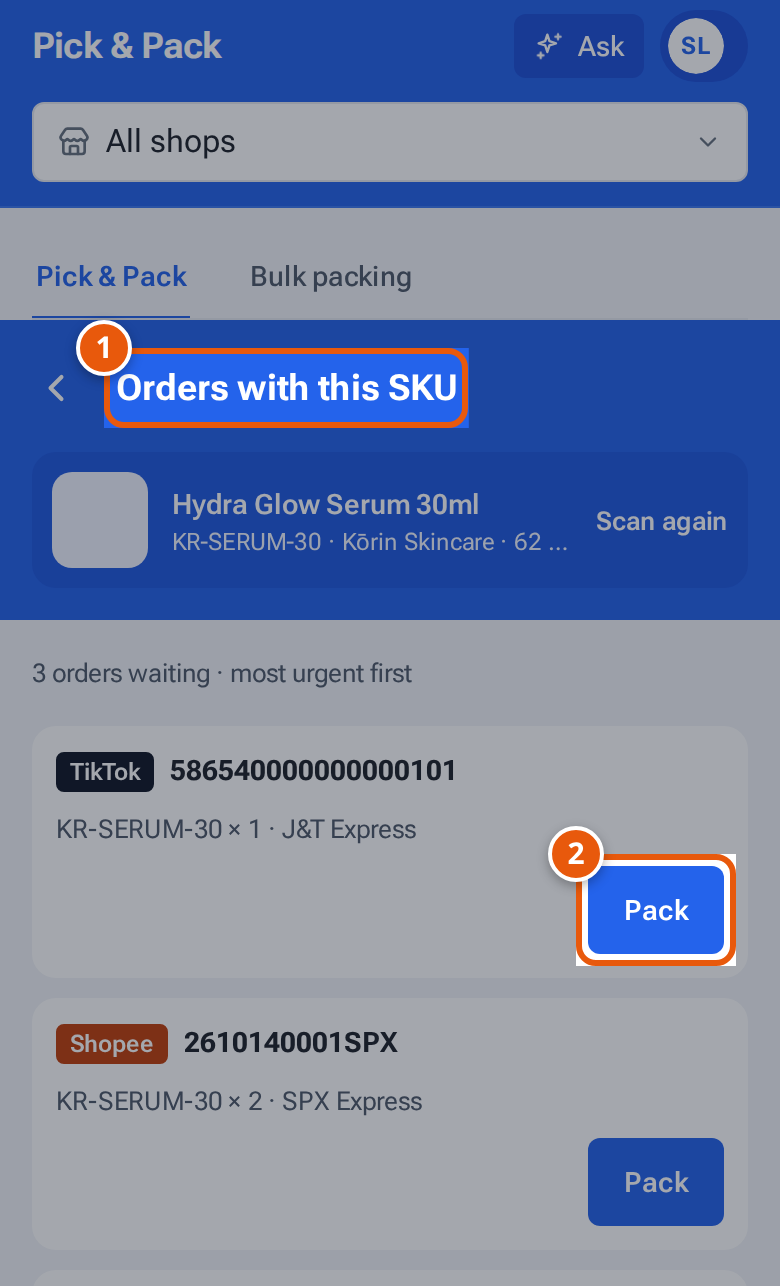
- 1. Scan an item and theopsroom lists the orders waiting for it.
- 2. Pack one of them.
Typing in Find an order (order number or buyer name) also finds an order. Back on that screen returns to the Pack list.
Pack the order on a phone
Section titled “Pack the order on a phone”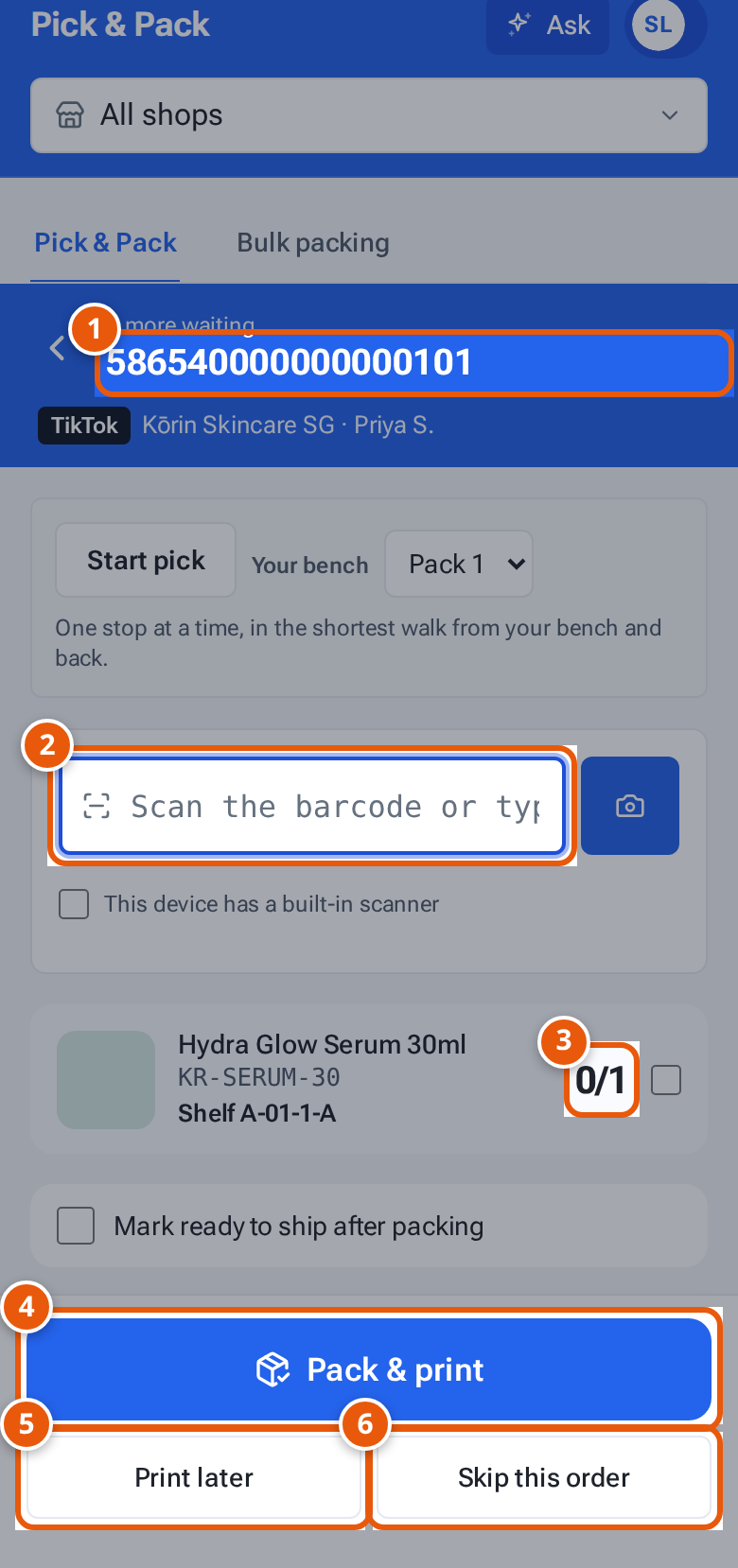
- 1. The order to pack, the buyer and the shop.
- 2. Scan each item as it goes in the parcel.
- 3. The count fills in as you scan.
- 4. Pack and open the label. It switches on when every item is scanned.
- 5. Pack now; the label waits under Labels to print.
- 6. Skip this order for now. It still counts as waiting.
- The top shows Back, how many more orders are waiting, the order number, how long is left, then the marketplace, shop, buyer and courier.
- Scan each item into Scan an item. Use the camera button next to it, or a scanner. Each line shows how many are scanned, for example “0/1”, and the box beeps and flashes green or red. A phone with a built-in scanner makes the same sound: tick This device has a built-in scanner under the box.
- While an order is open, the bottom tabs are replaced by buttons. Pack & print switches on when every item is scanned. Until then it says how many are still to go, for example “Pack & print · 2 to go”. The order is packed and its label opens.
- Or press Print later to pack now and print the label later from Labels to print. There is no extra question to answer.
- Skip this order leaves the order for later.
When the order is done, you land back where you started: the next order of a “Pack these N in order” run, the Pack list (with your filters), or the SKU screen. Back goes there too, without packing.
Up next sits under the scan box. It shows the other orders waiting, as Up next · 12, most urgent first and following the filters you picked on the Pack list. It shows at most 10 and fills up again after each order. Tap Pack on one to open it instead, or See all to go back to the full list.
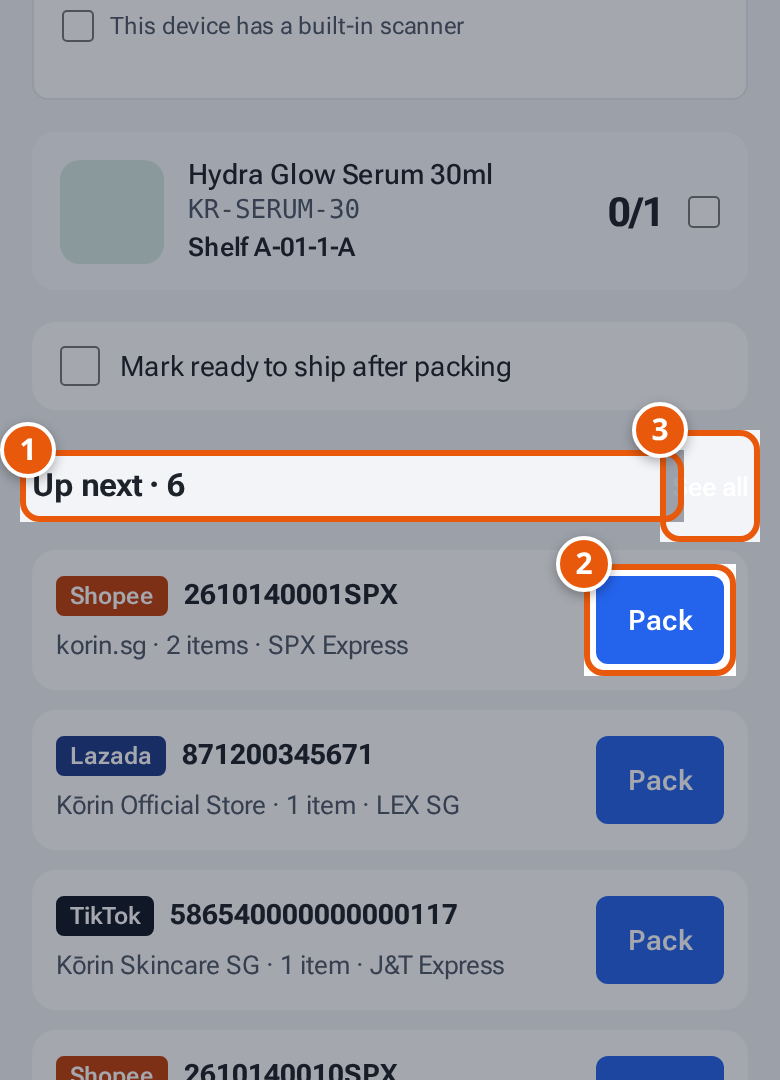
- 1. Up next: the other orders waiting, most urgent first.
- 2. Pack this one instead.
- 3. See all: back to the full list of orders to pack.
Packing video on a phone
Section titled “Packing video on a phone”When an admin has switched on packing video, opening an order on a phone starts recording with the back camera. A strip under the header shows the live picture, full width, with “Recording 0:42” and “Saved to the order when you finish”. Pack & print saves the clip to the order; Skip this order throws it away.
- One camera does both jobs: while recording, theopsroom reads barcodes from the recording’s own picture, so just hold the item up. You can also tap the camera button next to the scan box. It opens a big camera view (“Point at an item barcode”) on the same picture, with Close. The view closes by itself when a code counts.
- If the camera sees a barcode that is not in this order, it says “Camera saw … — not in this order”. Nothing is scanned.
- To scan a second identical item, move the first one out of view for about a second before you show the second, so the camera sees a fresh code.
- If the phone can’t read barcodes from the picture (for example an iPhone), the strip says “Type the code or use the built-in scanner”. Recording carries on; type the code or use a scanner instead.
- If the camera stops and starts again, the strip says “Recording restarted — earlier part not saved”.
- “Not recording: …” means the camera is refused or busy. You can still pack. Tap Try again.
Shopify orders
Section titled “Shopify orders”A Shopify order also asks for its courier before you can pack it. The button then reads Pack & book, Pack & print or Pack, depending on the courier. See Ship a Shopify order.
What each button and field means
Section titled “What each button and field means”| Name | What it does |
|---|---|
| Find an order | Search by order number or buyer name (two letters or more). Orders that can’t be packed are greyed out with the reason, such as “Already packed” or “On hold on TikTok”. |
| Orders waiting | The orders waiting to be packed, earliest ship-by first. Click an order to open it. On a phone, use the Pack tab instead. |
| Courier | The courier the parcel will be packed with, its tracking number and label. Change it here when the order allows. |
| Scan an item | Scan each item here. See Scanning. |
| Tick box on a line (“Packed KR-SERUM-30”) | Counts that line as packed by hand. Only there when the seller doesn’t ask for every item to be scanned. |
| Skip this order | Leave this order for now. It still counts as waiting. |
| Mark ready to ship after packing | Also tells the marketplace the parcel is ready, so its courier comes to collect it. |
| Pack & print | Pack and open the label. It works once every item is scanned (or the seller doesn’t require scanning). |
| Print later | Pack now and print the label later from Labels to print. |
| Up next (phone) | The next orders waiting, under the scan box. |
| Next order | Shows when “Nothing waiting to be packed.”: looks for the next order again. |
If something goes wrong
Section titled “If something goes wrong”| Message | Why | What to do |
|---|---|---|
| “586540000000000101 is in 2 shops — pick one” | The same number is in two shops. | Click the right one in the list. |
| “Still syncing — try again shortly” | The order is still coming in. | Wait a minute. |
| “Waiting for the seller to press Request fulfillment in Shopify” | The seller hasn’t sent this Shopify order to the warehouse. | Ask the seller. |
| “Not accepted from Shopify yet” | The request from Shopify hasn’t been accepted yet. | Wait for the next sync. |
| “None of this order’s items are products in theopsroom, so there’s nothing to scan. Check the order in Orders before packing.” | The items aren’t in theopsroom. | Check the order and the seller SKUs before packing. |
| “Short: needs 3 Hydra Glow Serum 30ml, 1 free” | Not enough stock for a bundle. | Check the shelves, or tell an admin. |
| “EasyParcel credit is low (S$12.50) — ask an admin to top up” | The EasyParcel wallet is low. | Tell an admin. |
| Buttons greyed out | The device is offline. | Get back online. |
Other packing messages are listed on Pack from the Orders list.