

Check a return
After a returned parcel is checked in, open it and count what came back. Good units go back into stock. Damaged units, and good units you choose not to put back, are kept apart until the seller decides what happens to them. The seller uses your photos as evidence with the marketplace, so photograph any damage clearly.
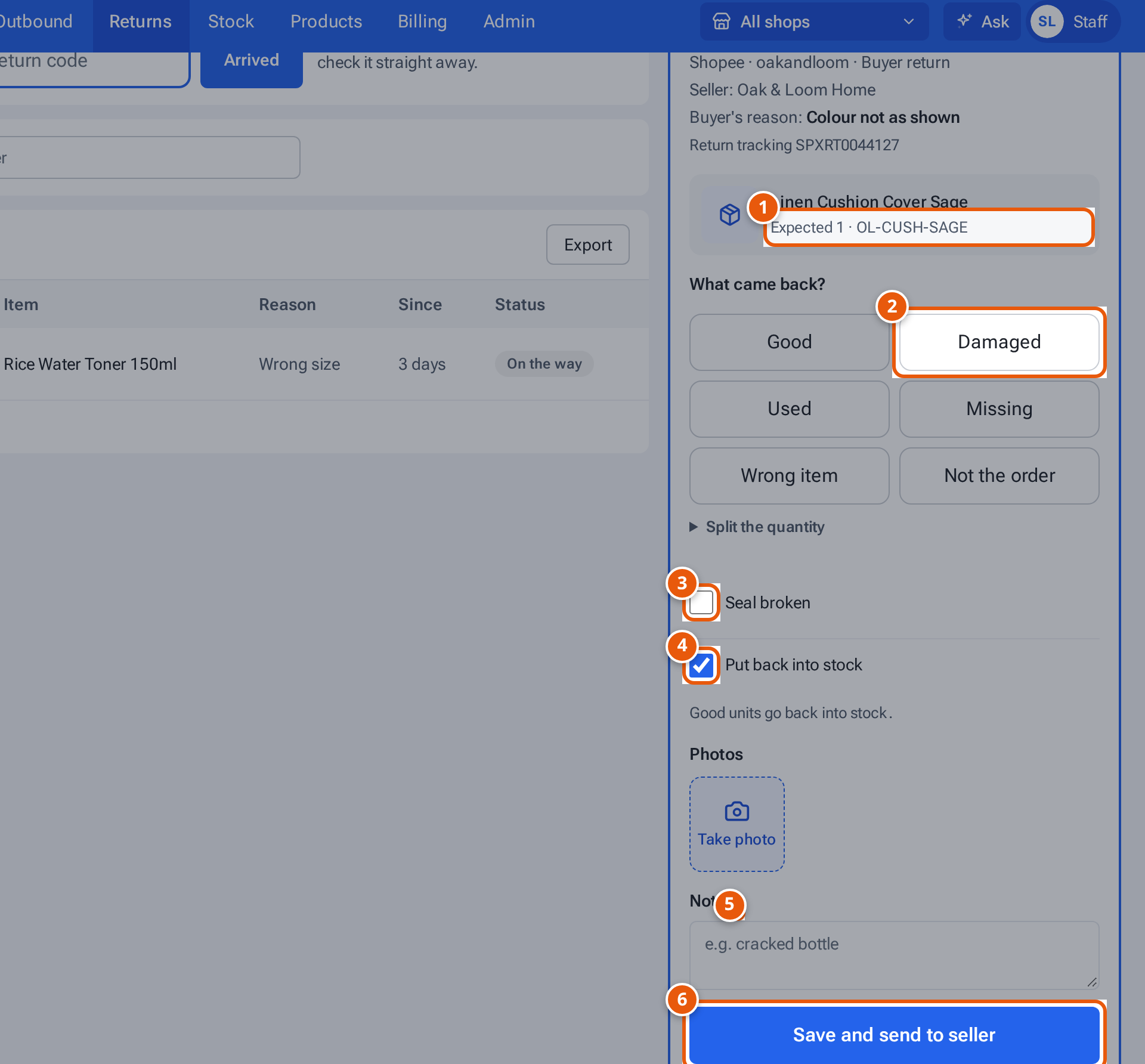
- 1. What came back, and how many.
- 2. Tap what came back: Good, Damaged, Used, Missing, Wrong item or Not the order. Split the quantity for a mix.
- 3. Seal broken: the item was already opened. The seller sees it.
- 4. Leave ticked to restock good units. Untick to hold them on a shelf for the seller to decide.
- 5. Add photos. A damaged item needs at least one.
- 6. Save every item’s counts and finish: Save and send to seller when something is damaged or held, otherwise Save and finish check.
- Open Returns, then To check, and click the return. On a computer it opens in the Check this return panel beside the list, so you can see the next ones waiting; on a phone it opens on its own screen (“Check a return · 3 more to check”). The top shows the seller, shop and why it came back, the order number and “Return tracking …”.
- For each item (“Linen Cushion Cover Sage · Expected 1”), answer What came back? by counting each unit under one condition: Good, Damaged, Used, Missing, Wrong item or Not the order. Together they must make up every unit that came back. Tap a condition to count the whole quantity. To split a mix, open Split the quantity and use the plus and minus buttons (or type the numbers).
- Tick Seal broken if the item’s seal was already open. It is shown to the seller.
- Leave Put back into stock ticked to return the good units to stock (“Good units go back into stock.”). Untick it and the good units are not put away: “Good units go to the held shelf for the seller to decide.”
- Take or choose photos, up to 6 per item. Any item that is not good (damaged, used, wrong item or not the order) needs at least one photo: it says “Needed for damage” and “Add at least one photo of the damage”. On a phone the photo button opens the camera.
- Add a Note if it helps, for example “cracked bottle”.
- When every item is counted, press the one button at the bottom: Save and send to seller when something is damaged, used, held or a refund is open, otherwise Save and finish check. It saves every item’s counts and finishes the check. You see “Check finished.” On a phone this bar replaces the tabs, with a line under it saying what happens next.
If you open the return on its own page (from its link), each item has its own Save button and the page has Finish check at the top.
The seller sees every condition, the seal and the photos when they decide the return.
What happens next:
- Good units go to Receiving, ready to put away. If Put back into stock was off, they wait on a held shelf instead (“Held items (not put back)”).
- Damaged units go to Damaged, kept apart. Used units, wrong items and items that are not the order are kept apart too, for the seller to decide.
- The return goes to Waiting for seller if anything is damaged or held, or a refund decision is open. Otherwise it goes to Lost & claims if anything is missing, or it’s closed.
Change a check
Section titled “Change a check”Press Reopen on a checked return to undo the stock moves and count again. You can’t once the seller has decided, or once its units were put away.
Hand damaged items to the seller
Section titled “Hand damaged items to the seller”When the seller chooses to collect the damaged items, the return shows, for example, “1 damaged unit(s) waiting for the seller to collect”. Hand them over, then press Collected. You see “Handed over.” If the seller chooses Dispose or Resell as is, theopsroom writes the items off or puts them back into Receiving: see Choose what happens to damaged items.
If something goes wrong
Section titled “If something goes wrong”| Message | Why | What to do |
|---|---|---|
| “1 + 1 + 0 is more than the 1 that came back” | The counts add up to too many. | Fix the counts. |
| “Count every unit of OL-CUSH-SAGE first (good, damaged or missing)” | Some units aren’t counted. | Count them all. |
| “Add a photo of OL-CUSH-SAGE first (damaged, used, wrong item or not the order)” | An item that is not good has no photo. | Add a photo. |
| “Each photo must be 3 MB or less” | A photo is too big. | Take a smaller photo. |
| “Photos must be JPEG, PNG or WebP” | Wrong file type. | Use a normal photo. |
| “Up to 6 photos per item” | Too many photos. | Remove some. |
| “Scan the parcel in first” | The return isn’t marked as arrived. | Scan it in on Returns with Arrived. |
| “This return is already checked — reopen it to change it” | It’s already checked. | Press Reopen. |
| “The seller already decided — it can’t be reopened” | Too late to reopen. | Use Adjust in Inventory if counts are wrong. |
| “Some of these units were already put away — adjust stock instead” | The good units are on a shelf now. | Use Adjust in Inventory. |
| “Nothing comes back for this one — it’s a refund only.” | There’s no parcel to check. | Nothing to do. |