

Connect a TikTok shop
Connecting a seller’s TikTok shop lets theopsroom bring in its orders, keep its stock right, publish products and handle returns and cancellations. You start in theopsroom, then sign in on TikTok Shop’s own page and approve theopsroom.
Before you start
Section titled “Before you start”- You need the seller’s TikTok Shop login, or the seller next to you to sign in.
- In TikTok Seller Center, add your warehouse as one of the shop’s warehouses. You choose it in theopsroom afterwards.
-
Open Admin → Shop Connections and click Connect shop.
-
Under Marketplace, choose TikTok Shop.
-
Choose the client the shop is for, or + New client and type the Client name.
-
Click Continue to TikTok. Your browser goes to TikTok Shop’s page.
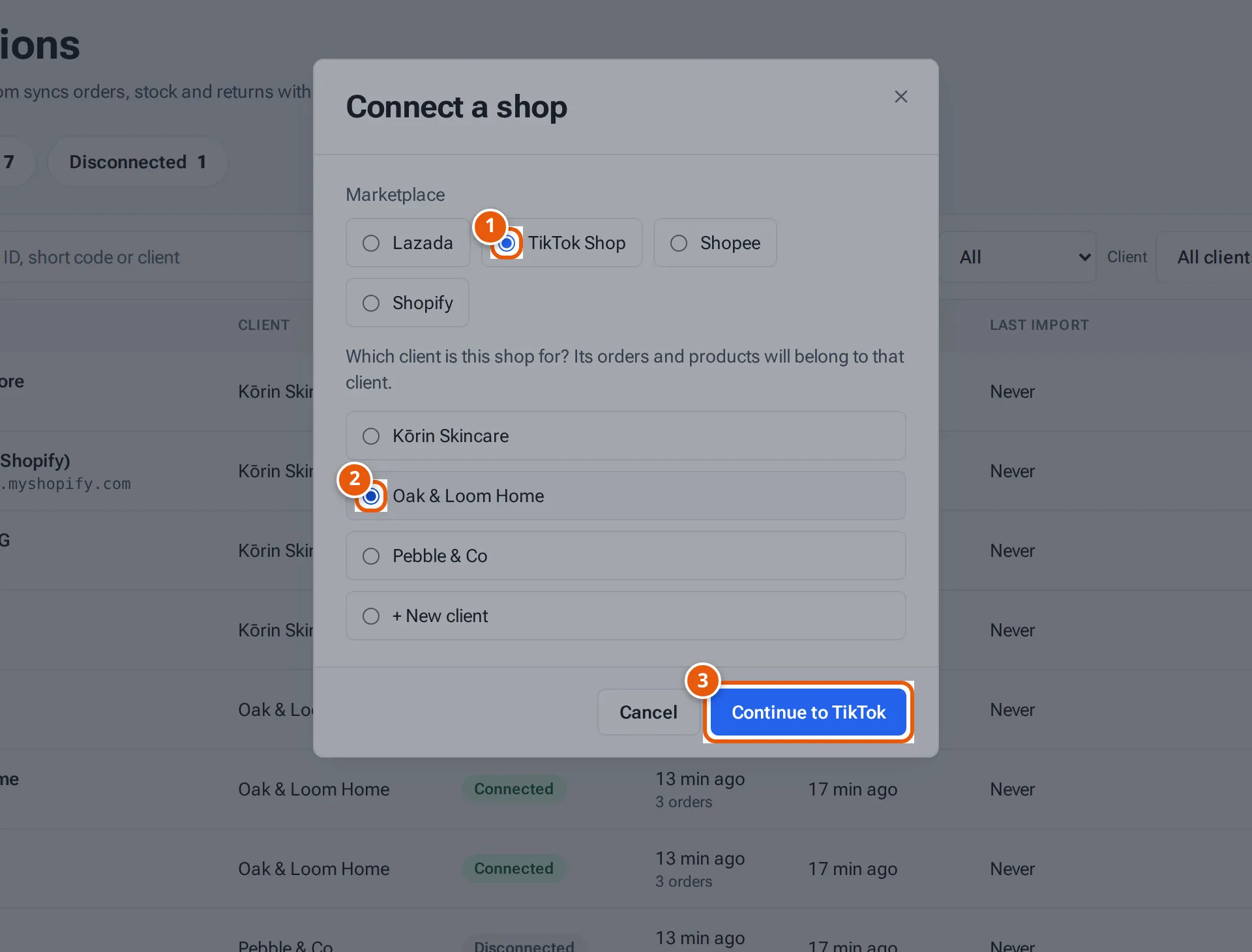
- 1. The marketplace.
- 2. The client the shop is for.
- 3. Go to TikTok Shop to sign in and approve theopsroom.
Tap or click the picture to open it full size. -
Sign in with the seller’s account and approve theopsroom. Every shop you approve there is connected.
-
TikTok sends you back to Shop Connections. A green banner says “TikTok shop connected. Importing the last 30 days of orders…”
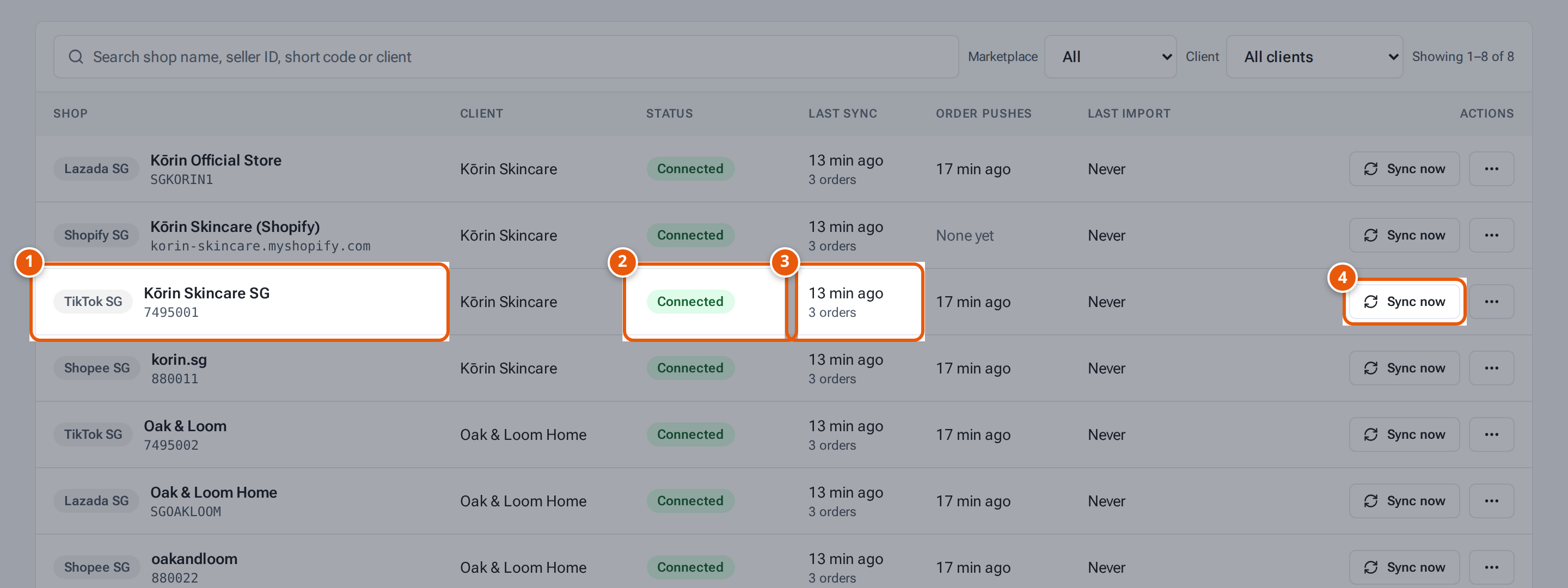
- 1. The shop, with the marketplace and country. Click its name to see its details.
- 2. Connected: theopsroom brings in its orders every 5 minutes.
- 3. When orders were last brought in, and how many.
- 4. Bring in new orders now instead of waiting.
Choose the TikTok warehouse
Section titled “Choose the TikTok warehouse”Your stock goes to one warehouse in TikTok (for publishing, edits and stock changes).
- On the shop’s row, click ⋯ and choose TikTok warehouse….
- The window shows which warehouse theopsroom uses now, e.g. “theopsroom uses: … — TikTok’s default”.
- Choose your warehouse, or Let theopsroom pick (TikTok’s default sales warehouse), and click Save.
Warehouses marked “a return warehouse” or “not a sales warehouse” can’t be chosen.
What theopsroom asks permission for
Section titled “What theopsroom asks permission for”theopsroom uses TikTok Shop Partner API with these permissions: shop authorisation, orders (read; packages and shipping documents), products (create, edit and delete products; categories, attributes, brands and certifications; images), inventory, return and refund, cancellations, and webhooks for orders, returns and cancellations.
What each button and field means
Section titled “What each button and field means”| Item | What it means |
|---|---|
| Marketplace | Which marketplace to connect. |
| Client | Who the shop belongs to. |
| Continue to TikTok | Go to TikTok Shop to approve. Greyed out until you choose a client. |
| TikTok warehouse… | Which TikTok warehouse theopsroom’s stock goes to. |
If something goes wrong
Section titled “If something goes wrong”| Message | Why | What to do |
|---|---|---|
| “TikTok isn’t set up yet (missing app keys)” | The TikTok keys aren’t on the server. | Ask whoever runs your hosting. |
| “Connection cancelled on the marketplace — nothing was connected.” | The approval was cancelled on TikTok. | Click Connect shop again. |
| “That connect link expired or was already used. If the shop is listed below it is connected; otherwise click Connect shop again.” | The sign-in took too long, or the page was reloaded. | Check the list; if the shop isn’t there, start again. |
| “This shop already belongs to another client. Use Move to client to change it.” | The shop is connected for another client. | Use Move shops to another client. |
| “No usable sales warehouse — add one in TikTok Seller Center” | The shop has no warehouse theopsroom can use. | Add one in TikTok Seller Center, then choose it. |
| “The chosen warehouse isn’t available any more — choose another” | The warehouse was removed in TikTok. | Choose another in TikTok warehouse…. |
| “Choose an active sales warehouse from the list” | The chosen warehouse can’t take stock. | Choose a sales warehouse. |