

Use theopsroom on a phone
theopsroom works on a phone as well as on a computer. On a phone you get a white bar of tabs along the bottom, one set for your role, and a More screen for everything else. There is no ☰ menu button.
The address
Section titled “The address”Open app.theopsroom.io in your phone’s browser and sign in (see Sign in). You can also use the Android app, which opens the same address. If you were given an older address, it may keep working for a while, but you sign in there separately, so use app.theopsroom.io.
The tabs
Section titled “The tabs”Every phone has five tabs. Which five depends on your role, not on any setting.
| Your role | Tabs |
|---|---|
| Warehouse staff and admins | Home, Orders, Scan, Pack, More |
| Sellers | Home, Orders, Stock, Billing, More |
| Platform administrators (before they switch into an operator) | Operators, Websites, Templates, All users, More |
The open tab is shown in blue.
- Home is the Overview laid out for a phone.
- Orders lists the orders.
- Scan opens the camera at once, in the phone’s own scanner in the Android app. Scan a parcel and its order opens for packing. Scan an item’s barcode and you see Orders with this SKU. To type a code instead, tap the box; the keyboard stays down until you do.
- Pack opens To pack: the orders waiting, most urgent first, with Marketplace, Shop and Time filters. Tap Pack on one to open it. Under an open order, Up next lists the next orders, with See all to go back to the full list. See Pick & Pack.
- Stock (sellers) is your inventory. Billing (sellers) is your invoices.
- Platform administrators get the platform pages as tabs; Settings is on More. See Operators.
While you pack an order, do a courier handover or check a return, the tabs are replaced by that screen’s own buttons at the bottom (for example Pack & print and Skip this order). Go Back or finish, and the tabs return.
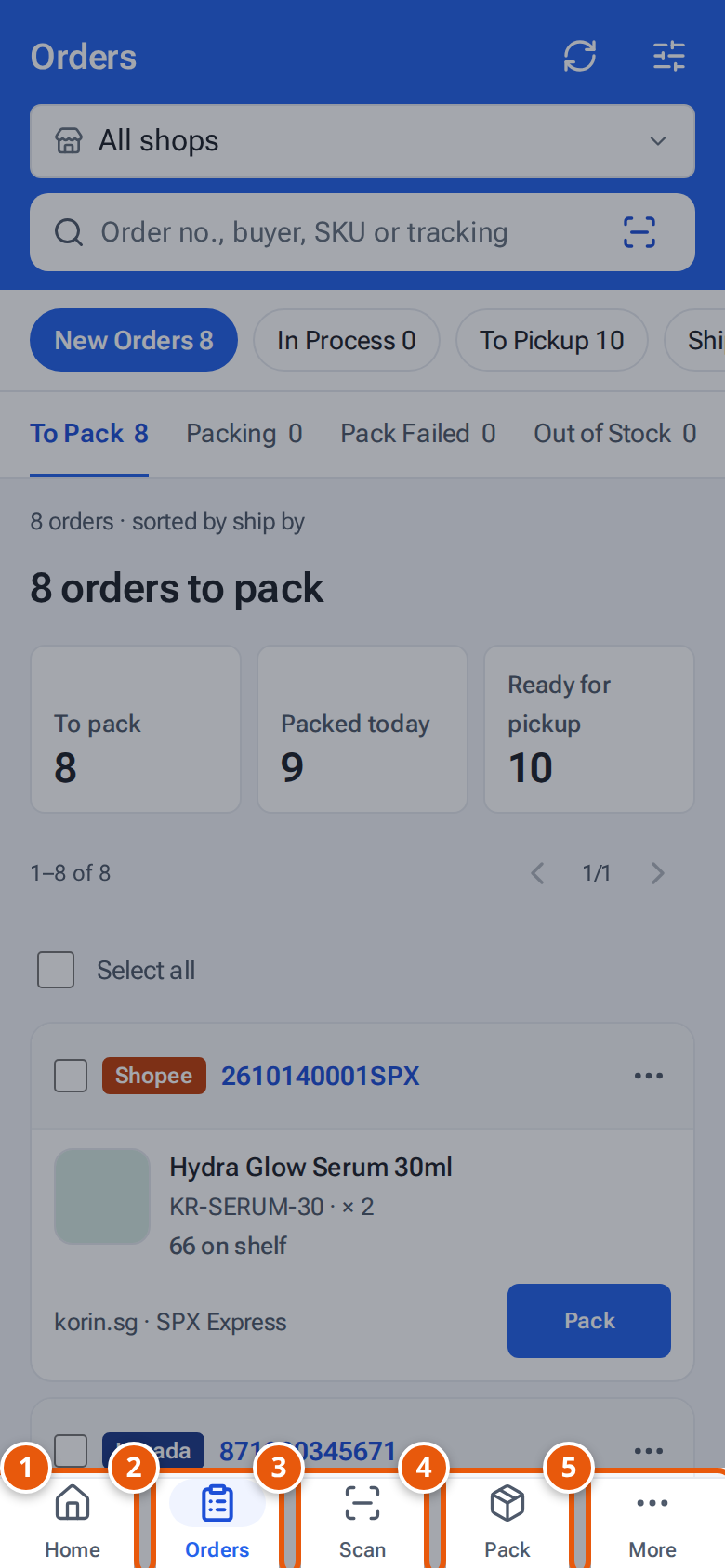
- 1. Home: today’s figures and what needs attention.
- 2. Orders: the order list.
- 3. Scan: opens the camera to find a parcel, order or item.
- 4. Pack: the orders waiting to be packed.
- 5. More: every other page.
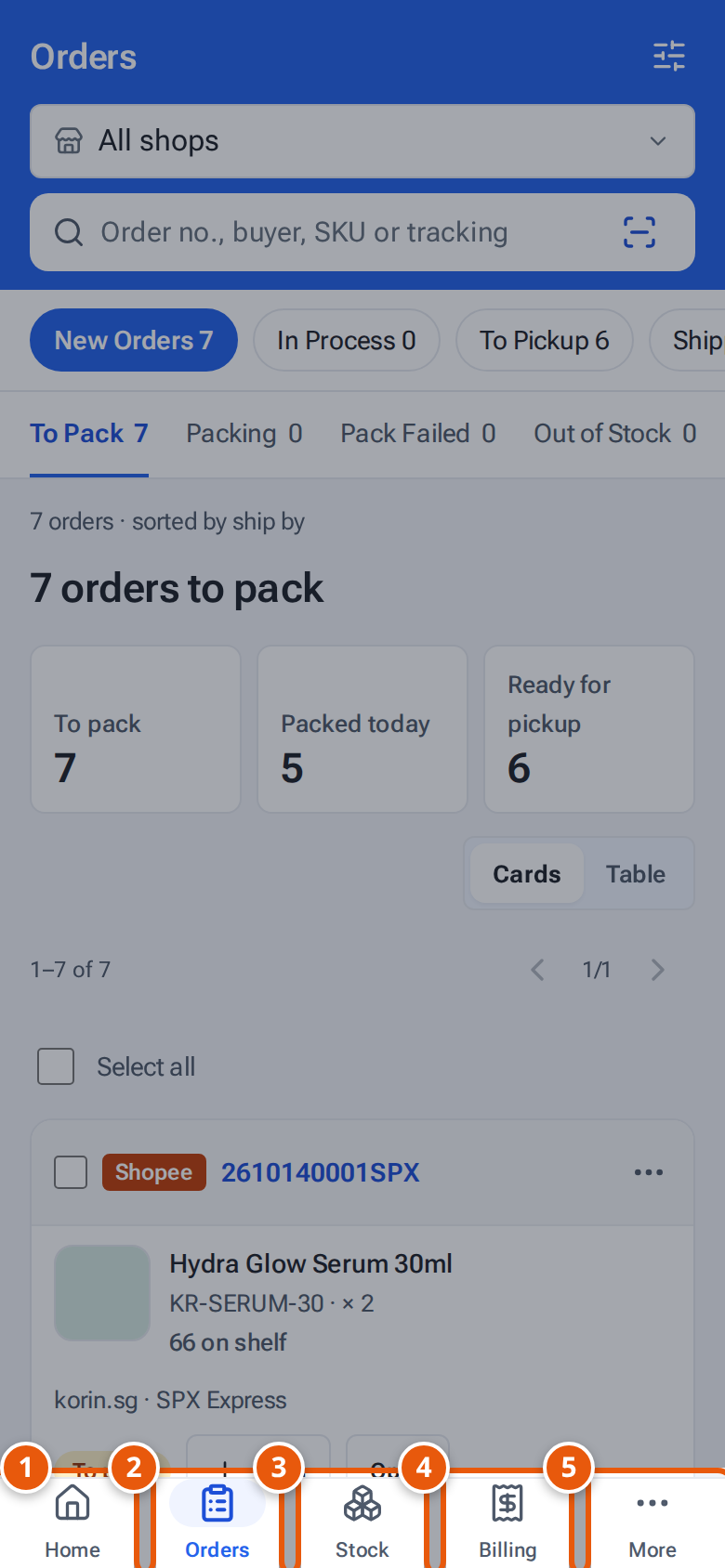
- 1. Home: today’s figures and what needs your answer.
- 2. Orders: your orders.
- 3. Stock: your inventory.
- 4. Billing: your invoices.
- 5. More: every other page.
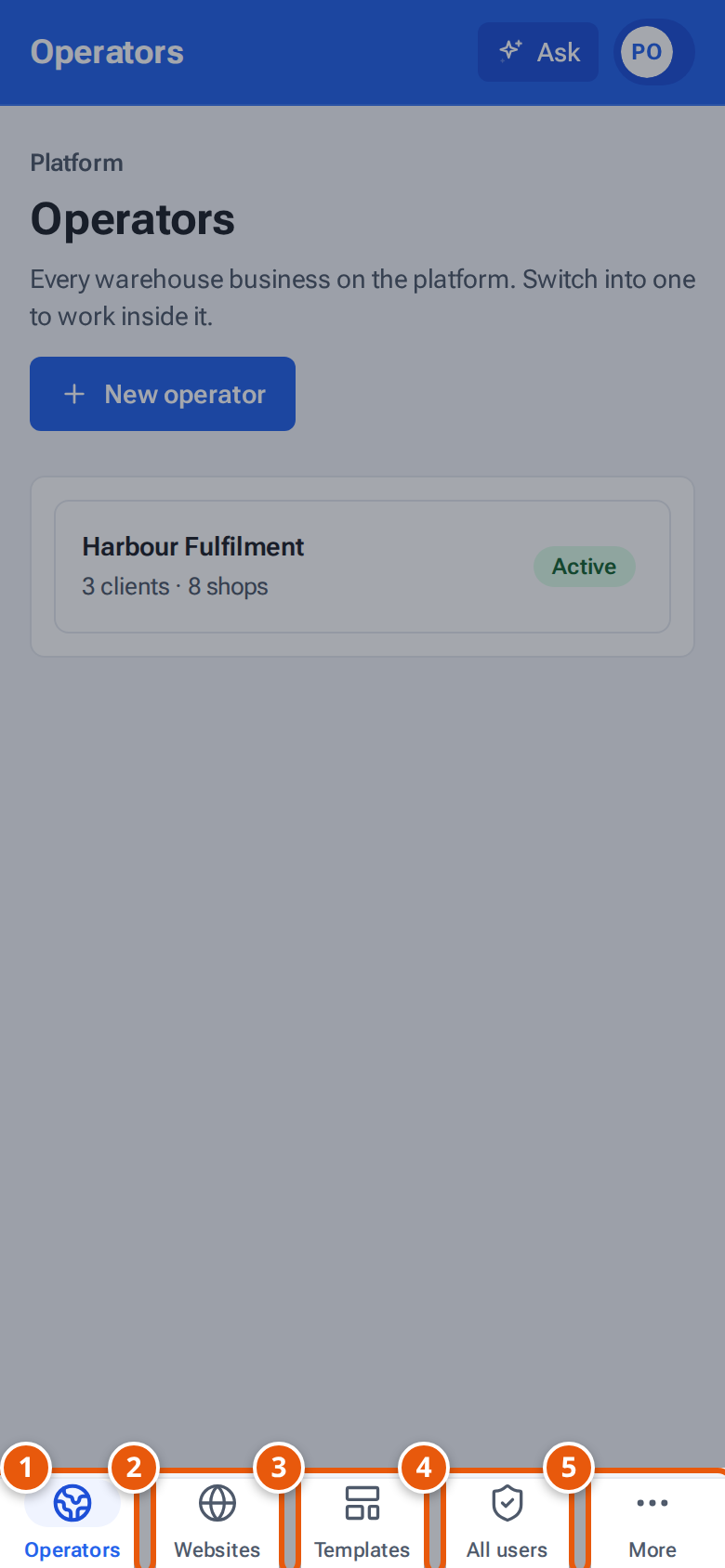
- 1. Operators: every business on the platform.
- 2. Websites: each operator’s public website.
- 3. Templates: the website designs operators can choose.
- 4. All users: every login on every operator.
- 5. More: Settings and the other platform pages.
The More screen
Section titled “The More screen”Tap More for everything the tabs leave out:
- Your account at the top: Name and email, Password and two-factor, and Look (opens Appearance).
- More pages: Outbound & Shipping, Returns, Stock, Products, Billing and Ask the guide, each with a count that matches the list it opens (parcels waiting for the courier, returns to check, SKUs out of stock, overdue invoices). Sellers see only their own pages.
- Every other page you can open, in groups by area, then Admin for admins.
- Sign out at the bottom.
Some pages, such as the website editor, are easier on a computer.
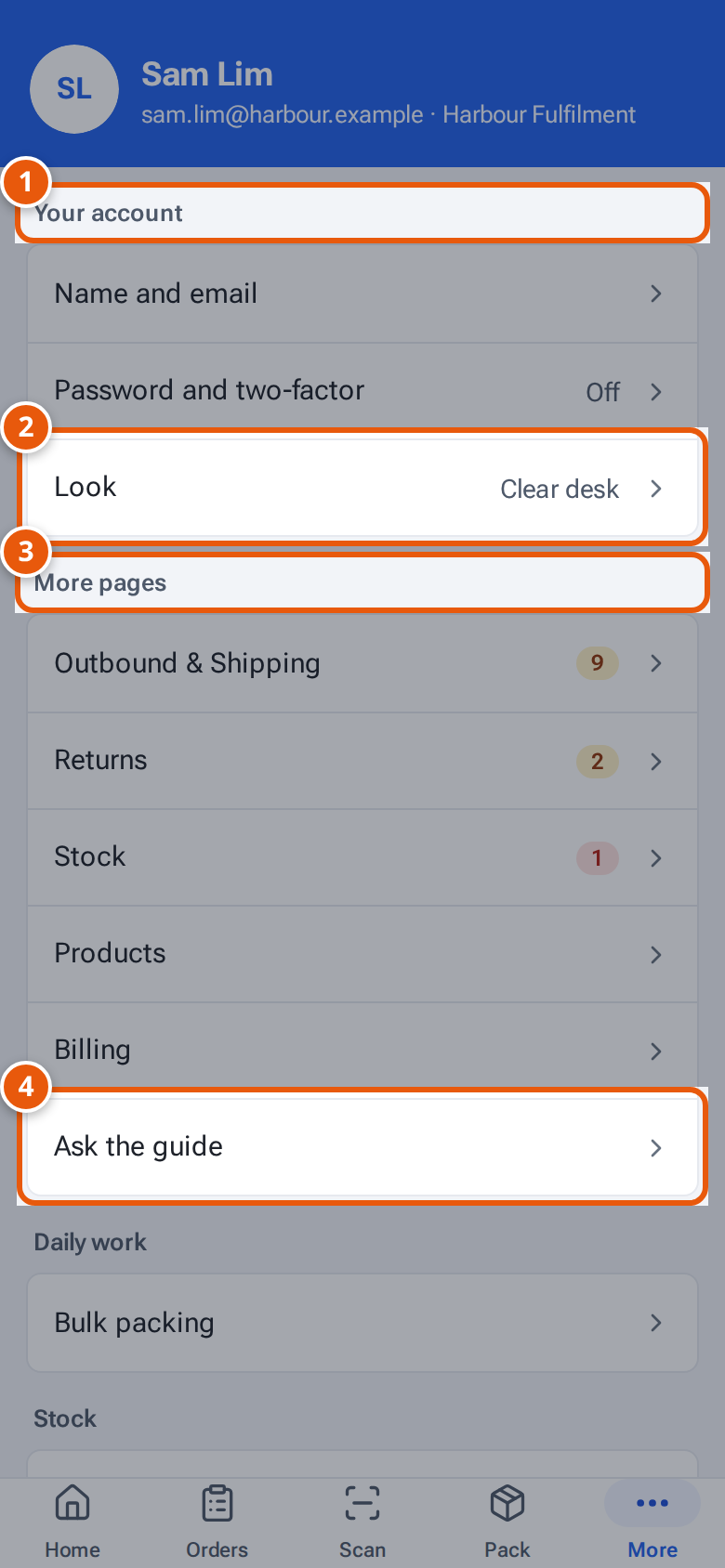
- 1. Your account: your name and email, your password and two-factor sign-in, and Look.
- 2. Look opens Appearance: light or dark, and the menu style.
- 3. The pages the tabs leave out, with a count where something is waiting.
- 4. Ask the guide: ask a question in plain words.
Install it on your phone
Section titled “Install it on your phone”Installing puts a theopsroom icon on your home screen, and it opens full screen like an app.
- Android: a bar at the top says “Install theopsroom on this phone”. Press Install. Or install the Android app.
- iPhone: a bar at the top says “Install theopsroom: tap Share, then Add to Home Screen”. Follow it.
Not now hides the bar for 30 days. It does not show once theopsroom is installed.