

Find, adjust and move stock
Inventory lists each SKU’s stock as theopsroom records it, and how many are on the shelves. From any SKU you can see where it is, correct its count, and move it between shelves.
On a computer the page has a menu on the left, four number cards across the top, and the table below. The menu has Stock (All SKUs, In stock, Running low, Out of stock, Selling fast) and Exceptions (Mismatch, Not listed, Listing problems, Stock not updated), each with its count. The cards are Units on hand, Running low, Out of stock and Shop stock not updated. Click a card to see exactly those SKUs: the list always matches the number.
Inventory on a phone
Section titled “Inventory on a phone”On a phone the page is called Stock and is a list of cards instead of a table. At the top are the filter button, the search box (Product, SKU or shelf) with a barcode button to scan a SKU, and a row of chips you can swipe: Running low, Out of stock, All SKUs and Shop stock not updated, each with its count. Under them are shortcuts to Receive stock, Put away and Shelves, then Adjust stock and Export.
Each card shows the product, its seller SKU and shelf, and on the right how many are free (“of 66 free”) and the level it counts as low (“low at 10”). Tap a card to open the SKU’s window with Where, Adjust and Move, and Open product. If there are more SKUs than fit, tap Load more at the bottom. The filter button holds the client choice, more views such as In stock, Selling fast and Listing problems, and the low-stock level.
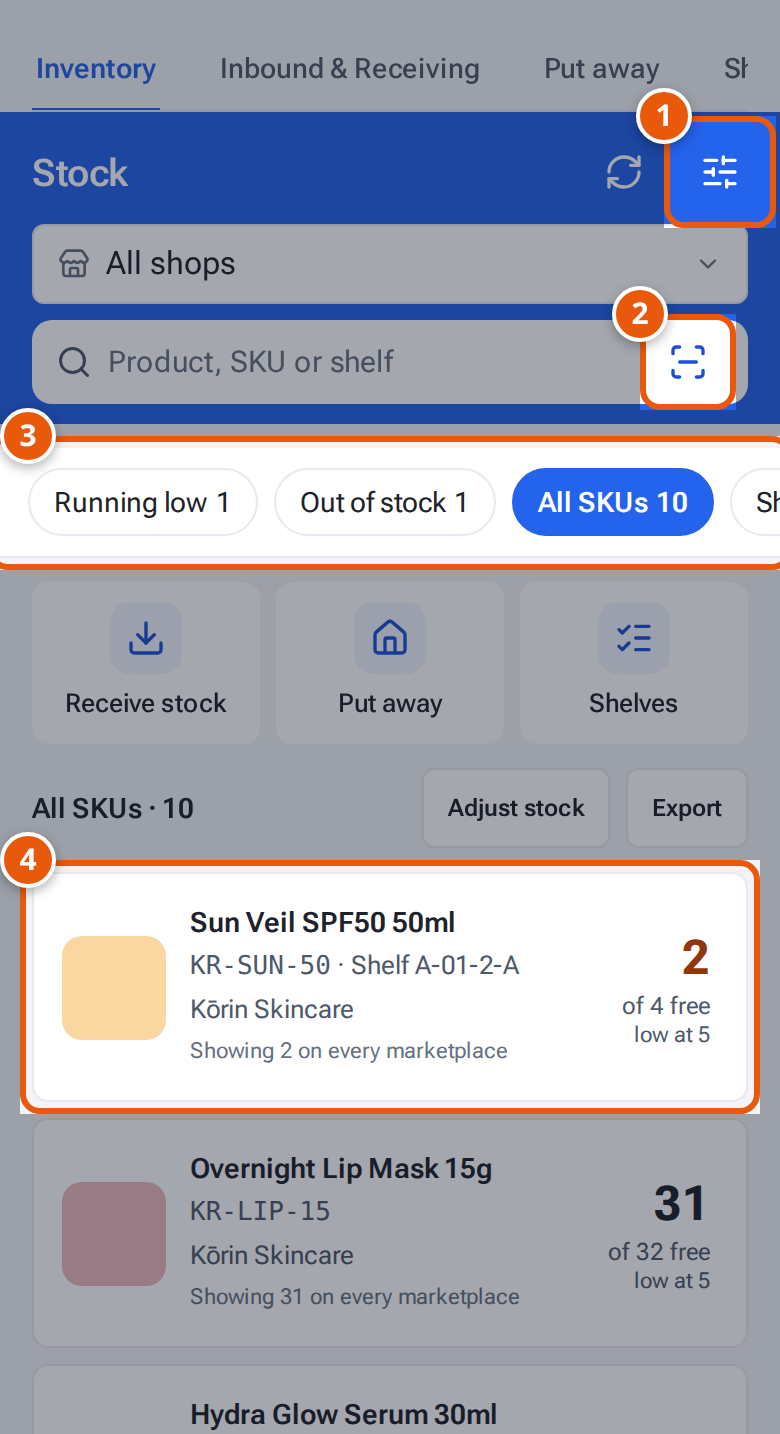
- 1. Filters: the client, more views and the low-stock level.
- 2. Scan a SKU’s barcode to find it.
- 3. Swipe the chips: Running low, Out of stock, All SKUs and Shop stock not updated.
- 4. One card per SKU: how many are free, and the level it counts as low. Tap it for Where, Adjust and Move.
Find where a SKU is
Section titled “Find where a SKU is”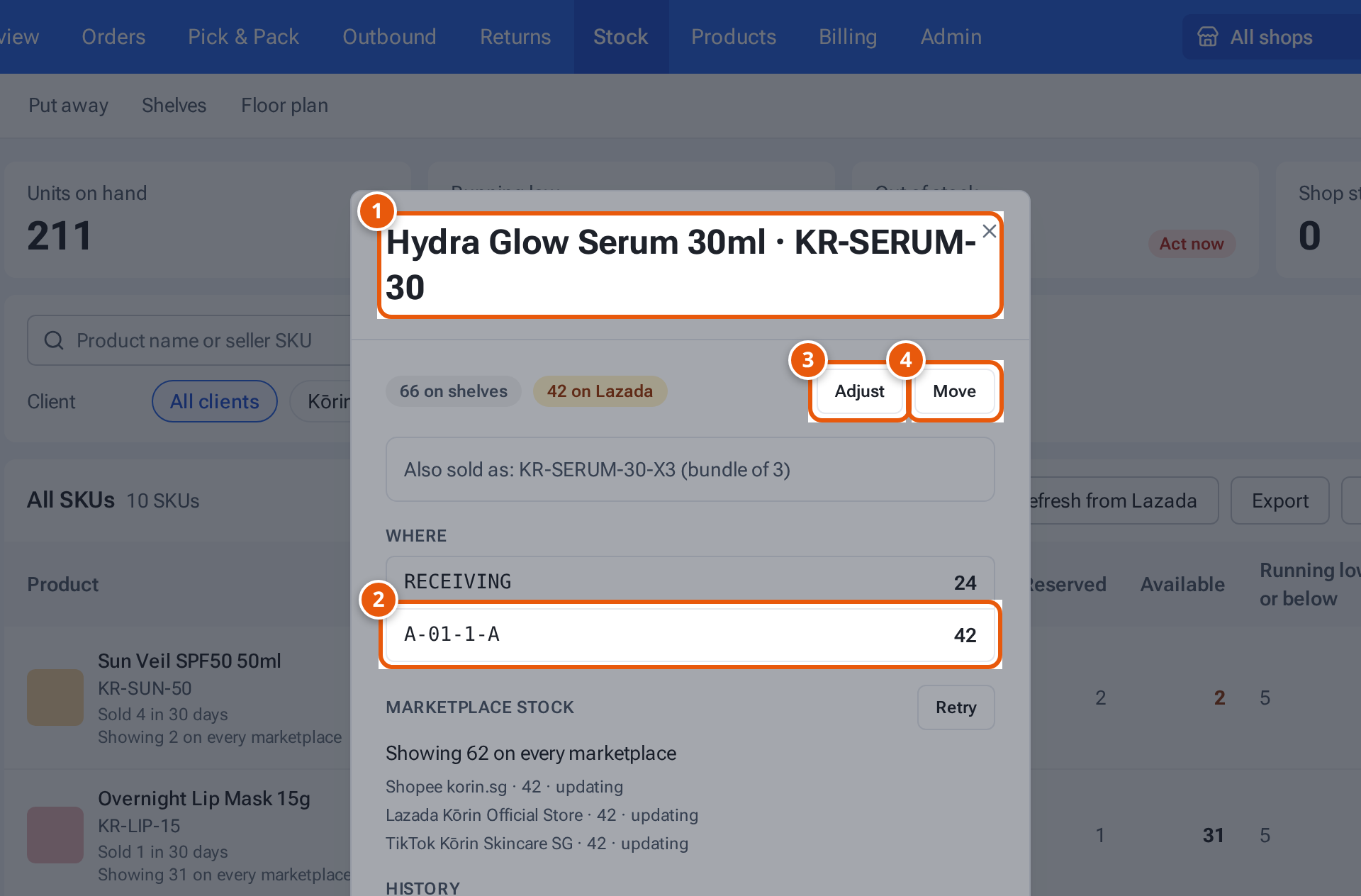
- 1. The product and its seller SKU.
- 2. Where it is: every place and how many.
- 3. Adjust: take out damaged or lost units, add found ones, or recount a shelf.
- 4. Move: from one shelf to another.
- Open Stock, then Inventory. Search by product name or seller SKU and press Enter. In the Client row, click a client to see one seller only.
- Click the map pin (Where is it?) next to the SKU’s stock. On a phone, tap the SKU. On a phone you can also tap the barcode button in the search box and scan the SKU’s barcode.
- The window shows, for example, “66 on shelves” and “42 on Lazada”, then Where: every place and how many. Below that you see the marketplace stock and the History of every change.
In the table, a line such as “64 on shelves” in orange means the shelves and theopsroom’s stock record differ. The Mismatch view shows all such SKUs.
The Shop stock not updated card (and the Stock not updated view) shows products whose stock didn’t reach a shop the last time theopsroom sent it. It is not the same as Mismatch. Click it to see them, and fix the shop’s connection or listing first.
Adjust stock from the Inventory page
Section titled “Adjust stock from the Inventory page”You don’t have to find the SKU first. Press Adjust stock above the table.
- In the Adjust stock window, search Product by name or seller SKU and click the right SKU. (Change picks another.)
- Choose the shelf. The shelves that hold the product are listed with how many are “here”; Another shelf lists the rest.
- Choose Recount, Damaged, Lost or Found.
- Type the number: Counted on the shelf for a Recount, How many for the others. A line under it says what changes, for example how many units come off.
- Add a Note if it helps, then press Save adjustment.
The change is saved with your name and the time, and shows in the SKU’s History (a Recount is listed as Recount). It does the same as Adjust in the SKU’s window, which is below. Sellers don’t see Adjust stock. New inbound, next to it, opens Receiving to book in a delivery.
Export the list
Section titled “Export the list”Press Export above the table to download the SKUs you are looking at as a CSV, with the view, search and client you chose applied to every page (not just the first). Open it in Excel.
Adjust a count
Section titled “Adjust a count”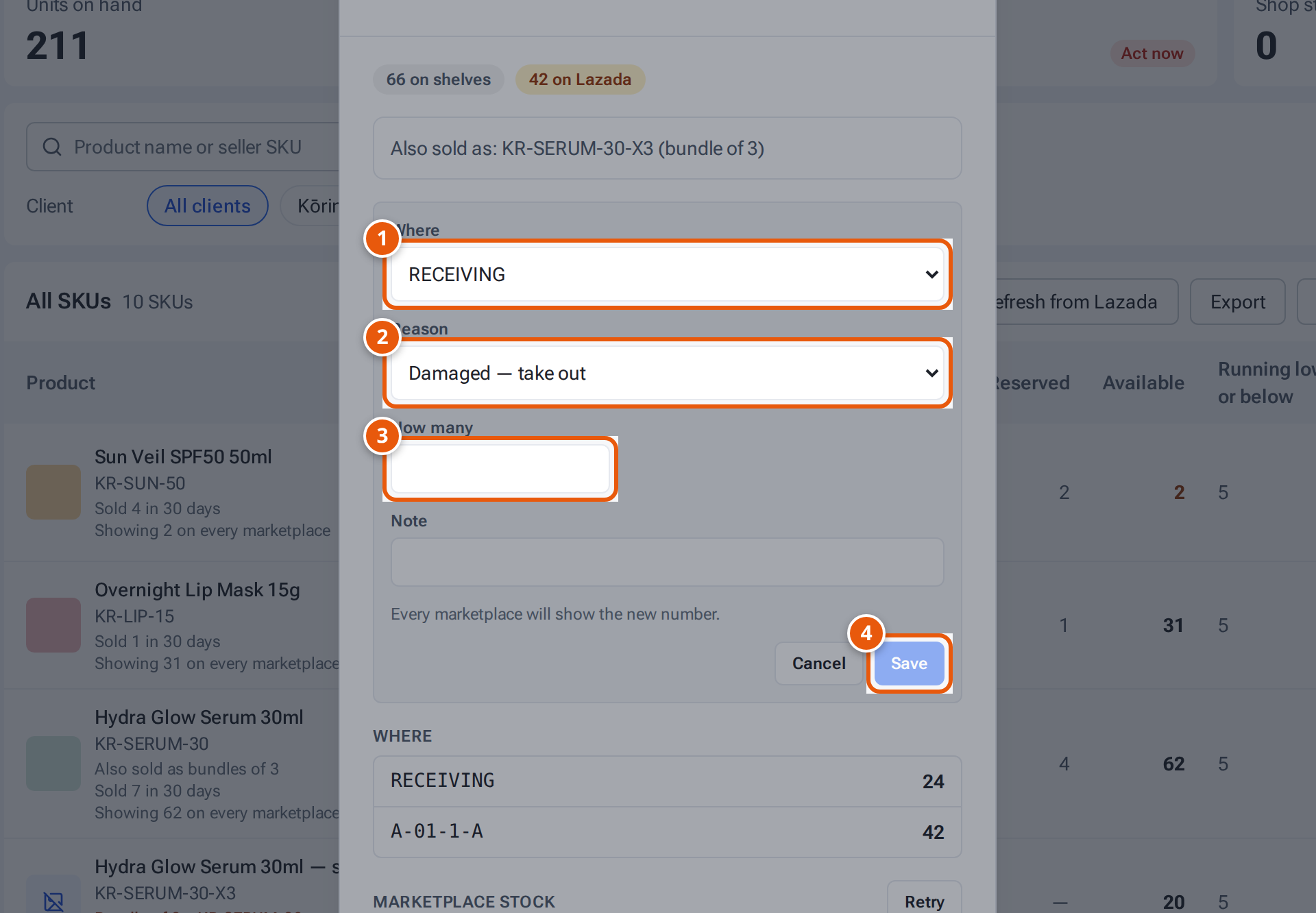
- 1. The shelf or place to change.
- 2. Why: damaged, lost, found, or a recount.
- 3. How many (for a recount: how many are really there).
- 4. Save the change. It shows in History.
- In the SKU’s window, press Adjust.
- Choose Where: the shelf or place to change.
- Choose the Reason:
- Damaged — take out: damaged units leave the stock.
- Lost — take out: units you can’t find.
- Found — add: units you found.
- Recount — set to what’s there: type what you Counted on the shelf.
- Type How many, and a Note if it helps (up to 200 characters).
- Read the line under the form. It says what happens to the marketplaces, for example “Every marketplace will show the new number.” or “Lazada stock changes by the same amount.”
- Press Save. The change shows in History.
Move stock between shelves
Section titled “Move stock between shelves”- In the SKU’s window, press Move.
- Choose From (the shelf and how many are on it), To shelf and How many.
- Press Save.
Stock in Receiving is put away, not moved: use Put away.
If something goes wrong
Section titled “If something goes wrong”| Message | Why | What to do |
|---|---|---|
| “Only 24 on A-01-1-A” | You asked for more than are there. | Lower the number, or recount first. |
| “Quantity must be a whole number from 1 to 100,000” | The number isn’t valid. | Fix it. |
| “Counted must be a whole number from 0 to 100,000” | The recount isn’t valid. | Fix it. |
| “A-01-1-A is switched off” | That shelf isn’t in use. | Choose another, or ask an admin. |
| “Choose a different shelf” | From and To are the same. | Choose another shelf. |
| “Received stock is put away, not moved” | You tried to move stock from Receiving. | Use Put away. |
| “Damaged stock waits for the seller’s decision on its return” | It’s damaged returned stock. | Leave it until the seller decides. |
| “Only admins can change the shelves without updating Lazada” | Only admins can keep a change off Lazada. | Ask an admin. |
| “Count needed” in red under Where | That place shows fewer than zero. | Count the SKU and Adjust with Recount. |
Bundles (one SKU sold as a set) are set up by admins. See Set up bundles. How marketplace stock follows the shelves is explained in Marketplace stock follows the warehouse.