

Getting around theopsroom
theopsroom groups its pages into sections. You see only the pages your role can open. A seller, for example, sees Overview, Orders, Returns, Stock, Products, Billing and the Admin pages for their own shops. Staff also see Pick & Pack and Outbound, and admins see everything, including Clients, Users and Settings.
The top bar
Section titled “The top bar”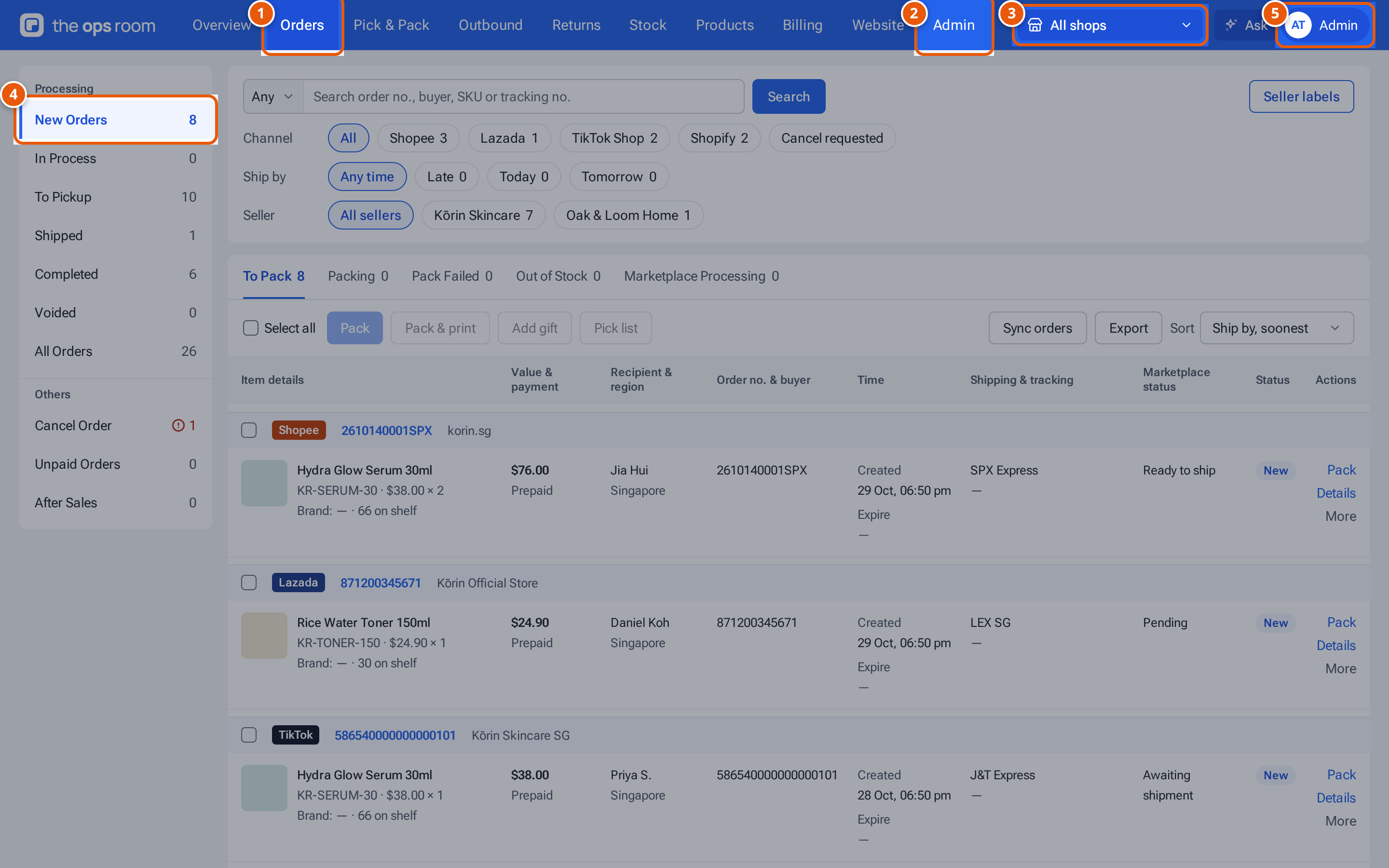
- 1. The top bar: the main pages run along the top. Point at one to see its pages in a panel.
- 2. Admin and the other pages you can open are along the top too.
- 3. Choose a shop to see only its orders, stock and figures, or All shops.
- 4. The page’s own menu, down the left, with a count on each line.
- 5. Your account: Appearance and Log out.
On a computer the default menu is the top bar. From left to right it has:
- The logo.
- The sections you can open: Overview, Orders, Pick & Pack, Outbound, Returns, Stock, Products, Billing, Website (for people who edit the website) and Admin. The one you are in is highlighted.
- The Shop list, the sync status, the Ask button and your account.
Point at a section, or tap it on a touch screen, and a panel drops down with its pages, each with a one-line description. Stock, for example, lists Inventory, Receiving (Inbound & Receiving, Put away) and Warehouse (Shelves, Floor plan). Some links carry a count, such as Running low and Out of stock. A panel can also have Quick actions (for example New inbound and New product). A section with only one page, like Orders, is a plain link.
You can also use the keyboard: Down Arrow opens a panel, Left and Right Arrow move between sections, and Esc closes it.
Tabs under the bar
Section titled “Tabs under the bar”When you are on a page that belongs to a group of related pages, a strip of tabs shows under the top bar, with the open one underlined in blue:
- Pick & Pack: Pick & Pack, Bulk packing.
- Inventory: Inventory, Inbound & Receiving, Put away, Shelves, Floor plan.
- Products: Products, Upload batches, Listing templates, Gift rules, Gift lists.
- Admin: Clients, Users, Shop Connections, Settings.
- Website: Pages, Theme, Blog, Enquiries, Enquiry form, Pictures, Site settings, History.
Side menus with counts
Section titled “Side menus with counts”Many list pages have a menu down the left that picks which view of the list you see, with a count beside each view. Orders, Returns, Stock (Inventory), Products, Billing and Outbound all have one. A red count means something needs attention. On a phone these views become a row of chips you can swipe.
The sidebar menu style
Section titled “The sidebar menu style”You can choose the Sidebar instead, in Change how theopsroom looks.
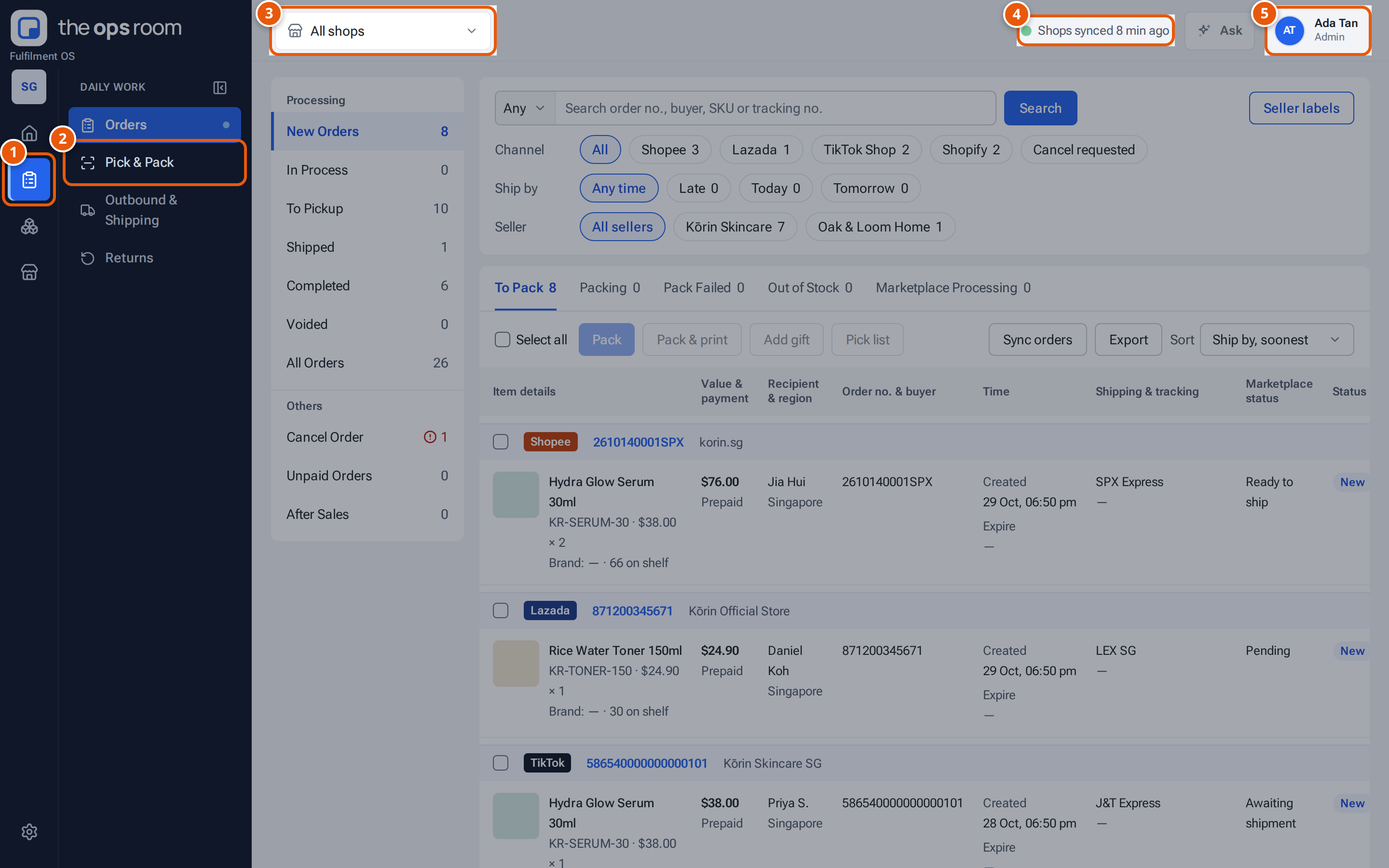
- 1. The icon strip: one icon per area of theopsroom. Point at one to see its name.
- 2. The area’s pages. The page you’re on has a dot.
- 3. Choose a shop to see only its orders, stock and figures, or All shops.
- 4. When the shops’ orders were last brought in.
- 5. Your account: Appearance and Log out.
- The icon strip shows one icon per area: Home, Daily work, Stock, Selling and, for admins, Admin. Click an area to see its pages in the panel beside it; the page you’re on has a dot.
- Hide panel (the small button by the area’s name) folds the panel away to give the page more room; Show panel at the foot of the strip brings it back. theopsroom remembers this in your browser.
- Pages with tabs show the same tab strip above the page.
Find a page or ask how
Section titled “Find a page or ask how”Press the Ask button (the sparkle at the top right) and ask in your own words, for example “where do I set the courier?”. The answer links to the right page. See Ask the guide. To find an order, SKU or parcel, search on the Orders or Inventory page.
Choose a shop
Section titled “Choose a shop”When you can see two or more shops, the Shop list in the top bar lets you pick one. Every list and the Overview then show only that shop’s data. Choose All shops to see everything again. Disconnected shops are marked “(disconnected)”. theopsroom remembers your choice in this browser.
Sync status
Section titled “Sync status”Next to the shop list, theopsroom shows when your shops’ orders were last brought in, for example “Shops synced 3 min ago” (green), or “Lazada sync problem” (amber) when a shop’s last sync failed. When all your shops are on one marketplace it names it, for example “Shopify synced 3 min ago”. It updates every minute. On a narrow computer screen it is hidden.
Your account menu
Section titled “Your account menu”Click your avatar at the top right (it shows your role) to see your name and email, Your name…, Change password, Change email, Two-factor sign-in, Appearance… (see Change how theopsroom looks) and Log out.
On a phone
Section titled “On a phone”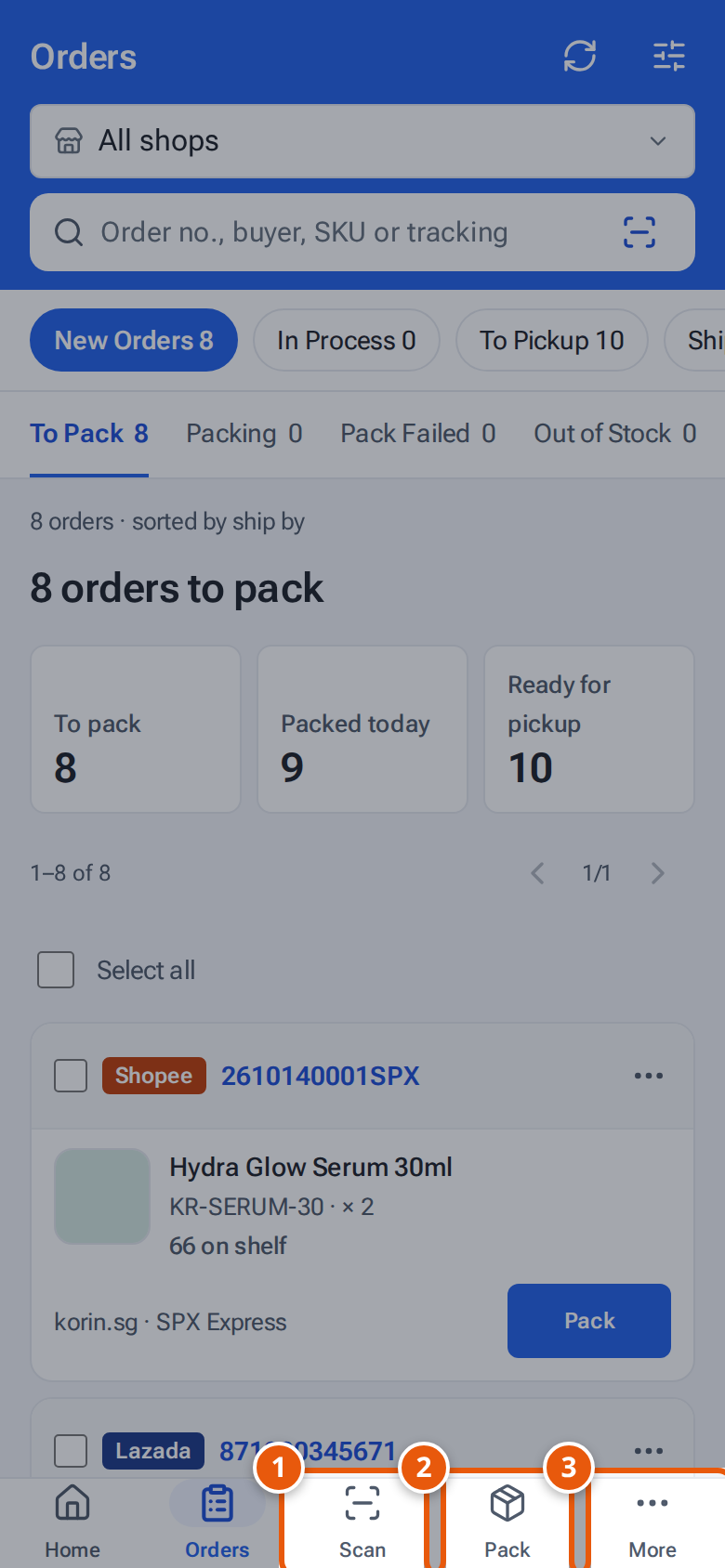
- 1. Scan: opens the camera to find a parcel, order or item.
- 2. Pack: the orders waiting to be packed.
- 3. More: every other page, and Ask the guide.
Phones always get a white bar of five tabs along the bottom, whichever menu style you chose. There is no ☰ button.
- Staff and admins: Home, Orders, Scan, Pack, More.
- Sellers: Home, Orders, Stock, Billing, More.
- Scan opens the camera at once (the phone’s own scanner in the Android app). A parcel code opens that order for packing; an item code lists Orders with this SKU. Pack opens To pack, with Marketplace, Shop and Time filters. See Pick & Pack.
- More is the menu: your account, then the pages with counts, then every other page you can open.
All of this, the More screen, installing theopsroom on your phone and the address to open are on one page: Use theopsroom on a phone.
Messages at the top of the page
Section titled “Messages at the top of the page”- “You’re offline — scans and packing will work again when you reconnect” shows while your device has no connection, and goes away by itself.
- On a phone’s browser, theopsroom may offer to install itself: “Install theopsroom on this phone” (Android) or “Install theopsroom: tap Share, then Add to Home Screen” (iPhone). Not now hides it for 30 days.
- “A new version of theopsroom is ready” with Reload: see How theopsroom updates itself.
- Short messages slide in at the bottom right for 5 seconds after you save or something fails: green for done, red for a problem.