Skip to content

Publish many products at once (upload batches)

An upload batch groups products you want to publish together. It shows one grid: your products down the side, your shops across the top, and in each cell what that shop still needs. When cells are Ready, one click publishes them all.

  1. Open Products → Upload batches and click New batch. Name it (for example “Oct new arrivals”) and click Create. The batch opens.
  2. Click Add products, tick the products, and click Add …. (You can also tick products on Products and click Add to batch.)
  3. Fill each cell:
    • Tick products and click Apply template…, choose the shop and the template, then Apply.
    • Or click Suggest categories to let theopsroom guess a category for products without one. Check the suggestions: they show “Suggested — check:”.
    • Or click a cell to open the Publish window for that product and shop.
  4. To leave products out of a shop, tick them and click Skip in shop…. Unskip in shop… brings them back.
  5. Click Publish ready (…). A window says how many are publishing and lists any not sent, with the reason. Click OK. Cells then show each listing’s status as the marketplaces answer.
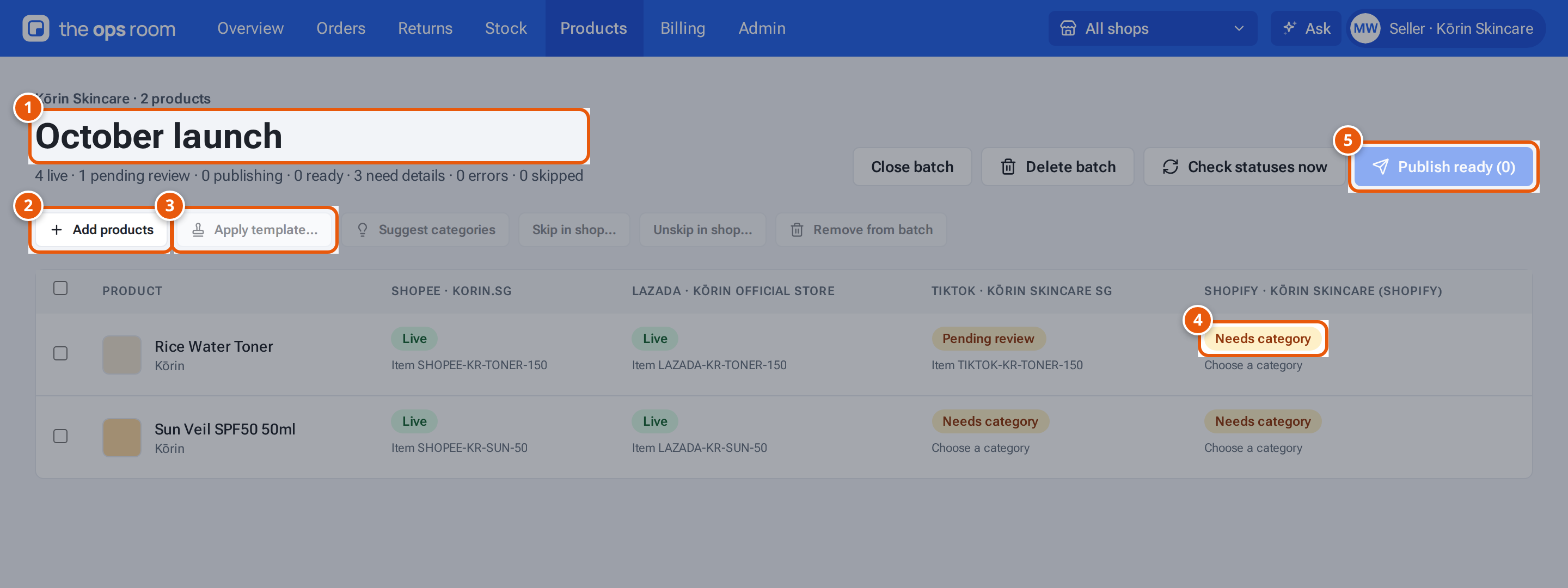
An upload batch: Add products, Apply template, a cell that needs a category, and Publish ready
  1. 1. An upload batch: products you publish together.
  2. 2. Add more of your products.
  3. 3. Fill the category and details for every ticked product at once.
  4. 4. What a shop still needs for a product. Click it to fill it in.

  5. 5. Publish every product that has all it needs.
Tap or click the picture to open it full size.
Cell What it means
Needs category Choose a category.
Needs details (…) Lists the details still missing.
Ready Everything is filled in; it will publish.
Skipped Not listed in this shop.
Reconnect shop The shop needs reconnecting (ask your warehouse).
Can’t check The marketplace returned an error.
A listing status Publishing, Pending review, Live, Rejected, Error or Removed. See Listing statuses.
Button What it does
Overwrite details already filled (Apply template) Replace details already filled, not just empty ones.
Check statuses now Ask the marketplaces about every sent listing. Ones deleted there become drafts again.
Remove from batch Take ticked products out of the batch. The products stay.
Close batch / Reopen A closed batch is read only.
Delete batch Delete the batch only. Its products, drafts and listings stay.

The progress on Upload batches reads like “4 live · 1 in progress · 3 not sent”.

Message Why What to do
“Nothing was ready to publish” No cell was Ready. Fill the cells that need details first.
“Has another category — tick Overwrite to replace it” The template’s category differs from the one chosen. Tick Overwrite details already filled, or leave it.
“Suggest categories for at most 100 products at a time” Too many ticked. Tick 100 or fewer.
“This batch is closed — reopen it first” — Click Reopen.
“This seller has no connected shops — connect one on Shop Connections.” You have no connected shop. Ask your warehouse to connect one.
“A batch can hold at most 500 products” — Make another batch.