

Mark an invoice paid, and delete invoices
Staff make and send invoices (see Make and send an invoice). Recording payments and deleting sent or cancelled invoices are for admins.
Mark an invoice paid
Section titled “Mark an invoice paid”- Open Billing and click the invoice’s number.
- Click Mark paid. You see “Marked paid.” The status becomes Paid, with the date.
- theopsroom emails the seller a receipt, “Payment received for INV-…”, to their billing email and CC emails. The card shows “Receipt emailed to … · …”.
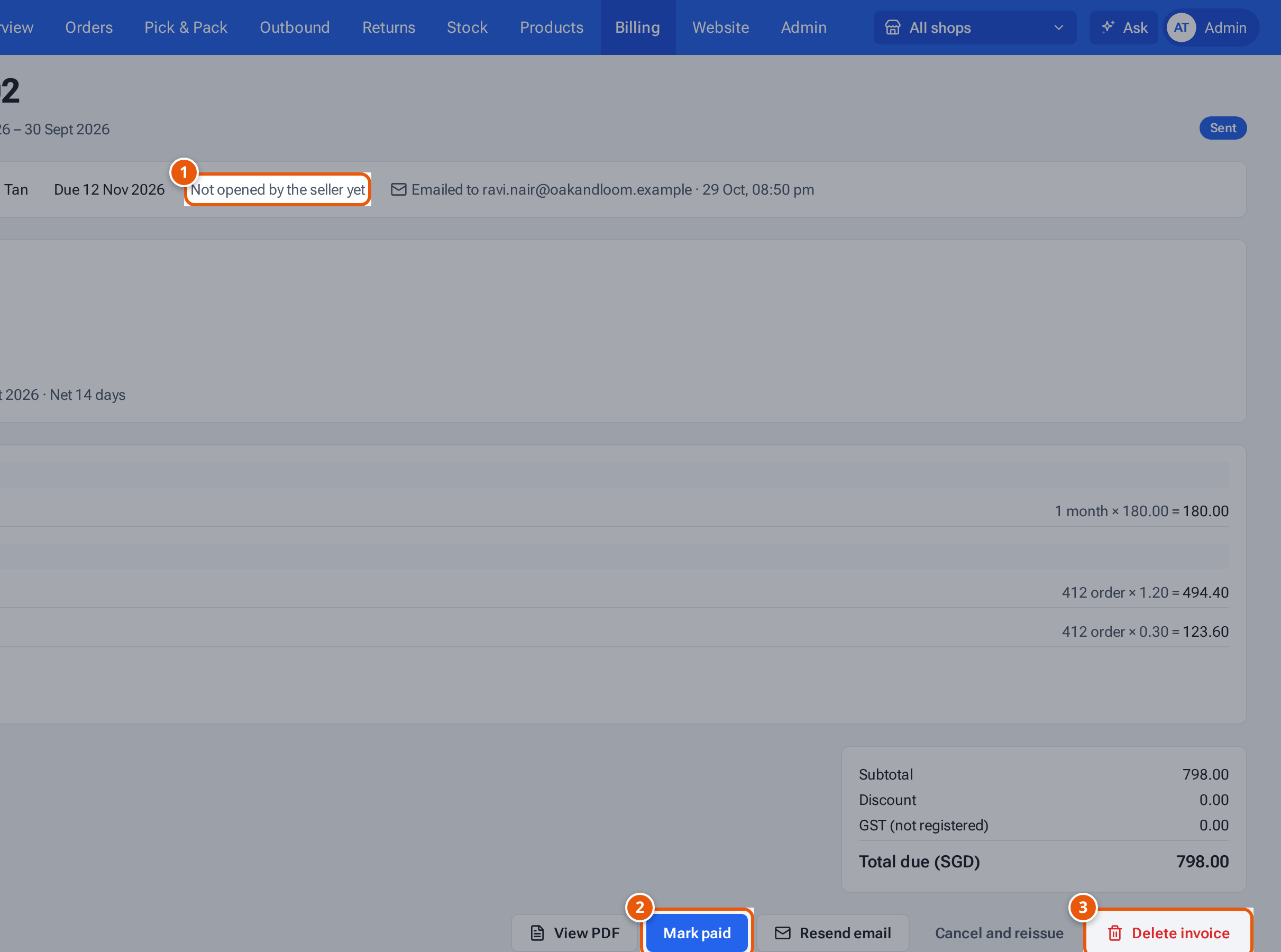
- 1. Whether the seller has opened it.
- 2. Record the payment. The seller is emailed a receipt.
- 3. Delete it: only before the seller opens it.
You can also press Mark paid on the invoice’s row in the Billing list. The notice has an Undo button that puts it back to unpaid straight away.
Undo paid
Section titled “Undo paid”Marked paid by mistake? Open the invoice and click Undo paid. It goes back to Sent (or Overdue) and you see “Marked unpaid.” The receipt already emailed isn’t taken back.
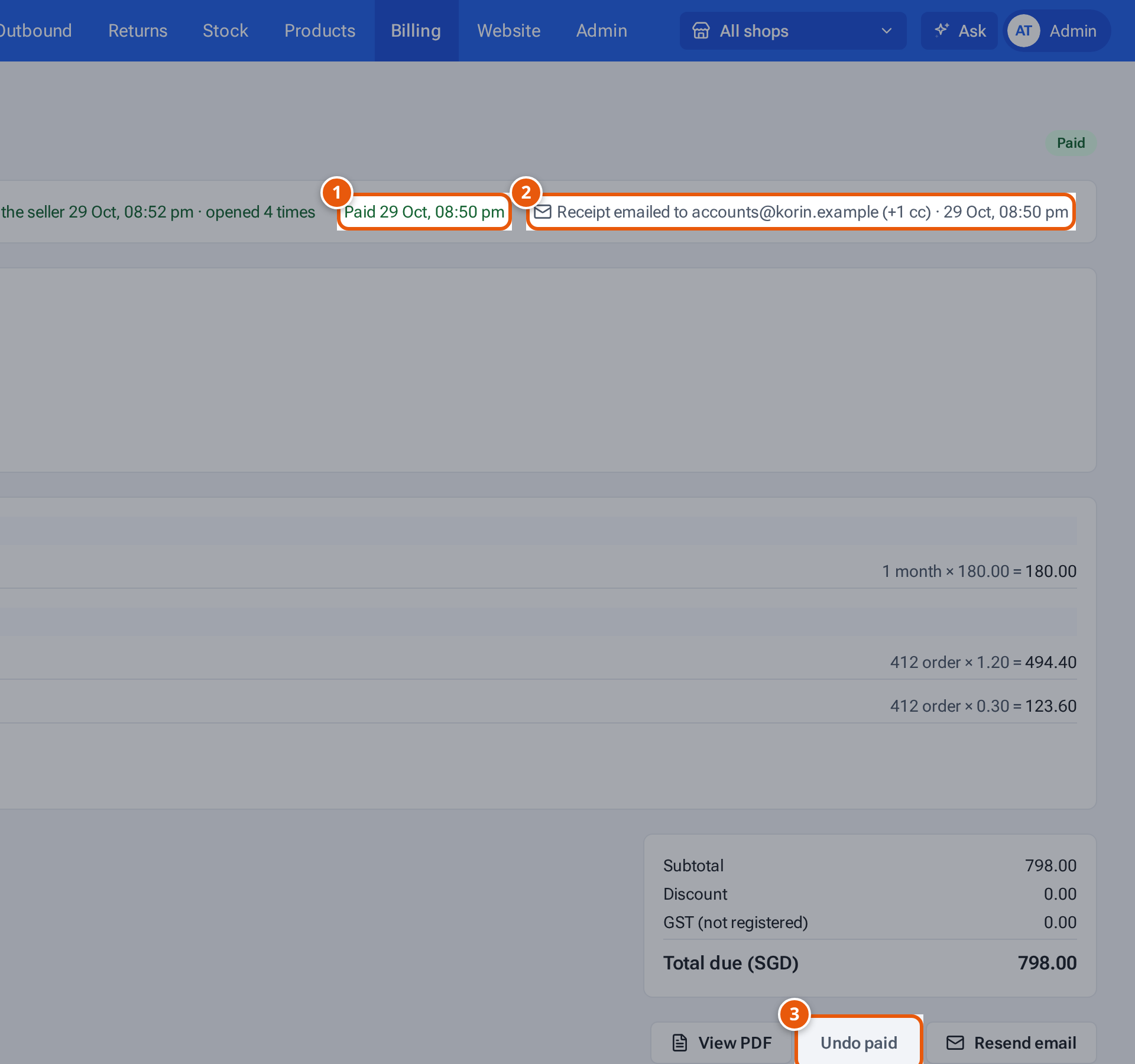
- 1. When it was marked paid.
- 2. The receipt email, and who got it.
- 3. Marked paid by mistake? Put it back to Sent.
Delete an invoice
Section titled “Delete an invoice”- Open the invoice.
- Click Delete invoice (on a draft: Delete draft).
- Confirm “Delete INV-…? It disappears for you and the seller, and its number won’t be used again.”
- You see “Invoice deleted.”
Which invoices can be deleted
Section titled “Which invoices can be deleted”| Invoice | Who can delete it |
|---|---|
| Draft | Admins and staff (Delete draft). |
| Sent or Overdue, not opened by the seller yet | Admins only. |
| Sent or Overdue, opened by the seller | Nobody. Use Cancel and reissue instead (see Cancel and reissue, or resend an invoice email). |
| Cancelled | Admins only. |
| Paid | Nobody. |
A deleted invoice’s number is never used again.
What each button and field means
Section titled “What each button and field means”| Item | What it means |
|---|---|
| “Read by the seller … · opened … times” / “Not opened by the seller yet” | Whether the seller has opened the invoice’s PDF. |
| Mark paid | Record the payment and email a receipt. |
| Undo paid | Back to unpaid. |
| Resend email | Send the invoice again, or the receipt once paid. |
| Delete invoice | Delete it for you and the seller. |
If something goes wrong
Section titled “If something goes wrong”| Message | Why | What to do |
|---|---|---|
| “Only sent invoices can be marked paid” | It’s a draft or cancelled. | Send it first, or use the corrected copy. |
| “This invoice is not marked paid” | It’s already unpaid. | Nothing to undo. |
| “Mark it unpaid before cancelling it” | A paid invoice can’t be cancelled. | Click Undo paid first. |
| “Paid invoices can’t be deleted” | Paid invoices stay. | Nothing to do. |
| “The seller has opened this invoice — cancel it instead” | The seller has seen it. | Use Cancel and reissue. |
| “Only admins can delete a sent or cancelled invoice” | You’re not an admin. | Ask an admin. |
| “Email failed: …” | The receipt email couldn’t be sent. | Click Resend email. |
| “Not emailed: add a billing email to this client” | The client has no billing email. | Add it in billing details, then Resend email. |