

Edit your website pages
The Pages tab is where you change the words, pictures and layout of your website. This page is for website editors (admins with Website editor switched on). Nothing you do here goes live until you publish.
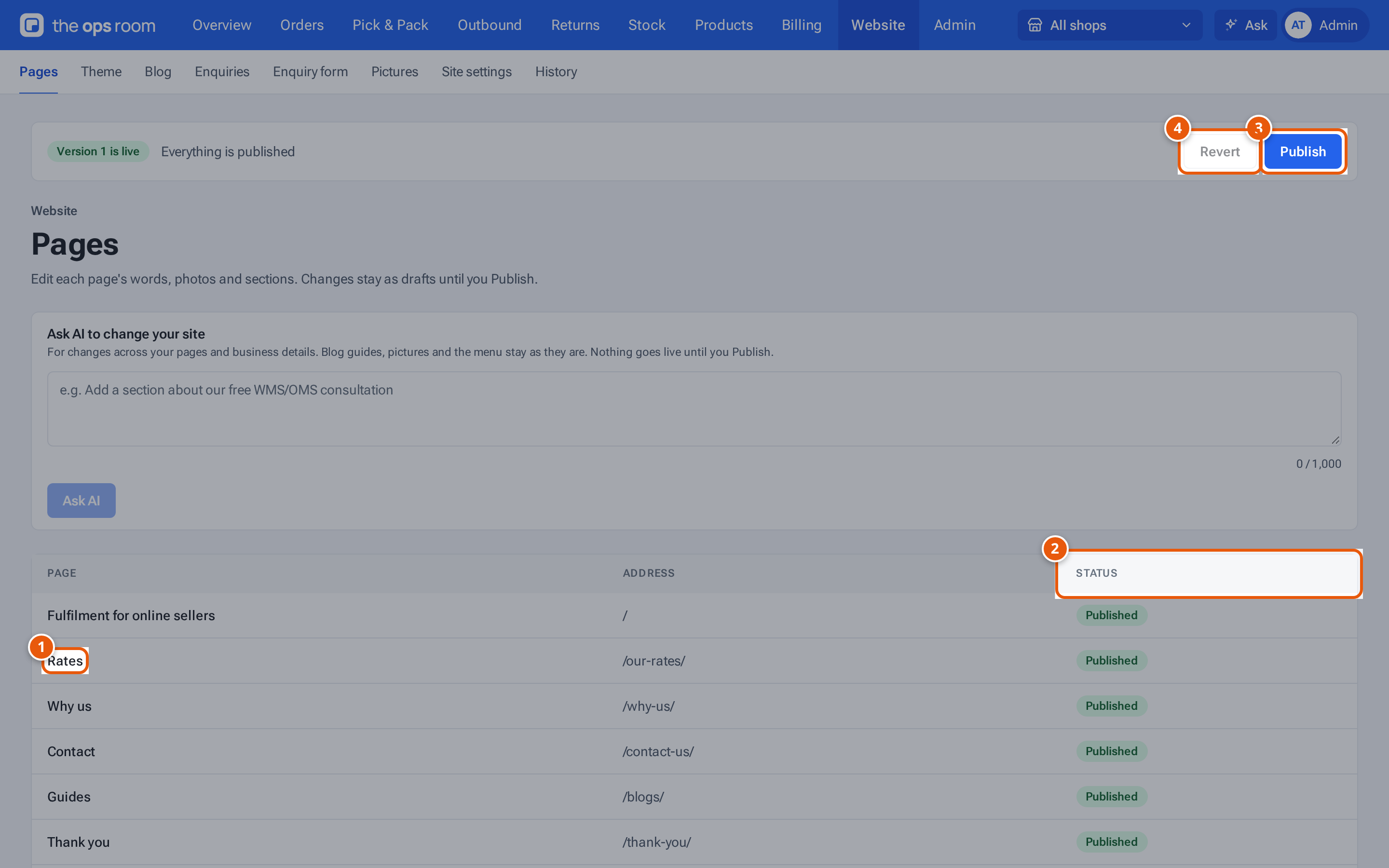
- 1. Open a page to edit it.
- 2. Published, or a draft not yet on the site.
- 3. Publish puts every saved change on the live site.
- 4. Revert throws away unpublished changes.
Open a page
Section titled “Open a page”- Open Website. The Pages tab shows a list with each page’s Page name, its Address and its Status.
- Click a page’s name (on a phone, tap its row).
| Status | What it means |
|---|---|
| Not on the site yet | The page has never been published. |
| Unpublished changes | The page is live, but your draft is different. |
| Published | The live page and your draft are the same. |
The home page’s address is /. The page shown when a visitor opens a wrong address is Page not found (404).
The editor
Section titled “The editor”A page has three parts side by side on a computer: the Sections list, the form for the section you chose, and a Preview of the page that follows every change you type. On a phone you see one at a time: choose Sections, Edit or Preview at the top.
Above them are the page’s Title and, under Search and sharing, the words Google shows for the page and the picture used when someone shares it.
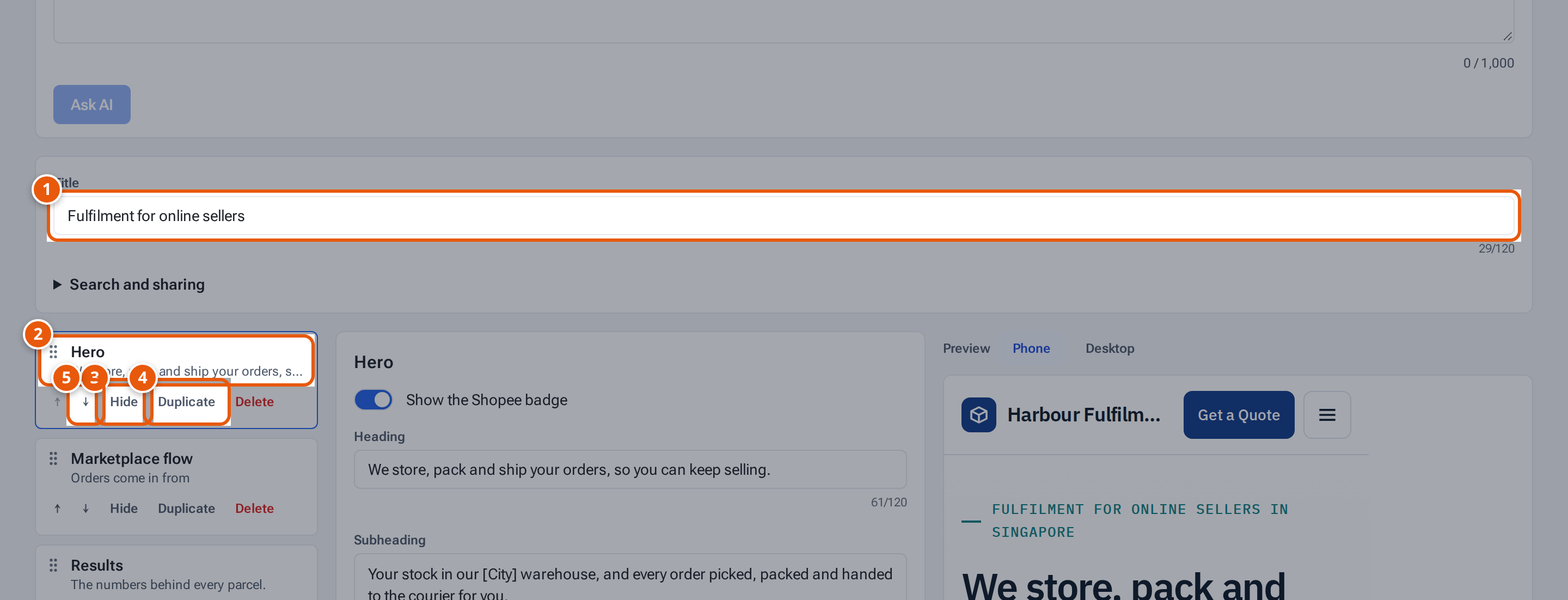
- 1. The page’s title.
- 2. Each section: open it to change its words and pictures.
- 3. Hide a section without deleting it.
- 4. Duplicate a section.
- 5. Move a section up or down.
Change a section
Section titled “Change a section”- Choose a section in the Sections list. Its form opens in the middle.
- Change the words, switch things on or off, or choose a picture. For a picture, pick one that is already in Pictures or upload a new one from the same field.
- Watch the preview. Nothing else is needed: the page saves itself.
Add, move, hide and delete sections
Section titled “Add, move, hide and delete sections”Each row in Sections has buttons:
| Button | What it does |
|---|---|
| ↑ and ↓ | Move the section up or down. You can also drag a row. |
| Hide / Show | A hidden section stays in your draft but isn’t shown on the site. |
| Duplicate | Make a copy right below it. |
| Delete | Remove the section. It asks first. Revert (before you publish) would bring it back, but it also undoes every other unpublished change. |
Press Add section under the list. Choose a kind, such as Hero, Services, Pricing, Questions (FAQ) or Text, or From My sections to reuse one you saved (see Build your own sections). The new section goes below the one you have selected. A page holds up to 40 sections. The kinds on offer depend on your theme.
How saving works
Section titled “How saving works”The line at the top of the page shows the state:
| You see | What it means |
|---|---|
| Saving soon… | You changed something. The page saves about 3 seconds after you stop typing. |
| Saving… | It is being saved. |
| All changes saved | Your draft is up to date. |
| Fix the marked fields to save | A field has a problem (a Fix these to save: box lists them). The page isn’t saved until you fix it. |
| Couldn’t save | The save failed. The reason follows. Try again, or copy your words somewhere safe first. |
If two people edit the same page, the later save wins. A message says who changed it and when: “Name changed this page at time. Your version replaced theirs.”
If you leave before it saved
Section titled “If you leave before it saved”Changes that could not be saved are kept in your browser tab. Pages then shows “Your changes to page weren’t saved: reason.” with Open it, and the page itself says You have unsaved changes from before: with Bring them back and Discard. They are kept only in that browser tab, so deal with them before you close it.
Ask the AI
Section titled “Ask the AI”Operators also see Ask AI to change this page at the top of a page, and Ask AI to change your site on the list. See Ask AI to change your site.