

Follow your orders
Orders lists every order from your shops (Lazada, TikTok Shop, Shopee and Shopify), grouped by how far it has got. You can read every order. Your warehouse does the packing; you can add extras to new orders and answer buyers’ cancellation requests.
- Open Orders. It starts on New Orders: orders the warehouse hasn’t packed yet. The top shows how many are to pack, how many were packed today, and how many wait for the courier.
- Pick a group on the left to see orders further along: In Process (packed), To Pickup (waiting for the courier), Shipped, Completed, Voided, or All Orders. Cancel Order, Unpaid Orders and After Sales hold orders in those states.
- To find one order, type its number, the buyer’s name, a SKU or a tracking number in the search box and press Enter (or Search). On a computer, Search by next to the box narrows it to one of those.
- Click Details on the order’s row to see its progress, parcels, tracking and items. See An order’s details.
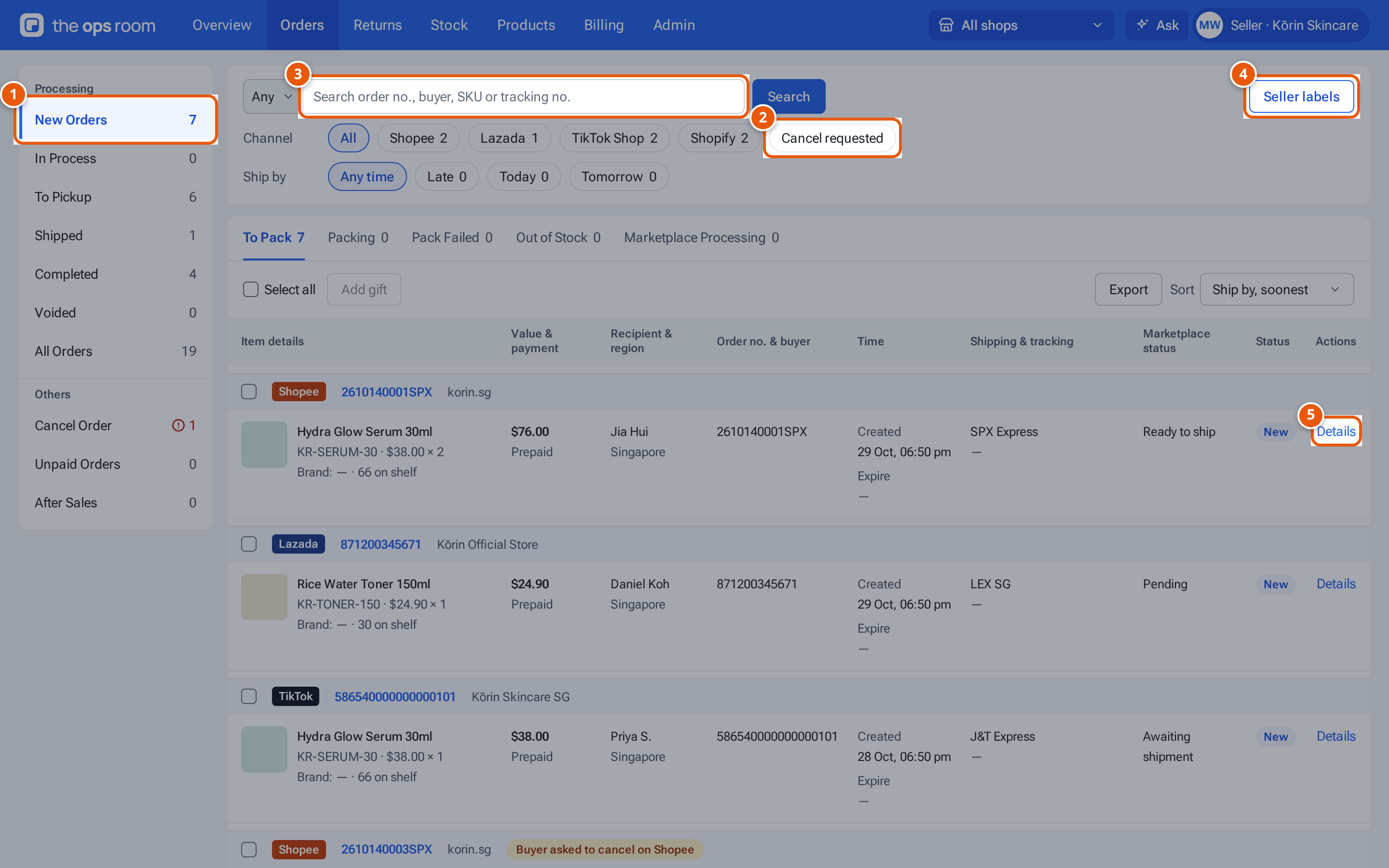
- 1. Order groups: New Orders are not packed yet. The others follow the order to the buyer.
- 2. Show only orders whose buyer asked to cancel.
- 3. Find an order by its number or the buyer’s name, then press Enter.
- 4. Upload shipping labels you booked yourself (Shopify orders).
- 5. Open an order’s details.
The address bar keeps your view, so you can bookmark it or send the link to someone on your team.
On a phone
Section titled “On a phone”Orders is one of your five bottom tabs. At the top are a Filters button (it shows a dot while a filter is on), the shop switcher if you have several shops, and a search box (“Order no., buyer, SKU or tracking”) with a camera button that scans a code into it.
Orders show as cards. A card shows the marketplace, the order number, a ship-by chip and a red Short label if the warehouse can’t fully pick it. Under that are the items with a photo and the stock on the shelf, then your shop and the courier, the order’s status (“To pack”, “Packed”, “Ready for pickup”, “With courier”, “Shipped”, “Delivered”, “Cancelled” or “Returned”), + Extra and Open. The card does not show the buyer or the total. Tap Open for those and the rest of the details, then Full details for the whole window. Under View you can switch between Cards and Table.
Tap Filters for the group, channel, ship-by and other filters, Sort by and the page size. At the bottom of that sheet are Seller labels (see Upload your own shipping labels), Export (the same CSV as on a computer) and Done.
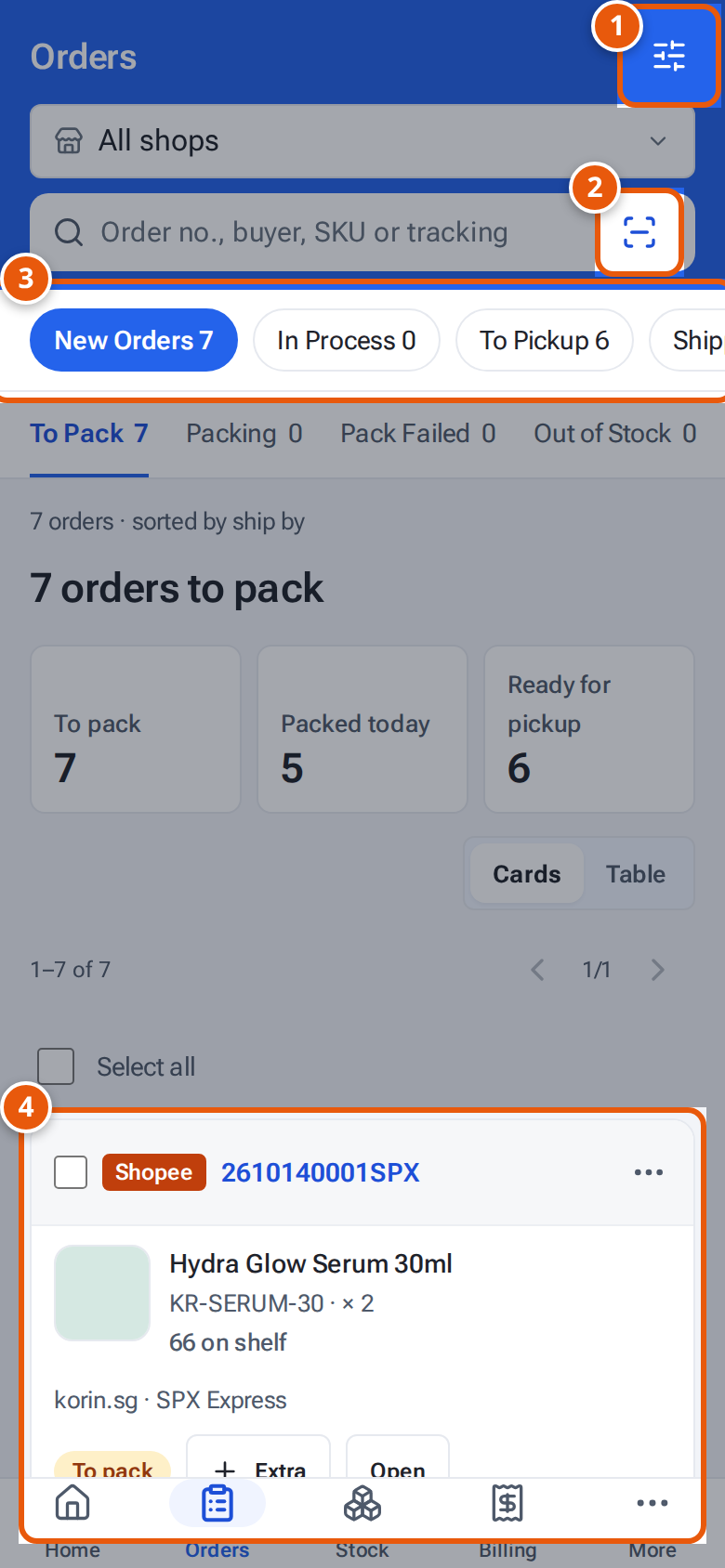
- 1. Filters: marketplace, dates and more.
- 2. Scan a parcel’s barcode to find its order.
- 3. Swipe the chips for the order groups, each with its count.
- 4. One card per order. Tap Open for the details.
What each button and field means
Section titled “What each button and field means”| Item | What it does |
|---|---|
| New Orders and its tabs | To Pack, Packing, Pack Failed, Out of Stock and Marketplace Processing split the new orders by where they are in packing. |
| Cancel requested | Show only orders whose buyer asked to cancel (TikTok Shop and Shopee). |
| Channel | Filter buttons for Shopee, Lazada, TikTok Shop and Shopify, each with its count. Tap again to clear. There is no Seller row: you only see your own shops. |
| Ship by | Late, Today, Tomorrow, on New Orders, In Process and To Pickup. Orders with no ship-by time match none. |
| Export | Above your list. Downloads a CSV of every order that matches your filters, on all pages, one row per item, up to 10,000 orders. In the Android app it opens the share sheet. |
| Sort by | Order Time, or Expire (soonest): the marketplace’s ship-by time. The arrow button flips newest first and oldest first. |
| 50 / Page | How many orders a page shows (50, 100 or 200). |
| Seller labels | Upload shipping labels you booked yourself. See Upload your own shipping labels. |
| Add extra to selected | Add a gift or anything else to the ticked new orders. See Add extras or gifts to orders. |
| Expire | Time left to ship, such as “in 5 h”. It turns amber within 24 hours and says “Overdue” once passed. |
| Marketplace Status | The marketplace’s own status, such as “Ready to ship”. |
| Status | The order’s status in theopsroom: New, Acknowledged, Picking, Packed, Dispatched, Delivered, Returned or Cancelled. |
| Badges | “Buyer asked to cancel on Shopee”, “On hold on TikTok”, “No seller SKU”, “Shop disconnected” and others tell you why an order needs a look. “+1 extra” shows gifts added to it. |
Stock on each line
Section titled “Stock on each line”Each open order line shows how many units are on the shelf, for example “14 on shelf”. If the warehouse can’t fully pick the order it shows red, for example “Only 1 on shelf” (stock goes to the oldest orders first, and gifts count). On a phone the card shows a red Short label, and the Short of stock tile on Home counts these orders. Those orders are also listed under New Orders, Out of Stock. To fix one, send more stock to the warehouse. See Your stock.
The buttons for packing, printing labels and syncing are for the warehouse only, and you don’t see them.
If something goes wrong
Section titled “If something goes wrong”| What you see | Why | What to do |
|---|---|---|
| “No seller SKU” on an order | The marketplace item has no seller SKU, so theopsroom can’t match it to your product. | Add the seller SKU to the item in that marketplace’s Seller Center. |
| “Shop disconnected” | theopsroom can no longer read that shop. | Ask your warehouse to reconnect it. See Your shops. |
| “On hold on TikTok” | TikTok holds new orders for a short time while the buyer can still cancel. | Nothing: it can be packed when the hold ends. |
| An order is missing | Orders arrive with the shop’s next sync, about every 5 minutes. | Wait a few minutes and search again. |