Duplicate… makes a new product from an existing one: the details, photos, variations and prices are copied. The
copy isn’t listed in any shop and starts with no stock. It’s handy for a similar product, or for a single item you
only keep in theopsroom, such as the base item of a bundle (see Sell a set of several items ).
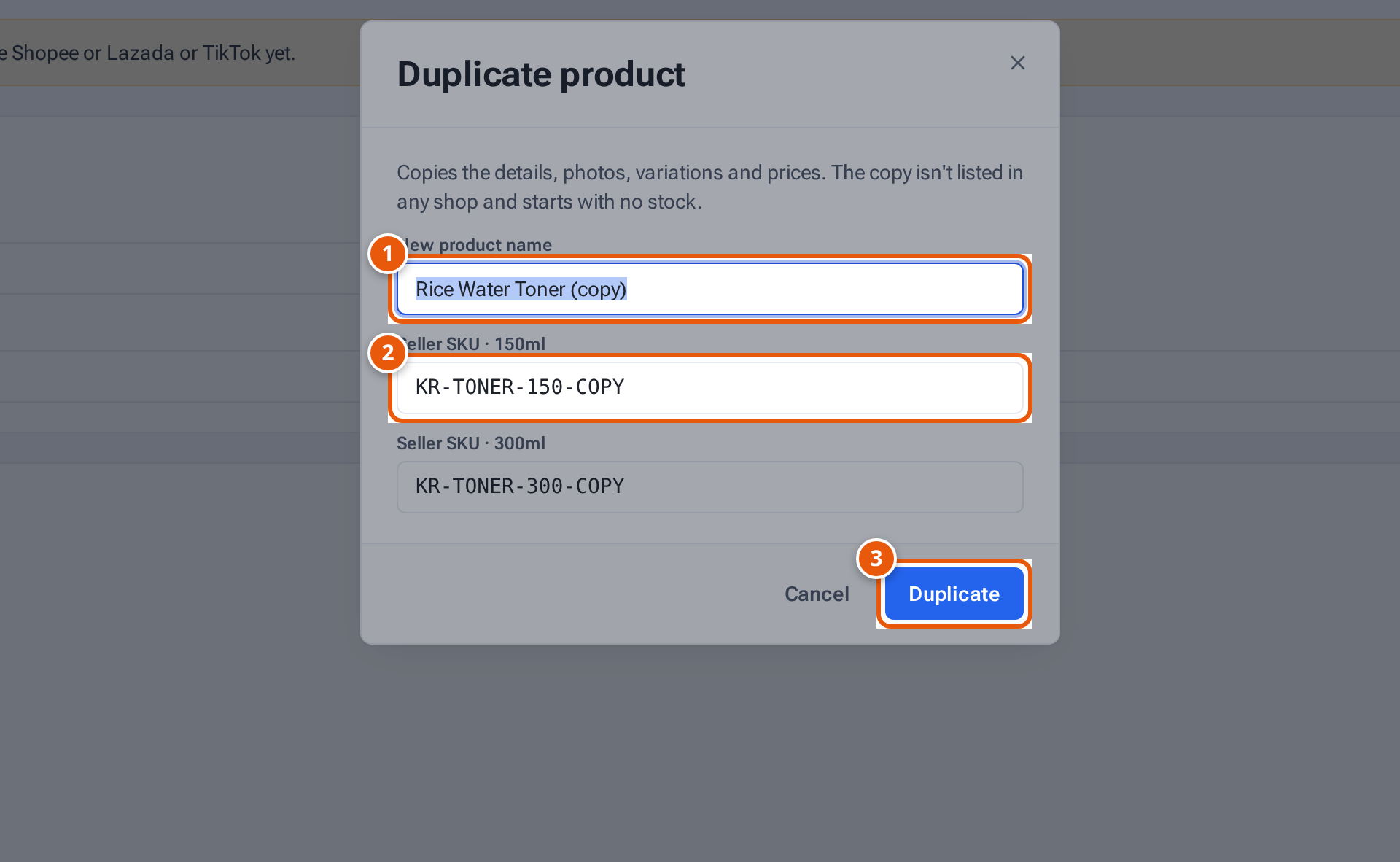
Open the product and click Duplicate… . The window “Duplicate product” opens.
Check the New product name (it starts as “… (copy)”).
Give each SKU a new Seller SKU (they start as “…-COPY”). No two products can share a seller SKU.
Click Duplicate . The copy opens, ready to change and save.
1 1. The copy’s name.2 2. A new seller SKU for each SKU: no two products can share one.3 3. Make the copy and open it.Tap or click the picture to open it full size.
Item
What it does
New product name The copy’s name.
Seller SKU · … One field per SKU, named by its variation.
Duplicate Makes the copy and opens it.
Cancel Closes the window without copying.
Message
Why
What to do
“Give the copy a name”
The name is empty.
Type a name.
“Give each variation a seller SKU”
A seller SKU is empty.
Fill in every one.
“Use a different seller SKU for each variation”
Two SKUs share a code.
Change one.
“… is already a seller SKU of …”
Another product uses that code.
Choose another.
“Use 1–200 letters, digits, spaces, “-”, “_” or “.” for seller SKUs”
The code has other characters.
Remove them.