

Platform: All users
Platform → All users lists every login across all operators.
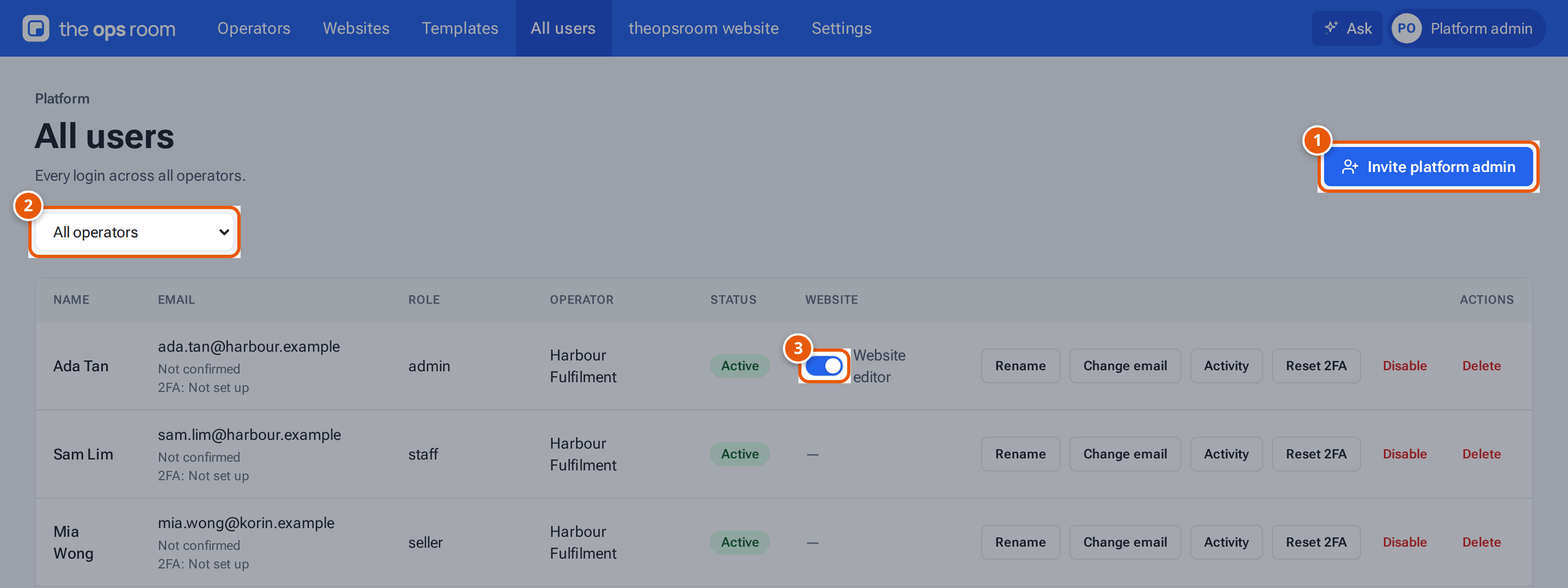
- 1. Invite another platform administrator.
- 2. Show one operator’s people, or the platform’s own.
- 3. Let an admin edit their operator’s website.
The list
Section titled “The list”Each row shows the Name, Email (with whether it is confirmed and how two-factor sign-in is set up), Role, Operator, Status (Active or Disabled) and Website. Platform admins show Platform under Operator.
Use Filter by operator to see All operators, Platform (no operator) or one operator.
Invite a platform admin
Section titled “Invite a platform admin”- Press Invite platform admin.
- Type the Email and press Create invite.
- Send the link from Platform admin invite link to the person: “Send this link to the new platform admin — it works once and expires in 7 days.”
Give someone the Website editor
Section titled “Give someone the Website editor”The Website editor switch on an operator’s admin decides whether they see Website in their menu. Switch it on and the message says “Name can now edit the website.” Switch it off and they “can no longer edit the website”. The switch appears only for admins that belong to an operator. Everyone else shows a dash.
Other things you can do on a row
Section titled “Other things you can do on a row”| Button | What it does |
|---|---|
| Rename | Change the person’s name. |
| Change email | Change their sign-in email. See Change someone’s email. |
| Activity | Read their password and email history. |
| Reset 2FA | Let them set up two-factor sign-in again. See Reset someone’s 2FA. |
| Disable / Enable | Stop or allow sign-in. |
| Delete | Delete the person. You choose whether to keep their name on past records. You can’t delete yourself. |
theopsroom always keeps at least one active admin and one active platform admin. If an operator has a website, you can’t remove its only active website editor: the message is “Give website editing to someone else in Operator first.” A change that would leave none is refused. You can’t disable or change your own account here.
Related pages
Section titled “Related pages”- Platform: Operators
- Platform: Settings (require two-factor sign-in for everyone)