

Settings: the company's default look
Admin → Settings → Appearance sets the company default: light or dark, where the menu sits, and which logo the app shows. Light or dark and the menu apply to everyone (sellers too) who hasn’t chosen their own. Until you save a default, everyone sees Follow device and the Top bar. Each person can still pick their own in their account menu → Appearance… (see Change how theopsroom looks).
- Open Admin → Settings and choose Appearance.
- Choose Light or dark and Menu, then pick the Logo in the app. Nothing changes until you save.
- Click Save default (it shows Saving…). You see “Saved. People who haven’t chosen their own now see this.”
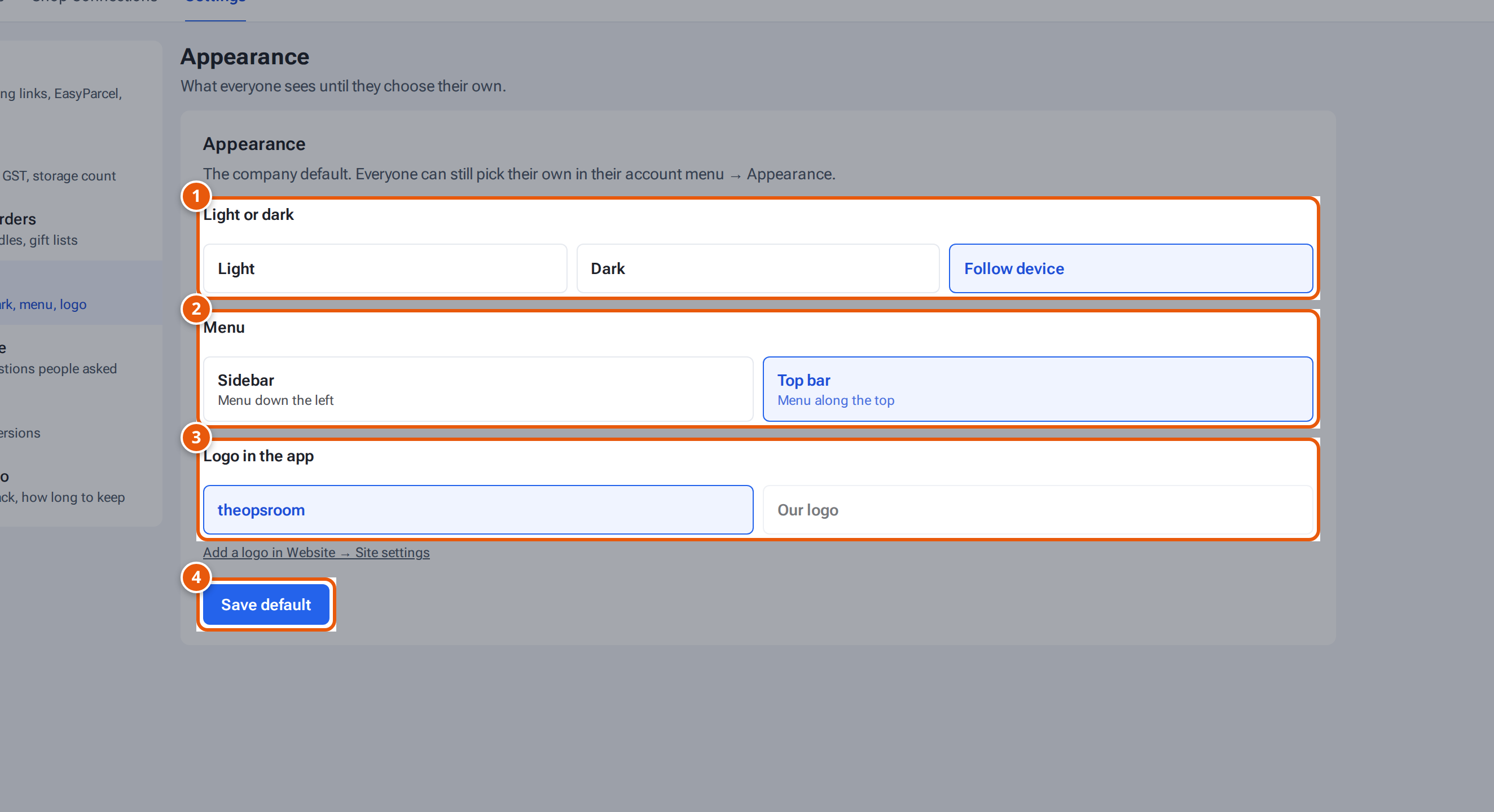
- 1. Light, Dark or Follow device.
- 2. Sidebar or Top bar.
- 3. Which logo the app shows: theopsroom, or your own (add it under Website, Site settings).
- 4. Save it as everyone’s default.
Each choice applies on its own: someone who picked their own light or dark still gets your default menu if they didn’t pick that. Your own screen changes too if you follow the default.
What each button and field means
Section titled “What each button and field means”| Choice | Options |
|---|---|
| Light or dark | Light, Dark or Follow device. |
| Menu | Top bar (menu along the top) or Sidebar (menu down the left). On a phone the menu is the tabs at the bottom, whichever you choose. |
| Logo in the app | theopsroom or Our logo. Our logo is greyed out until you add a logo under Website → Site settings (the page offers a link: “Add a logo in Website → Site settings”). Unlike the other two choices, everyone sees this one. |
| Save default | Save it as everyone’s default. |
See what each looks like on Change how theopsroom looks.