

Scanning with a phone, scanner or camera
Pick & Pack, the Pack window in Orders, courier handovers, receiving, put-away and returns all have a scan box. It works the same everywhere.
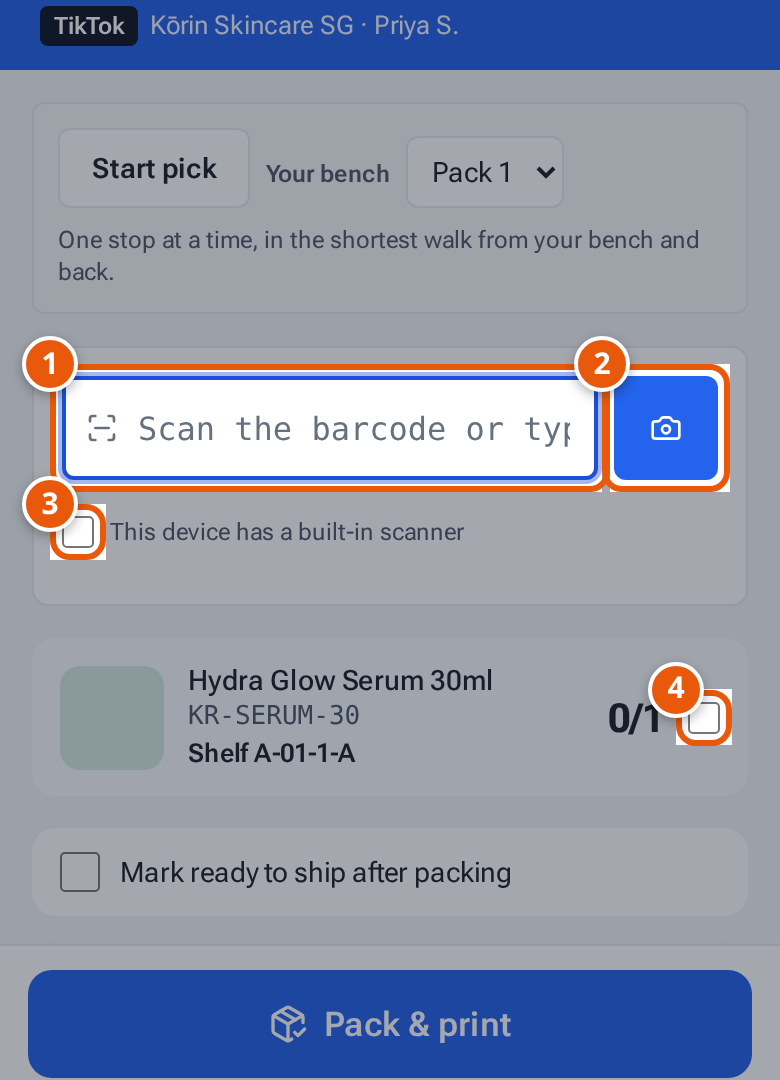
- 1. The scan box. A scanner types the code and presses Enter for you.
- 2. Use the phone’s camera instead of a scanner.
- 3. Tick on a phone with a built-in scanner, so the on-screen keyboard stays away.
- 4. No barcode? Tick the line to count it by hand (when the seller allows it).
- Click or tap the scan box (for example Scan an item).
- Scan the barcode with your scanner. A scanner types the code and presses Enter for you. You can also type the code and press Enter.
- The box flashes green with a beep when the code is accepted, or red with a buzz when it isn’t. It clears itself, ready for the next code.
On a phone, the on-screen keyboard stays down until you tap the box yourself, so it doesn’t cover the screen when you scan with the camera.
Scan with the camera
Section titled “Scan with the camera”- Press the camera button next to the scan box (it says Camera on a computer and shows only a camera icon on a phone). The Scan tab at the bottom of a phone opens the camera straight away. On the Returns page the camera button sits beside the scan box too.
- In a browser, a window opens: “Hold the barcode inside the frame. It reads by itself.” Hold the barcode steady in the frame, or type the code under Or type it. Press Cancel to stop.
- In the Android app, the phone’s own scanner opens instead.
- While a packing video is recording on a phone, no second camera opens. The recording’s own camera reads the barcode: see Pick & Pack.
A phone with a built-in scanner
Section titled “A phone with a built-in scanner”Tick This device has a built-in scanner. The box then stays ready for the next scan without bringing up the on-screen keyboard. theopsroom remembers this on the device.
No barcode?
Section titled “No barcode?”- At Pick & Pack, if the seller doesn’t ask for every item to be scanned, tick the line to count it by hand.
- When receiving, use Add by search and type the count. See Receive a delivery.
- Print labels for items without a barcode from the receipt (Print labels).
If something goes wrong
Section titled “If something goes wrong”| Message | Why | What to do |
|---|---|---|
| “Can’t use the camera — allow camera access for this site, or type the code instead.” | The browser isn’t allowed to use the camera. | Allow the camera in the browser’s site settings, or type the code. |
| “Allow camera access for theopsroom in Settings to scan with the camera” | The Android app isn’t allowed to use the camera. | Allow it in the phone’s Settings. |
| “The scanner didn’t open: …” | The phone’s scanner failed to start. | Try again, or type the code. |
| The box is greyed out | The device is offline. | Get back online. |
| Nothing happens when you scan | The box isn’t selected, or the scanner isn’t sending Enter. | Tap the box first. Check the scanner sends Enter after each code. |