

Your invoices
Billing lists your warehouse’s invoices to you. You see each invoice once it’s sent; drafts still being prepared don’t show.
This month so far
Section titled “This month so far”At the top of Billing a card named for the month, for example “October so far”, shows an Estimate of what you will be invoiced this month: the total, the dates it covers, and the day your invoice comes. Beside it are the lines that make it up, such as your orders packed so far and your standard charges.
It is worked out from your orders packed so far and your charges, and it is never saved or sent. The real invoice can differ, for example because storage is counted at month end. If it says “No charges set up yet”, ask your warehouse.
On a phone
Section titled “On a phone”Billing is one of your five bottom tabs. From the top:
- A To pay card shows the amount you owe, then “N invoices · oldest due 1 Oct” (or “Nothing to pay”). While anything is overdue the card has a red edge and a red “N overdue” chip that opens the overdue invoices.
- A row named for the month, such as “October so far”, says “Invoice comes on 1 Nov” and shows the estimated amount. Tap it for the full breakdown, which is marked Estimate.
- Chips All, To pay and Paid filter the invoices. Filters also lets you search by invoice number and pick a status or a billing month, and has Export.
- Each invoice is a card with its period, number and the day it was sent, a status chip (a sent invoice says “Due 31 Oct”), the amount and a PDF button.
Your Home tile Invoice due (marked “All your shops”) adds up what you owe across all your shops and opens Billing.
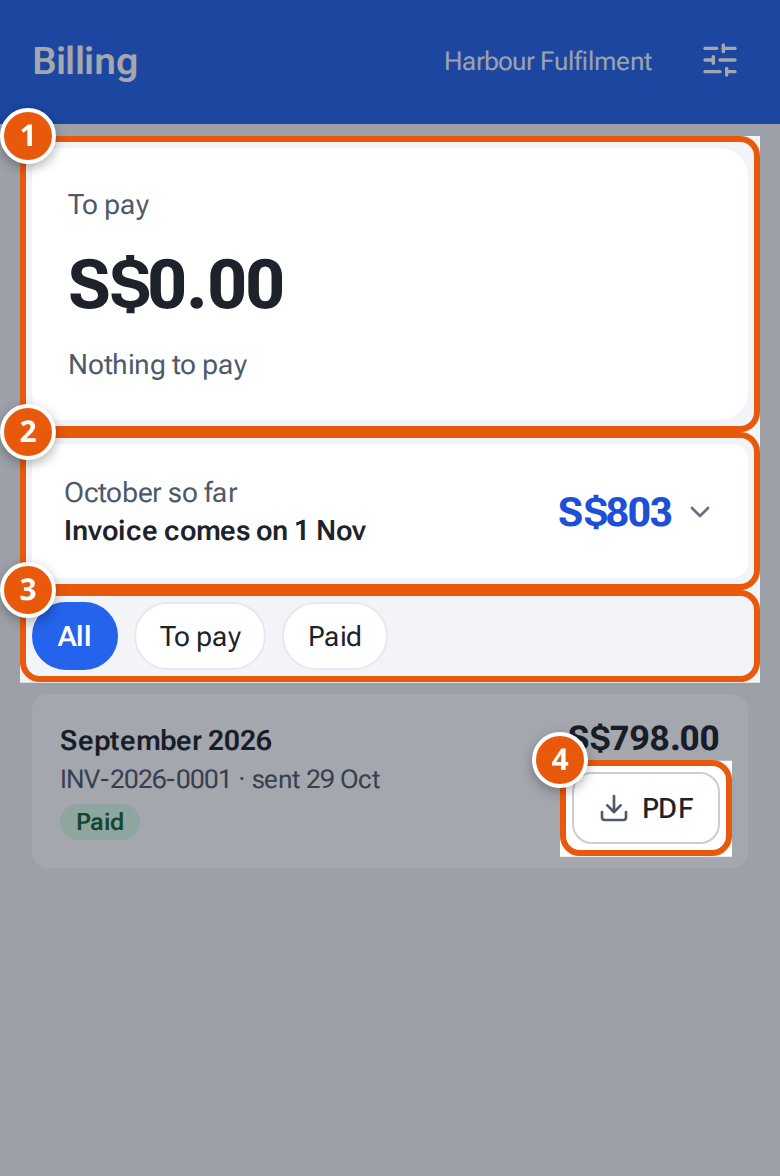
- 1. To pay: what you owe across your shops.
- 2. So far this month: what the next invoice stands at.
- 3. Show all invoices, only those to pay, or only paid ones.
- 4. Open an invoice as a PDF.
- Open Billing. On a phone, tap the Billing tab. Your invoices are listed under Your invoices.
- Read each invoice’s period, date, amount and status.
- Click PDF on a row to open an invoice. See View and download a PDF.
- To open the list in Excel, press Export. The file holds your own invoices only.
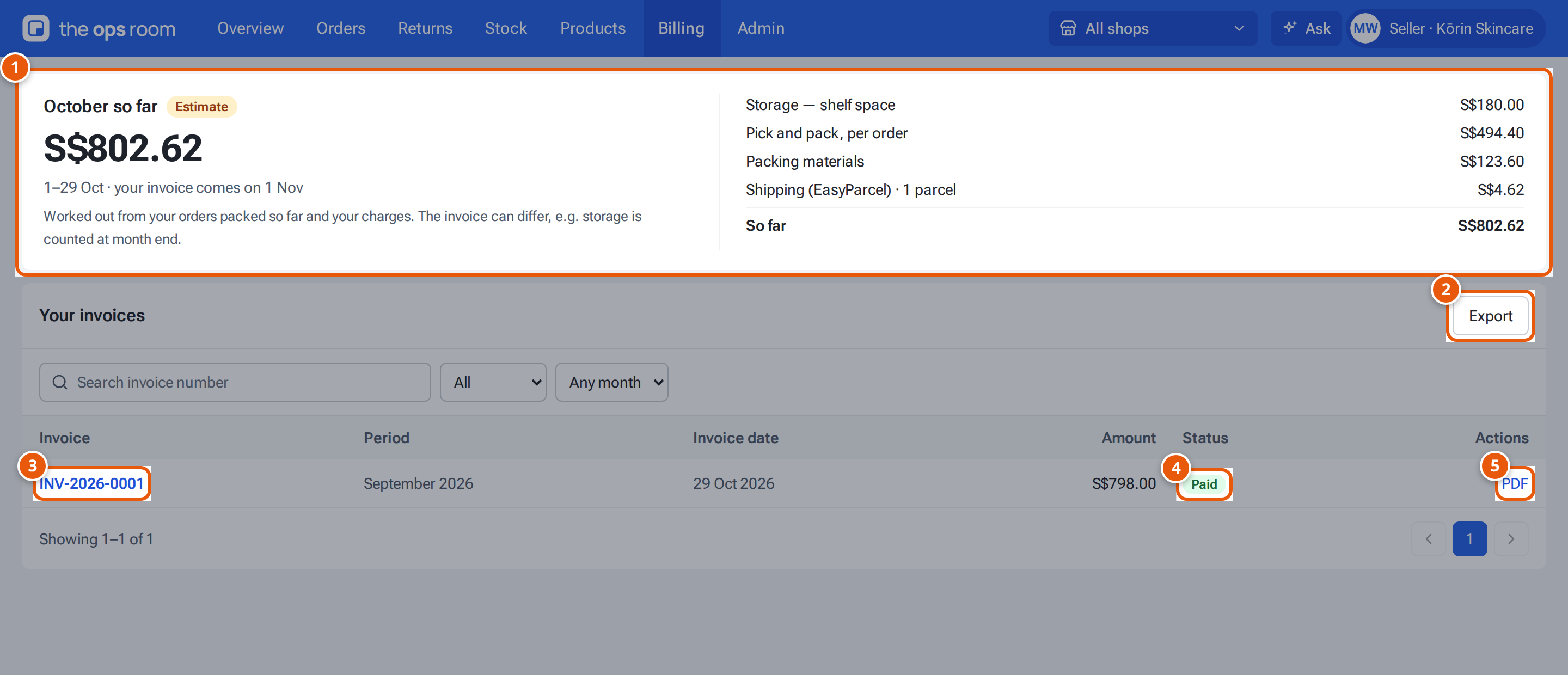
- 1. This month so far: an estimate of your next invoice, with its lines.
- 2. Download your invoices as a CSV.
- 3. An invoice from the warehouse.
- 4. Its status.
- 5. Open the invoice.
The warehouse can see when you’ve opened an invoice.
What each status means
Section titled “What each status means”| Status | What it means |
|---|---|
| Sent | Sent to you and waiting for payment. |
| Overdue | Past its due date and not marked paid. |
| Paid | The warehouse has received your payment. |
| Cancelled | Replaced by a corrected invoice, which shows as a new invoice. |
Emails you receive
Section titled “Emails you receive”- When an invoice is sent: an email with the invoice number in its subject, with the PDF attached, to your billing email (and any CC emails the warehouse has on file).
- When it’s marked paid: “Payment received for …”, a receipt.
There are no automatic reminders. To change the billing email or CC emails, ask your warehouse.
If something goes wrong
Section titled “If something goes wrong”| What you see | Why | What to do |
|---|---|---|
| “No invoices yet.” | Nothing has been sent to you. | Nothing to do. |
| “Couldn’t show this PDF. Use Download to open it.” | The viewer couldn’t show it. | Click Download. |
| An invoice looks wrong | — | Ask your warehouse. They cancel it and send a corrected one. |