

Record packing videos
When packing video is on, Pick & Pack on a computer records each order from the moment it opens until Pack. Nobody presses record. The order number, the packer and the date and time are written into the picture. Only admins can watch the videos, from the order’s details.
Before you start
Section titled “Before you start”- Each packing computer has a USB webcam looking down at the bench. Scanning stays on the hand scanner.
- Storage: videos are kept in Cloudflare R2. In the Cloudflare dashboard, open R2 Object Storage, create a
bucket (for example
my-company-packing-videos), then Manage API tokens → Create Account API token with Object Read & Write on that bucket. Put the account ID, the Access Key ID, the Secret Access Key and the bucket name in your hosting settings (Render) asR2_ACCOUNT_ID,R2_ACCESS_KEY_ID,R2_SECRET_ACCESS_KEYandR2_BUCKET. - In the bucket’s Settings → CORS Policy, allow the app’s address to upload (also your old app address, if you still use it, as a second entry in
AllowedOrigins):[{"AllowedOrigins":["https://app.theopsroom.io"],"AllowedMethods":["PUT","GET"],"AllowedHeaders":["content-type"],"MaxAgeSeconds":3600}].
Switch it on
Section titled “Switch it on”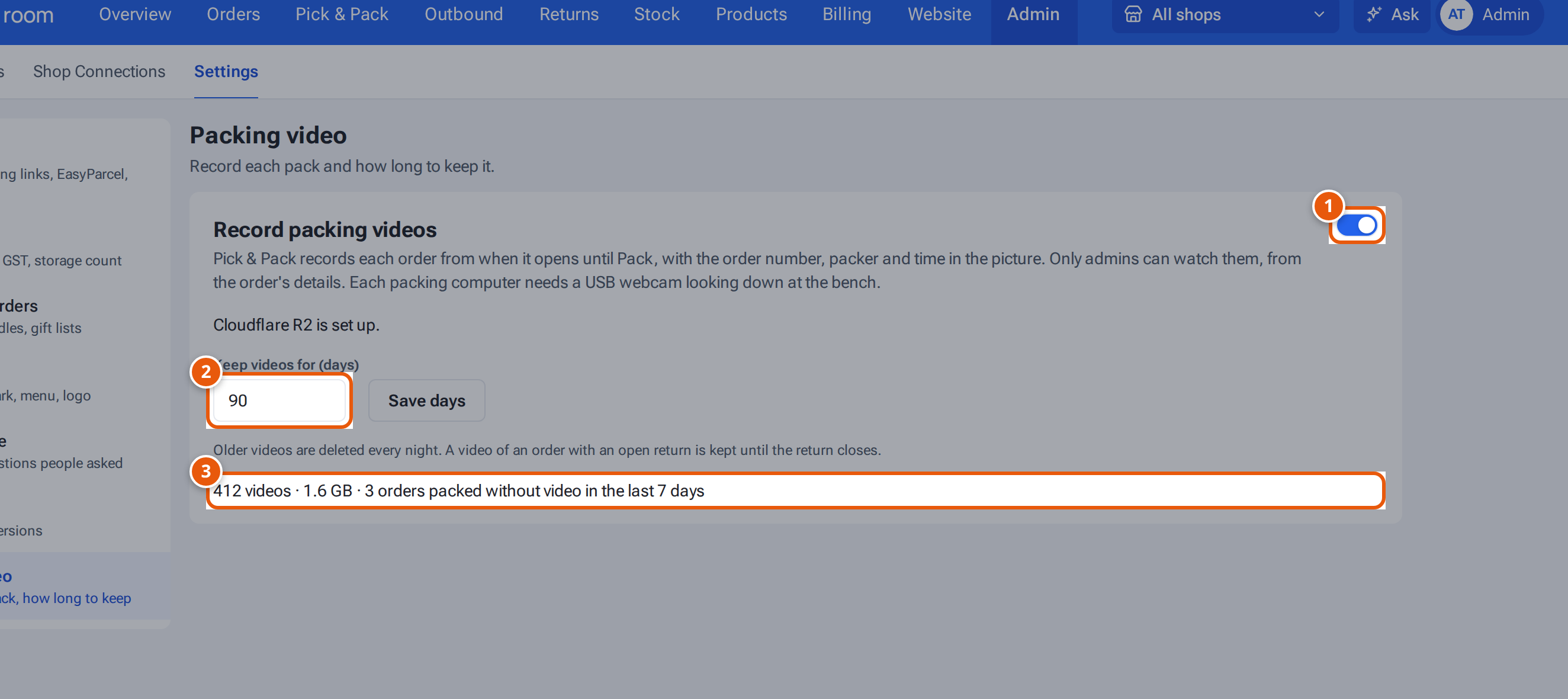
- 1. Record each order at Pick & Pack.
- 2. How long videos are kept before they’re deleted.
- 3. Videos kept, their size, and orders packed without video this week.
- Open Settings → Packing video. It says “Cloudflare R2 is set up.” once the storage keys are on Render.
- Turn on Record packing videos. You see “Pick & Pack now records each order being packed.”
- Set Keep videos for (days), 7 to 365 (90 to start), and click Save days.
- On each packing computer, open Pick & Pack. The browser asks once to use the camera: click Allow. With more than one camera, choose the bench camera under Camera; the computer remembers it.
What packers see
Section titled “What packers see”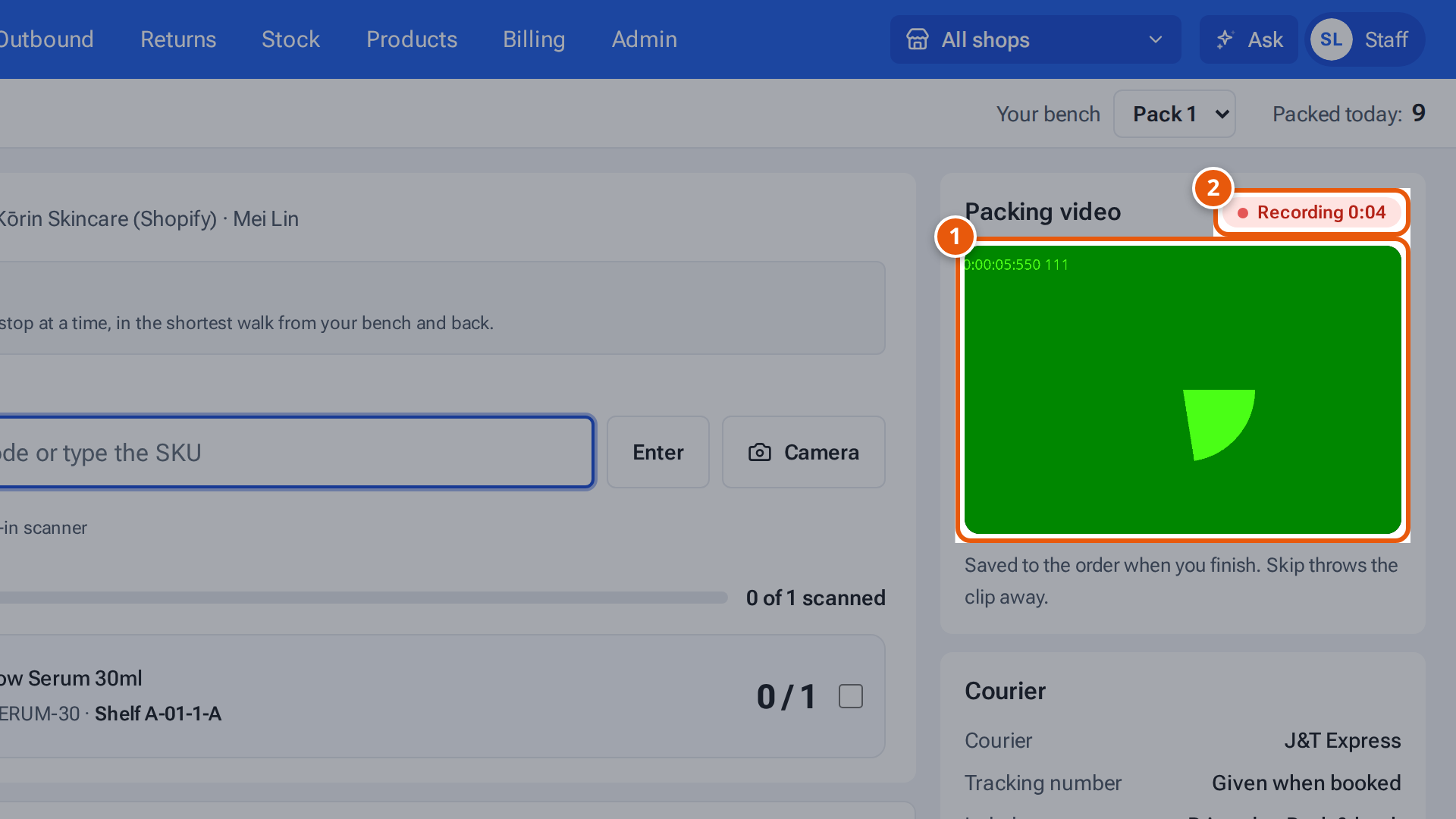
- 1. The bench camera’s picture.
- 2. Recording this order until Pack.
- A small camera picture and “Recording” with a running time (hover it for the order number) while an order is open.
- Pack stops the recording; the video uploads in the background and the next order starts its own.
- Skip this order, opening another order, or leaving the page throws that recording away.
- A recording stops itself after 10 minutes and is kept (“stopped at 10 minutes”).
- Phones record too, with the back camera (see below).
- Without internet, videos wait on the computer (“2 videos waiting to upload”) and upload when it’s back.
On a phone
Section titled “On a phone”With packing video on, opening an order in Pick & Pack on a phone records with its back camera (720p), uses the same keep-days setting and uploads the same way. A strip under the header shows a wide camera picture, “Recording” with the time and “Saved to the order when you finish”. The one camera also reads barcodes from the recording, so packers can scan without a second camera. The camera button next to the scan box opens a large camera view (“Point at an item barcode”); see Pick & Pack. Phones that can’t read barcodes from the picture (for example iPhones) show “Type the code or use the built-in scanner” and keep recording. The Android app and Chrome on Android can read them. The camera needs the same Allow on the phone.
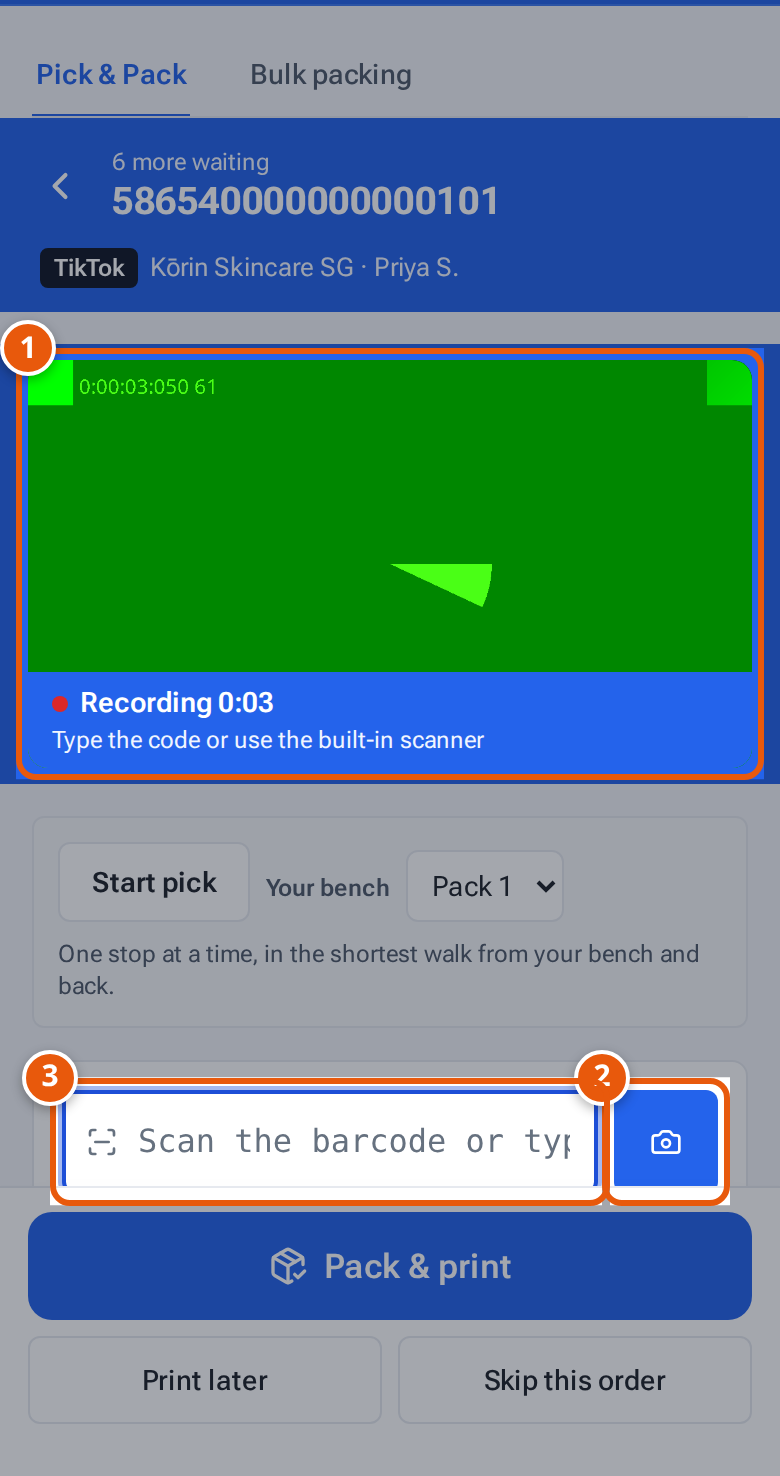
- 1. The phone’s back camera, recording this order.
- 2. Use camera: a large camera view to scan an item’s barcode while recording goes on.
- 3. Or scan with a built-in scanner, or type the code.
Watch a video
Section titled “Watch a video”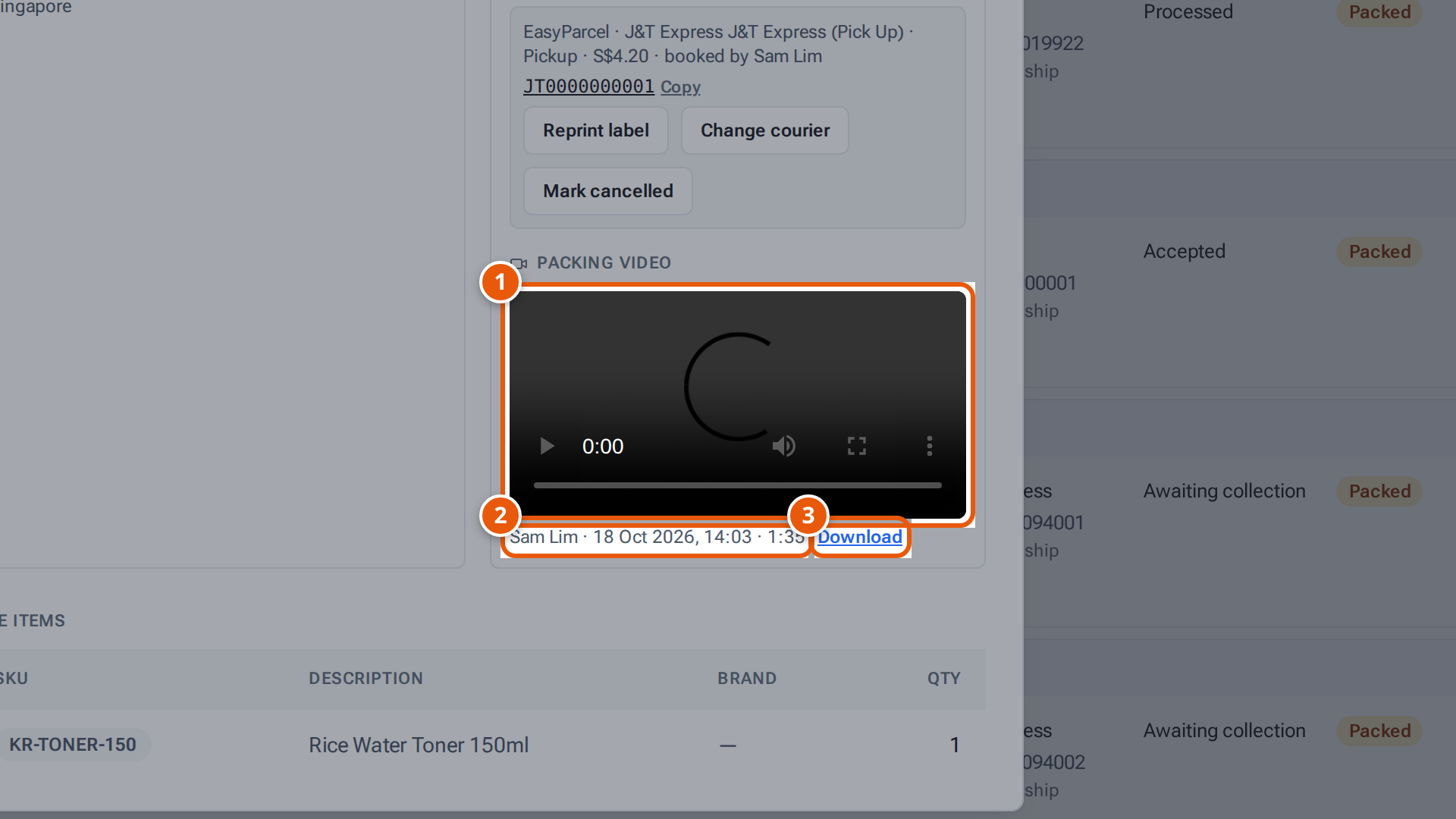
- 1. Play the video of this order being packed.
- 2. Who packed it, when, and how long the video is.
- 3. Download it to send to the marketplace in a dispute.
Open the order in Orders and click Order Details. Packing video shows each recording with who packed it, when, how long it is, a player and Download. Send the downloaded file to the marketplace in a dispute. Videos are MP4 (on Chrome, Edge and Safari), the format Lazada, Shopee and TikTok accept; a browser that can’t record MP4 (Firefox) records WebM instead.
If the order was packed at Pick & Pack without a camera, it says why, for example “No video — no camera found”. Orders packed elsewhere (from the Orders list) have no packing video.
How long videos are kept
Section titled “How long videos are kept”Every night, videos older than the number of days in Settings are deleted. A video of an order with a return that isn’t closed is kept until the return closes; for a lost return, up to 180 days after it last changed. A video still waiting to upload on a packing computer is given up after 7 days. Settings shows how many videos are kept, their size, and how many orders were packed without video in the last 7 days.
If something goes wrong
Section titled “If something goes wrong”| What you see | Why | What to do |
|---|---|---|
| “Video storage isn’t set up yet” | The R2 settings aren’t on Render. | Add the four R2 settings on Render, then switch it on. |
| “Not recording: no camera found” | No webcam is plugged in. | Plug the webcam in and reopen Pick & Pack. Packing still works; the order is marked “no video”. |
| “Not recording: camera permission was refused” | The browser was told not to use the camera. | Click the camera icon in the address bar, allow the camera, and reload. |
| “Not recording: the camera stopped” | The webcam was unplugged. | Plug it back in and press Try again. |
| “Not recording: the camera is in use by another app” | Another program (for example a video call) has the camera. | Close that program and reload. |
| “2 videos waiting to upload” | The computer was offline, or storage didn’t answer. | Keep Pick & Pack open with internet; they upload by themselves. |