

Move shops to another client
If a shop was connected for the wrong client, or a brand changes hands, move the shop. Its orders, listing templates and the products listed on it move with it. Seller logins of the old client stop seeing them; the new client’s start.
-
Open Admin → Shop Connections. Click ⋯ on the shop’s row and choose Move to client… (or Move to client… in the shop’s details).
-
The window “Move … to another client” says who it belongs to now. Choose the client to move it to.
-
Read the preview: what moves, and anything in the way.
-
If a product is also listed on another of the client’s shops, the shops must move together. Tick those shops under Move these shops of … too. The red lines tell you which ones.
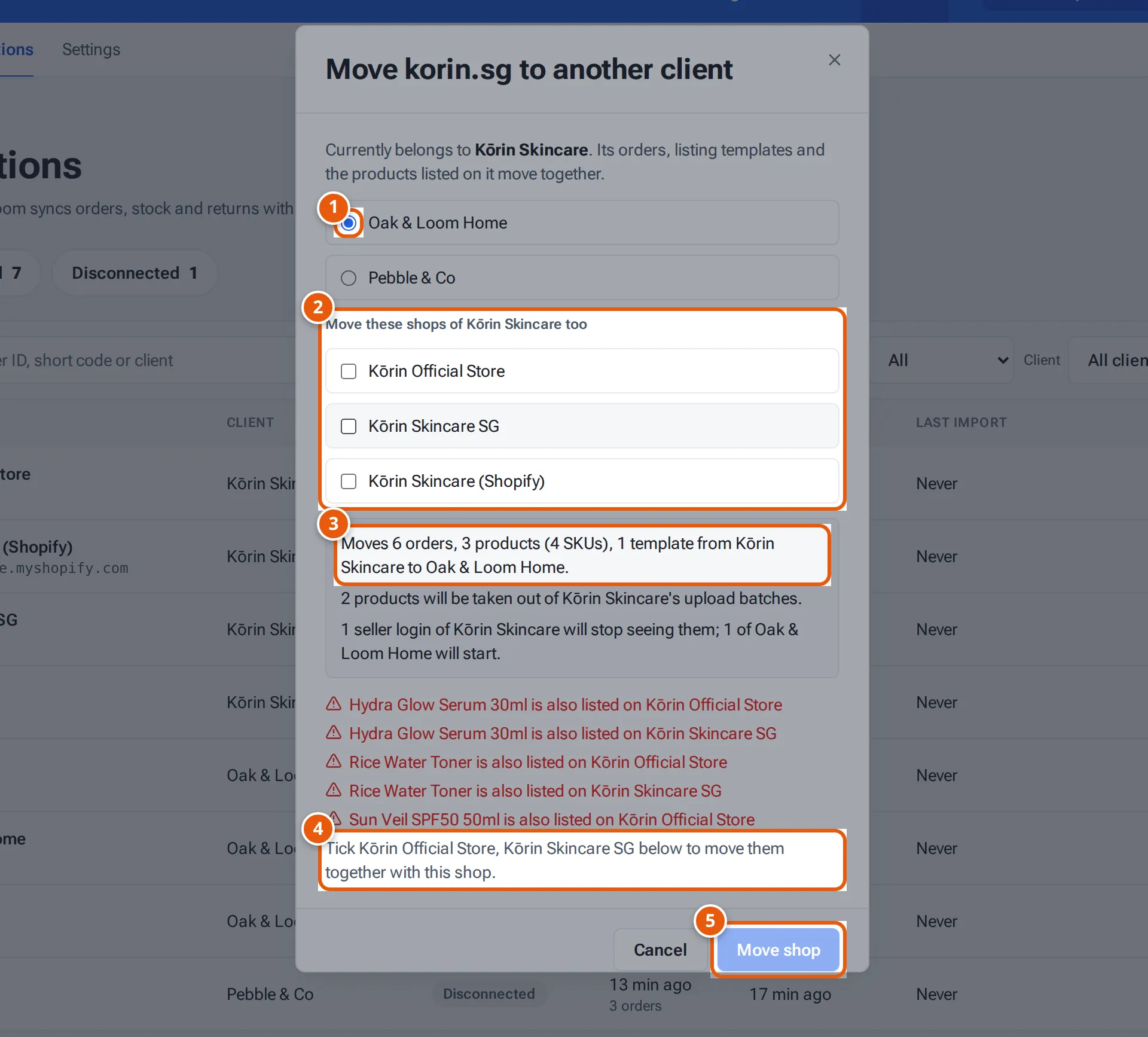
- 1. The client to move it to.
- 2. Tick the client’s other shops to move them together.
- 3. What moves with it.
- 4. Why it can’t move yet, and what to tick.
- 5. Move it, once nothing is in the way.
Tap or click the picture to open it full size. -
When there are no red lines left, click Move shop (or Move 3 shops when you ticked others). You see “korin.sg now belongs to Oak & Loom Home.” (with the shop and client names).
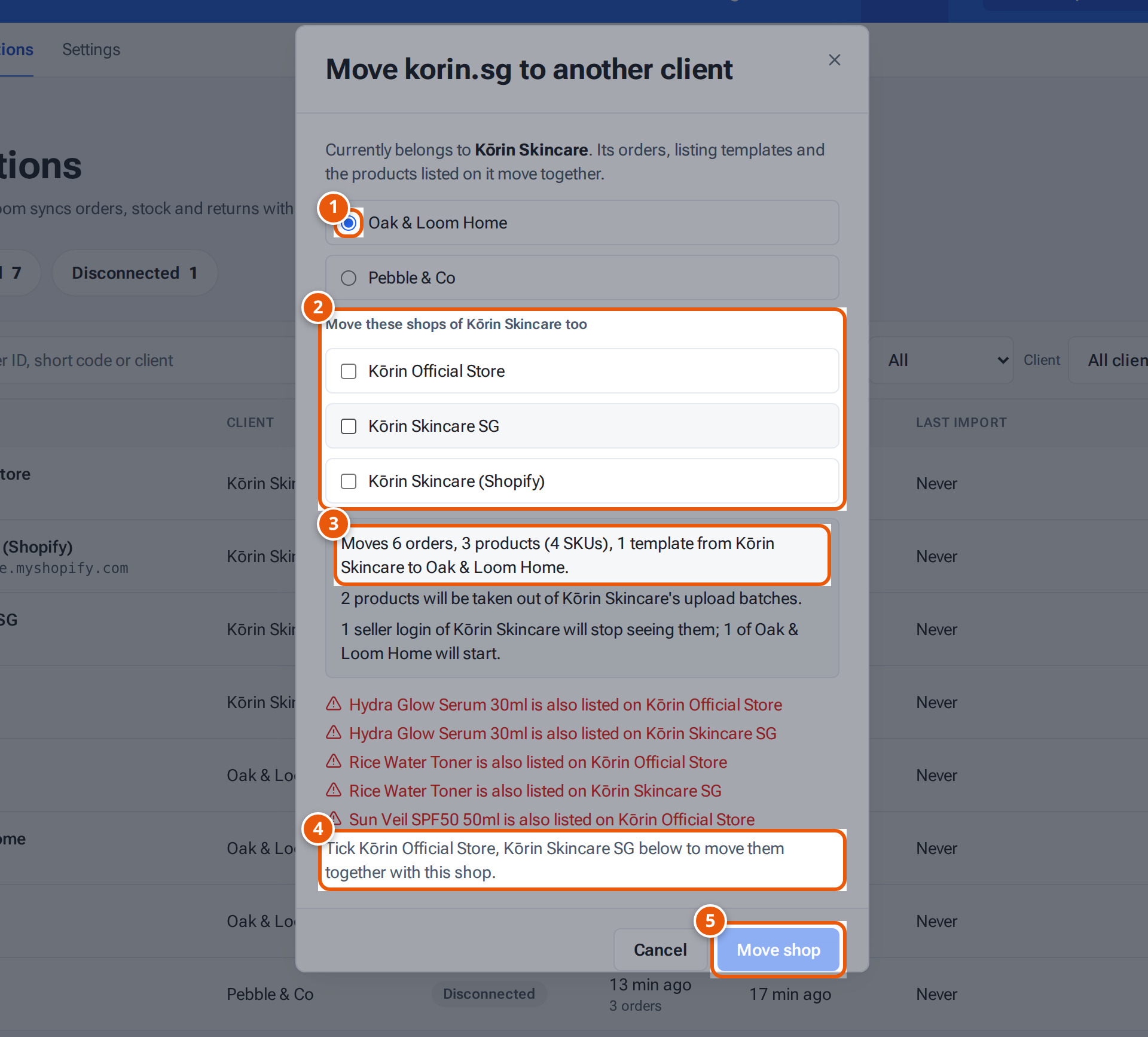
What the window tells you
Section titled “What the window tells you”| Line | What it means |
|---|---|
| “Moves 3 shops together: …” | The shops moving together. |
| “Moves … orders, … products (… SKUs), … templates from … to ….” | What moves. |
| “… products will be taken out of …’s upload batches.” | Upload batches stay with the old client; these products leave them. |
| “… draft or skipped listings (never live) will be removed.” | Unfinished listings on other shops go. |
| “… seller login(s) of … will stop seeing them; … of … will start.” | Who sees what afterwards. |
If something goes wrong
Section titled “If something goes wrong”| Message | Why | What to do |
|---|---|---|
| “… is also listed on …” | A product is on another shop of the same client. | Tick that shop to move it too. |
| “Seller SKU … already exists in …” | The new client already has a product with that SKU. | Change one of the SKUs first. |
| “Wait for … to finish publishing” | A product is being published. | Try again in a minute. |
| “Wait for the product import to finish” | A product import is running. | Try again when it’s done. |
| “Choose the client to move this shop to” | No client chosen. | Choose a client. |
| “Every shop moved together must belong to …” | A ticked shop belongs to another client. | Only tick the same client’s shops. |