

Add a product (photos, variations, SKUs, package)
A product is made once in theopsroom. After that you can publish it to any of your shops, and the warehouse knows it by its seller SKU. The same page is used to change a product later.
- Open Products and click New product.
- Under Basics, fill in the Brand (use “No Brand” if it isn’t registered with the marketplaces) and the Product name.
- Under Images, drop up to 8 photos on the box, or click Choose files. The first photo is the Main one; use the arrows under a photo to move it. Photos on a new product upload when you save.
- Under Description & highlights, write the description and up to 8 highlights, one per line. Or let the AI draft them: see Write a description with AI.
- Under Variations & SKUs: if the product comes in sizes or colours, switch on This product has variations (e.g. colour or size), name the variation (for example “Size”) and type its values separated by commas. A row appears for each value. Fill in each row’s Seller SKU and Price (SGD), and if you like the Barcode, Sale price, Stock and Image.
- Under Package, fill in the Weight (kg), Length (cm), Width (cm) and Height (cm) of the packed parcel.
- Click Save. You see “Product saved.” The product’s page then has a Listings box for publishing it.
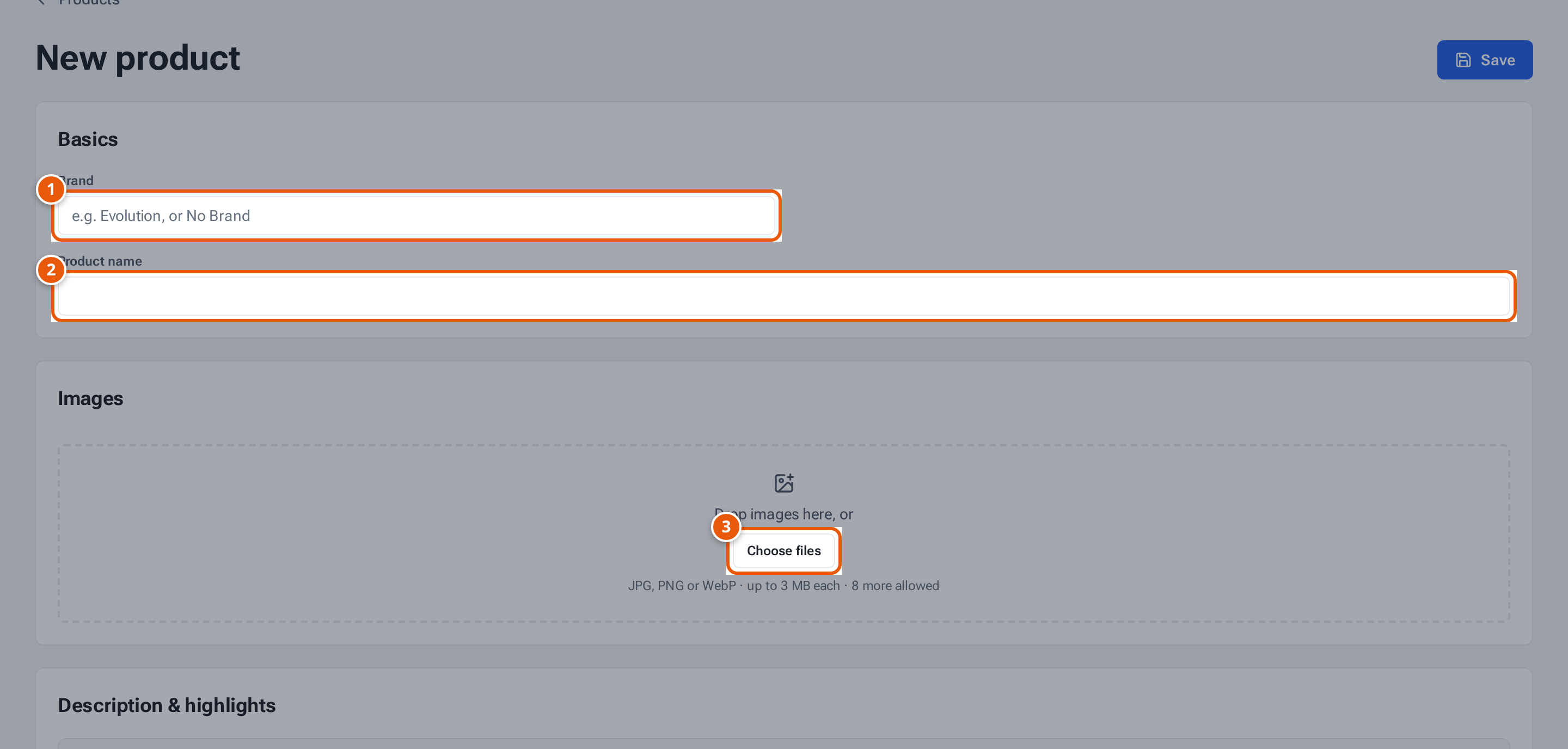
- 1. The brand. Use No Brand if it isn’t registered with the marketplaces.
- 2. The product’s name, as buyers will see it.
- 3. Add up to 8 photos (JPG, PNG or WebP, up to 3 MB each). The first is the main photo.
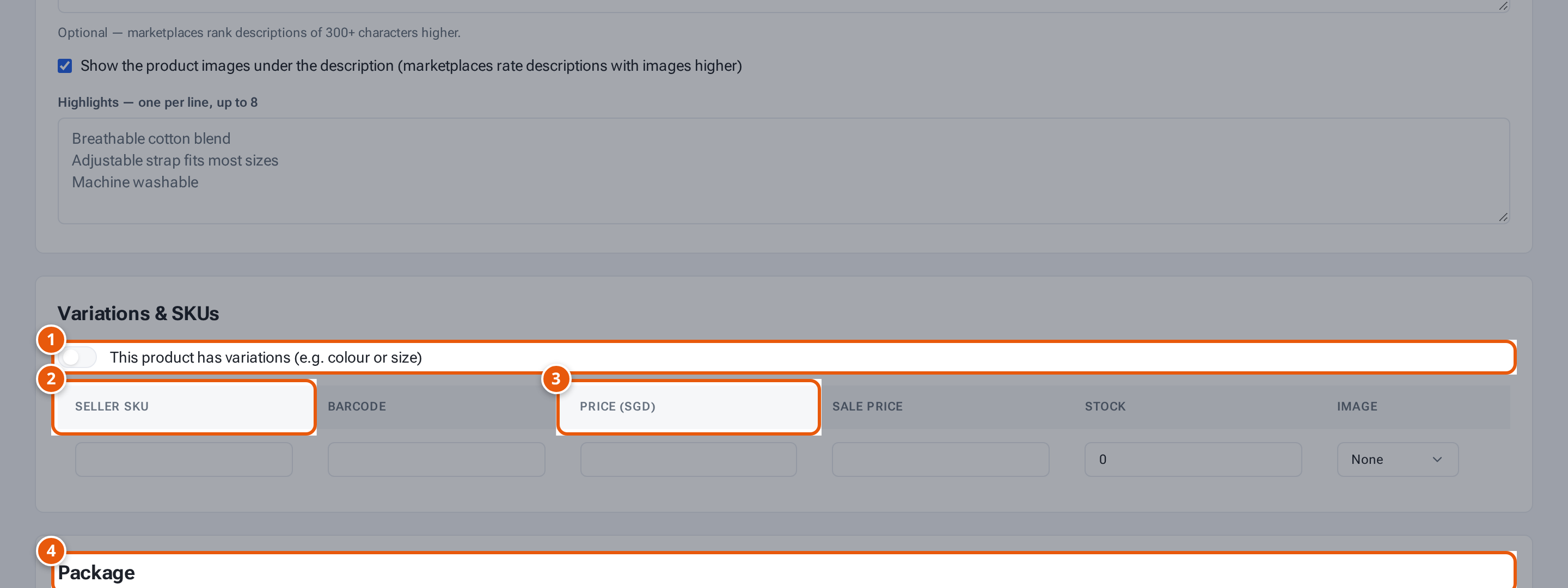
- 1. Switch on if the product comes in sizes or colours.
- 2. Each SKU’s seller SKU: the code the warehouse and every marketplace use.
- 3. The price, and a sale price if it’s on offer.
- 4. Parcel weight and size, which the marketplaces use for shipping fees.
What each button and field means
Section titled “What each button and field means”| Item | What it does |
|---|---|
| Seller SKU | Each SKU’s own code (letters, digits, spaces, “-”, “_” or “.”). The warehouse and every marketplace use it, so keep it the same everywhere. It can’t change once the SKU is in a shop. |
| Barcode | The barcode printed on the item (4–64 letters and digits), so the warehouse can scan it. |
| Price (SGD), Sale price | The price, and a lower sale price if it’s on offer. |
| Stock | theopsroom’s record of the marketplace stock. A new SKU’s stock waits in the warehouse until it’s put on a shelf. |
| Image | Which photo shows for that SKU. |
| Add a second variation | A second variation, such as Colour and Size (two at most). |
| Make 1:1 / Make 3:4 | On a saved product, pads a photo to the shape Shopee needs. |
| Photo notes | “Shopee needs 1:1 or 3:4”, “Under 500 px — too small for Shopee” and similar warn you before you publish. |
| Package | Marketplaces and couriers use it for shipping fees. |
| Duplicate…, Delete product | On a saved product. See Duplicate a product and Delete a product. |
Changing a product later
Section titled “Changing a product later”Open it from Products, change it, and click Save. If it’s already in a shop, you see “Saved — push to update …”: your listings don’t change until you push. See Send product changes to your shops.
If something goes wrong
Section titled “If something goes wrong”| Message | Why | What to do |
|---|---|---|
| “Please fix the highlighted fields” | Something is missing or wrong; red text is under each field. | Fix each field and save again. |
| “Some seller SKUs are already in use” | Another product has that seller SKU. | Use a different one. |
| “Each SKU needs its own seller SKU” | Two rows share a seller SKU. | Give each row its own. |
| “Enter a price above 0 (up to 2 decimals)” | A price is missing or wrong. | Type a price such as 24.90. |
| “Sale price must be above 0 and below the price” | The sale price isn’t lower than the price. | Lower it or clear it. |
| “… must be more than 0 and at most 300 …” | A package size is out of range. | Use kg and cm. |
| “…: use JPG, PNG or WebP up to 3 MB.” | A photo is too big or the wrong type. | Save it smaller, as JPG or PNG. |
| “Product saved, but … photo(s) didn’t upload (…) — add it/them again.” | The product saved but a photo failed. | Add that photo again and save. |
| “… is published to a shop, so its seller SKU can’t change” | The SKU is already listed. | Leave the seller SKU as it is. |
| “… has warehouse history (stock or receipts), so it can’t be removed” | The warehouse has handled that SKU. | Keep the SKU. |