

Site settings
Site settings holds what is shared by the whole website rather than one page. This page is for website editors (admins with Website editor switched on). Like pages, the settings save themselves a few seconds after you change them and stay a draft until you publish. The top of the screen shows Saving soon…, Saving…, All changes saved, Fix the marked fields to save or Couldn’t save, just as on a page.
Open Website and choose the Site settings tab.
The cards
Section titled “The cards”| Card | What is in it |
|---|---|
| Company and contact | Company name, Phone, WhatsApp number (digits with the country code, for example +6580000000), Email, Address and Opening hours. Shown in the header, the footer, the contact sections and Google’s business details. |
| Logos, badge and team | Logo, Logo for dark backgrounds, Shopee badge, Leadership team and Share picture (when a page has none). |
| Menus | Menu links and Footer links. A link can go to a page on the site (for example /rates/), a part of a page (#quote), a full https:// address, or mailto: or tel:. |
| Prices | Rates and In-house cost a month ($). One place for the rates: the Pricing section and the cost calculator use these. |
| Quote form and enquiries | Quote band, Send quote requests to, Automatic reply to the customer and Website addresses (for the quote form). Who gets quote requests, the automatic reply and the addresses work straight away. The quote band’s words show after you Publish. |
| Tracking | Google Tag Manager IDs, like GTM-XXXXXXX. Leave empty for no tracking. |
| Buttons | The main button’s words and the colours of your buttons (below). |
Your logos live in Pictures. To make one, see Colours, fonts and logo. The questions on the quote form are on the Enquiry form tab.
Send quote requests to matters: each quote request is emailed to the first address, and the others get a copy. Add
your own email there, especially after starting over. For Website addresses, type the
addresses the form is sent from, for example https://www.harbourfulfilment.sg.
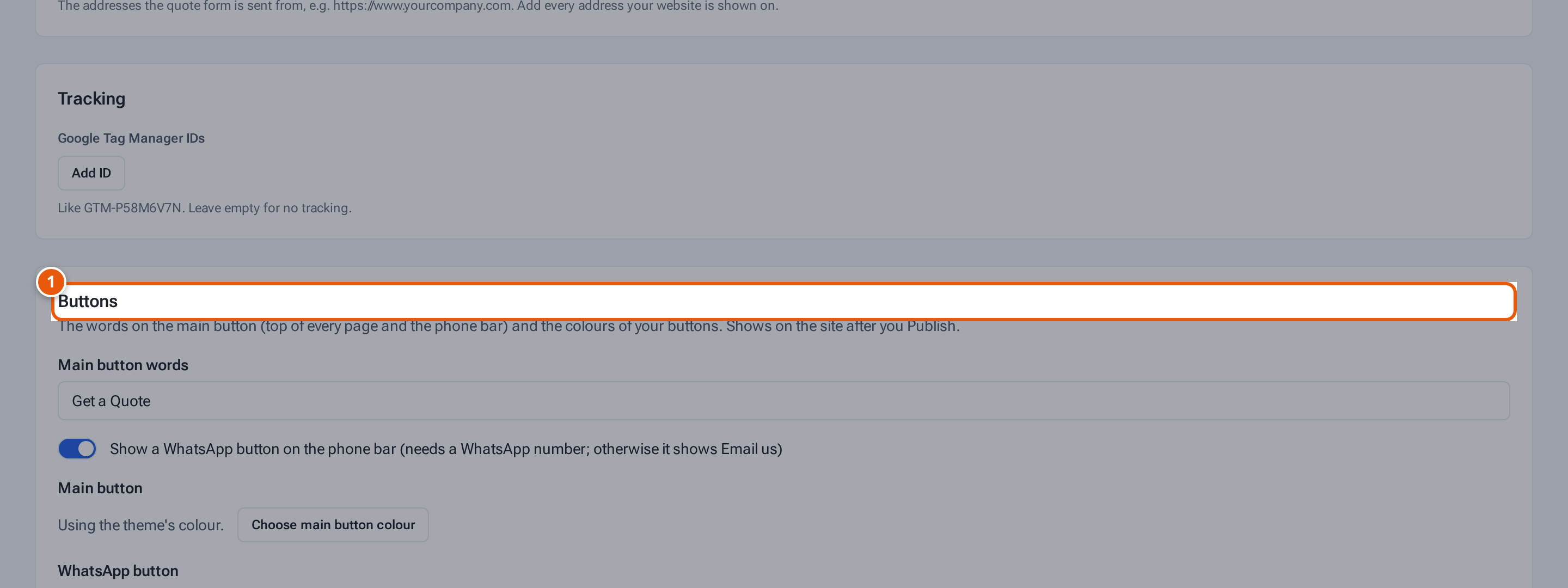
- 1. The Buttons card: the main button’s label, the WhatsApp button and the colours.
The Buttons card
Section titled “The Buttons card”The Buttons card sets the words on the main button (at the top of every page and on the phone bar) and the colours of your buttons. It shows on the site after you Publish.
- Main button words: up to 30 characters. The usual words are Get a Quote.
- Show a WhatsApp button on the phone bar: switch it on to show a WhatsApp button on the phone bar. It needs a WhatsApp number in Company and contact. Without one the phone bar shows Email us instead.
- Main button and WhatsApp button each say Using the theme’s colour. until you change them. Press Choose main button colour (or Choose whatsapp button colour) to pick a colour. Two colours then appear: the button’s colour and its text. If you leave the text colour alone, theopsroom picks black or white for you, whichever is easier to read.
- Under the colours a line says Easy to read with a number such as 4.5 : 1. If the pair is too close it turns red and says “Pick a darker or lighter text colour: this pair is hard to read”. A pair must reach 4.5 or more, or the settings can’t be saved (Fix the marked fields to save). Change the text colour until the line is green.
- Reset to theme colours clears both buttons’ colours and goes back to the theme’s own. It is switched off while no colour is set. Your button words and the WhatsApp switch stay as they are.
Danger zone
Section titled “Danger zone”At the bottom, Delete website content and start over removes the website’s content so you can pick a template again. See Start your website, or start over. It isn’t shown on the theopsroom website.
If something goes wrong
Section titled “If something goes wrong”| What you see | What to do |
|---|---|
| A Fix these to save: box | Each line names a field. Fix them. Nothing is saved until you do. |
| “Pick a darker or lighter text colour: this pair is hard to read” | Change the button’s text colour, or choose Reset to theme colours. |