

Publish a product to a shop
Publishing sends a product to one of your shops as a new listing. Each marketplace sorts products into categories and asks for its own details in each one; theopsroom shows you exactly what it needs.
Before you start
Section titled “Before you start”- The shop must be connected. See Your shops.
- The product needs at least one photo. TikTok Shop needs a product name of 25–255 characters.
- To publish many products at once, use upload batches.
- Open the product. In the Listings box, click Publish to marketplace.
- Under 1. Shop, choose the shop.
- Under 2. Category, either click one of your listing templates (it sets the category and fills the details), or type in Search, e.g. polo shirt and pick the category. Shopify starts on “No category”, which is fine.
- Under 3. Details, fill in every detail marked *. The bar shows how many are filled. The marketplace scores listings higher with the recommended ones filled too.
- If the product has variations, under 4. Variations match each of your variations to the marketplace’s property (for example Size).
- Click Publish. You see “Publishing to … — this usually takes a minute.” The listing shows Publishing, then Pending review, Live, Rejected or Error as the marketplace answers.
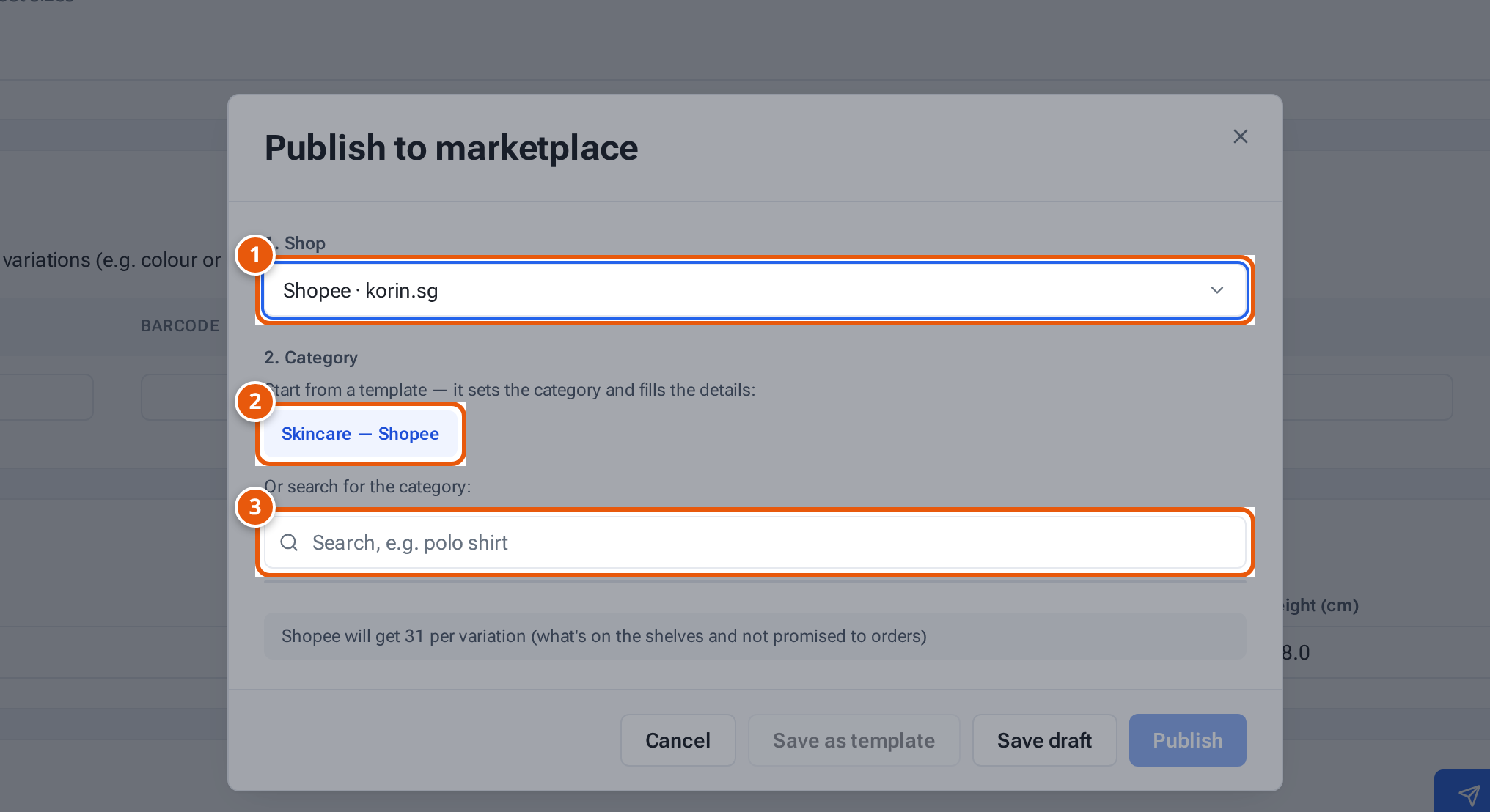
- 1. The shop to publish to.
- 2. A listing template sets the category and fills the details in one click.
- 3. Or search for the category.
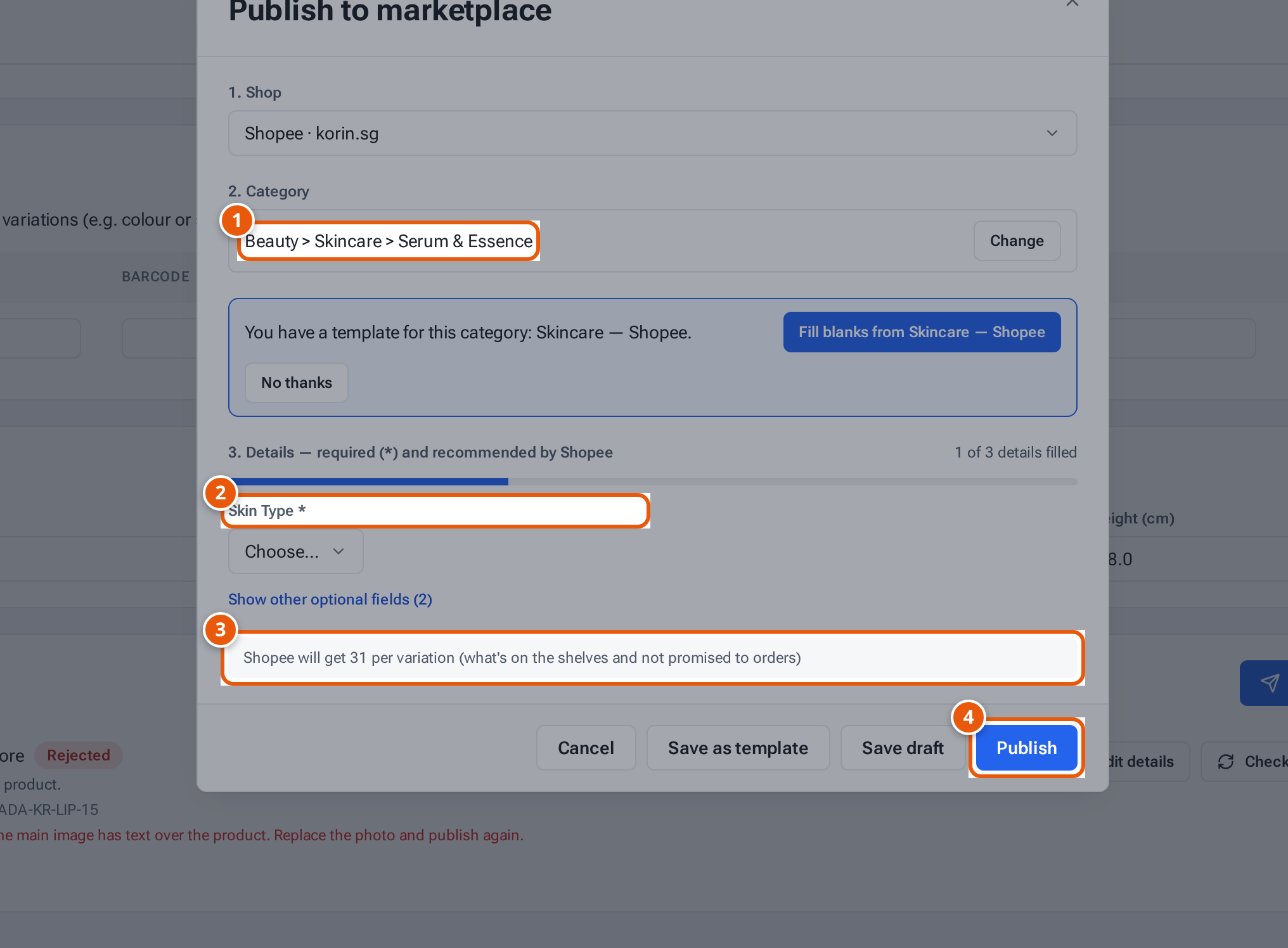
- 1. The category chosen.
- 2. Details Shopee requires for this category (*), and the ones it recommends.
- 3. The stock Shopee will show: what’s on the shelves and not promised to orders.
- 4. Publish sends it to Shopee. theopsroom follows Shopee’s review until the listing is live.
What each button and field means
Section titled “What each button and field means”| Item | What it does |
|---|---|
| Fill blanks from … / No thanks | When you pick a category you have a template for, fill the empty details from it. The brand never comes from a template. |
| Brand | Starts as the product’s brand. Use “No Brand” unless the brand is registered with the marketplace; marketplaces drop brands they don’t know. |
| Show other optional fields | More details the marketplace accepts but doesn’t need. |
| Size chart, Certificates (TikTok) | Some TikTok categories ask for a size chart (one JPG or PNG) or certificates (JPG, PNG or PDF, up to 10 MB each). |
| “… will get … per variation” | The stock a new TikTok Shop, Shopee or Shopify listing starts with: what’s on the shelves and not promised to orders. |
| Save as template | Keep this shop’s category and details as a template for similar products. |
| Save draft | Keep what you’ve filled in without sending anything. |
| Publish | Send it to the marketplace. |
If something goes wrong
Section titled “If something goes wrong”| Message | Why | What to do |
|---|---|---|
| “No connected shop for … Connect one on Shop Connections first.” | You have no connected shop. | Ask your warehouse to connect it. |
| “… is required” under a field | A required detail is empty. | Fill it in. |
| “Add a unit: …” | A number needs a unit, such as “250 ml”. | Type the number and unit. |
| A message says TikTok needs certain details for this category, which the app can’t send yet, and tells you to list the product in TikTok Seller Center | That category needs details the app can’t send. | List it in TikTok Seller Center. |
| A message says TikTok needs certain details for this category, which the app can’t send yet, and tells you to list the product in TikTok Seller Center | That category needs details the app can’t send. | List it in TikTok Seller Center. |
| “Shopee requires “…” in this category but gives no choices for it …” | Shopee’s category can’t be filled in. | Choose another category. |
| “This category doesn’t support variations — choose another category” | — | Pick a category that allows variations. |
| “Reconnect this shop first” | The shop needs reconnecting. | Ask your warehouse. |
| “This product is still on … (item …). Delete it in Seller Center first, then publish again.” | An old listing is still on the marketplace. | Delete it there first. |
After publishing, see Listing statuses and fixing a rejected listing.