

Receive a delivery
When a seller’s delivery arrives, you count it in on Inbound & Receiving (a tab of Inventory, under Stock). Scan each item, note any damage, print labels for items without a barcode, then complete the receipt. The good stock goes to Receiving, ready to put away.
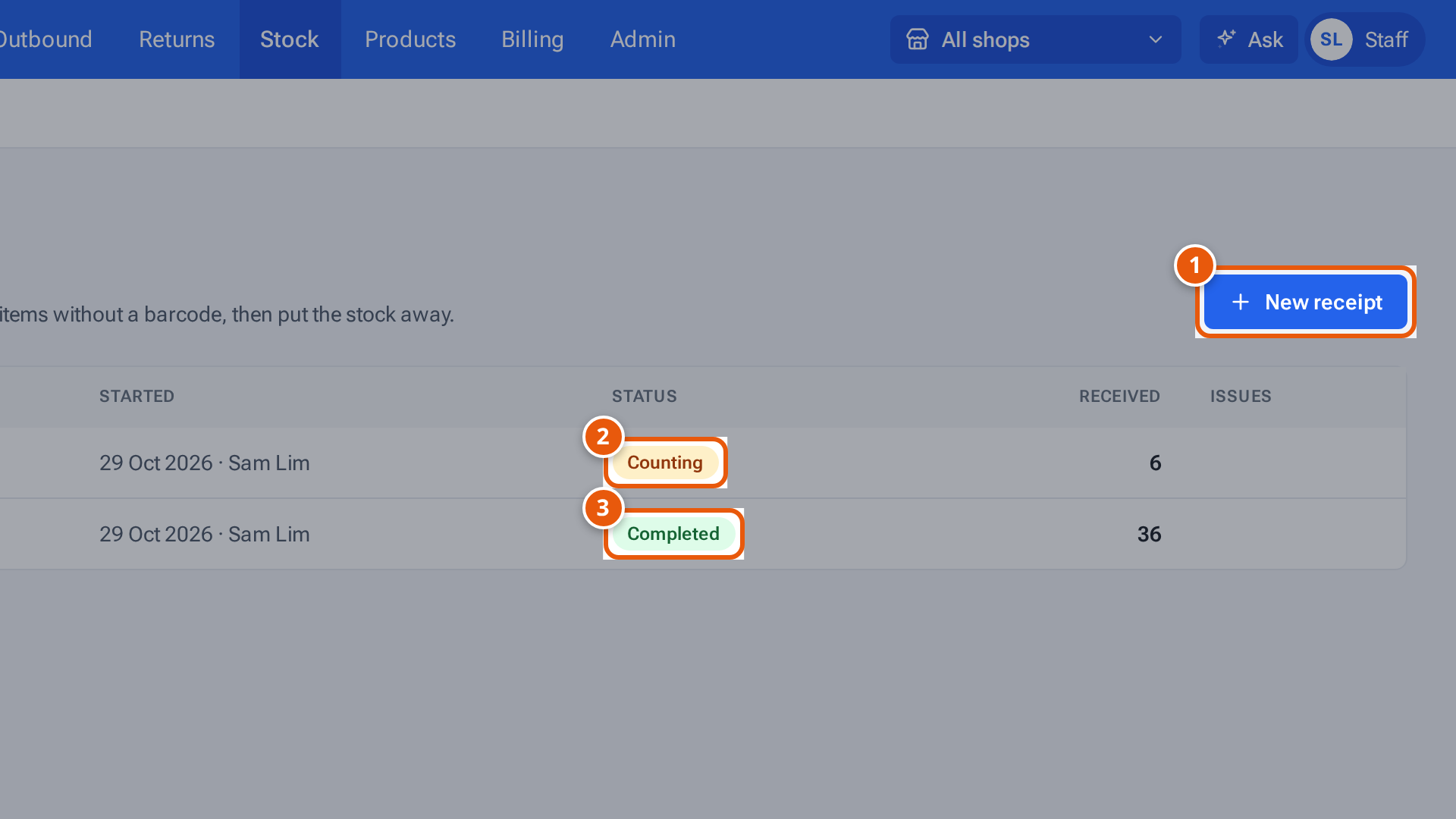
- 1. Start a receipt when a seller’s delivery arrives.
- 2. A delivery still being counted.
- 3. A finished one: its stock waits in Receiving to be put away.
Start a receipt
Section titled “Start a receipt”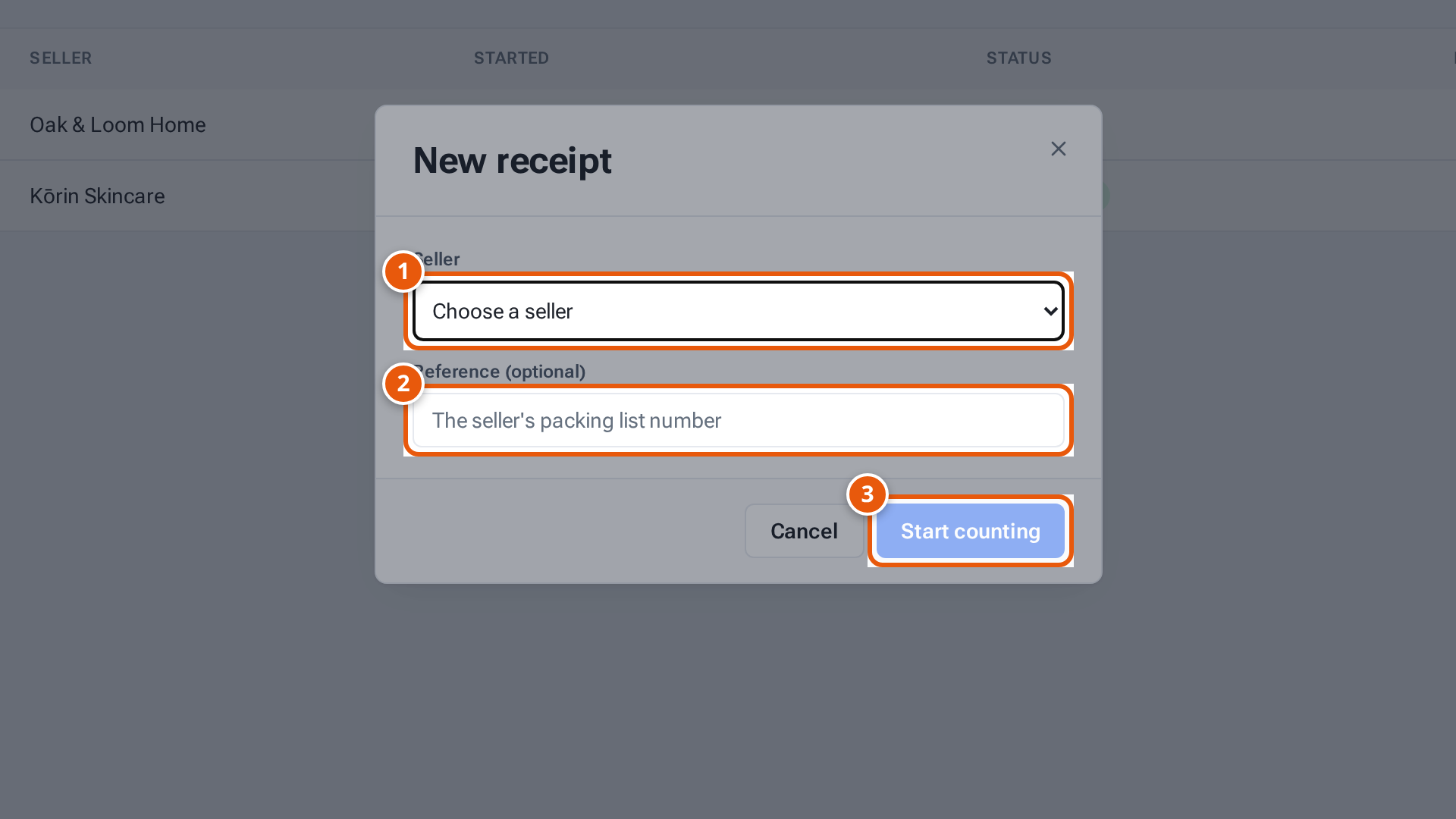
- 1. Who the delivery is from.
- 2. The seller’s packing list number, if there is one.
- 3. Open the receipt and start scanning.
- Open Inbound & Receiving and press New receipt.
- Choose the Seller the delivery is from.
- Type the seller’s packing list number in Reference (optional), if there is one.
- Press Start counting. The receipt opens with “Nothing counted yet — scan the first item.”
Count the delivery
Section titled “Count the delivery”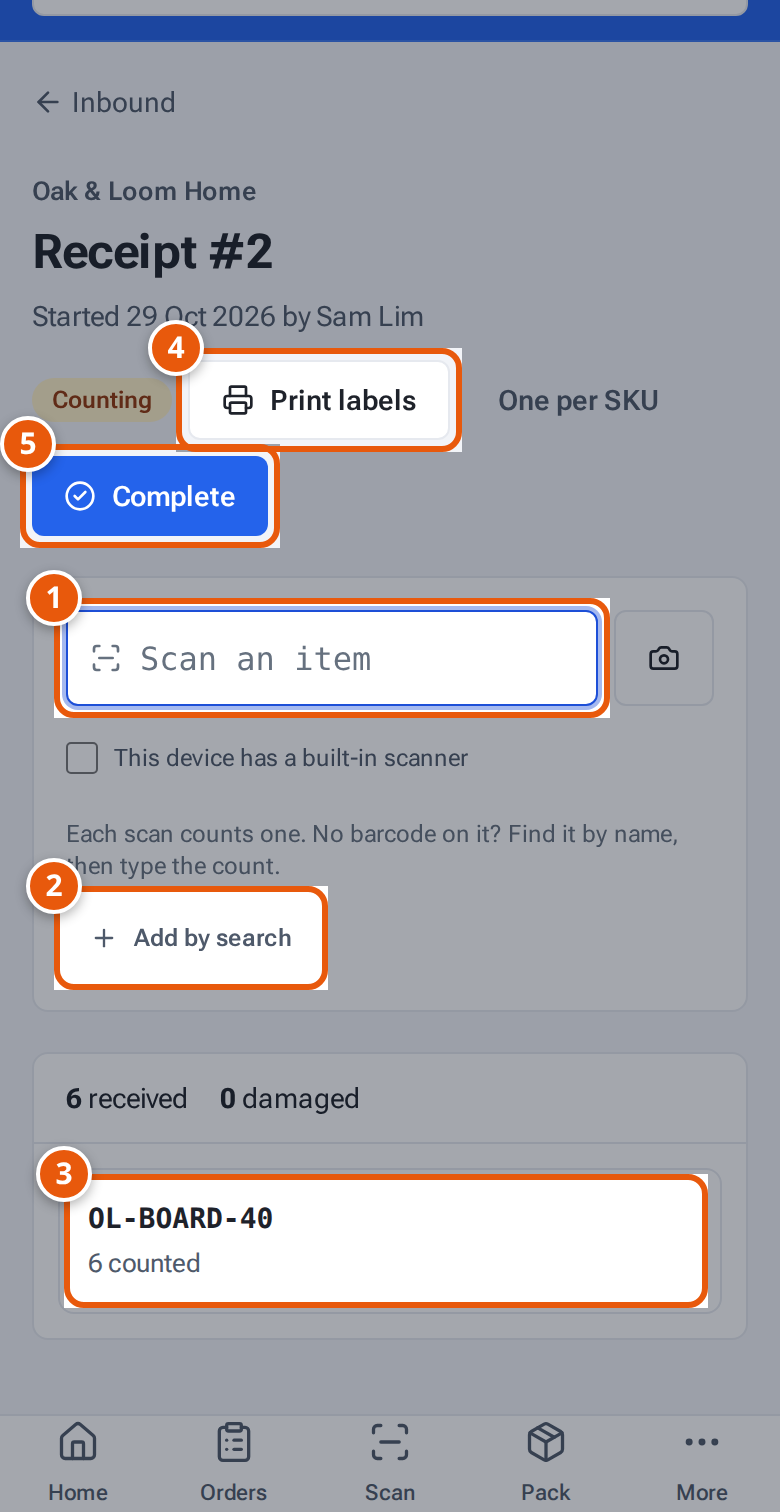
- 1. Scan each item: every scan counts one.
- 2. No barcode? Find it by name and type the count.
- 3. Each SKU and how many are counted. Tap it to change expected, received and damaged.
- 4. Print labels for items without a barcode.
- 5. Complete when everything is counted: the stock moves to Receiving.
- Scan each item into Scan an item. Each scan counts one.
- No barcode on it? Press Add by search, find it by name or seller SKU, then type the count.
- If theopsroom doesn’t know a barcode, it asks “Which item is this?”. Search for the SKU and click it. The code is saved on that SKU (“Saved 8801234567890 on KR-SERUM-30.”), so the next scan finds it.
- Check each line. Type in Expected (from the packing list), Received and Damaged. On a phone, tap the SKU to see these boxes. A blank Expected means you don’t know how many to expect.
- The bar at the top adds up what’s received, damaged, short and extra.
Print labels for items without a barcode
Section titled “Print labels for items without a barcode”Lines for items without their own barcode say “Needs a label”. Press Print labels for one label per good unit, or One per SKU for one label per SKU. Stick them on and the items can be scanned from then on.
Complete the receipt
Section titled “Complete the receipt”- Press Complete. The window “Complete this receipt?” says, for example, “24 good units go to Receiving, ready to put away, and are added to the Lazada stock.” and how many are damaged or short.
- Press Complete receipt, or Keep counting to go back. A completed receipt can’t be changed.
- You see “Receipt completed — put the stock away next.” Press Put away to go straight there.
What each button and field means
Section titled “What each button and field means”| Name | What it does |
|---|---|
| Counting / Completed | The receipt’s status. |
| Expected | How many the seller said they sent. Leave blank if you don’t know. |
| Received | How many arrived (scans fill this in). |
| Damaged | How many of the received are damaged. They’re recorded but not stocked. |
| “6 short”, “2 extra”, “1 damaged” | Differences between expected and received. |
If something goes wrong
Section titled “If something goes wrong”| Message | Why | What to do |
|---|---|---|
| “Choose the seller this shipment is from” | No seller chosen. | Choose the seller. |
| “Damaged can’t be more than received” | Damaged is bigger than Received. | Fix the numbers. |
| “Use 4–64 letters and digits for a barcode” | The scanned code is too short or long. | Check the barcode, or use Add by search. |
| “8801234567890 is already the barcode of KR-TONER-150” | That code belongs to another SKU. | Check you have the right item. |
| “Every SKU here has its own barcode — no labels needed” | Nothing needs a label. | Nothing to print. |
| “More than 2,000 labels — print one per SKU instead” | Too many labels. | Press One per SKU. |
| “Count at least one item first” | The receipt is empty. | Count the items. |
| “This receipt is completed” | It’s already completed. | Start a new receipt for more stock. |