

Draw and publish the floor plan
Admins draw the warehouse on a flat plan. Each rack makes its own shelf codes, so the floor plan and the shelves in theopsroom always match. Changes stay in a draft until you publish; each publish is a numbered version.
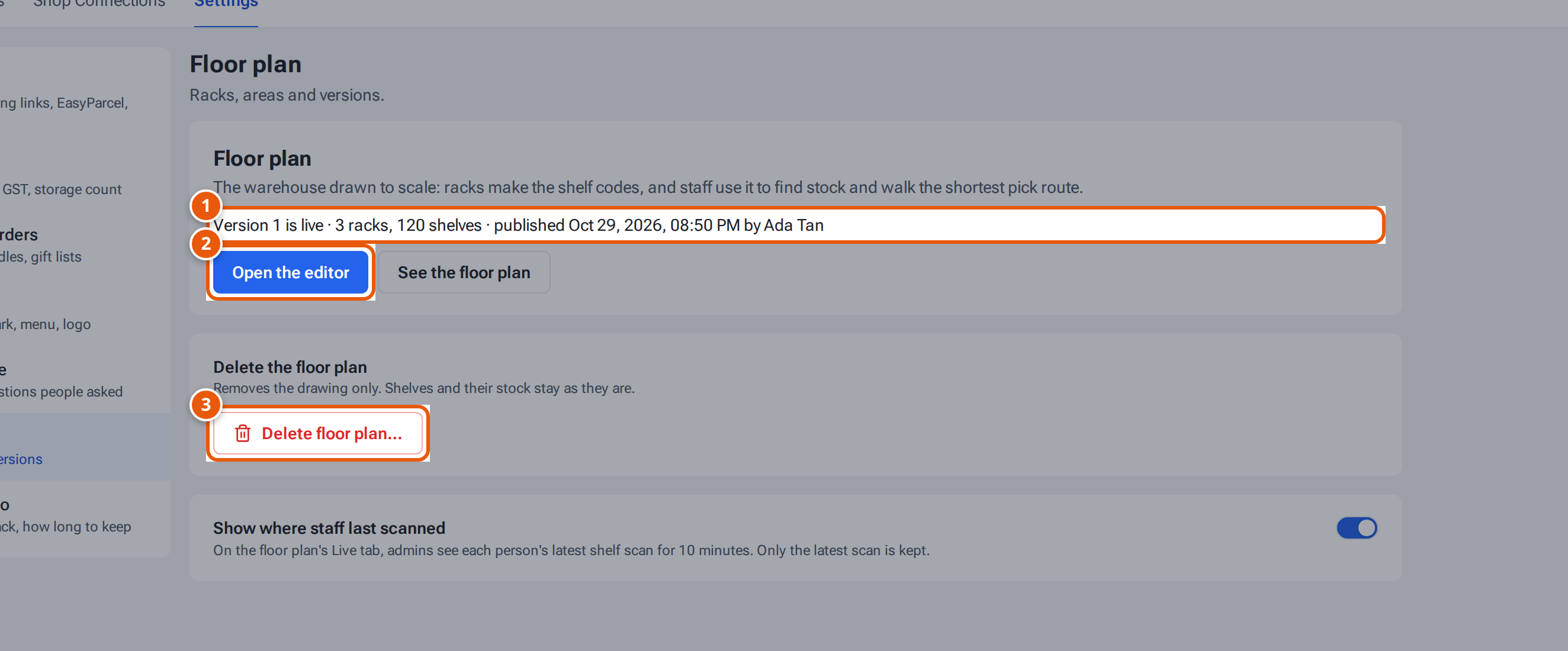
- 1. The live version: how many racks and shelves, and who published it.
- 2. Draw or change the floor plan.
- 3. Delete the drawing (shelves and stock stay).
Draw the floor
Section titled “Draw the floor”- Open Admin → Settings and choose Floor plan, then Draw your floor plan (or Open the editor). With no plan yet, choose Blank floor or The example layout.
- Open Floor in the side panel and set the floor’s width and depth in metres. Add each Door and say which wall it’s on and where it starts and ends.
- Under Add, add what’s on the floor. Each new item appears in the middle of the floor:
- Rack: shelving. Set the rack’s name (its aisle letter), Bays, Levels, Bins per level, bay width, depth and level height, and Which way it faces (the side packers pick from).
- Bench: a pack bench, the returns check or the receiving table. Pick routes start and end at pack benches.
- Area: a coloured part of the floor, such as Receiving, Fast pick, Outbound handover or Returns. For an outbound area, list its Lanes (one per courier).
- Obstacle: anything people walk round, such as a pallet spot, a cage or a pillar.
- Drag each item to its place. Everything snaps to 0.5 m. Click an item to change it, Rotate 90°, Duplicate or Remove it.
Changed something by mistake? Press Undo at the top of the floor (or Ctrl+Z, ⌘+Z on a Mac) to take back the last change, as many times as you need (up to 100 steps). Redo (Ctrl+Shift+Z) puts it back. Each drag, add, rotate, duplicate, rename, remove or changed box is one step. Undo only covers this visit to the editor; to go back to an older published version, see Earlier versions and drafts.
Your draft saves by itself a couple of seconds after each change, Undo and Redo included (Draft saved).
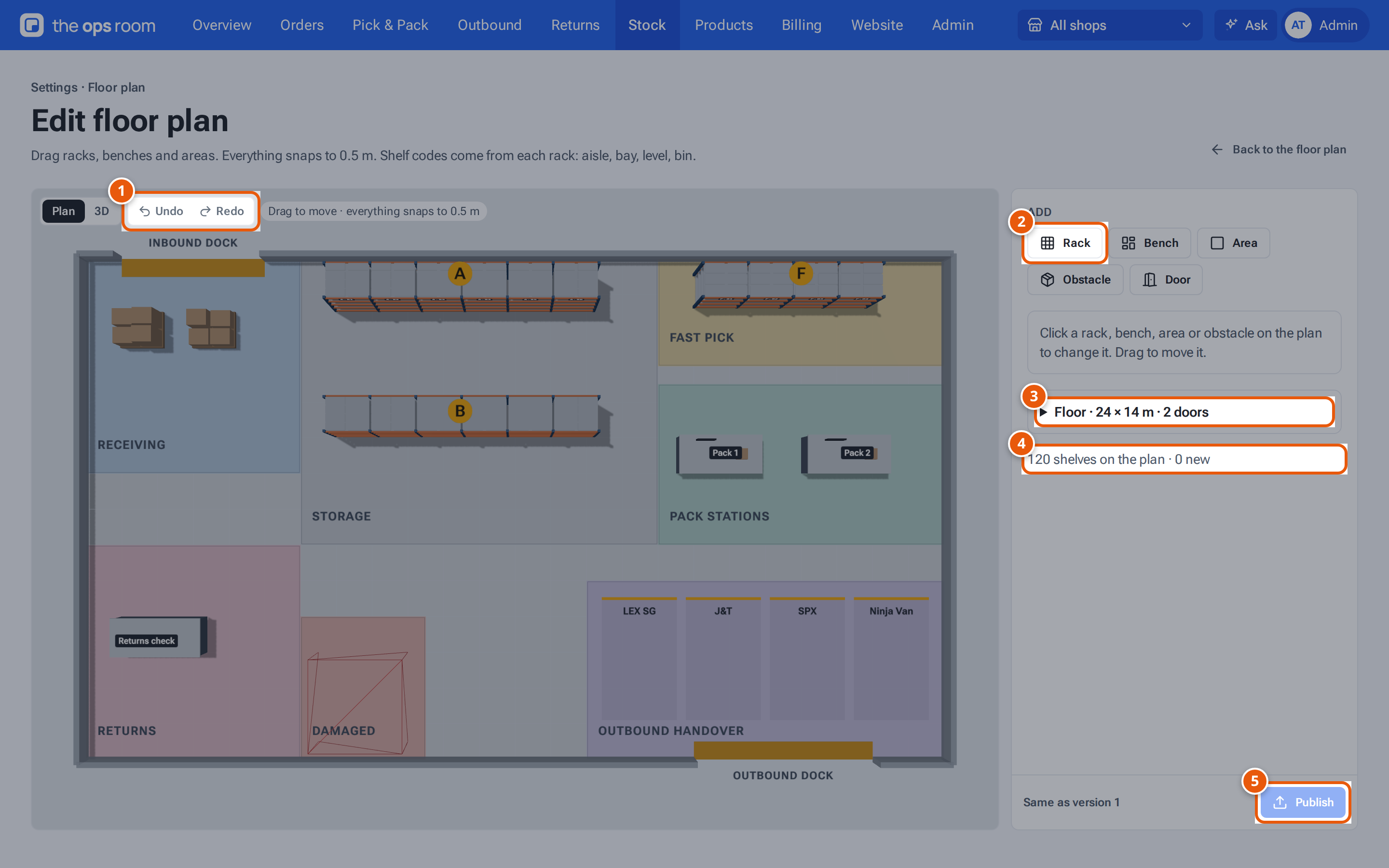
- 1. Undo or redo your last changes.
- 2. Add a rack, bench, area, obstacle or door.
- 3. The floor size and its doors.
- 4. How many shelves the racks make, and how many are new.
- 5. Publish: everyone sees the new version.
Shelf codes
Section titled “Shelf codes”A rack makes one code per bin: aisle, bay, level, bin. For example A-03-2-B is rack A, bay 03, level 2, bin B. Levels count from the floor. With one bin per level the code has no bin letter (A-03-2). The panel shows the first and last code of the selected rack and how many shelves it makes.
Codes that already exist in theopsroom keep their stock. Shelves with stock that the plan doesn’t make are listed under Not on the plan; their stock stays where it is.
Publish
Section titled “Publish”- Fix anything under Fix before publishing: things overlapping, sticking out past the floor, or a door outside its wall. Click a line to select the item.
- Click Publish. The window says how many shelves are on the plan, how many are new (they’re added to Shelves), and how many shelves with stock aren’t on the plan.
- Click Publish again. Everyone sees the new version straight away.
Publishing never moves or removes stock. A shelf left off the plan keeps its stock and still works everywhere.
Earlier versions and drafts
Section titled “Earlier versions and drafts”- Settings → Floor plan lists earlier versions. Restore as draft copies one into your draft; nothing changes until you publish it.
- Every published version is kept until you delete it. To delete one, press Delete on its row, then Yes, delete (“Version 2 deleted.”). The other versions keep their numbers. The live version can’t be deleted on its own: publish another version first, or delete the whole floor plan.
- Discard draft throws your changes away and keeps the live version.
Delete the floor plan
Section titled “Delete the floor plan”- Open Settings → Floor plan and click Delete floor plan….
- theopsroom asks, for example, “Delete the live plan, your draft and 2 earlier versions? Shelves and their stock stay; Pick & Pack stops guiding picks until a new plan is published.” Click Delete. You see “Floor plan deleted.”
Only the drawing goes. Shelves, their codes and their stock stay, and Pick & Pack and the Pick list choose shelves the way they did before there was a plan. To start again, click Draw your floor plan.
If theopsroom says “A guided pick is under way. Finish or stop it first.”, wait until the picker finishes, or stop the pick, then try again.
Where staff last scanned
Section titled “Where staff last scanned”The floor plan’s Live tab shows admins each person’s latest shelf scan (guided picking, put away, moves) for 10 minutes. Only the latest scan is kept, with no history. To switch it off for everyone, open Settings → Floor plan and turn off Show where staff last scanned.
What each item means
Section titled “What each item means”| Item | What it does |
|---|---|
| Bays | Sections along the rack, numbered from one end (01, 02…). |
| Levels | Shelves from the floor up (1 is the lowest). |
| Bins per level | How each level is split along the bay (A, B, C… up to 6). |
| Which way it faces | The side packers pick from. The walkway goes in front of it. |
| From the left, From the top | Where the item’s top-left corner is, in metres. |
| Lanes | Courier lanes in an outbound area, matched to the couriers on the handover sheets. |
If something goes wrong
Section titled “If something goes wrong”| What you see | Why | What to do |
|---|---|---|
| Publish greyed out | Something under Fix before publishing. | Fix each line, then publish. |
| “Rack names are 1 to 3 letters or digits, not used by another rack” | The name is taken or not allowed. | Choose another name, such as E or A2. |
| “Couldn’t save — try again” | The connection dropped. | Make any change to save again, or reload the page. |