

Publish, revert and go back to an earlier version
Everything you change on Website is a draft until you publish. This page is for website editors (admins with Website editor switched on).
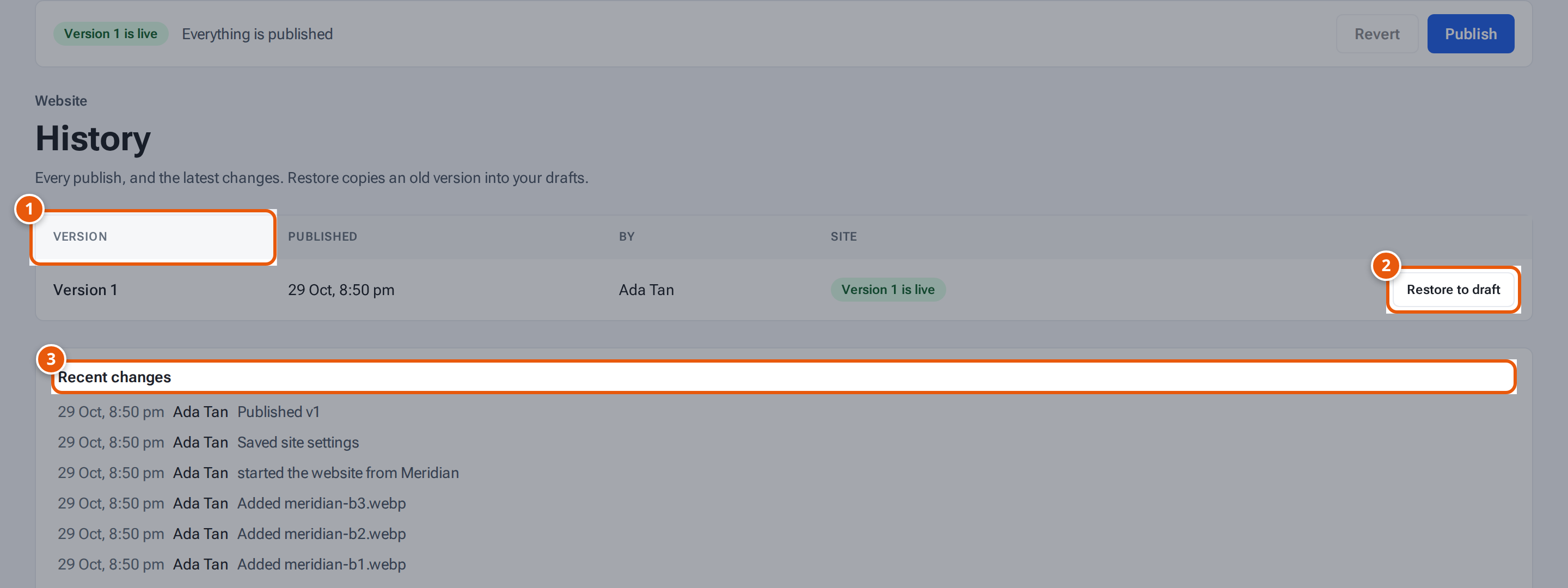
- 1. Every time you published, newest first.
- 2. Restore copies that version back into your drafts. Nothing goes live until you Publish.
- 3. Who changed what, and when.
The publish bar
Section titled “The publish bar”The bar at the top of every website tab shows:
- a badge with the state of the last publish: Not published yet, Publishing… Queued, Publishing… Building, Publishing… Uploading, Version N is live, or Version N failed;
- your site’s address;
- how many changes are waiting: “N unpublished changes”, or Everything is published;
- buttons: Undo AI change and Undo template (only right after those), Revert and Publish.
Publish
Section titled “Publish”- Press Publish. It first saves whatever you are still typing. If a field needs fixing, it says “Fix the marked fields, or wait for your changes to save, before publishing.”
- The window Publish the website? lists what goes live (“N pages”, “N posts”, “Site settings”). Press Publish.
- If something needs fixing, the window stays open with Fix these first: and a list, such as a page that uses a deleted picture, a hero video without a photo, or button colours that are hard to read. Fix them and publish again.
- A sheet Publishing version N shows four steps: Queued, Building, Uploading and Live, with the time so far. You can close it: the bar keeps showing the state, and a message says “Version N is live.” when it is done. Your current site stays live until this finishes.
Publishing takes a minute or two. You can publish up to 30 times in an hour. After that: “Wait a few minutes, then publish again.”
| What you see | What it means |
|---|---|
| Version N failed | The build stopped. The reason is shown under the bar. Fix it and publish again. |
| Version N: skipped | A newer version was published, so this one was skipped. |
| Version N: waiting for the builder | The site keeps showing the last version. If this lasts, tell whoever runs your hosting. |
| Version N: no news from the build | It has been building for over 15 minutes. Tell whoever runs your hosting. |
Throw away unpublished changes
Section titled “Throw away unpublished changes”Revert puts every page, post and setting back to what is on the site now. The window asks Throw away unpublished changes? Press Throw away changes, or Keep my changes. It can’t be undone. Revert is switched off when nothing is waiting.
History: earlier versions and recent changes
Section titled “History: earlier versions and recent changes”Open the History tab.
- The table lists every publish, newest first: Version, Published (Singapore time), By, and the state of the Site.
- Restore to draft copies that version into your drafts. It asks first: “Copy version N into your drafts? Your unpublished changes are replaced. Nothing goes live until you Publish.” Then check the pages and press Publish. Pictures that were deleted since are left out, and the message says how many.
- Only a limited number of recent versions can be restored (20 unless the platform admin set another number). Older ones say Too old to restore.
- Recent changes below lists the latest 50 things done in the editor, with the time, the person and what they did, such as “Saved page”, “Published” or “Uploaded picture”.
Restoring puts an old version into your drafts only. The live site changes when you publish.
Related pages
Section titled “Related pages”- Edit your website pages
- Use a template on your site (Undo template)
- Ask AI to change your site (Undo AI change)