

Look after shops (sync, reconnect, rename, disconnect)
Admin → Shop Connections lists every marketplace shop theopsroom syncs orders, stock and returns with. Staff can only Sync now and Import products here; connecting, reconnecting, moving, disconnecting and deleting are for admins.
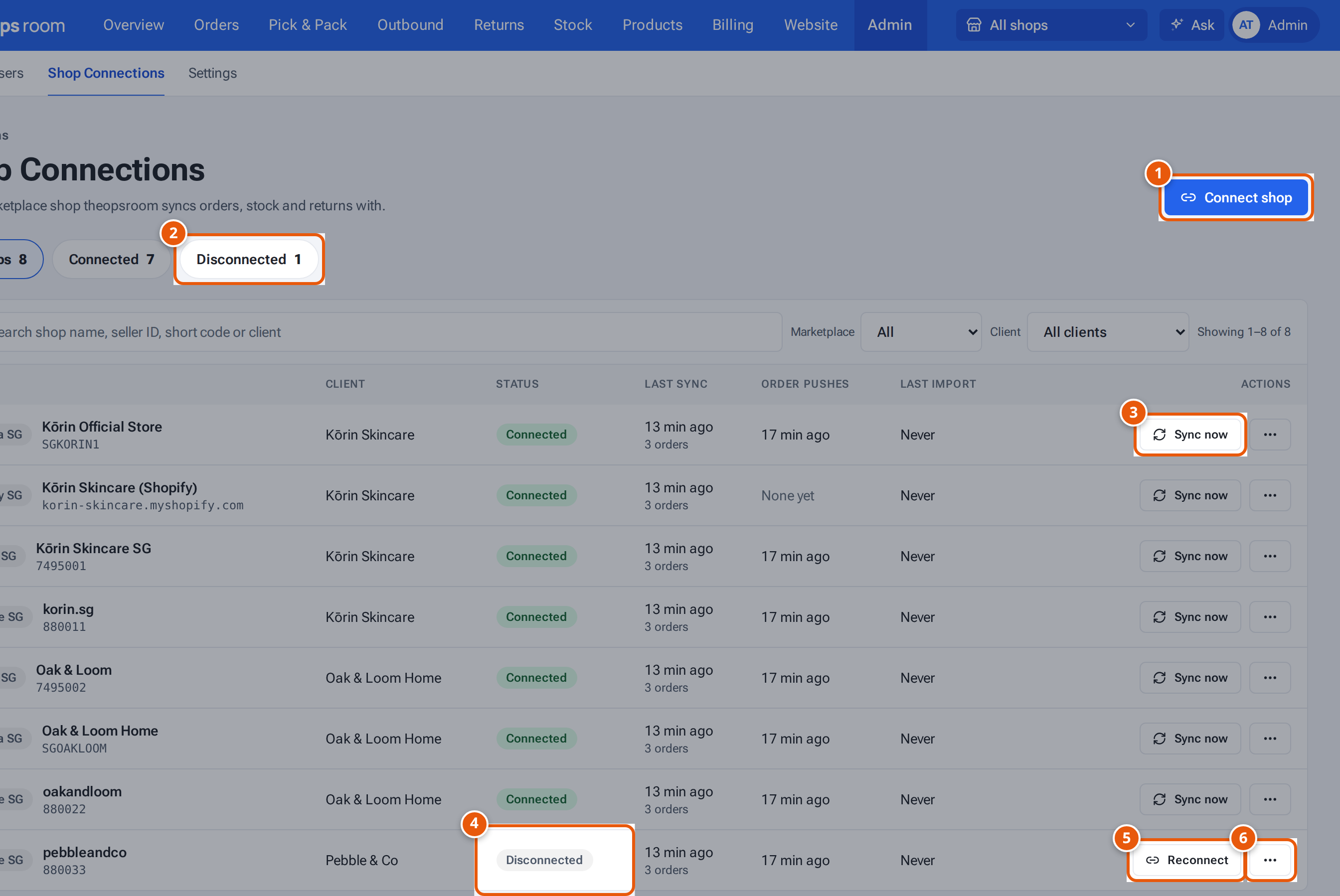
- 1. Connect another shop.
- 2. Quick filters: show only shops that are connected, need reconnecting, need attention or are disconnected.
- 3. Bring in the shop’s new orders now.
- 4. The shop’s status.
- 5. Approve theopsroom again on the marketplace.
- 6. More actions: import, move, disconnect, delete.
Sync a shop now
Section titled “Sync a shop now”Orders come in every 5 minutes by themselves. To bring them in now, click Sync now on the shop’s row. A line under the row says, e.g., “Synced — 3 orders updated.” See Find and sync orders.
Reconnect a shop
Section titled “Reconnect a shop”A shop shows Needs reconnecting when the marketplace stopped theopsroom’s access. Shopee shops also say “Shopee access ends on … — Reconnect to extend” a week before their access runs out.
- Click Reconnect on the shop’s row.
- Sign in on the marketplace’s page and approve theopsroom again, as when you connected it.
- You come back to Shop Connections and the shop shows Connected. It stays with the same client.
Disconnect a shop
Section titled “Disconnect a shop”- Click ⋯ on the shop’s row and choose Disconnect (or Disconnect shop in its details).
- Confirm “Disconnect … shop …? Its orders stay in theopsroom; syncing stops.”
- The shop shows Disconnected. To delete its data too, see Delete a shop and its data.
The ⋯ menu
Section titled “The ⋯ menu”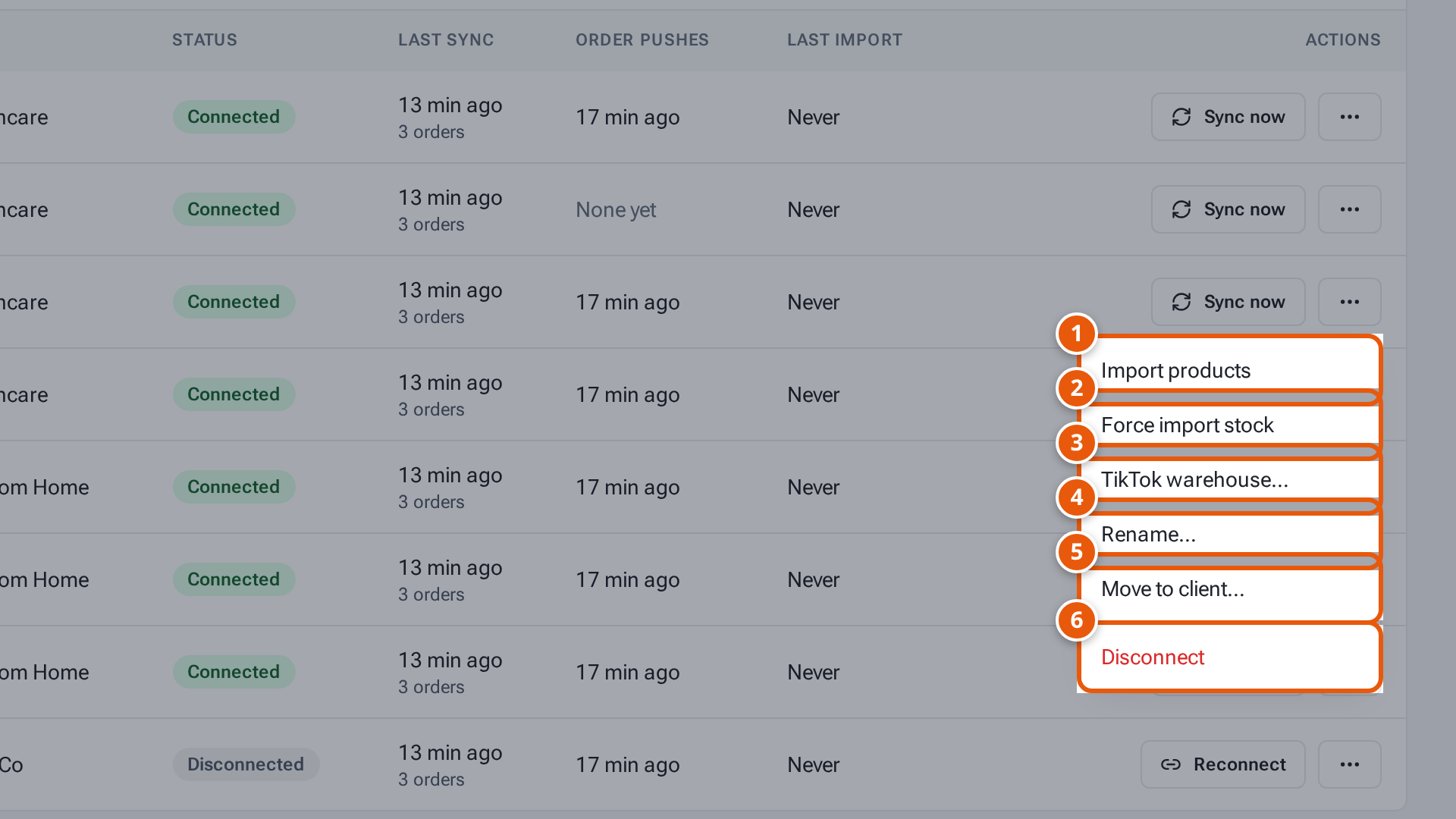
- 1. Bring the shop’s listings into theopsroom as products.
- 2. Set the warehouse counts from the marketplace’s stock.
- 3. TikTok only: which TikTok warehouse theopsroom’s stock goes to.
- 4. Give the shop the name theopsroom shows everywhere.
- 5. Move the shop to another client.
- 6. Stop syncing the shop. Its orders stay in theopsroom.
- Import products: see Import products from a shop.
- Force import stock: see Force import stock.
- TikTok warehouse…: see Connect a TikTok shop.
- Rename…: type the name theopsroom should show for the shop and press Save. It’s used everywhere in theopsroom (orders, Pick & Pack, the shop picker), and the marketplace’s own name no longer replaces it. Also in the shop’s details, under Connection.
- Move to client…: see Move shops to another client.
- Delete… (disconnected shops only): see Delete a shop and its data.
A shop’s details
Section titled “A shop’s details”Click a shop’s name to open its details: when orders were last brought in, the last product import, the client, when theopsroom’s access token expires, and the same buttons.
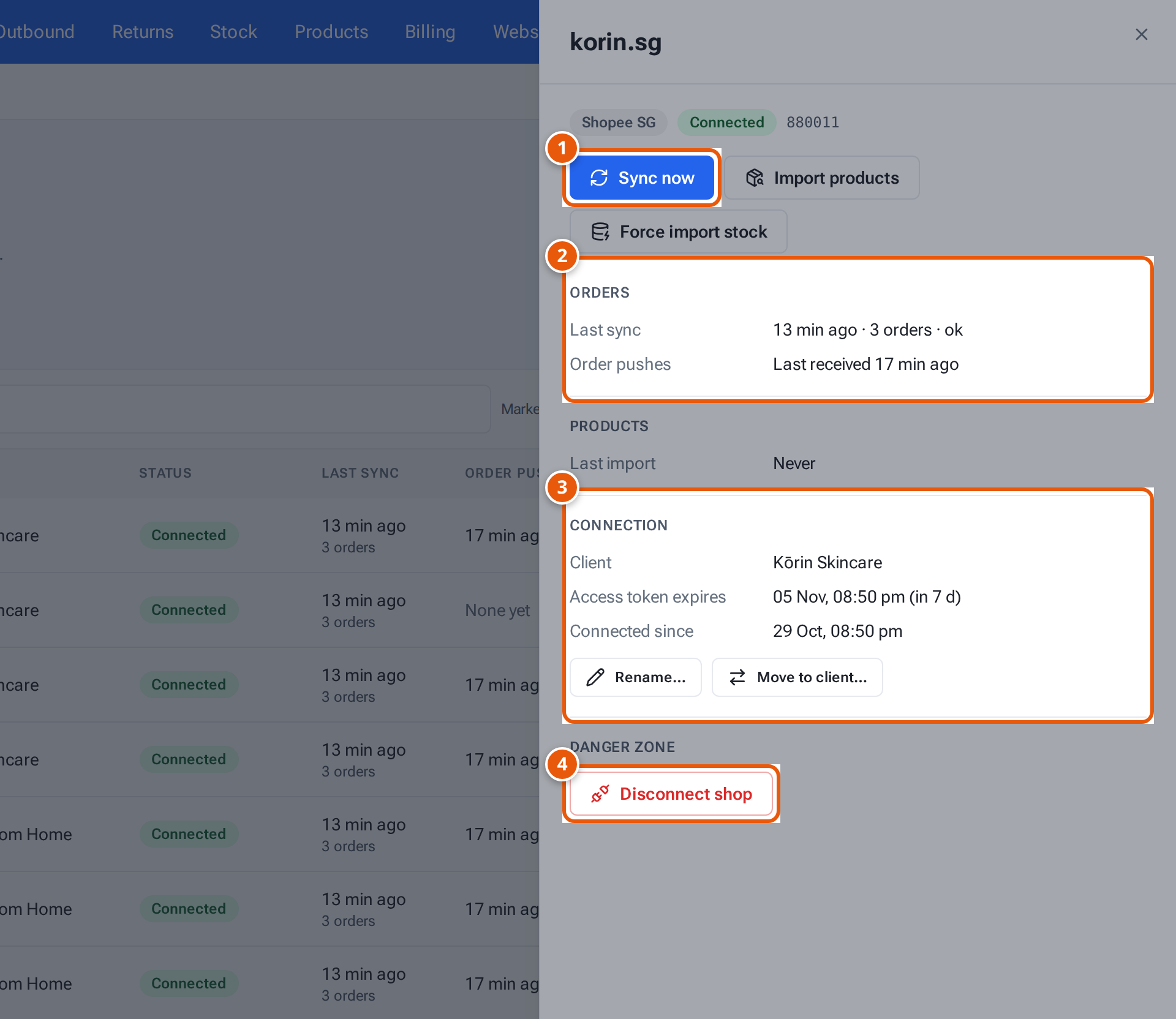
- 1. Bring in new orders now.
- 2. When orders were last brought in, and the last order the marketplace pushed.
- 3. The client, and when theopsroom’s access runs out.
- 4. Disconnect the shop.
Sellers’ courier settings
Section titled “Sellers’ courier settings”A seller’s preferred courier, delivery notifications and own courier logins (J&T Express, Shippit) are on the seller’s Courier window in Add and edit clients. Sellers set theirs on their own Shipping page.
What each button and field means
Section titled “What each button and field means”| Item | What it means |
|---|---|
| All shops, Connected, Needs reconnecting, Needs attention, Disconnected | Quick filters. Needs attention: connected, but the last sync or import failed or had problems. |
| Last sync | When orders were last brought in, and how many. “Failed” shows the error. |
| Order pushes | When the marketplace last sent theopsroom an order straight away. |
| Last import | The last product import and its counts. |
| Access token expires | When theopsroom’s access to the shop runs out (in the details). |
If something goes wrong
Section titled “If something goes wrong”| Message | Why | What to do |
|---|---|---|
| “A sync is already running for this shop.” | A sync is under way. | Wait a minute. |
| “This shop is not connected — reconnect it first.” | The shop lost its connection. | Click Reconnect. |
| “Sync failed: …” | The marketplace answered with an error. | Try again later; if it repeats, reconnect the shop. |