

Shelves and shelf labels
Shelves lists every shelf in the warehouse and what’s on it, plus three built-in places. Print a label for each shelf so it can be scanned when putting stock away.
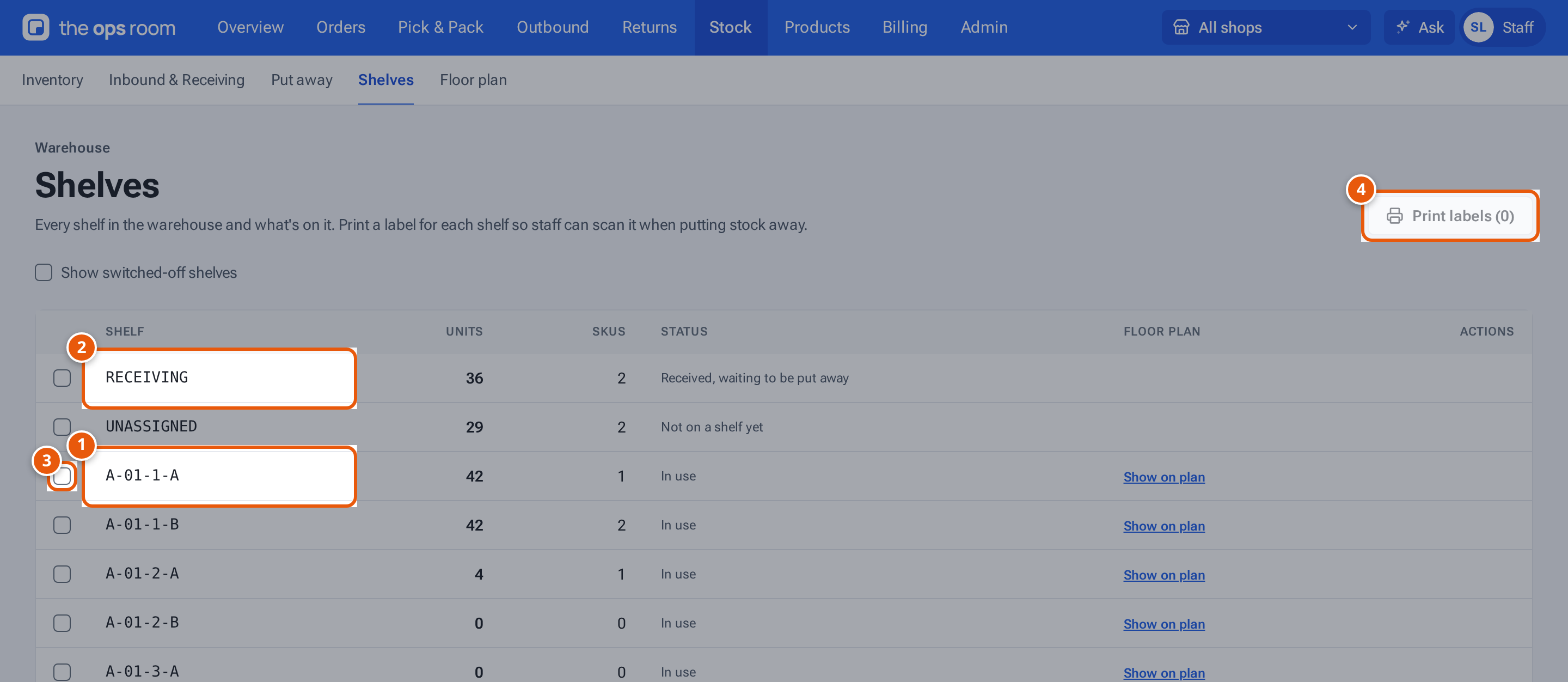
- 1. A shelf, with its units and SKUs.
- 2. Receiving: delivered stock waiting to be put away.
- 3. Tick the shelves whose labels you want.
- 4. Print a label for each ticked shelf, so it can be scanned.
Print shelf labels
Section titled “Print shelf labels”- Open Stock, then the Shelves tab of Inventory.
- Tick the shelves whose labels you need.
- Press Print labels (3). A PDF of the labels opens. Print it and stick each label on its shelf.
On a phone, tap a shelf and press Print label.
What the list shows
Section titled “What the list shows”| Column or label | What it means |
|---|---|
| Shelf | The shelf’s code, such as A-01-1-A (zone, rack, level, bin). |
| Units, SKUs | How many units and different SKUs are on it. |
| In use / Switched off | Whether the shelf is in use. Tick Show switched-off shelves to see the switched-off ones. |
| Floor plan · Show on plan / Not on the plan | Once a floor plan is published: open the shelf on the floor plan, or see that it isn’t drawn on it yet. |
| RECEIVING · “Received, waiting to be put away” | Stock from completed receipts and checked returns. |
| UNASSIGNED · “Not on a shelf yet” | Stock in theopsroom from before shelves were set up. |
| DAMAGED · “Damaged returns, waiting for the seller’s decision” | Damaged returned items, kept apart. |
| Count needed (red) | The place shows fewer than zero, for example after more were picked than recorded. Recount the SKU: see Find, adjust and move stock. |
Adding and switching off shelves
Section titled “Adding and switching off shelves”Only admins can add shelves or switch a shelf off or on. An admin switches off only an empty shelf. If you need new shelves, ask an admin.
If something goes wrong
Section titled “If something goes wrong”| What you see | Why | What to do |
|---|---|---|
| “No shelves yet.” | No shelves are set up. | Ask an admin to add them. |
| Print labels greyed out | No shelf is ticked. | Tick the shelves first. |