

Add extras or gifts to orders
An extra is something the warehouse puts in the same parcel as the order: a free gift, a sample, a card. You can add extras to one order or to many at once, as long as they aren’t packed yet. For gifts that should go on many orders automatically, use Gift rules instead.
Before you start
Section titled “Before you start”- Extras can only be added or changed while the order is New (not packed).
- An extra from your products is taken off your stock when the order is packed, so it must be in the warehouse.
- To use a loose item with no stock count (such as a printed card), add it first as an untracked gift. See Gift lists (freebie files) and untracked gifts.
Steps: many orders at once
Section titled “Steps: many orders at once”- Open Orders → New Orders and tick the orders.
- Click Add gift. The window “Add extra to … order(s)” opens.
- Pick a tab:
- From your products: type two or more letters of the name or seller SKU, then click the product. Each result shows how many are in stock.
- Untracked gift: choose it from the list.
- Other item: type its name (for example “Handwritten thank-you card”).
- Set the Quantity and, if you like, a Note (optional) such as “Free gift”.
- Click Add to orders. You see “Added to … order(s)”. Orders already packed are skipped, and the message names them.
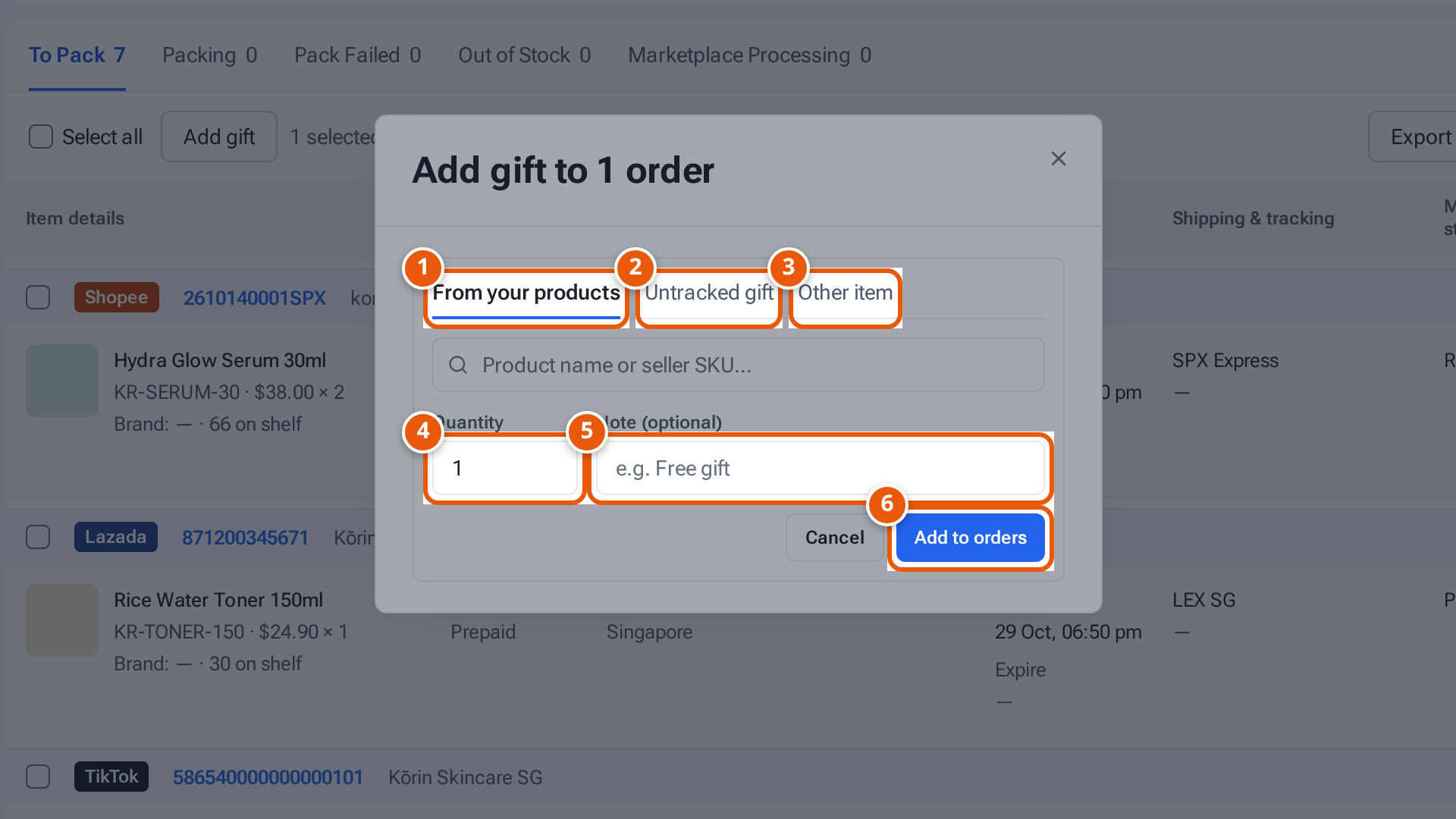
- 1. One of your products: it’s taken off your stock when the order is packed.
- 2. A loose gift with no stock count, such as a thank-you card.
- 3. Anything else: type its name.
- 4. How many to put in each parcel.
- 5. A short note, for example “Free gift”.
- 6. Add it to every ticked order that isn’t packed yet.
Steps: one order
Section titled “Steps: one order”- Open the order’s Order Details.
- Under Extra items, click Add extra. Fill it in the same way, then click Add to order. You see “Extra added — it goes in the same parcel.”
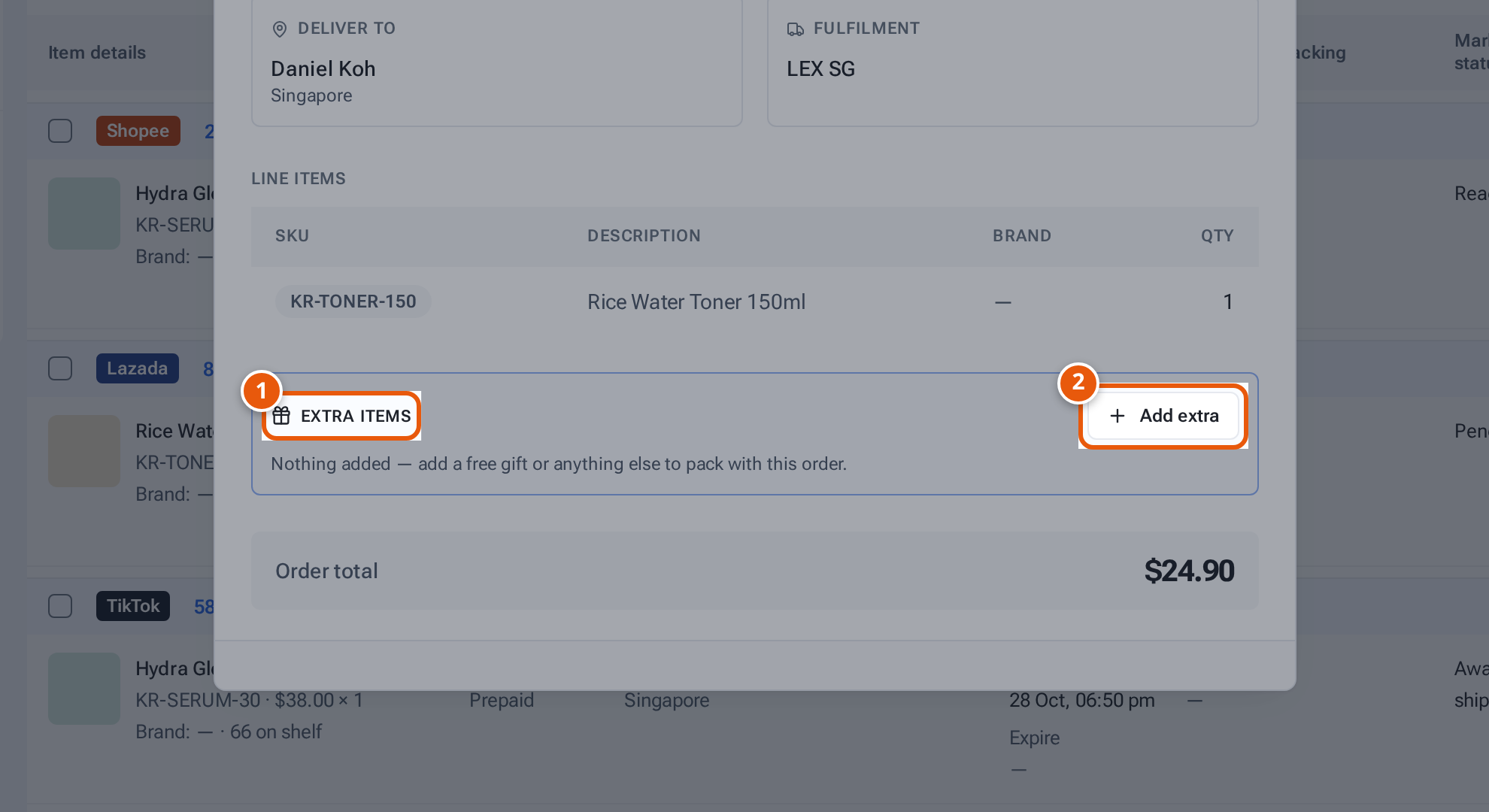
- 1. What else goes in this order’s parcel.
- 2. Add a gift or anything else to this one order.
On a phone, tap + Extra on the order’s card (or + in the Table view).
Change or remove an extra
Section titled “Change or remove an extra”In Extra items, each extra has Change (type a new quantity, then Save) and Remove. Extras added by a gift rule or gift list update by themselves until the order is packed. If you change or remove one by hand, that rule or list leaves the order alone. Recheck gifts puts the rule and list gifts back as they should be.
What each button and field means
Section titled “What each button and field means”| Item | What it does |
|---|---|
| From your products | One of your products. Taken off stock when packed. |
| Untracked gift | A loose gift with no SKU or stock count. Packers just add it. |
| Other item | Anything else, by name (up to 120 characters). |
| Quantity | 1 to 999 per order. |
| Note (optional) | Up to 200 characters, shown with the extra. |
| Packed badge | The order is packed; its extras can’t change any more. |
| “… in stock” / “theopsroom stock was short by …” | Stock before packing, and any shortfall found when it was packed. |
If something goes wrong
Section titled “If something goes wrong”| Message | Why | What to do |
|---|---|---|
| “Extras can only be added before the order is packed” | The order is already packed. | Nothing can be added now. |
| “An order can have at most 20 extra items” | The order has 20 extras already. | Remove one first. |
| “Quantity must be a whole number from 1 to 999” | The quantity is empty or not a whole number. | Type a whole number. |
| “Choose one of your products” / “Choose one of the untracked gifts” / “Name the item” | Nothing picked on the tab you’re on. | Pick or type the item. |
| “No untracked gifts yet — add them under Gift lists” | You have no untracked gifts. | Add one on Products → Gift lists → Untracked gifts. |
| “Choose 1–200 orders” | Too many orders ticked. | Tick 200 or fewer. |