

Find your products
Products lists every product you have in theopsroom, with its seller SKUs, stock, price and the shops it’s listed in. A product is made once in theopsroom and can then be published to any of your shops.
- Open Products. On a computer the menu on the left has Products (All products, Out of stock) and Listings (Listed, Not listed yet, Changes not pushed, Push failed), each with its count. Click one to see only those products.
- Type part of a name or seller SKU in Product name or seller SKU and press Enter.
- Narrow the list with Brand, Category or the Stock row. Each filter you use shows as a chip above the table; click its x to remove it, or press Clear filters.
- Click a product’s row to open it.
- To open the list in Excel, press Export. The file holds the products you are looking at, with your filters applied, across every page. A seller’s file holds only that seller’s products.
On a phone, Products is on the More screen. Products show as cards with a photo, the seller SKU, price, stock and a label per shop. Chips along the top switch the view: All, Not listed yet, Changes not pushed, Push failed, Out of stock and Listed, each with its count. Filters holds brand, category and stock. Tick cards to see Add to batch and Push changes at the bottom, and tap New product to make one.
At the top, the tabs Products, Gift rules and Gift lists switch between the product list and your gift rules and gift lists.
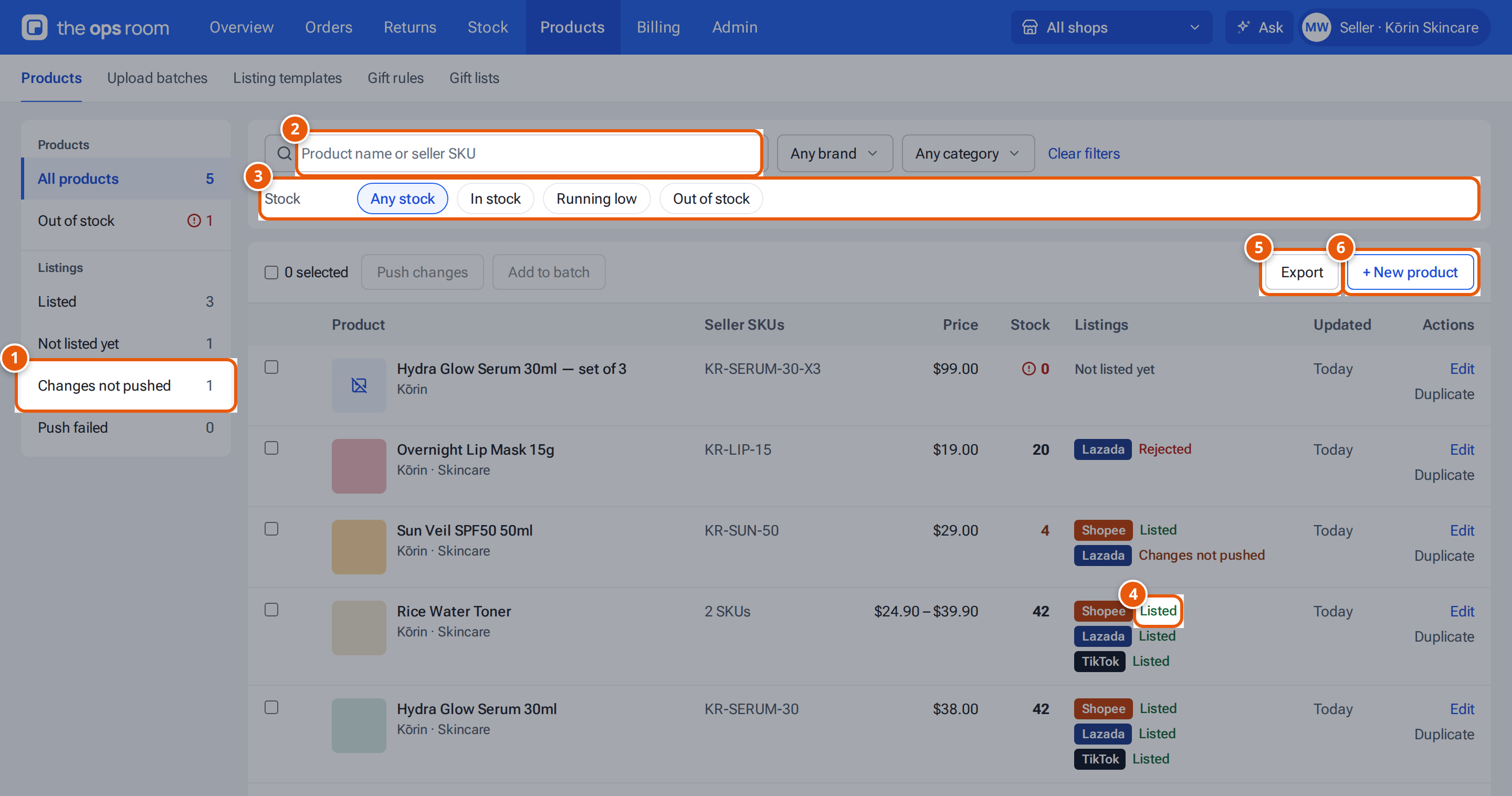
- 1. The Listings menu: see only products that are listed, not listed yet, changed but not pushed, or failed.
- 2. Search by name or seller SKU, then press Enter.
- 3. Filter by stock (in stock, running low, out of stock). Brand and category are beside the search.
- 4. One label per shop the product is in.
- 5. Download the list you are looking at as a CSV.
- 6. Make a new product.
The shop chosen at the top of the screen also narrows the list. Choose All shops to see everything.
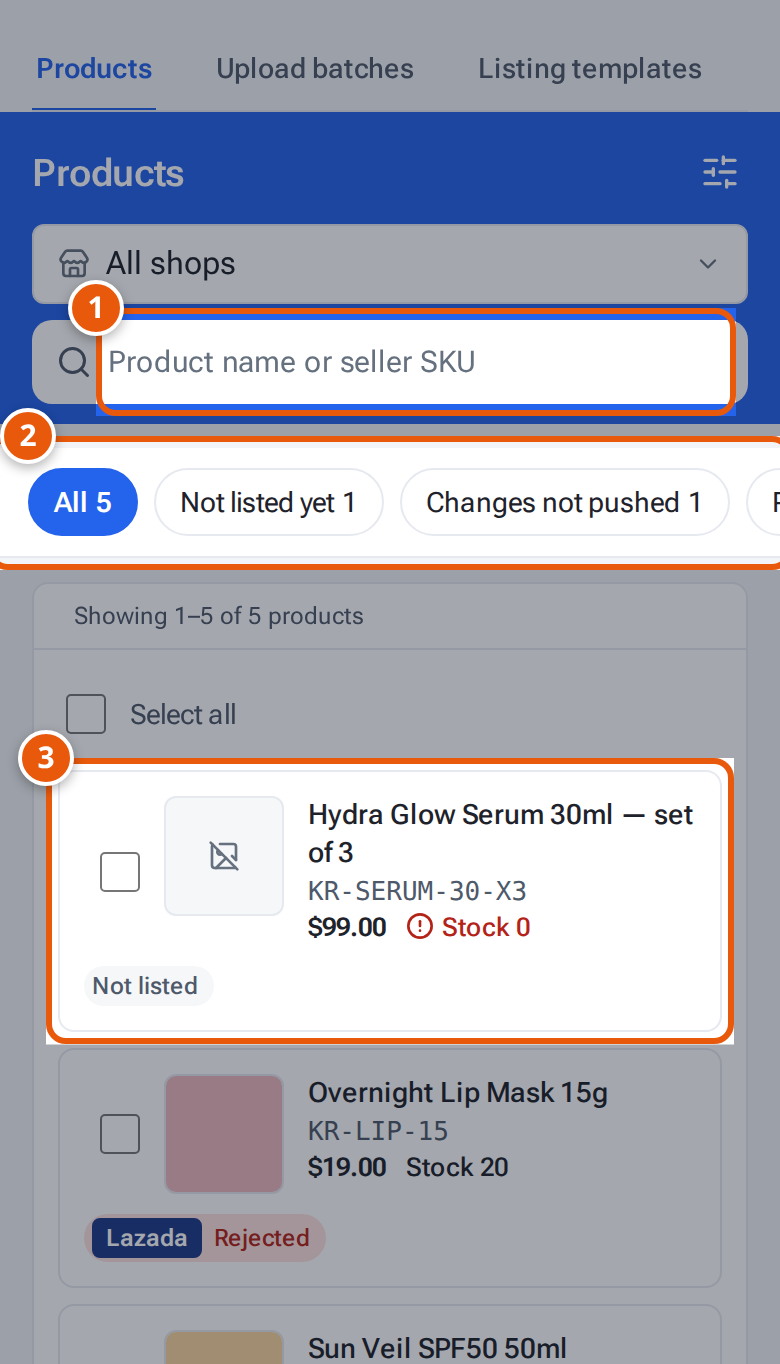
- 1. Search by product name or SKU.
- 2. Swipe the chips: All, Not listed yet, Changes not pushed and more.
- 3. One card per product, with its price, stock and where it is listed.
What each button and field means
Section titled “What each button and field means”| Item | What it does |
|---|---|
| New product | Make a new product. See Add a product. |
| Brand, Category | Show only one brand, or one category. |
| Not listed yet (menu) | Products that aren’t live in any shop, with All shops chosen. |
| Stock | In stock, Running low (1 up to your running-low level), or Out of stock. |
| Tick boxes | Tick products for Add to batch or Push changes. |
| Add to batch | Put the ticked products in an upload batch. See Publish many products at once. |
| Push changes | Send your edits to every shop the ticked products are on. See Send product changes to your shops. |
| Stock column | All the product’s SKUs added up. A red Out of stock badge at 0. |
| Listings column | One label per shop the product is in, so a product on two shops shows two labels: Listed, Not listed yet, Changes not pushed, Push failed or Rejected. |
| Export | Download the products you are looking at as a CSV. |
The Listings menu counts products by their shops’ labels, so a product on two shops can be counted in two of them (for example Listed on Lazada and Push failed on Shopee).
The list shows 50 products a page; use the arrows to move between pages.
If something goes wrong
Section titled “If something goes wrong”| What you see | Why | What to do |
|---|---|---|
| “No products match these filters” | The search or filters hide everything. | Click Clear filters, or choose All shops at the top. |
| “No products yet — click New product to create one.” | You have no products. | Make one, or import them from a shop. See Import products from a shop. |
| “This seller has no open batches — create one on Upload batches.” | Add to batch found no open batch. | Make a batch first on Upload batches. |