

Pack from the Orders list (scan window, pick list)
Besides Pick & Pack, you can pack orders straight from the Orders list: one at a time with the scan window, or many at once. From the same list you print a pick list, print labels, and tell the marketplace that parcels are ready for the courier.
Before you start
Section titled “Before you start”- Packing works for Lazada, TikTok and Shopee orders. Shopify orders are never packed here: Pack on a Shopify order opens it in Pick & Pack, where you choose its courier. See Ship a Shopify order.
- Only New orders can be packed.
Pack one order with the scan window
Section titled “Pack one order with the scan window”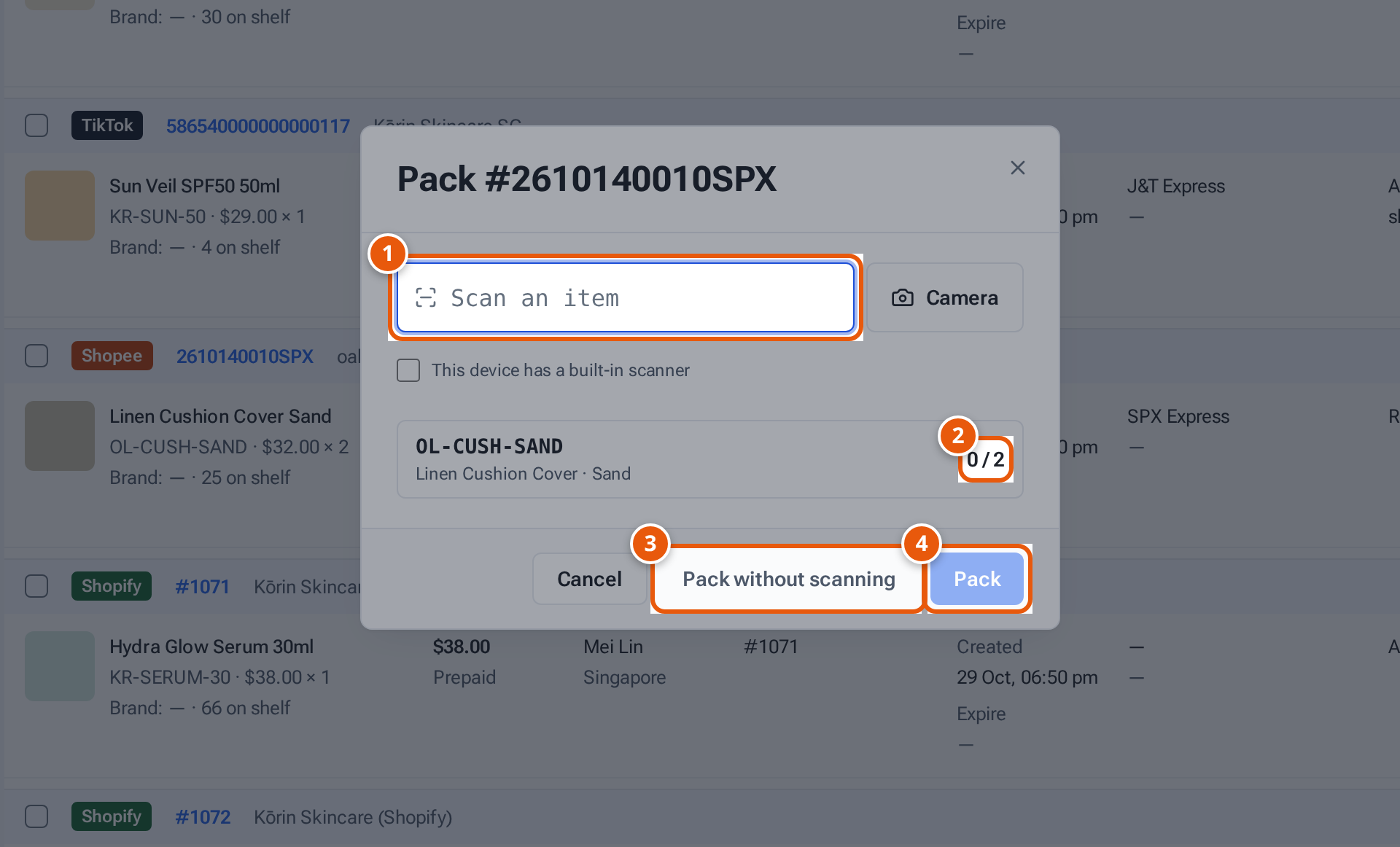
- 1. Scan each item as it goes in the parcel.
- 2. How many are scanned of how many are ordered.
- 3. Pack without scanning (only when the seller doesn’t ask for every item to be scanned).
- 4. Pack works once every item is scanned.
- Find the order under New Orders. Click its Pack icon (the box) and choose Pack, or Pack & print to open the label straight after.
- The window “Pack #2610140010SPX” opens. Scan each item into Scan an item. Each line shows how many are scanned, for example “1 / 2”, and gets a green tick when complete.
- When every item is scanned, press Pack (or Pack & print). The order moves to In Process.
- Can’t scan? Press Pack without scanning. This button is hidden when the seller asks for every item to be scanned (“This seller asks for every item to be scanned before packing.”).
Packing tells the marketplace the order is packed, records the parcel, and takes any extras off the stock.
Pack many orders at once
Section titled “Pack many orders at once”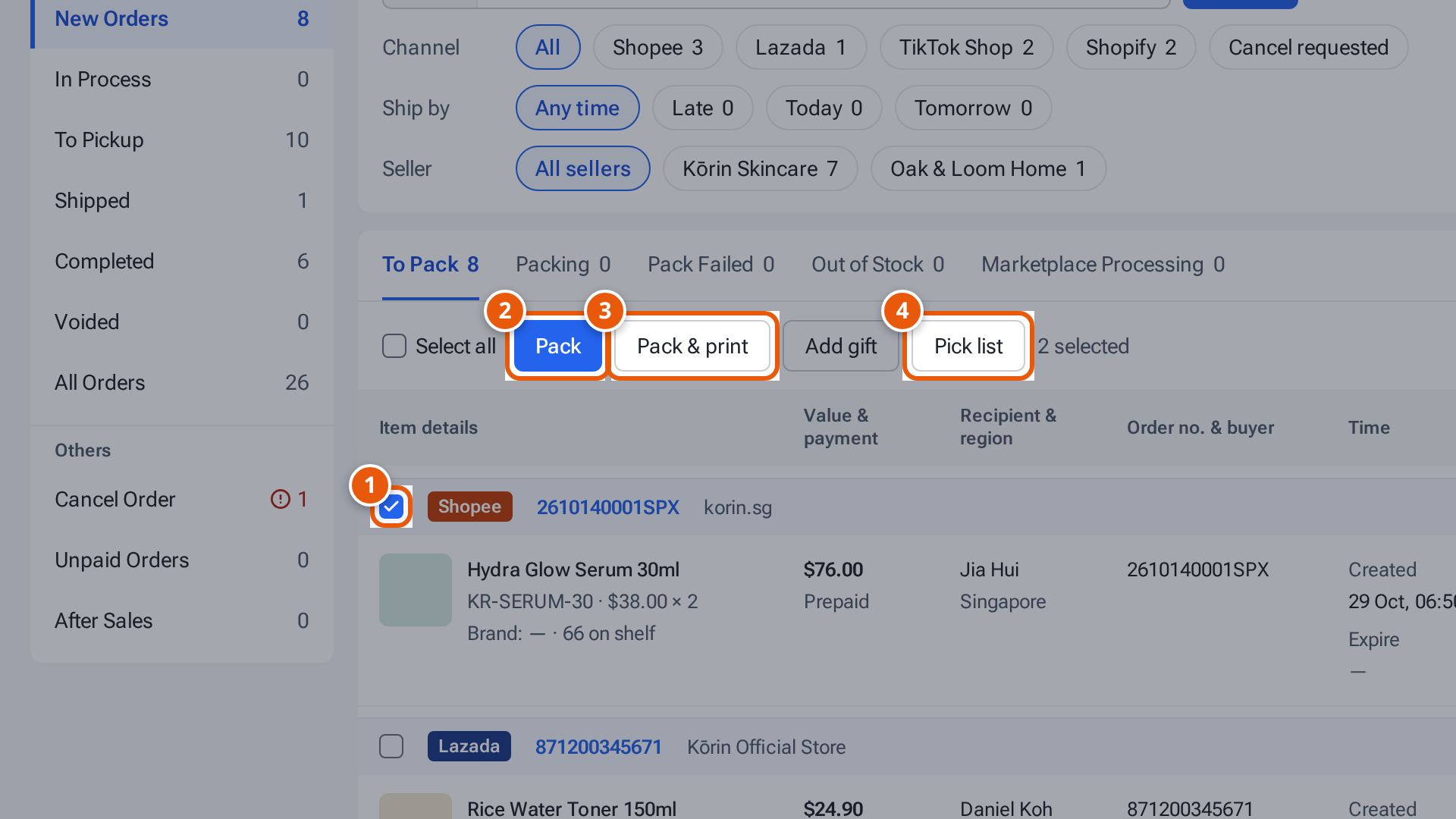
- 1. Tick the orders you want to work on.
- 2. Pack every ticked order, one after another.
- 3. The same, then print all their labels at the end.
- 4. A list of what to fetch for the ticked orders, in walking order.
- Under New Orders, tick the orders (or the box at the top of the list for the whole page).
- Press Pick list (2) first if you want a list of what to fetch (see below).
- Press Pack, or Pack & print to get all the labels at the end. A window shows “Packing 1 of 2…”. Orders that can’t be packed are skipped. Press Stop to stop after the current order.
- At the end it says, for example, “2 done · 0 not done” and lists any failures with the reason. After Pack & print, press Print labels (2).
On a phone, ticked orders show a bar at the bottom with Pick list, Pack and Pack & print.
Print a pick list
Section titled “Print a pick list”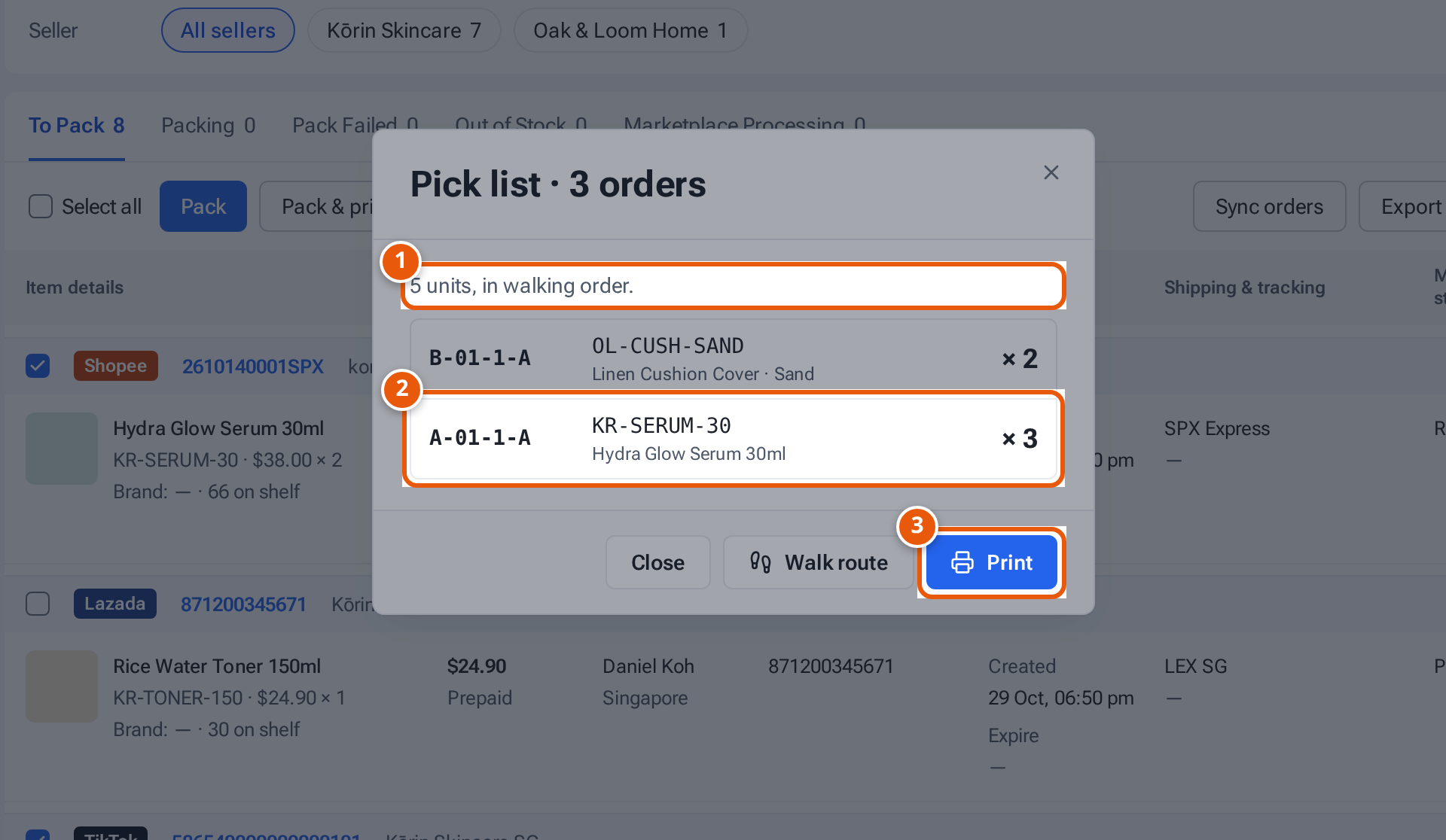
- 1. Everything the ticked orders need, sorted by shelf.
- 2. The shelf, the item and how many to take.
- 3. Print the list to carry round the shelves.
Tick the orders and press Pick list. The window lists every item to fetch, with the shelf to take it from and how many. With a floor plan, the shelves are in the order of the shortest walk and each item comes from the shelf closest to packing that has enough; without one, they’re sorted by shelf code. Items without a shelf say “No shelf yet”. Items that aren’t products in theopsroom are listed under “Not in theopsroom (find by hand)”. Press Print for a PDF.
With a floor plan, press Walk route to pick the ticked orders in one guided walk: see Guided picking.
Print labels and mark ready to ship
Section titled “Print labels and mark ready to ship”- Open In Process (or To Pickup to print again).
- Tick the orders and press Print labels, or click one order’s Print label icon. One PDF of the labels opens in a new tab. Opening a label takes it off Pick & Pack’s Labels to print.
- In In Process, tick the orders and press Ready to ship. theopsroom asks “Ask the courier to collect 2 parcel(s)?”. Press OK: the marketplace is told the parcels are ready and asks its courier to collect them. The orders move to To Pickup.
If something goes wrong
Section titled “If something goes wrong”| Message | Why | What to do |
|---|---|---|
| “1 Shopify order(s) left for Pick & Pack (courier and tracking number).” | Shopify orders are skipped by bulk Pack. | Pack them in Pick & Pack. |
| “Scan every item before packing” | Not everything is scanned. | Scan the missing items. |
| “Only New orders can be packed” | The order is already packed, shipped or cancelled. | Check the order in Order Details. |
| “The buyer asked to cancel — confirm to pack anyway” | The buyer asked to cancel. | Cancel to stop, or OK to pack anyway. Usually answer the request first. |
| “Only 1 Hydra Glow Serum 30ml free for this order’s 3. Pack anyway?” | A bundle needs more of the single item than is free. | Cancel and check stock, or OK to pack anyway. |
| “TikTok is holding this order — the buyer can still cancel. Pack it after the hold ends.” | TikTok’s hold period. | Pack it later. |
| “Lazada did not confirm the pack — check the order, then try again” | Lazada didn’t answer clearly. | Sync the order, then try again. |
| “Reconnect the Lazada shop, then retry” (or TikTok) | The shop’s login ran out. | Ask an admin to reconnect it. |
| “8801234567890 isn’t in this order — don’t pack it.” (the code you scanned) | You scanned the wrong item. | Take it out and scan the right one. |
| “All 2 × OL-CUSH-SAND already scanned.” | You scanned one too many. | Leave the extra one out. |
| “1 label(s) couldn’t be printed: …” | The marketplace didn’t give a label. | Try again in a minute. |
| A message says Shopify orders have no label of their own and tells you to use the courier’s label | Shopify orders use the courier’s label. | Reprint it from Order Details or Labels to print. |
| Pack icon greyed out | The tooltip says why: “Shop disconnected”, “On hold on TikTok”, “Buyer asked to cancel on Shopee”… | Deal with the reason first. |