

Decide a return
When a buyer asks to return an item or for a refund, theopsroom shows the request on the return and lets you answer it there. Only you, the seller, make these decisions; the warehouse checks the parcel that comes back.
How a return goes
Section titled “How a return goes”- Return requests: the buyer asked. You answer before the marketplace’s deadline.
- On the way: the buyer is sending it back.
- To check: it arrived and the warehouse checks each unit and records its condition (good, damaged, used, missing, wrong item or not the order), with photos.
- Waiting for seller: you decide the refund (and what happens to damaged items).
- Closed.
- Open Returns and click Return requests or Waiting for seller. Requests with the nearest deadline are first. Click a return to open it.
- Read the box at the top: what’s asked (“Return request”, “Refund-only request”, “Refund for this return”), the amount, the deadline, and the buyer’s reason and photos.
- Once the warehouse has checked the parcel, the box also shows What the warehouse found. For each SKU it lists the counts, such as “1 good · 1 damaged”, the warehouse’s note, Seal broken when the seal was already open, and Not put back into stock when good units were kept on a held shelf. The warehouse’s photos of each item are under it. Read this before you answer.
- Click your answer. Each asks you to confirm first. You see “Sent to ….” when it’s done.
- For Reject, Refuse refund, Dispute or Decline, a window opens: choose the marketplace’s Reason (TikTok, Shopee), tick the warehouse’s photos to send as evidence, write a comment, and click the send button.
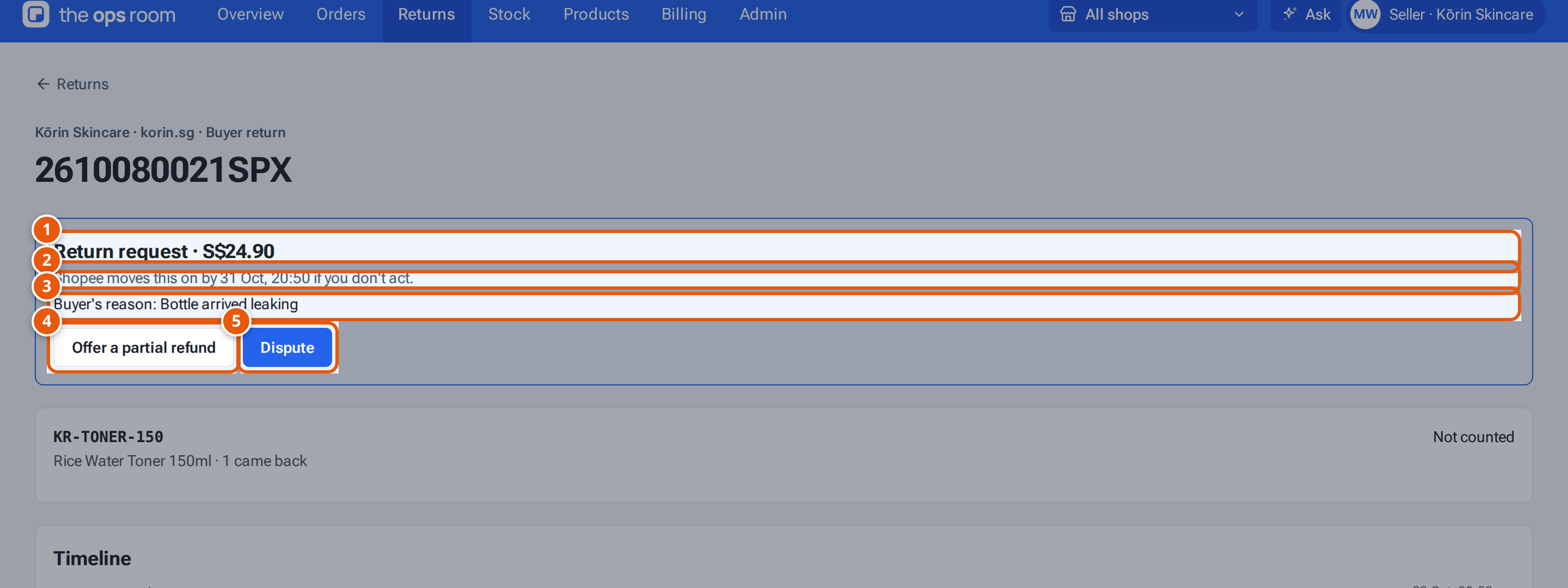
- 1. What the buyer asks for, and the amount.
- 2. Your deadline. After it, Shopee decides.
- 3. Why the buyer wants to return it.
- 4. Offer part of the money back.
- 5. Dispute the request, with Shopee’s reason and a comment.
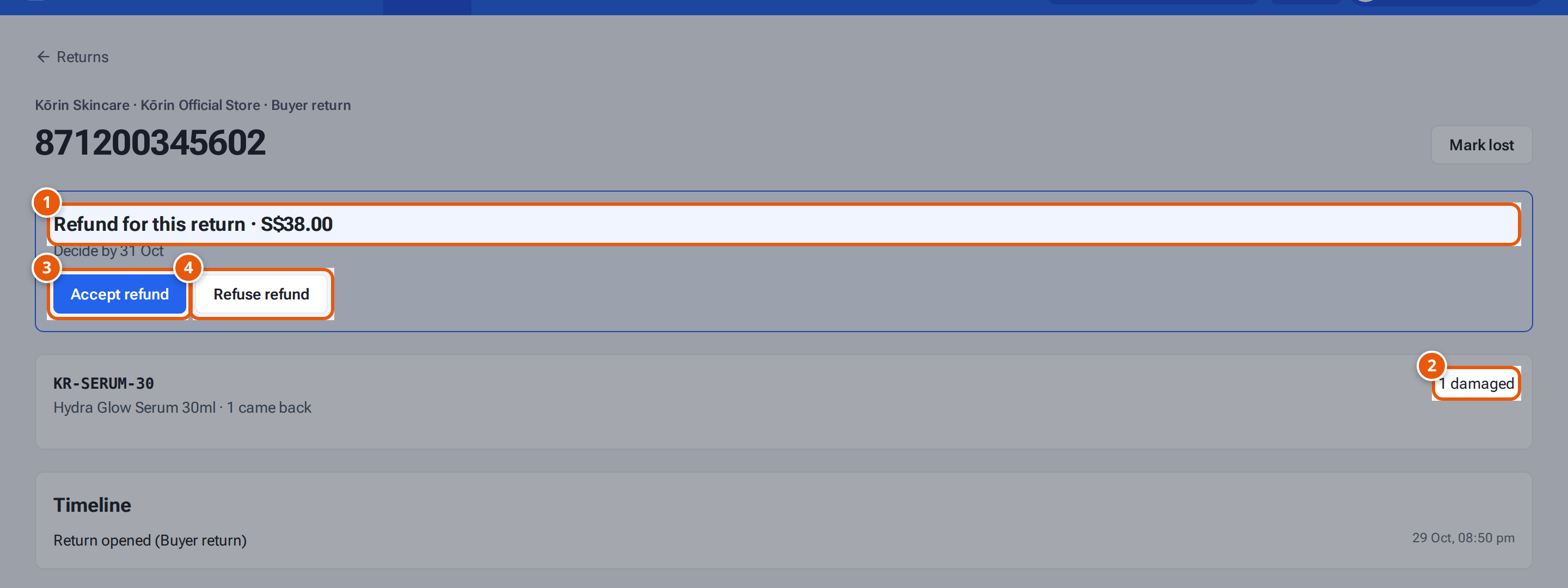
- 1. The warehouse checked the parcel: now decide the refund.
- 2. What the warehouse found.
- 3. Accept: the buyer gets the refund.
- 4. Refuse, sending the warehouse’s photos as evidence.
What you can do on each marketplace
Section titled “What you can do on each marketplace”| Marketplace | Request | After the warehouse check | Also |
|---|---|---|---|
| Lazada | Approve / Reject | Accept refund / Refuse refund | Refund only: Agree refund / Dispute |
| TikTok Shop | Approve / Reject (with TikTok’s reason) | Accept refund / Refuse refund | Refund only: Agree refund / Dispute; Offer a partial refund when TikTok allows it |
| Shopee | No approve: Dispute (with Shopee’s reason). If you do nothing, Shopee moves it on by its deadline. | Refund in full / Dispute | Offer a partial refund; Accept counter-offer when the buyer counters |
| Shopify | Approve / Decline | Refund in full / Close without refund | Partial refund (Shopify refunds the buyer straight away) |
Shopify returns are refunded or closed only after the warehouse has checked the parcel. theopsroom sees Shopify returns on orders from the last 60 days; handle older ones in your Shopify admin.
Offer a partial refund
Section titled “Offer a partial refund”- Click Offer a partial refund (Shopify: Partial refund).
- Choose whether the buyer Keeps the item or Returns the item.
- Type the Amount (S$) within the range shown, and a Reason if asked.
- Click Send offer (Shopify: “Refund S$…”).
The box then shows the buyer’s answer: “Offered … — waiting for the buyer”, “Buyer asks for … (… counters left)”, “Buyer accepted …”, or “Buyer rejected your … offer”.
If something goes wrong
Section titled “If something goes wrong”| Message | Why | What to do |
|---|---|---|
| “… actions are switched off for now — decide in … Seller Center.” | Answering from theopsroom isn’t switched on for that marketplace. | Decide in the marketplace’s Seller Center. |
| “Choose at least one photo to send as evidence” | Refusing a refund needs evidence. | Tick at least one photo. |
| “Write a short comment for …” | A comment is required. | Write one. |
| “Enter an amount from … to ….” | The offer is outside the allowed range. | Change the amount. |
| “Waiting for the buyer’s answer to your … offer” | You already made an offer. | Wait for the buyer. |
| “… says this request is … — nothing to decide” | The marketplace already closed it. | Nothing to do. |
| “Already sent to … for this request” | It’s already answered. | Nothing to do. |
| “Refund or close a Shopify return after the warehouse has checked it” | — | Wait for the check. |
| “… refused it: …” | The marketplace said no. | Read its reason; act in Seller Center if needed. |