

Find stock on the floor plan
The Floor plan shows the warehouse as it really is: the racks with their shelf codes, the areas (receiving, pack stations, courier lanes, returns and the rest) and the stock on each shelf. Use it to find an item by sight.
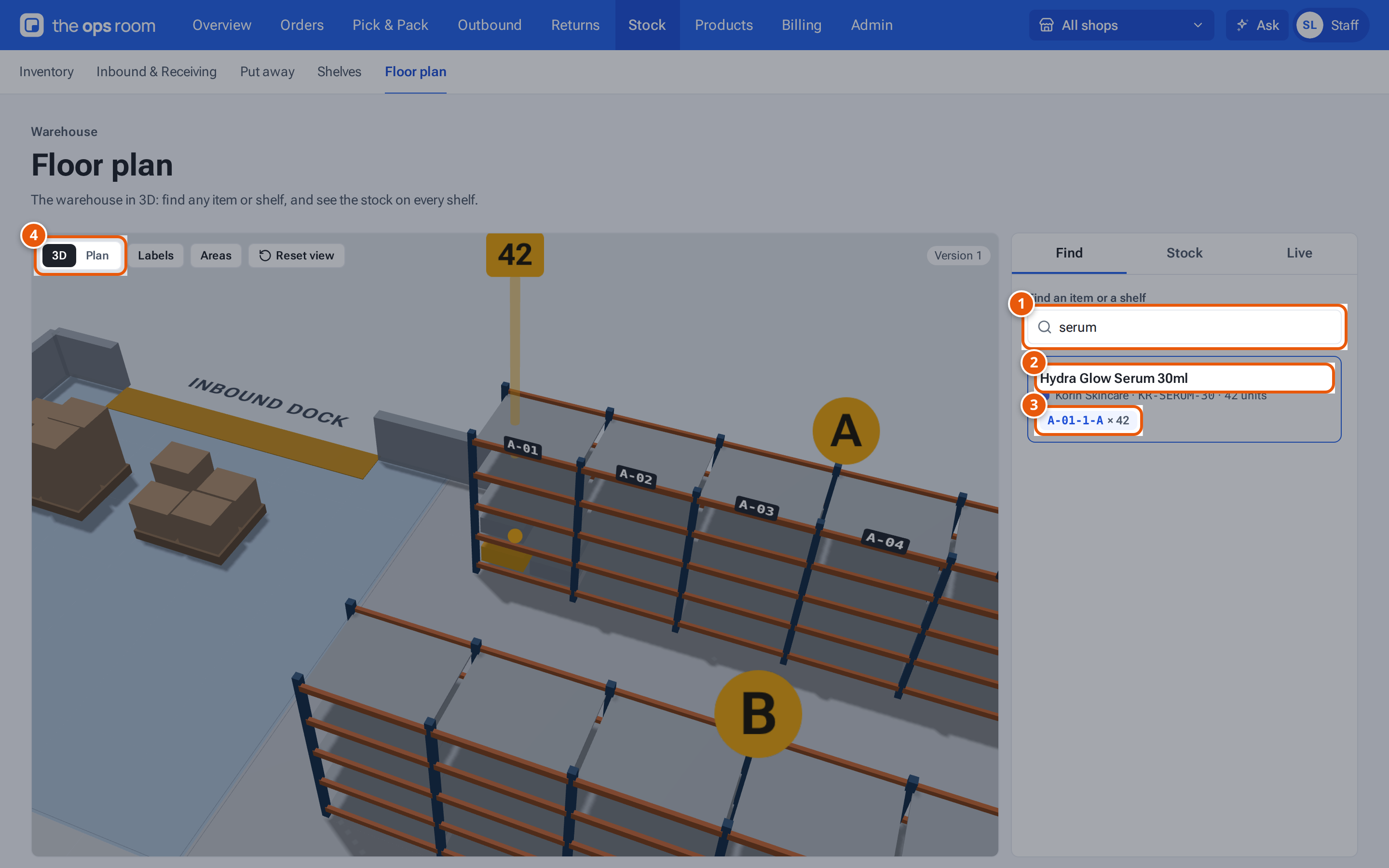
- 1. Type part of a name, a seller SKU or a shelf code.
- 2. The item found, its seller and how many there are.
- 3. The shelf holding it: click to move the view there.
- 4. 3D or flat (Plan).
Find an item or a shelf
Section titled “Find an item or a shelf”- Open Stock, then the Floor plan tab of Inventory (next to Shelves).
- In Find an item or a shelf, type part of the product name, the seller SKU, or a shelf code.
- For an item, you see each shelf holding it and how many, fullest first. The shelves light up, a beam marks them from across the floor, and the view moves to the first one.
- For a shelf code such as B-03, you see every shelf starting with it and how many have stock.
- Click a shelf code under the result to move the view to that shelf.
A shelf shown in red with not on the plan holds the item but isn’t drawn on the floor plan yet. The stock is still there; ask an admin to add that rack to the plan.
Look around
Section titled “Look around”- Drag to turn the view, scroll or pinch to zoom.
- 3D or Plan: Plan shows the floor flat from above. Phones open in Plan. In Plan, each shelf is a stripe on top of its rack, coloured like the boxes in 3D: level 1 nearest the aisle, the top level at the back. Empty shelves are left plain.
- Labels and Areas show or hide the shelf labels and the coloured areas.
- Reset view goes back to the whole floor.
- Point at a shelf to see what’s on it. Click it to open its card: every item, how many, the seller, and count needed if a packer found fewer than expected.
Colour the shelves by their stock
Section titled “Colour the shelves by their stock”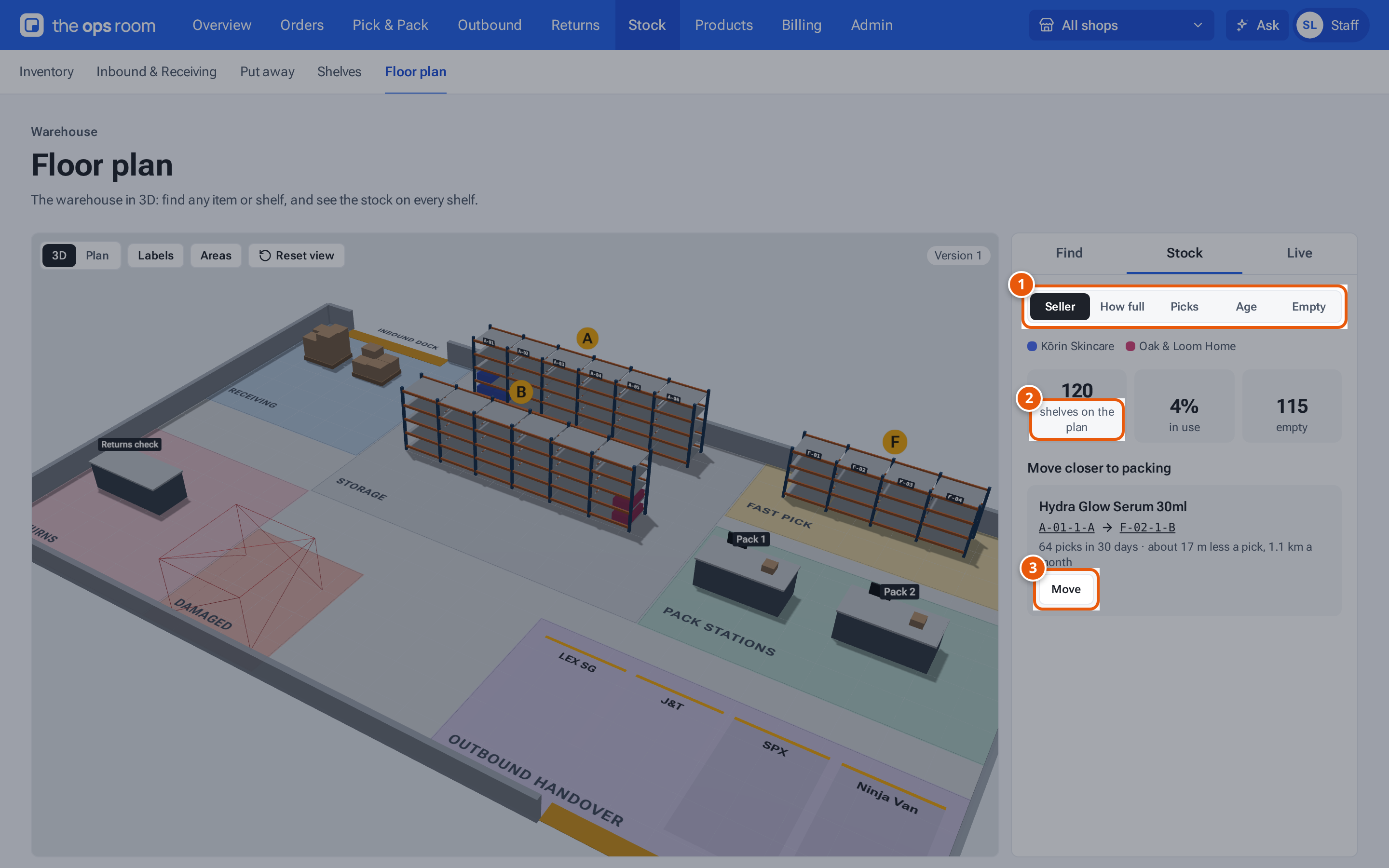
- 1. Colour the shelves by seller, how full, picks, age, or show the empty ones.
- 2. Shelves on the plan, how many are in use and how many are empty.
- 3. A busy item far from packing: Move opens its stock window with the move filled in.
Open the Stock tab and choose how to colour the shelves:
| Colour by | What it shows |
|---|---|
| Seller | Each seller’s stock in their own colour. |
| How full | Light for nearly empty, dark for full, worked out from each product’s box size and the shelf’s size. Grey means an item on it has no real box size yet. |
| Picks | How many units were picked from the shelf in the last 30 days: blue for quiet, red for busy. |
| Age | How long the stock has been there: green for new, red for 90 days or more. |
| Empty | Beams mark the empty shelves nearest to packing, listed below so you can jump to one. |
Below the colours you see how many shelves are on the plan, how many are in use and how many are empty.
Move closer to packing lists busy items on shelves far from packing, each with an empty shelf in fast pick and the walking it saves (“about 25 m less a pick, 4.8 km a month”). Press Move to open the item’s stock window with the move filled in, check the quantity and save. Quiet items in fast pick lists items that are rarely picked but take a fast pick shelf. Nothing moves until someone presses Move and saves.
See what’s happening now
Section titled “See what’s happening now”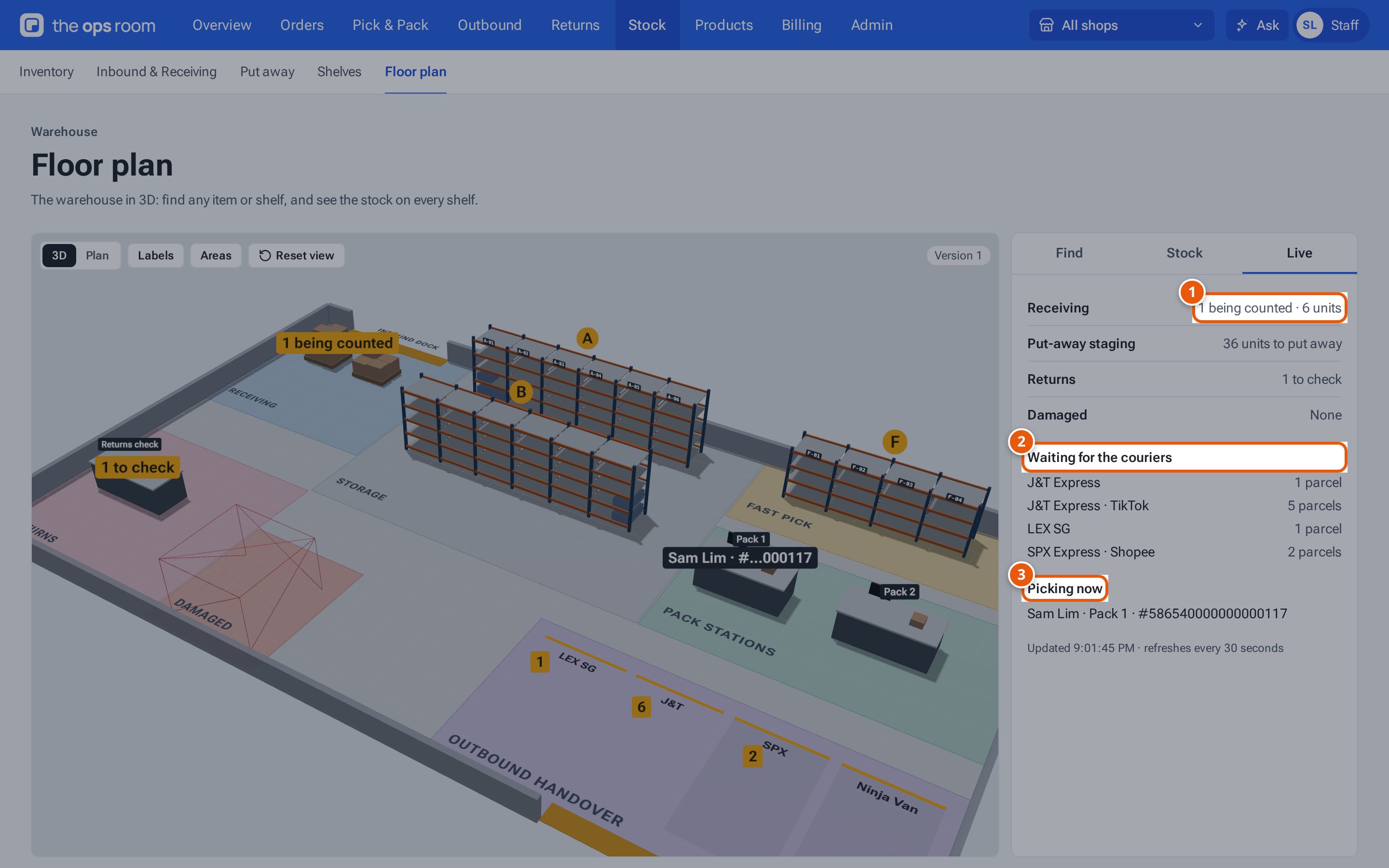
- 1. Each area’s count: tap its name to open its page.
- 2. Parcels waiting per courier, also shown on each courier’s lane.
- 3. Who is on a guided pick, at which bench.
The Live tab puts today’s numbers on the floor and refreshes every 30 seconds:
- Receiving: deliveries being counted. Put-away staging: received units waiting for a shelf (Put away also lists stock from before shelves were set up, which isn’t counted here).
- Returns: returned parcels waiting for a check. Damaged: damaged units, per seller.
- Courier lanes: parcels packed and waiting for each courier, on that courier’s lane (others under “Other”).
- Pack benches: who is on a guided pick, and for which order.
Each line in the panel opens its page (Inbound, Put away, Returns, Inventory, Outbound & Shipping, Pick & Pack), and so does each number on the floor when you tap it. With a shop chosen at the top, the counts are that shop’s: its seller’s deliveries, staging and damaged stock, and the shop’s returns, parcels and guided picks. Admins also see where each person last scanned a shelf (“Sam Lim · 2 min ago” on the shelf), for 10 minutes, unless it’s switched off in Settings → Floor plan. Those markers only show where someone is; tapping them opens nothing. On the floor, a long marketplace order number shows its last 6 digits (“#…000117”); the panel shows it in full.
What the colours mean
Section titled “What the colours mean”| On the plan | What it is |
|---|---|
| Blue uprights, orange beams | A rack. The letter on its sign is the aisle (A, B…), and each bay has its code on the top beam (A-01, A-02…). |
| Boxes on a shelf | Stock. Taller boxes are fuller shelves. |
| Glowing shelf with a beam | What you searched for. The number on the beam is how many are there. |
| Coloured floor | An area: receiving, storage, fast pick, pack stations, outbound lanes, returns, damaged, and so on. |
| Yellow strip on a wall | A door or dock. |
If the device can’t show 3D, the floor plan is shown flat instead, with the same colours and live numbers.
If something goes wrong
Section titled “If something goes wrong”| What you see | Why | What to do |
|---|---|---|
| “No floor plan yet” | Nobody has drawn the warehouse yet. | Ask an admin. They draw it in Settings → Floor plan. |
| “Nothing on the shelves matches” | No shelf holds an item with that name or SKU. | Check the spelling, or search in Stock. |
| An item shows not on the plan | Its shelf exists in theopsroom but isn’t on the floor plan. | Ask an admin to add the rack, or move the stock to a shelf on the plan. |