

Send product changes to your shops
Changing a product in theopsroom doesn’t change your listings straight away. When you’re ready, you push the changes. A push sends the new price, sale price, stock, variations, details, photos and new SKUs to the marketplace.
Steps: push many products
Section titled “Steps: push many products”- Open Products. Products with changes not on a shop show an amber dot after that listing.
- Tick the products.
- Click Push changes. A line under the toolbar says “Queued … pushes” and how many were skipped (click it to see why).
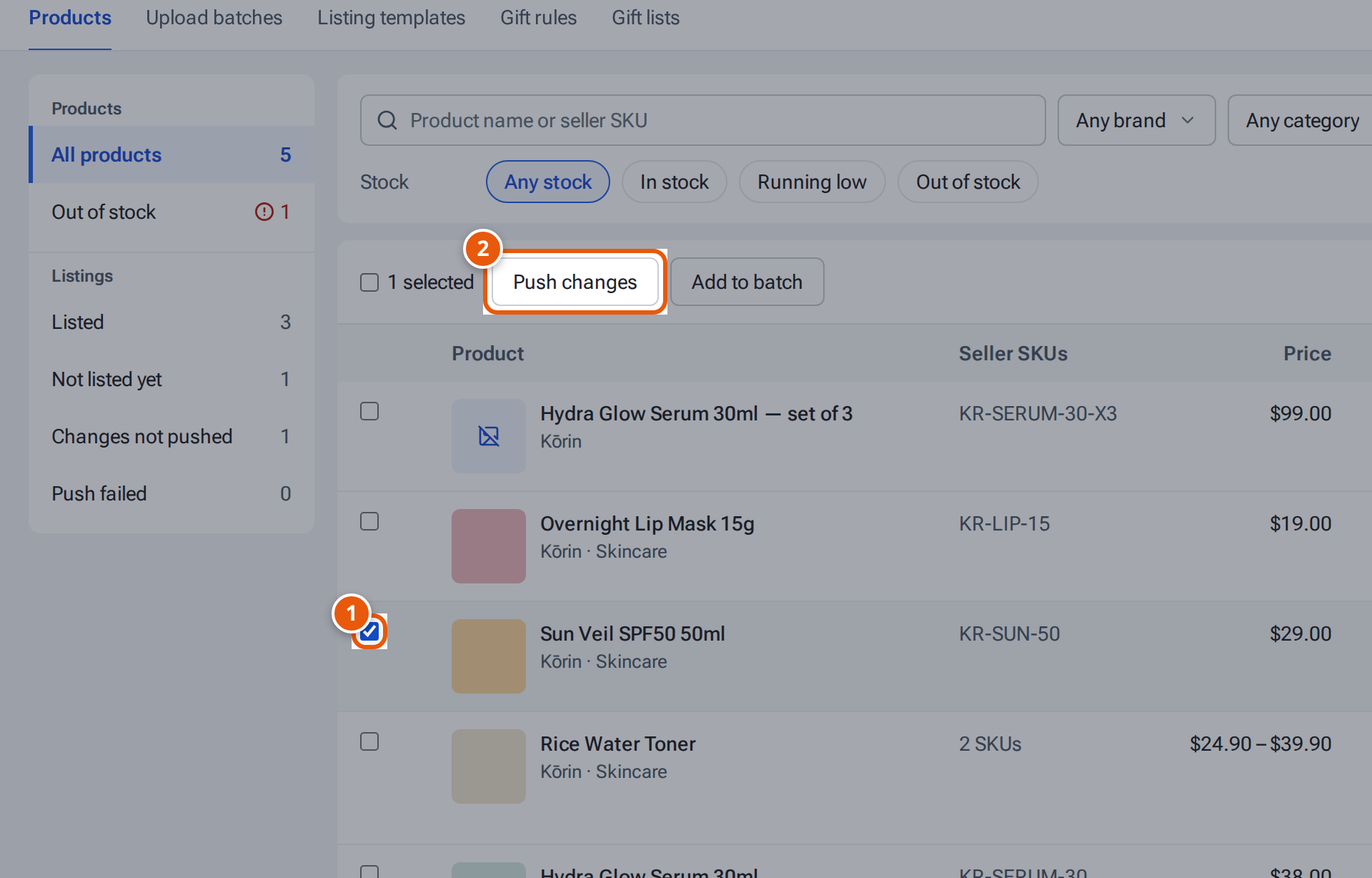
- 1. Tick the products whose changes you want on the marketplaces.
- 2. Push changes sends the edits to every shop those products are on.
Steps: push one listing
Section titled “Steps: push one listing”- Open the product. A listing with changes says “Changes not on …”.
- Click Push to …. You see “Pushing to … — this usually takes a minute.” It then says “Up to date on …”.
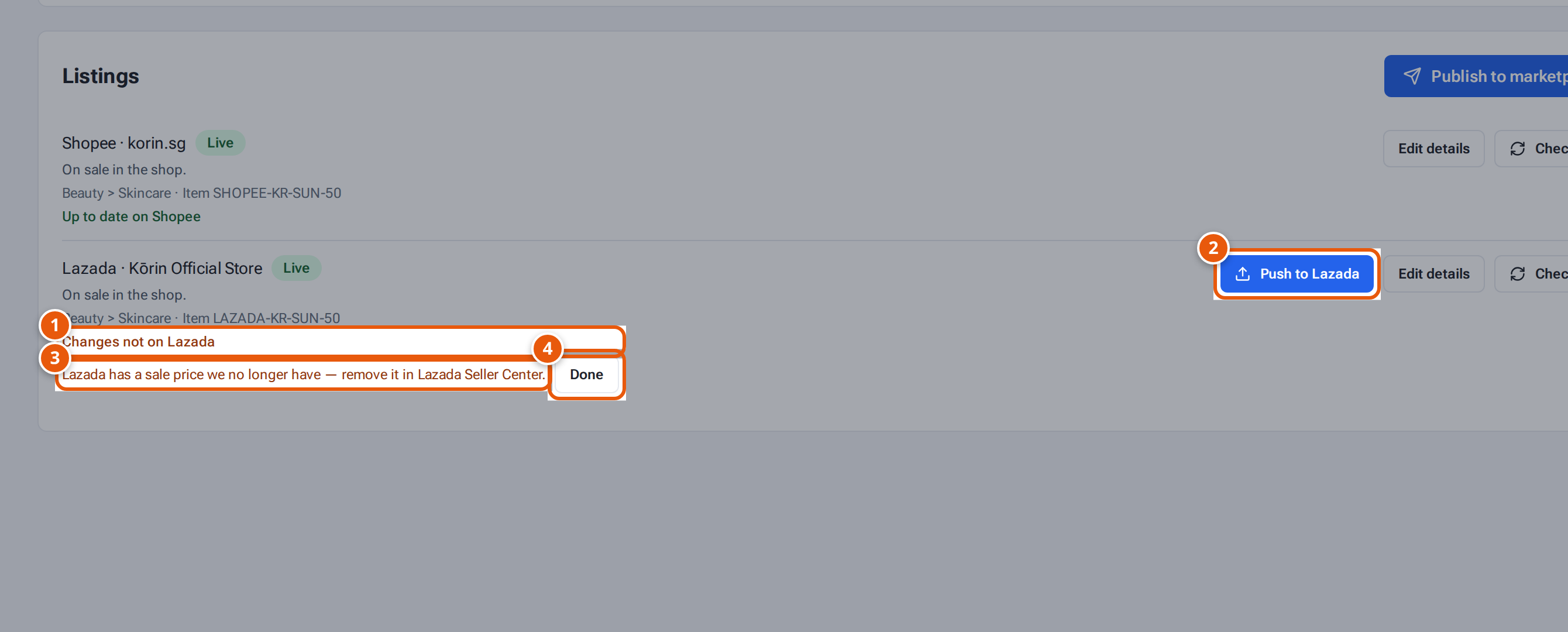
- 1. You changed the product in theopsroom, and Lazada doesn’t have the change yet.
- 2. Send the changes to this shop only.
- 3. Something you must change in Lazada Seller Center yourself.
- 4. Done: you made that change in Seller Center.
Changes only the marketplace can make
Section titled “Changes only the marketplace can make”Some changes theopsroom can’t send, and the listing says so in amber with a Done button:
- TikTok Shop prices are never changed by a push: “Prices aren’t changed by pushes to … — change the price of … in … Seller Center.”
- Lazada sale prices during a promotion: “Remove the sale price of … in Seller Center”, followed by a note that the app can’t end a Lazada promotion yet.
Make the change in that marketplace’s Seller Center, then click Done.
Shopify: pushing replaces the photos on Shopify with theopsroom’s.
What each push status means
Section titled “What each push status means”| Status | What it means |
|---|---|
| “Changes not on …” | You changed the product; the shop doesn’t have it yet. |
| “Pushing to …” | The push is running. |
| “Up to date on …” | The shop matches theopsroom. |
| “Needs a change in … Seller Center” | The push went through, but something must be done by hand (see above). |
| “Push failed: …” | It didn’t go through. Retry push tries again. Failed pushes retry by themselves a few times first. |
If something goes wrong
Section titled “If something goes wrong”| Message | Why | What to do |
|---|---|---|
| “This product can’t be pushed yet: …” | Something the marketplace needs is missing, e.g. “Add at least one image”. | Fix it, save, and push again. |
| “Nothing to push — this listing matches …” | No changes to send. | Nothing to do. |
| “A push is already running” | — | Wait a minute. |
| “… didn’t add SKU … — check it in Seller Center” | The marketplace refused a new SKU. | Check the product in Seller Center. |
| “Deleted on … — publish again to list it.” | The listing was deleted on the marketplace. | Publish it again. |