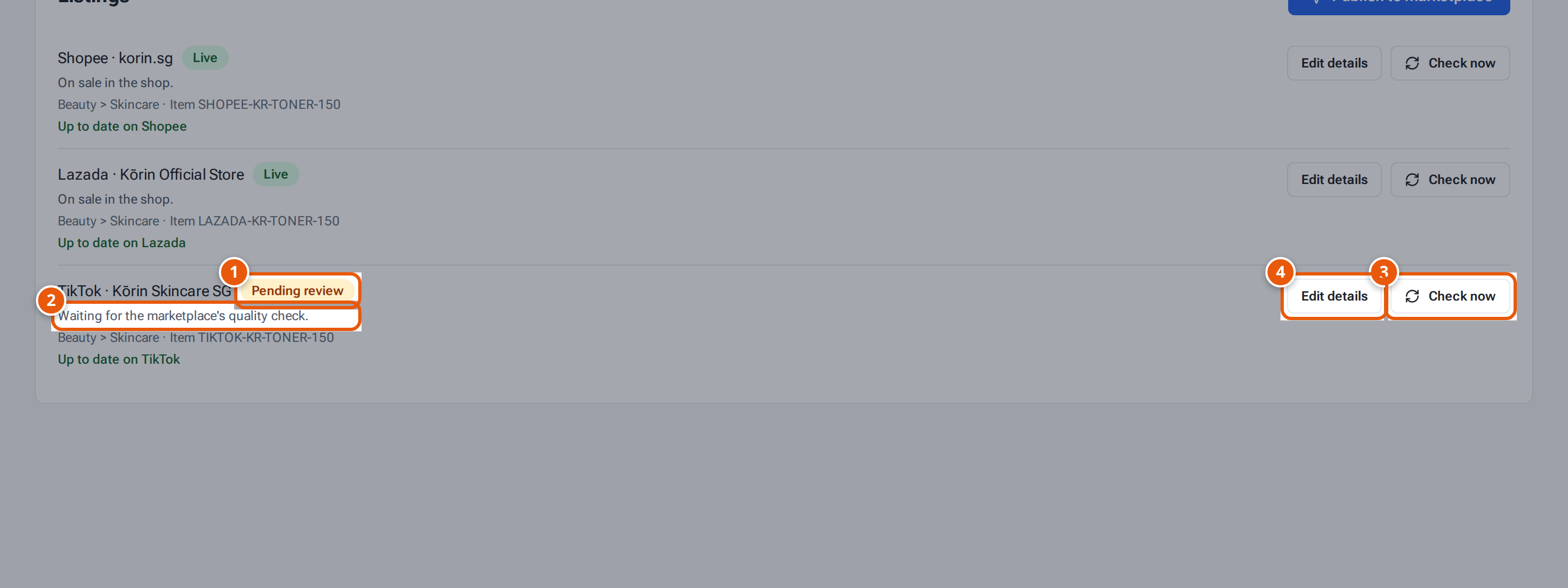
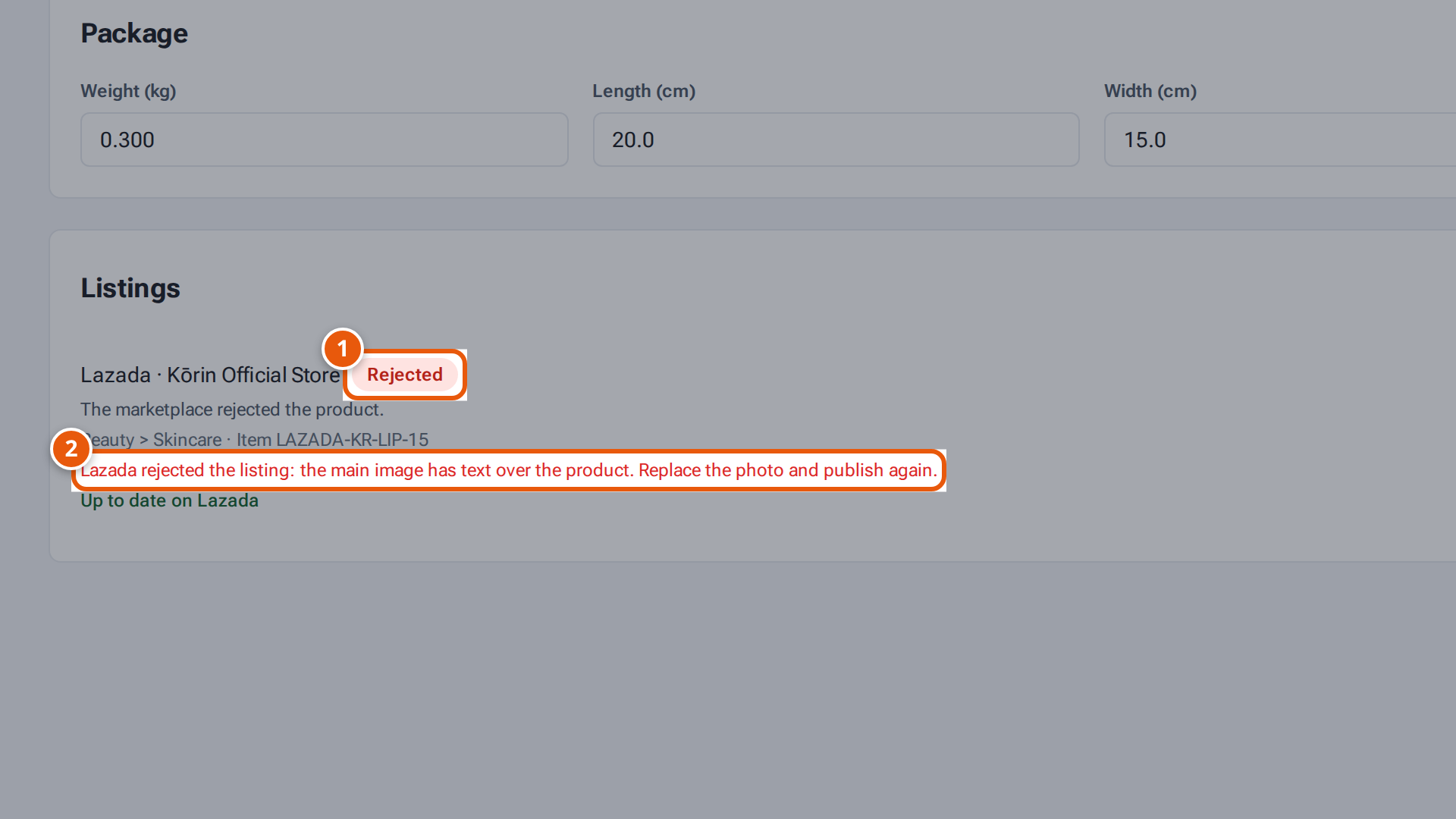
Each product’s Listings box shows every shop it’s in, with a status and a line explaining it. Statuses refresh by
themselves while a listing is being published or reviewed.
On Products, each shop a product is in gets one label:
Label
What it means
Listed
Live, pending review or being published, with nothing waiting to be sent.
Not listed yet
Not on sale in that shop: a draft or skipped listing.
Changes not pushed
You changed the product after it went live and haven’t pushed the change yet.
Push failed
The listing is in Error, or the last push didn’t go through.
Rejected
The marketplace rejected it.
The Listings menu on the left of Products counts products for Listed, Not listed yet, Changes not
pushed and Push failed. Click one to see those products. See Send product changes to your
shops to clear Changes not pushed.
22. Why, in the marketplace’s words: fix this, then publish again.
Tap or click the picture to open it full size.
Read why it was rejected in the marketplace’s Seller Center (the reason is often only shown there).
Fix the product in theopsroom (photos, name, description) and click Save, or click Edit details to change the
listing’s details.
Push the change: click Push to … on the listing. Pushing a rejected listing sends it back for review, so it
shows Pending review again. Or click Check again if you fixed it in Seller Center.
If it never reached the marketplace, click Edit & retry, fix what the message says, then click Save & retry.
You see “Listing updated — publishing again.”
If you fixed the product itself, click Retry. You see “Publishing again.”