

Set up gift rules and lists for a seller
Sellers can set up their own free gifts, and staff and admins can do it for them. The pages are the same as the sellers’ pages; the difference is that you first choose which seller you are working for. Gifts follow the rules and lists until the order is packed, and packers see them on the order.
There are three kinds:
- Gift rules: gifts added to a seller’s orders automatically, for example a free toner on Shopee orders of S$50 or more.
- Gift lists: a seller’s freebie file, listing order IDs and the gift for each.
- Untracked gifts: loose gifts without a SKU, such as thank-you cards. No stock count; packers just add them.
Gift rules for a seller
Section titled “Gift rules for a seller”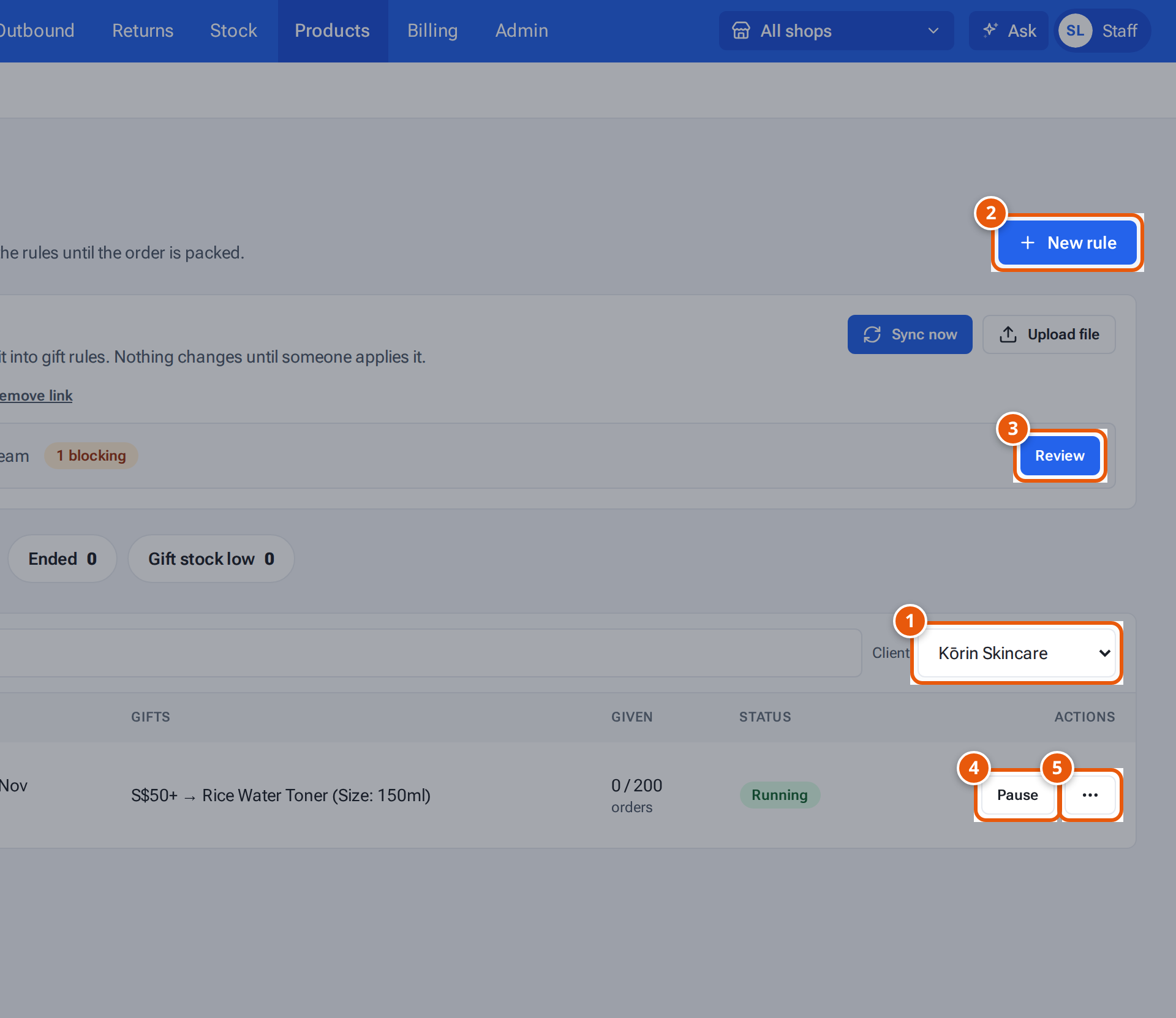
- 1. Choose the seller you are working for.
- 2. Add a gift rule for that seller.
- 3. The seller’s monthly rules sheet: review what theopsroom read, then apply it.
- 4. Pause a rule for a while.
- 5. Edit, copy, change history, orders given gifts, or delete.
- Open Products, then the Gift rules tab.
- Choose the seller in Client. You see only their rules, and their Rules sheet card appears (“Choose a client below to read their monthly rules sheet.” shows until you do).
- Press New rule. In the editor choose the Client, then fill in the rule as described in Gift rules. Press Save rule.
- On a rule’s row, press Pause to stop it for a while (Resume starts it again), or ⋯ for Edit, Copy, Change history, Orders given gifts and Delete.
The seller’s monthly rules sheet
Section titled “The seller’s monthly rules sheet”With a client chosen, the Rules sheet card shows the seller’s sheet. Sync now reads it now, Upload file reads a .xlsx or .csv file instead. When a read is waiting, the card shows the month and how many questions there are, for example “2 questions for the seller, 1 for your team”. Press Review, answer the questions for your team (Copy seller questions copies the seller’s to send them), then press the Apply button (for example Apply 1 rule(s)). Full steps: Your monthly gift rules sheet.
Gift lists (freebie files)
Section titled “Gift lists (freebie files)”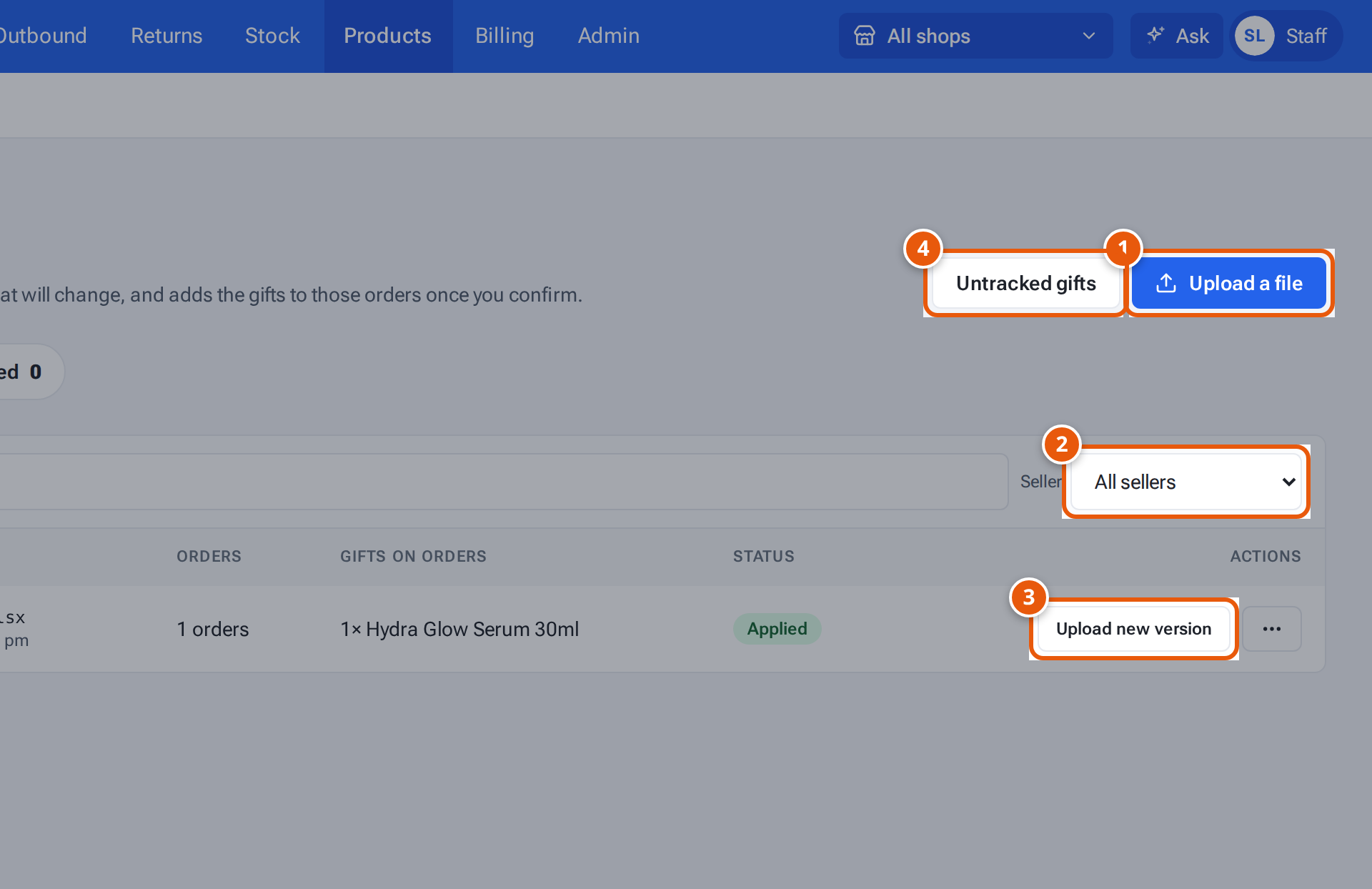
- 1. Upload a seller’s freebie file (order IDs and gifts).
- 2. Show one seller’s lists.
- 3. The seller sent an updated file: upload it as a new version of the list.
- 4. Loose gifts without a SKU, such as thank-you cards.
- Open Products, then the Gift lists tab.
- Press Upload a file. In Upload a gift file, choose the Seller first, then the File (.xlsx or .csv, up to 5 MB), and say which list it is. Press Read the file.
- Check the preview and press Apply version 1. Nothing changes on any order until you apply.
- When the seller sends an updated file, press Upload new version on that list.
Use Filter by seller (All sellers) to see one seller’s lists. More detail: Gift lists and untracked gifts.
Untracked gifts
Section titled “Untracked gifts”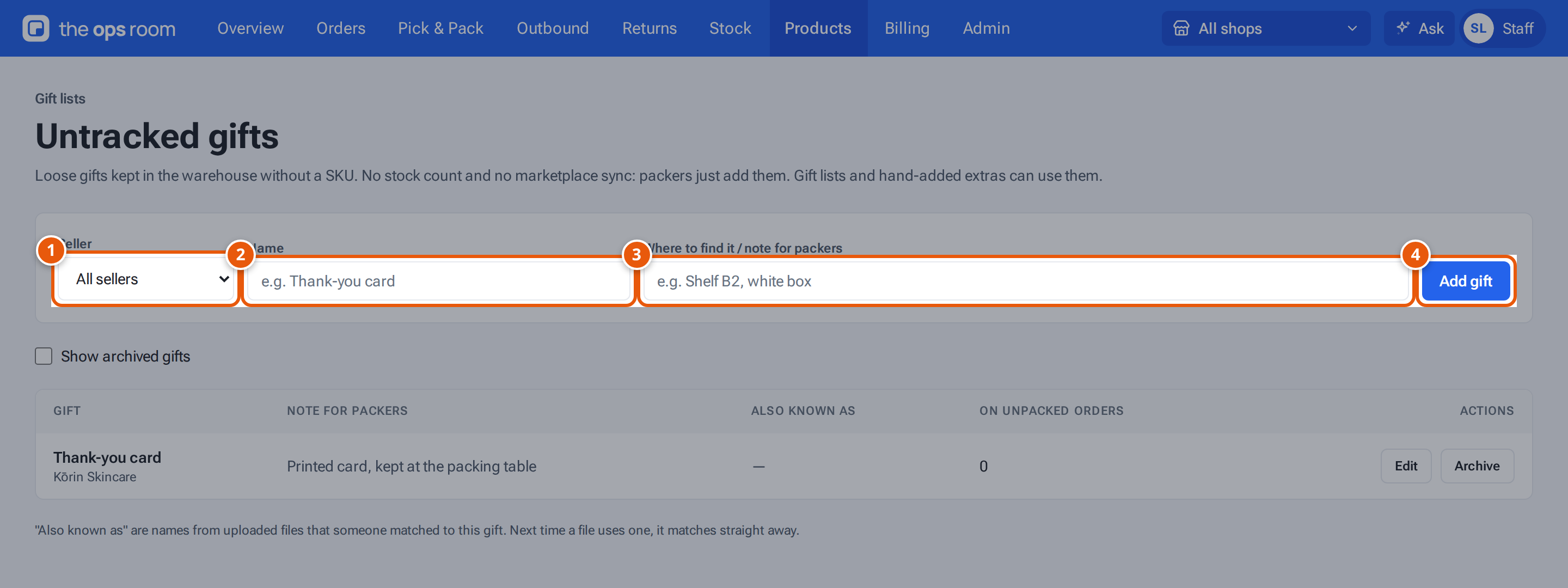
- 1. Choose the seller first.
- 2. The gift’s name.
- 3. Where packers find it.
- 4. Add it to the seller’s untracked gifts.
- On the Gift lists tab, press Untracked gifts.
- Choose the Seller, type the gift’s Name (for example “Thank-you card”) and Where to find it / note for packers (for example “Shelf B2, white box”).
- Press Add gift.
Edit changes a gift; Archive stops gift lists giving it (orders that have it keep it).
If something goes wrong
Section titled “If something goes wrong”| Message | Why | What to do |
|---|---|---|
| “Choose a client” | No seller chosen for a new rule. | Choose the client first. |
| Product search greyed out: “Choose a client first” | The rule has no client yet. | Choose the client. |
| “Choose the seller first.” | On Upload a gift file or Untracked gifts. | Choose the seller. |
| “A seller can have at most 100 gift rules” | The seller has too many rules. | Delete old rules. |
| “There’s already an untracked gift with that name” | The name is taken. | Use the existing gift, or another name. |
| A message says AI reading isn’t set up, so rules sheets can’t be read yet | AI reading is off. | Ask an admin: see Settings: Products & orders. |