

Add and edit clients
A client is a seller you fulfil for. Every shop, order, product and seller login belongs to one client. You manage clients on Admin → Clients. Only admins can open this page; anyone else sees “Only admins can manage clients.”
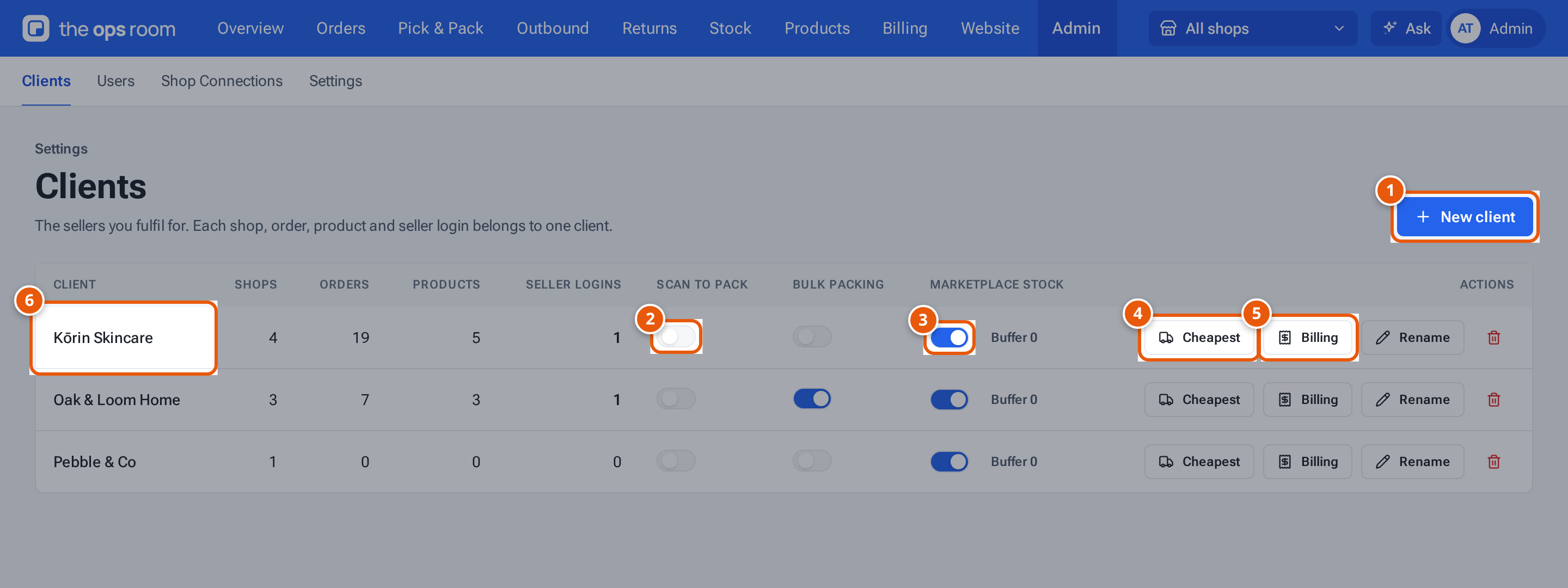
- 1. Add a seller you fulfil for.
- 2. Scan to pack: packers must scan every item before packing.
- 3. Marketplace stock: every listing shows what the warehouse can pack.
- 4. The courier for this seller’s Shopify orders.
- 5. Who invoices go to, and the seller’s standard charges.
- 6. The client, with its shops, orders, products and seller logins.
Add a client
Section titled “Add a client”- Open Admin → Clients and click New client.
- Type the Client name and click Save. You see “Pebble & Co added.” (with the name you typed) and the client appears in the list.
You can also add a client while you connect a shop: pick + New client in the Connect a shop window.
Rename a client
Section titled “Rename a client”- Click Rename on the client’s row.
- Change the Client name and click Save. You see “Renamed to …” and the new name
Scan to pack
Section titled “Scan to pack”Turn on the Scan to pack switch to make packers scan every item of this seller’s orders before packing. You see “Packers now scan every item for Kōrin Skincare.” (with the client’s name) Turn it off and you see “Scanning is optional for Kōrin Skincare.”
Bulk packing
Section titled “Bulk packing”Turn on the Bulk packing switch for a seller whose busy days are too big to pack one by one (for example a TikTok live). Staff can then put their orders in a batch, clear them all with the marketplace, and pack each parcel later by scanning its AWB. See Bulk packing. You see “Oak & Loom Home’s orders can now be packed in bulk.” Only admins can change it.
Choose the seller’s courier for Shopify orders
Section titled “Choose the seller’s courier for Shopify orders”- Click the courier button on the client’s row. It shows the current choice, for example Cheapest (no preferred courier), EasyParcel, Shippit or J&T Express.
- In Preferred courier, choose the courier account Pick & Pack books this seller’s Shopify parcels with (its cheapest service), or None to show the 3 cheapest services across all accounts. The seller can change this in their Shop Connections too.
- Under Delivery notifications (EasyParcel), tick SMS, Email or WhatsApp to have EasyParcel message the buyer about the delivery (a small charge per parcel each, added to the shipping price and the seller’s invoice). The seller can change these too.
- If the seller uses their own courier account, set the Service charge per parcel (S$).
- Click Save.
The same window holds the Seller’s own courier accounts: for J&T, type the seller’s Email and Password and choose the Default service; for Shippit, paste their API key (their Shippit account must have the warehouse as its pickup address). Click Save on that courier; theopsroom checks the login with the courier first. Remove takes it away. A password or key left blank keeps the saved one. You see “Courier settings saved for Kōrin Skincare.”
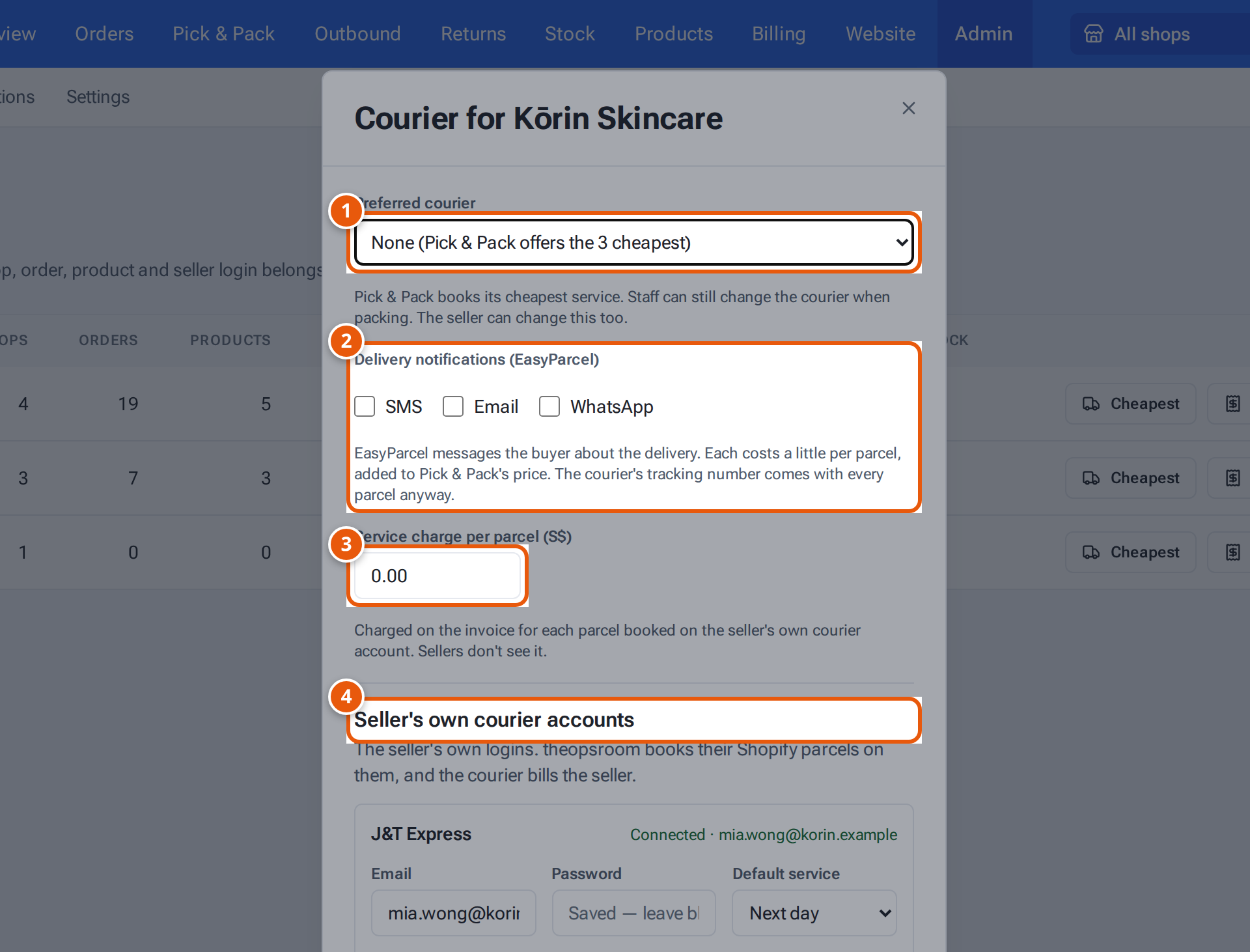
- 1. The courier this seller’s Shopify parcels are booked with (None: the 3 cheapest).
- 2. EasyParcel’s SMS, email or WhatsApp messages to the buyer.
- 3. What you charge for each parcel booked on the seller’s own courier account.
- 4. The seller’s own J&T and Shippit logins.
What each button and field means
Section titled “What each button and field means”| Item | What it does |
|---|---|
| Seller logins | How many people sign in for this seller. Click the number to open Users. |
| Scan to pack | On: packers must scan every item. Off: scanning is optional. |
| Bulk packing | On: this seller’s orders can be cleared in batches and packed later by their AWB. |
| Marketplace stock | On: every listing shows what the warehouse can pack. See Marketplace stock follows the warehouse. Buffer shows the units held back. |
| Courier button | The preferred courier: None (Pick & Pack offers the 3 cheapest), EasyParcel (warehouse account), Shippit (warehouse account) (once set up in Settings: Shipping), or the seller’s own account, e.g. J&T Express (seller’s own account) or Shippit (seller’s own account). Pick & Pack books its cheapest service (the seller’s saved J&T service, if any). If it has no prices for a parcel, Pick & Pack shows the 3 cheapest and says why. Staff can still change the courier when packing. “Cheapest” is what the seller pays, with your markup or service charge. |
| Service charge per parcel (S$) | Charged on the invoice for each parcel booked on the seller’s own courier account. Sellers don’t see it. |
| Billing | The seller’s billing details and standard charges. See A client’s billing details and charges. |
| Rename | Change the client’s name. |
| Bin | Delete the client and all its data. See Delete a client. |
On a phone each client is a card with the same switches and Rename, Courier, Billing details and Remove buttons.
If something goes wrong
Section titled “If something goes wrong”| Message | Why | What to do |
|---|---|---|
| “Enter a client name” | The name is empty. | Type a name. |
| “A client named Pebble & Co already exists” | Two clients can’t share a name. | Choose another name. |
| “Connect this client’s J&T Express account first” | You chose the seller’s own courier, but their login isn’t saved. | Add it under Seller’s own courier accounts in the same window, then choose it. |
| “This login doesn’t work — save it again with the right password” | The courier refused the seller’s login (J&T’s password, or Shippit’s API key). | Type the right password or key and click Save. |
| “Set up the warehouse’s Shippit in Settings → Shipping first” | You chose the warehouse’s Shippit, but no key is saved. | Add it in Settings: Shipping. |
| “The service charge should be S$0.00–S$100.00” | The charge is out of range. | Enter an amount from 0 to 100. |
| “Only admins can change the courier settings” | You’re not signed in as an admin. | Ask an admin. |