

Ship a Shopify order (EasyParcel, Shippit, the seller's J&T, a seller label, another courier)
Shopify orders don’t come with a marketplace courier. At Pick & Pack you choose how each one ships. There are four ways:
- EasyParcel or Shippit (the warehouse’s accounts): theopsroom books and pays the courier.
- The seller’s own J&T or Shippit account: theopsroom books the courier on the seller’s account.
- The seller’s own label: the seller booked the courier and uploaded the label.
- Another courier: you make the label on the courier’s site and scan its tracking number.
Before you start
Section titled “Before you start”- The order was sent to the warehouse in Shopify and accepted by theopsroom.
- An admin has connected EasyParcel or Shippit and listed the other couriers in Settings: Shipping.
- For the seller’s own J&T or Shippit, the seller’s account is added in Shop Connections.
Book a courier (EasyParcel, Shippit or the seller’s own account)
Section titled “Book a courier (EasyParcel, Shippit or the seller’s own account)”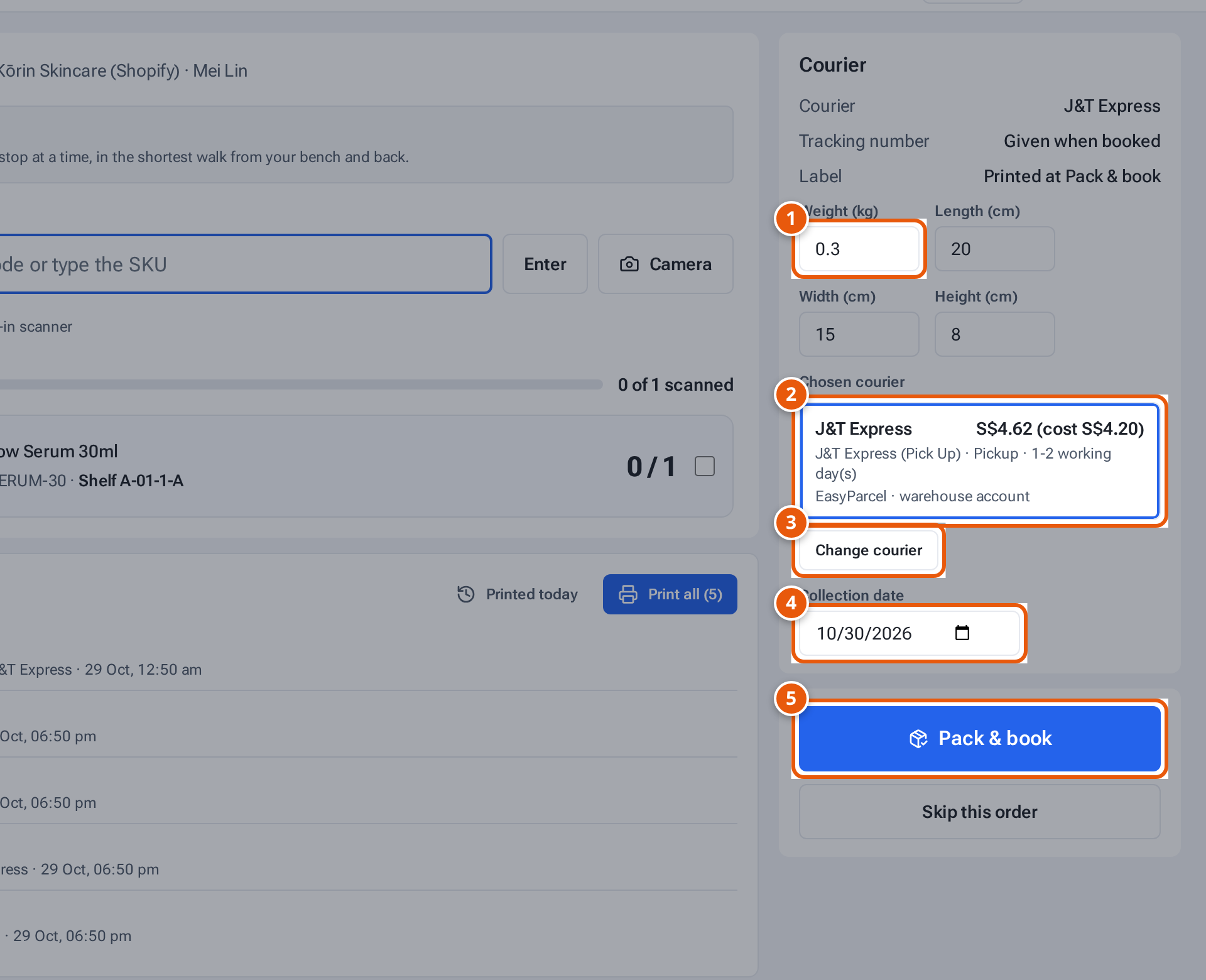
- 1. The parcel’s weight and size, filled in from the products. Check them.
- 2. The courier chosen: the seller’s preferred courier, or one of the 3 cheapest. Tap a card to switch.
- 3. Change courier lists every account and courier, the seller’s label and the other couriers.
- 4. For a pickup: the day the courier collects.
- 5. Pack & book books the courier, prints its label and sends the tracking to Shopify.
- Open the order at Pick & Pack (type its number in Find an order, for example 1071). Scan its items.
- Check Weight (kg), Length (cm), Width (cm) and Height (cm). They’re filled in from the products. Weigh and measure the parcel if they look wrong. Prices update when you leave a field.
- Check the courier. If the seller has a Preferred courier, Pick & Pack shows it as one card with its cheapest service. If not, it shows the 3 cheapest services across all courier accounts, the cheapest already chosen; tap another card to switch. Each card shows the courier and what the seller pays (the courier’s own cost beside it when different), the service with pickup or drop-off and delivery time, and the account, for example “Sing Post Express · S$4.02 (cost S$3.65) · Express · Pickup · 1 business day · Shippit · warehouse account”. To use another account or courier, tap Change courier: each account is listed once with its lowest price, for example “EasyParcel · 11 couriers · from S$2.95”. Tap an account with one courier and Pick & Pack takes its cheapest service (“Chosen courier”). Tap EasyParcel or Shippit to see each of their couriers with its cheapest service (5 at first, then Show more couriers), and tap the courier you want. EasyParcel prices are its shipping price, as on EasyParcel’s own site. The seller’s own label and the other couriers (scan tracking) are in the same list. On a phone it opens from the bottom of the screen. Services that deliver to a collection point instead of the buyer’s address aren’t offered.
- For a pickup service, check the Collection date.
- For a drop-off service, a Drop-off point is optional. Your courier collects from the warehouse, so you can pack without one; the parcel then goes out with the courier’s collection on the Collection date.
- Press Pack & book. theopsroom books the courier, packs the order, opens the courier’s label, and sends the tracking number and link to Shopify, so the buyer’s shipping email links to the courier’s tracking page. Shippit parcels get Shippit’s tracking number (it starts with PP) and Shippit’s tracking page.
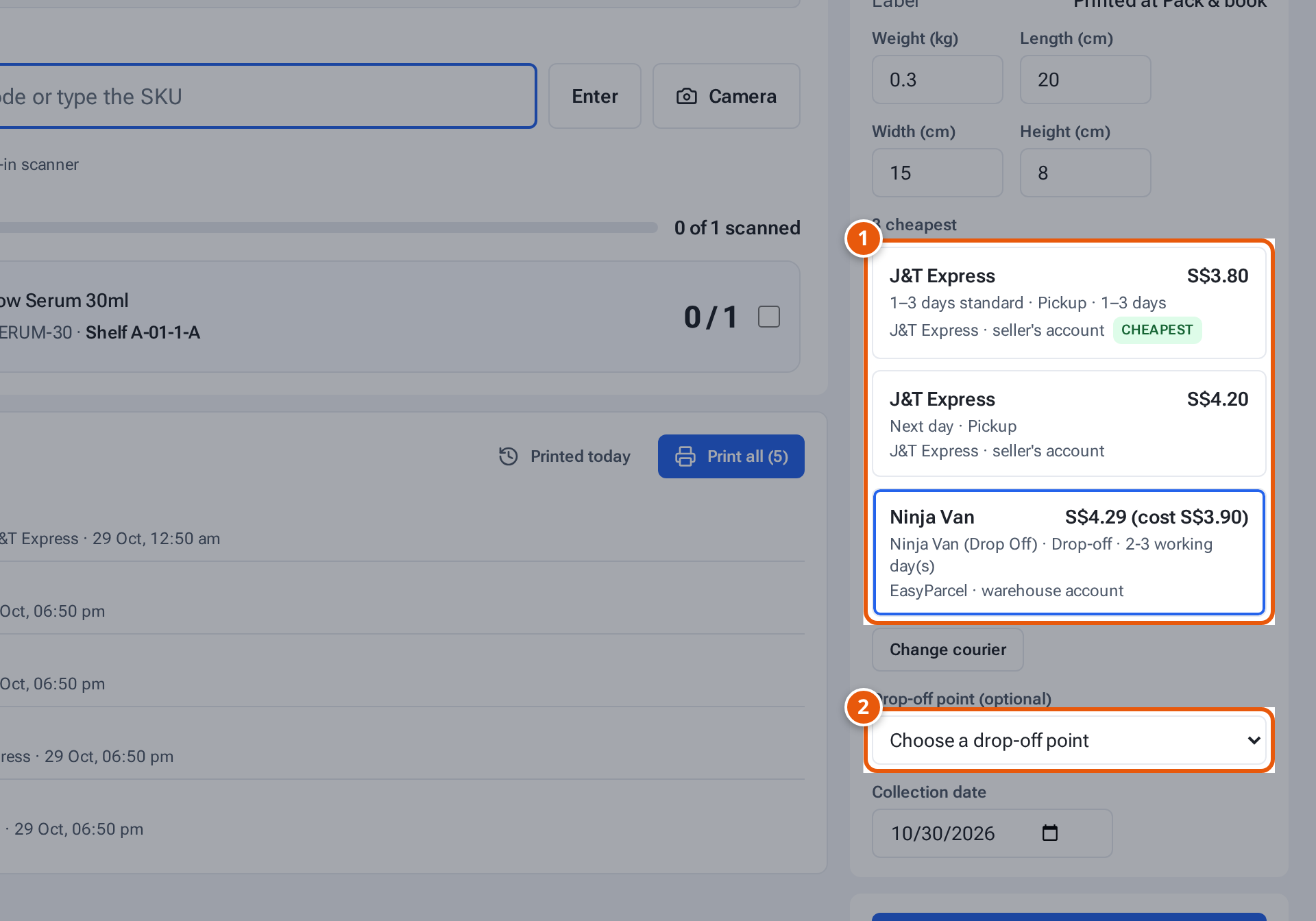
- 1. A drop-off service: the parcel can go to the courier’s point.
- 2. Choose the drop-off point you will take it to.
Drop-off parcels have their own entry in Outbound & Shipping, named for example “Ninja Van · drop-off”. Scan them there as you leave them at the point.
Use the seller’s own label
Section titled “Use the seller’s own label”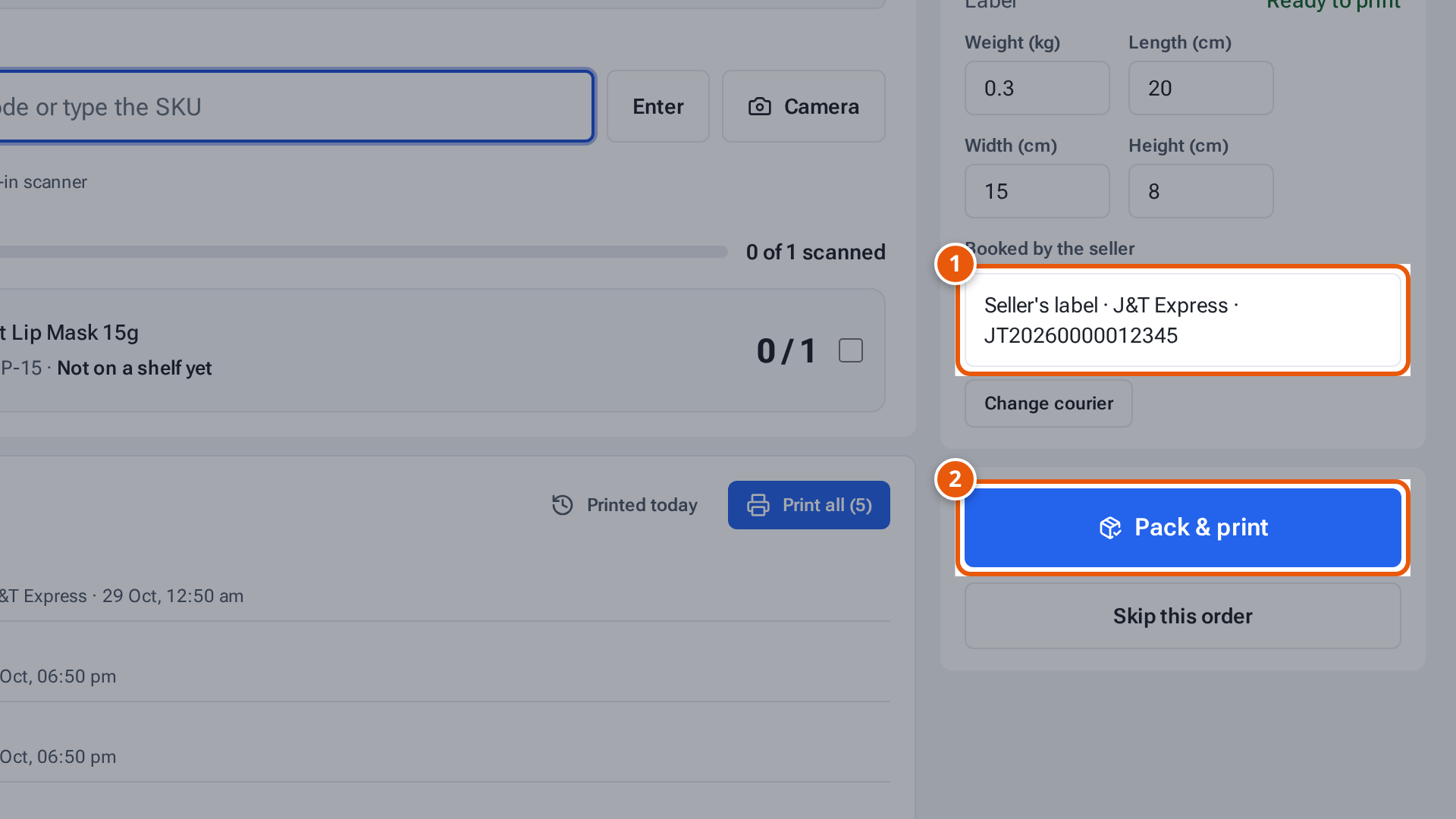
- 1. The seller’s own label is already chosen: they booked the courier themselves.
- 2. Pack & print packs the order and prints the seller’s label.
When the seller uploaded a label for the order, Pick & Pack already shows it under “Booked by the seller” (also in Change courier), for example “Seller’s label · J&T Express · JT20260000012345”. Scan the items and press Pack & print. theopsroom packs the order with that courier and tracking number and prints the seller’s label.
Use another courier
Section titled “Use another courier”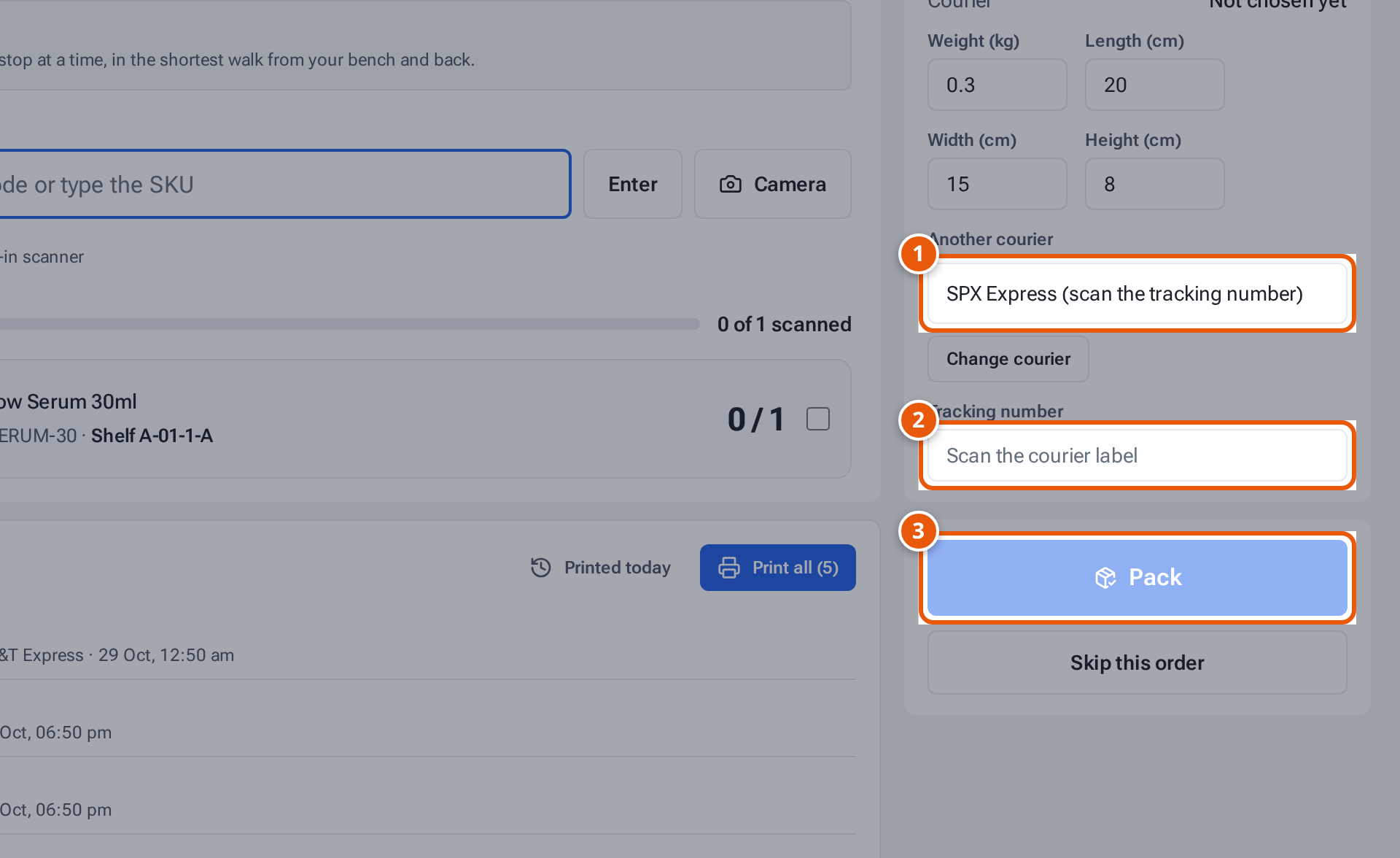
- 1. Another courier, from Other couriers in Change courier.
- 2. Scan the tracking number from the label you made on the courier’s site.
- 3. Pack records that courier and number.
- Make the label on the courier’s own site and stick it on the parcel.
- Tap Change courier and pick the courier under “Other couriers”, for example “SPX Express”.
- Scan the label’s barcode into Tracking number (“Scan the courier label”).
- Press Pack.
After packing
Section titled “After packing”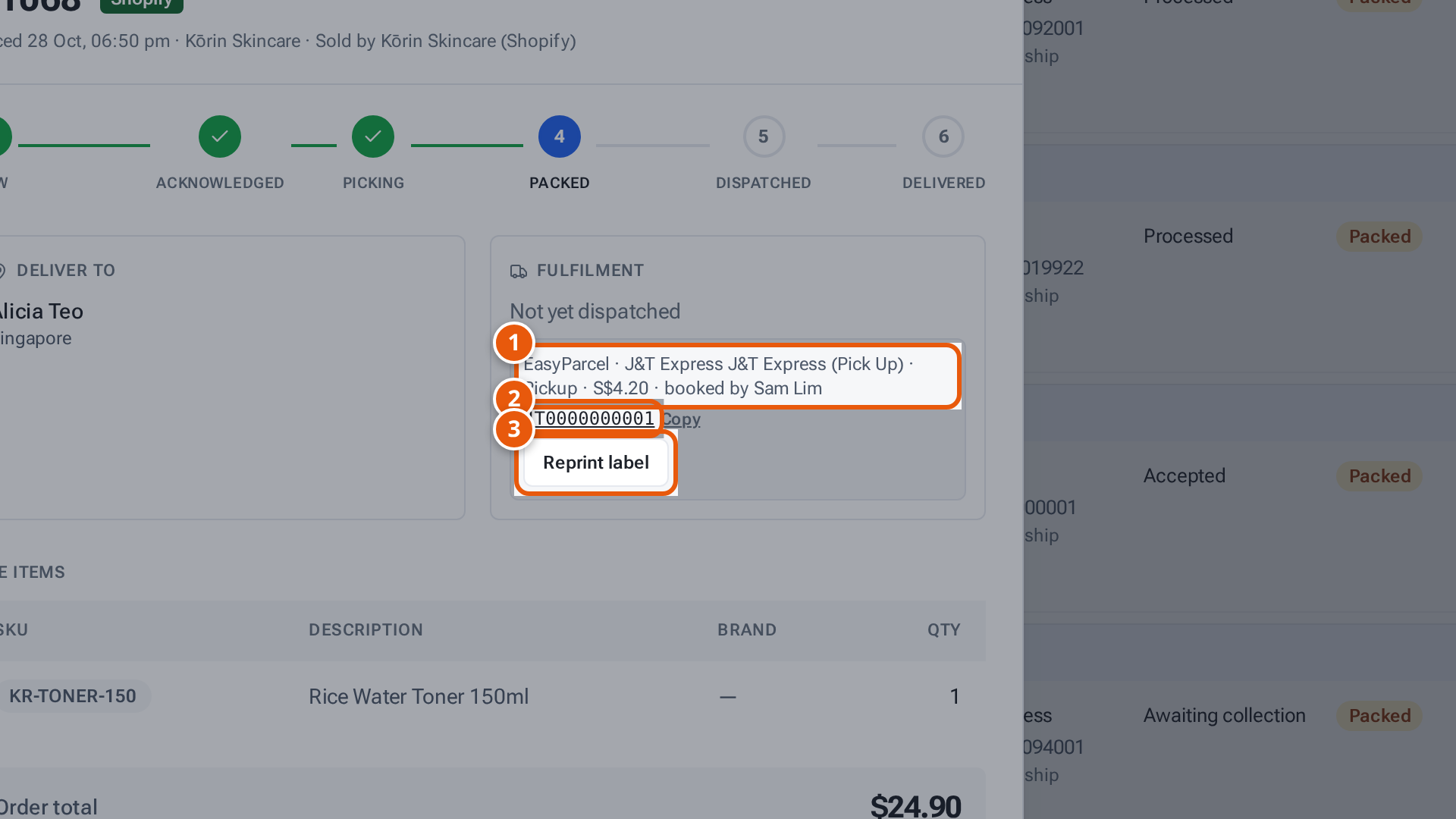
- 1. The booking: who booked it, the service, pickup or drop-off, and the price.
- 2. The tracking number. Click it to follow the parcel.
- 3. Open the courier’s label again to print it.
The order’s details show the booking, for example “EasyParcel · J&T Express J&T Express (Pick Up) · Pickup · S$4.20 · booked by Sam Lim”, the tracking number and Reprint label. The label also waits in Labels to print until it’s opened.
Wrong courier, or the buyer cancelled before the courier came? An admin can change or cancel the booking before the parcel is handed over. See Change or cancel a courier booking.
If something goes wrong: the parcel
Section titled “If something goes wrong: the parcel”| Message | Why | What to do |
|---|---|---|
| “Enter the weight” | No weight. | Weigh the parcel and type it in. |
| “Enter the parcel’s length, width and height to book” | EasyParcel needs the size. | Measure the parcel and type the sizes. |
| “Sizes should be 1–300 cm” | A size is out of range. | Check the numbers. |
| “Hydra Glow Serum 30ml still has the stand-in size from the Shopify import (0.01 kg / 1 cm). Weigh and measure this parcel, and set the real size in Products.” | The product has no real size yet. | Weigh and measure, and ask the seller to set the size in Products. |
| “No courier has prices for this parcel — choose another courier” | No courier quoted for this parcel. | Check the weight and size, or use a courier under “Other”. |
| “EasyParcel lists no drop-off points here. Your courier collects from the warehouse, so you can pack without one.” | No point nearby. | Pack as normal; the courier collects. |
| “EasyParcel ships within Singapore only” | The address is outside Singapore. | Use another courier. |
| “Shopify has no delivery address for this order” | The order has no address. | Ask the seller. |
If something goes wrong: the booking
Section titled “If something goes wrong: the booking”| Message | Why | What to do |
|---|---|---|
| “This seller has no J&T Express account — add it in Shop Connections” | The seller’s account isn’t set up. | Choose another courier, or ask an admin. |
| “This seller’s preferred courier, J&T Express, isn’t available: …” | The seller’s account didn’t answer. | Pick & Pack shows the 3 cheapest instead. Choose one, or change the courier. |
| “This seller’s preferred courier, Shippit, isn’t set up — ask an admin” | No Shippit key is saved in Settings. | Choose another courier, or ask an admin. |
| “This seller’s Shippit key doesn’t work — update it in Shop Connections” | Shippit refused the seller’s key. | Choose another courier, or ask an admin. |
| “Shippit booked it (PP…) but hasn’t given the tracking number yet — …” | Shippit is still making the label. | Wait a minute and press Pack & book again. It carries on with the same booking. |
| “Shippit didn’t confirm the last booking for #1071 — check it in Shippit; an admin can mark it cancelled to book again” | The booking’s result is unknown. | Ask an admin to check Shippit’s orders. |
| “Shippit: …” | Shippit refused (for example the address). | Read Shippit’s reason, then choose another service or courier. |
| “This order is being booked — wait a moment” | A booking is already going. | Wait, then look again. |
| “EasyParcel booked it (EI-2610-AAAAA) but hasn’t given the tracking number yet — …” | The tracking number isn’t ready. | Wait a minute and press Pack & book again. It carries on with the same booking and never books twice. |
| “EasyParcel didn’t confirm the last booking for #1071 — check it in EasyParcel; an admin can mark it cancelled to book again” | The booking’s result is unknown. | Ask an admin to check. |
| “This order has an EasyParcel booking (J&T Express) — pack it with Pack & book, or an admin marks it cancelled first” | It’s booked already. | Choose that booking and press Pack & book. |
| “This order’s EasyParcel booking was cancelled — book a courier again at Pick & Pack” | The old booking was cancelled. | Choose a courier again. |
| “Already fulfilled in Shopify — pack it without booking a courier” | The seller already shipped it in Shopify. | Pack it with a courier under “Other”. |
| “Shopify no longer has this request” | The seller withdrew it in Shopify. | Ask the seller. |
| “This seller’s label can’t be used for this order — it was removed, or belongs to another order” | The label changed. | Choose another courier, or ask the seller. |
| “Choose the courier and scan the tracking number” | “Other” courier without a tracking number. | Scan the label. |